If your Pixel 10a battery is dropping percentage points faster than it should, you've got plenty of company. Android 16 packs a lot under the hood, and sometimes a few settings or a rogue app are the real culprits. Let's walk through the fixes that actually move the needle.
Start With a Force Restart
Before digging into settings, give the phone a quick reset. Press and hold the Power button for 30 seconds, or press and hold Power + Volume Down for 10 15 seconds until the phone restarts. This clears out temporary software glitches that can cause excessive battery drain without any other explanation.
Check Which Apps Are Eating Power
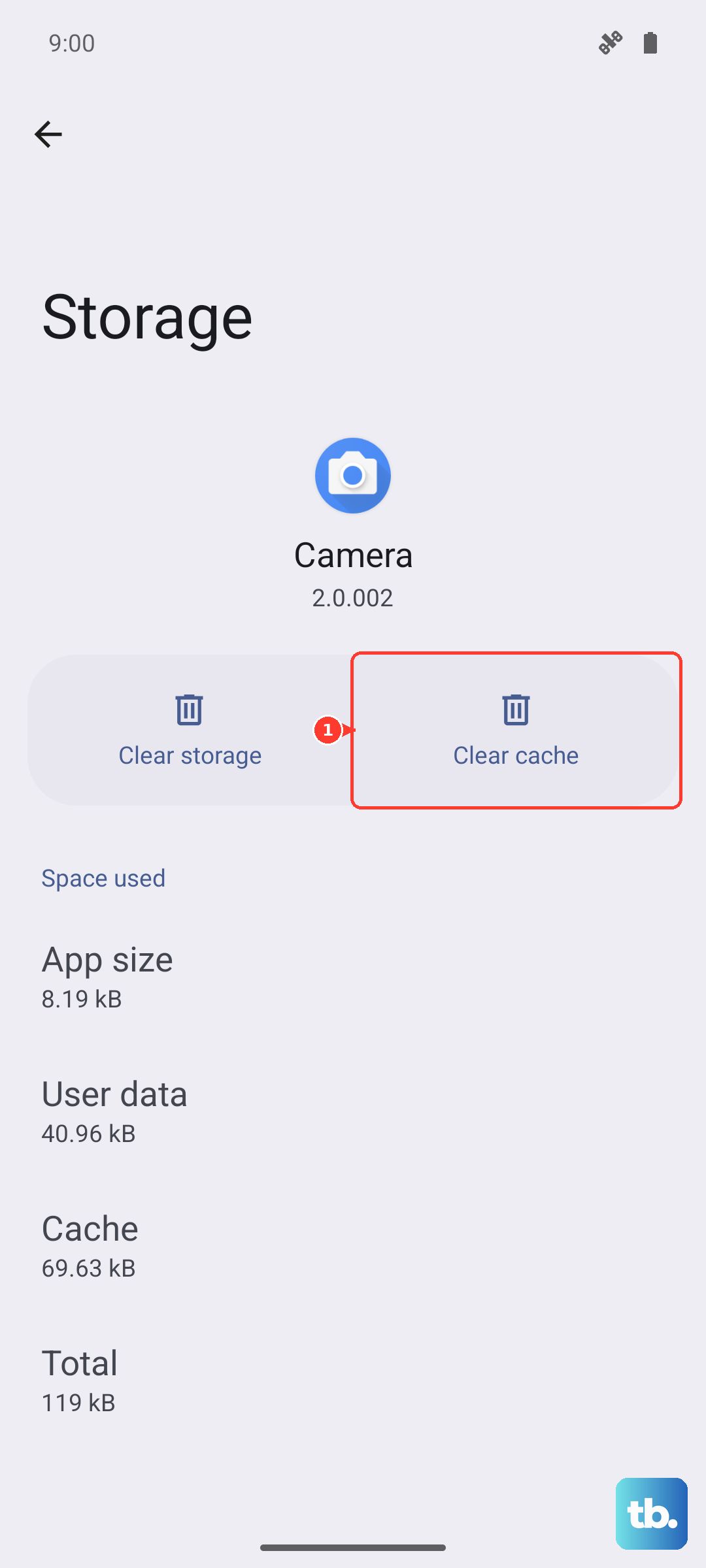
Open Settings > Battery and look at the usage graph. Tap any app to see its on-screen and background time. If you spot an app using over 25% of your battery, it's worth acting on. Update it from the Play Store, clear its cache (Settings > Apps > [app] > Storage & cache > Clear cache), or remove it entirely.
VPN apps are notorious for running in the background. If you see one hanging around the top of the list, toggle it off and see if battery life improves.
Turn On Adaptive Battery
Adaptive Battery learns which apps you rarely use and restricts their background activity. Go to Settings > Battery > Adaptive preferences and make sure Adaptive Battery is enabled. It's one toggle that can buy you hours of extra life without any daily inconvenience.
Dial Down the Screen
The display is the biggest power draw on any phone. On the Pixel 10a's OLED panel, using Dark Mode saves real juice. Head to Settings > Display > Dark theme and turn it on. While you're there, lower the brightness slider and set the screen timeout to 30 seconds under Sleep.
If you don't need the screen to turn on every time you pick up the phone, disable Lift to check phone in Display settings. Every wake-up costs a little battery.
Rein In Location and Background Activity
Location services are one of the most silent battery hogs. Open Settings > Location > App location permissions and set apps you don't need tracking to Deny or While using the app only. For system-level location, go to Location > Location services and disable Google Location Accuracy if you're okay with slightly less precise positioning.
Background app refresh (called "Background data" on Android) can be managed per app. Under Settings > Apps > [app] > Mobile data & Wi-Fi, toggle off Background data for apps that don't need to sync constantly.
Stop Unnecessary Radios From Searching
Bluetooth and Wi-Fi scanning run in the background even when you think they're off. Go to Settings > Location > Location services, tap Wi-Fi scanning, and turn it off. Do the same under Settings > Location > Location services > Bluetooth scanning for Bluetooth scanning.
If you're not using Bluetooth, toggle it off from Quick Settings. The same goes for mobile data when you're on Wi-Fi. Your phone won't spend battery hunting for a cellular signal.
Check Google Assistant and Always-On Features
If you rarely use voice commands, stop the phone from listening for "Hey Google." Open the Google app, tap your profile picture > Settings > Google Assistant > Hey Google & Voice Match, and turn it off.
Also, disable the Always-On Display if you don't need it. Go to Settings > Display > Lock screen and toggle off Always show time and info. That alone can save 1 2% per hour.
Update to the Latest Android 16 Build
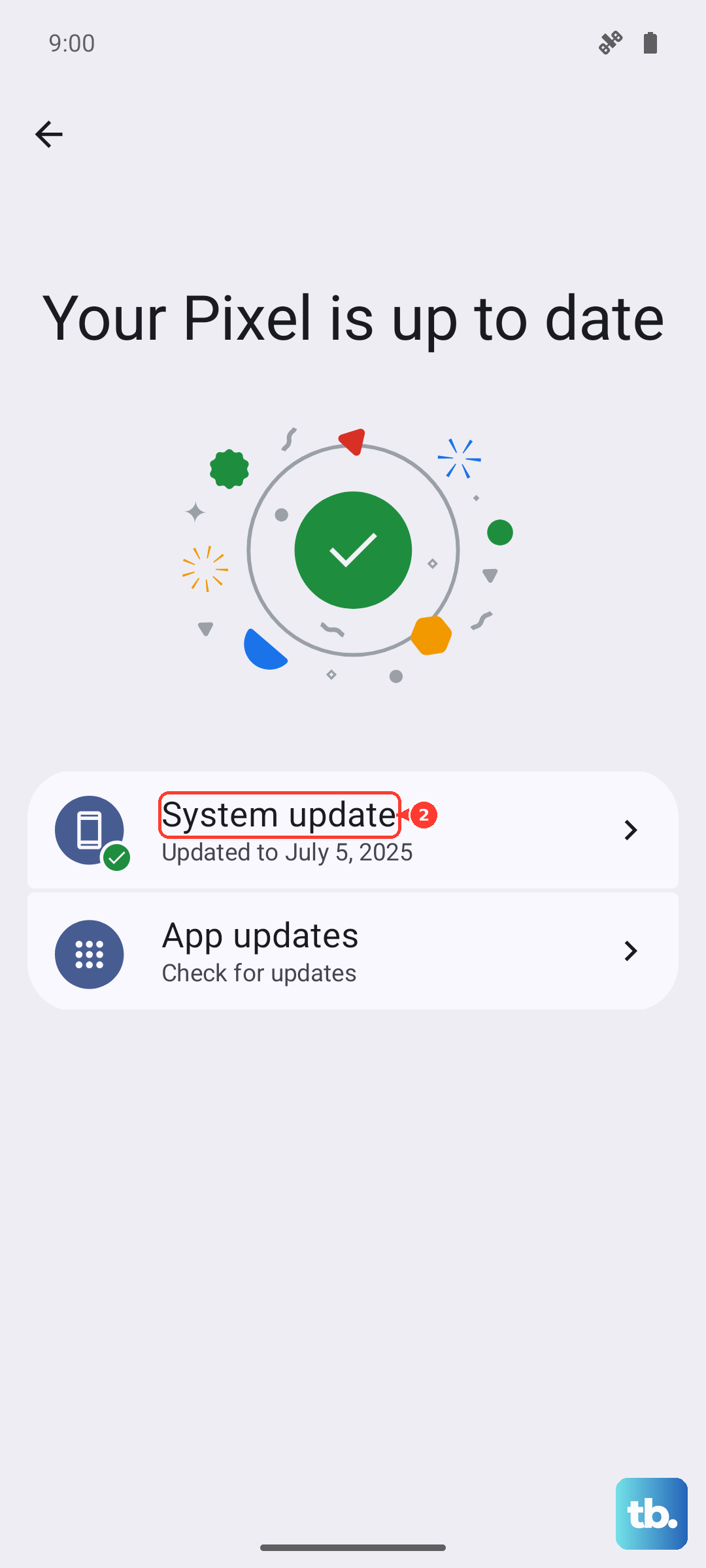
Google often pushes battery optimizations in monthly updates. Go to Settings > System > System update and tap Check for update. If one is available, install it. A recent patch might fix exactly the drain you're seeing.
Keep the Charging Port Clean (It Matters for Heat)
A clogged USB-C port can cause poor connections during charging, which makes the phone work harder and run hotter. Overheating triggers charging slowdowns and can shorten battery life over time. Gently clean the port with a wooden toothpick or a blast of compressed air.
For the fastest, most efficient wired charging, use a 45W USB-C PPS charger. It delivers the Pixel 10a's top speed with less heat than a generic charger. If your port is acting up, a Qi wireless charger (the Pixel 10a supports up to 10W) works as a reliable backup.
Reset App Preferences or the Whole Phone
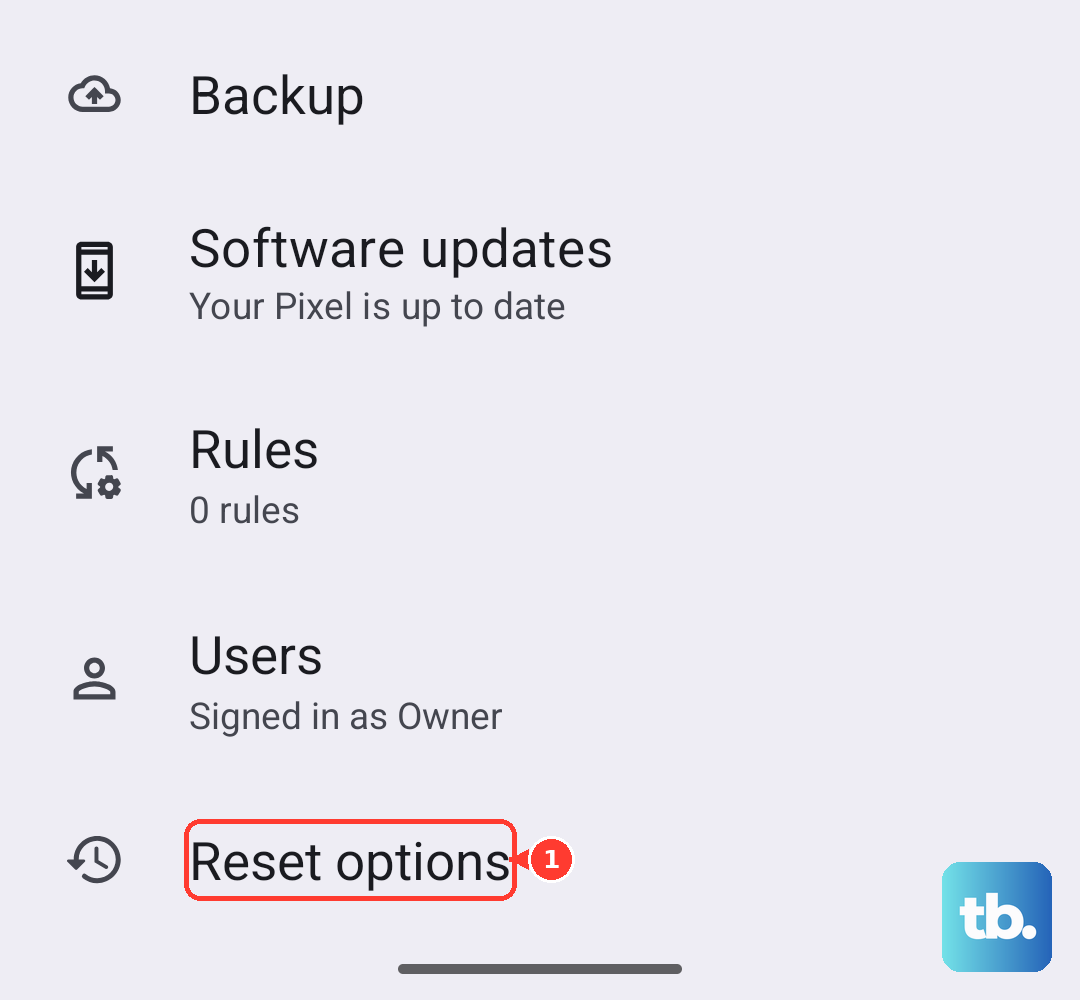
If you've tried everything and the drain persists, resetting app preferences won't delete any data but will restore default permissions and disabled apps. Go to Settings > System > Reset options > Reset app preferences.
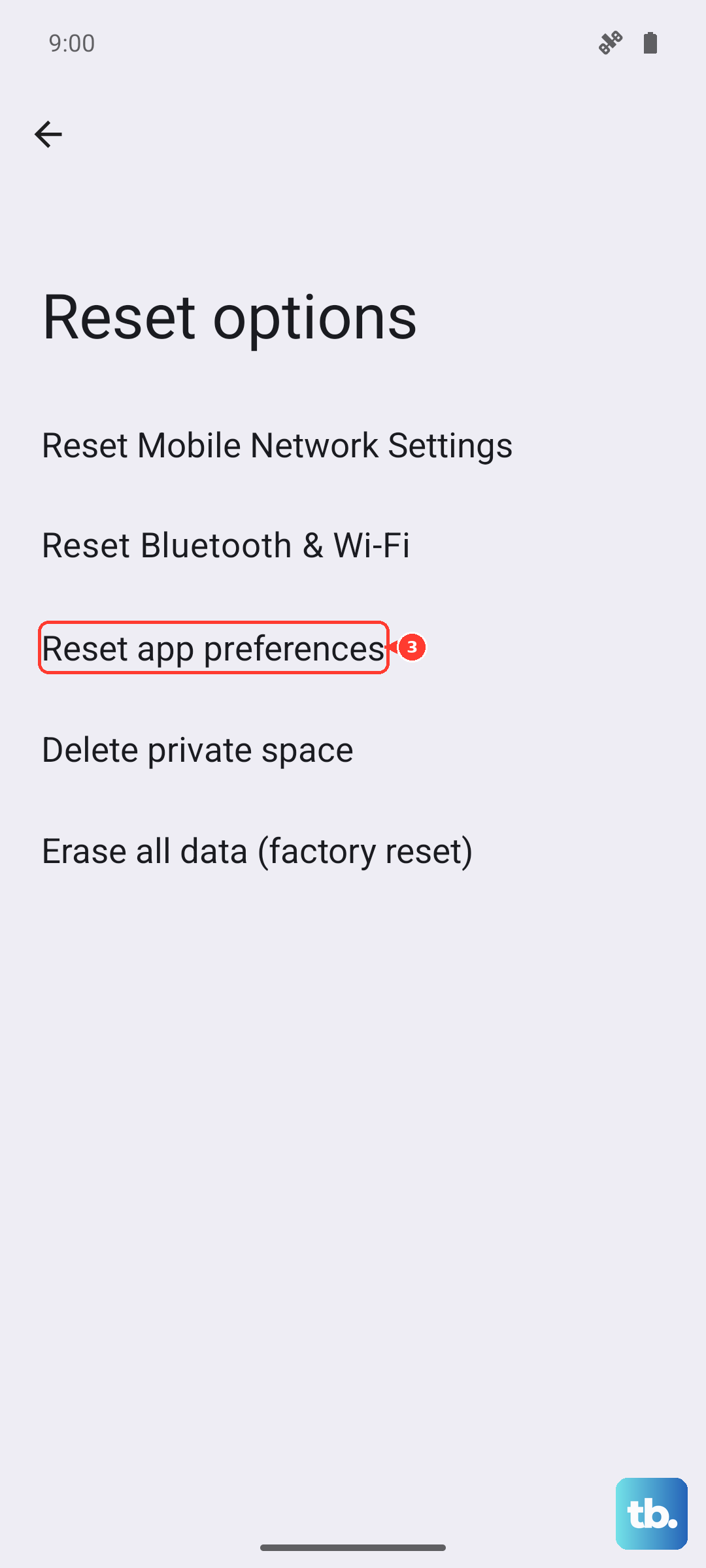
As a last resort, a factory reset wipes everything and gives you a clean slate. Back up your photos and files first, then go to Settings > System > Reset options > Erase all data (factory reset). After the reset, restore only the essentials and see if battery life returns to normal.