
Your Google Pixel 10 Pro XL has all the hardware for blazing-fast internet, so it's extra annoying when pages crawl, videos buffer, or downloads stall out. Usually it's not a hardware problem, it's a setting, a cache, or a network hiccup that's easy to fix. Let me walk you through the most common culprits and what actually works.
Clear Chrome's Cache First
Chrome on Android 16 accumulates browsing data, cookies, and cached images over time. That buildup can slow things down noticeably. Start here because it's quick and it resolves a lot of random slowness.
Open Chrome, tap the three-dot menu, and go to Settings > Privacy and security > Clear browsing data. Make sure Cookies and site data and Cached images and files are both checked, then tap "Clear data." You'll lose saved logins on some sites, but that's a minor trade-off for faster loading.
Turn On Data Saver
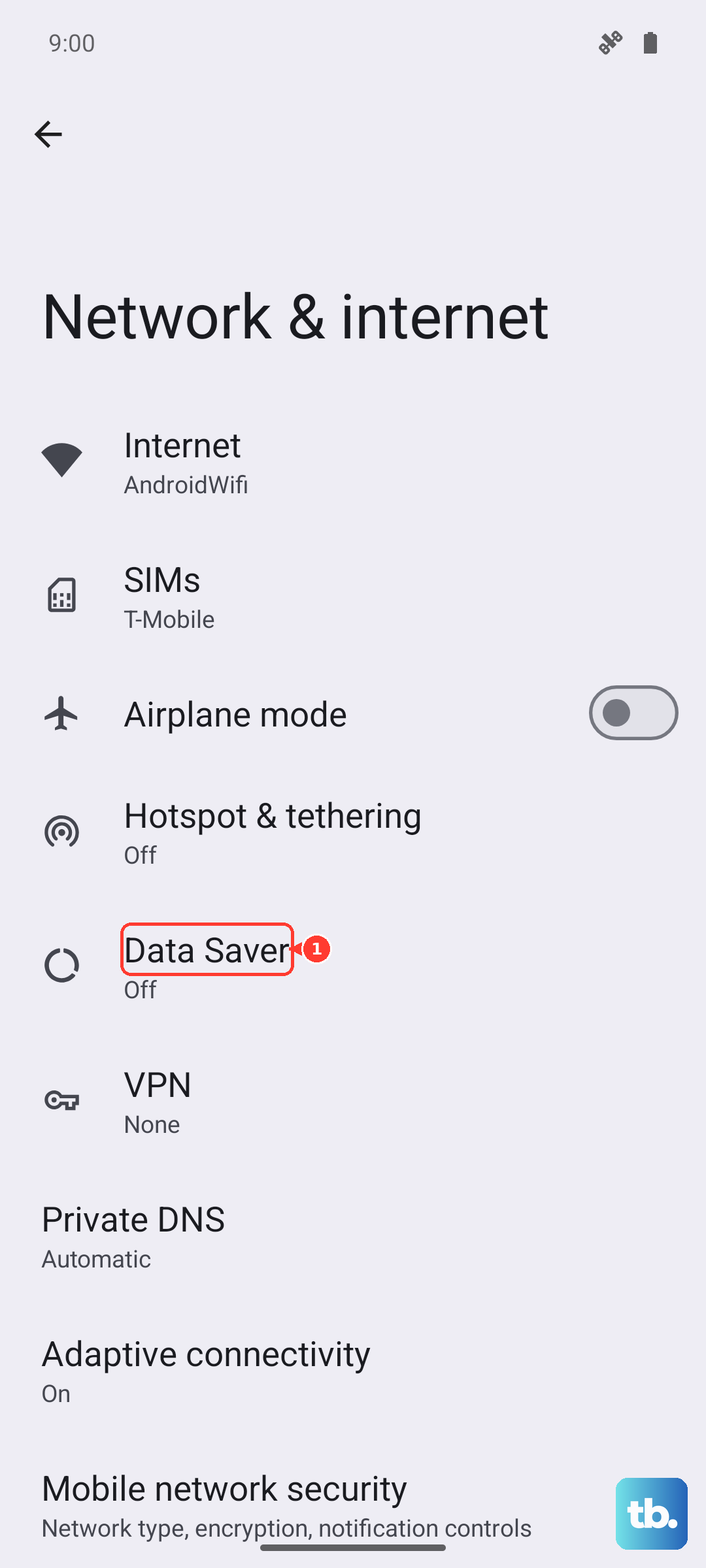
Android 16 includes a built-in Data Saver mode that blocks background data usage for most apps. It won't throttle anything you're actively using, but it prevents apps like Instagram or Gmail from quietly eating bandwidth while you're trying to stream.
Head to Settings > Network & internet > Data Saver and toggle it on. You can set it to "Unrestricted data" for specific apps if one of them actually needs background sync, just tap "Unrestricted data" and pick the exceptions.
Close the Overheating Loop
The Pixel 10 Pro XL is known to throttle its radio performance when the phone gets too hot. If your internet slows down after wireless charging or while you're gaming, heat is likely the culprit. Remove the case, and move the phone out of direct sunlight.
If your phone actually shuts off while charging, give it a few minutes to cool before you even try to use it. Performance drops significantly above 40 degrees Celsius, so let it rest.
A full force restart can also clear any stuck thermal limiting, press and hold the Volume up and Power buttons simultaneously for 10 seconds, then release when the device restarts.
Check Your Network Mode
The Pixel 10 Pro XL defaults to 5G, but 5G in a low-coverage area can actually be slower than LTE. The phone hops between bands, and sometimes it gets stuck on a weak 5G signal.
Go to Settings > Network & internet > SIMs > Preferred network type. Set it to "LTE" for a few days and see if your speeds stabilize. If they do, 5G coverage in your area is the problem, not the phone.
Disable Any Active VPN
VPNs reroute all your traffic through a remote server, and that usually adds latency and reduces throughput. If you've got a VPN app running, even a free one or a work VPN, try turning it off temporarily from Settings > Network & internet > VPN.
If your speeds jump back up, you know the VPN is the bottleneck. Some providers are slower than others, especially during peak hours.
Reset Network Settings
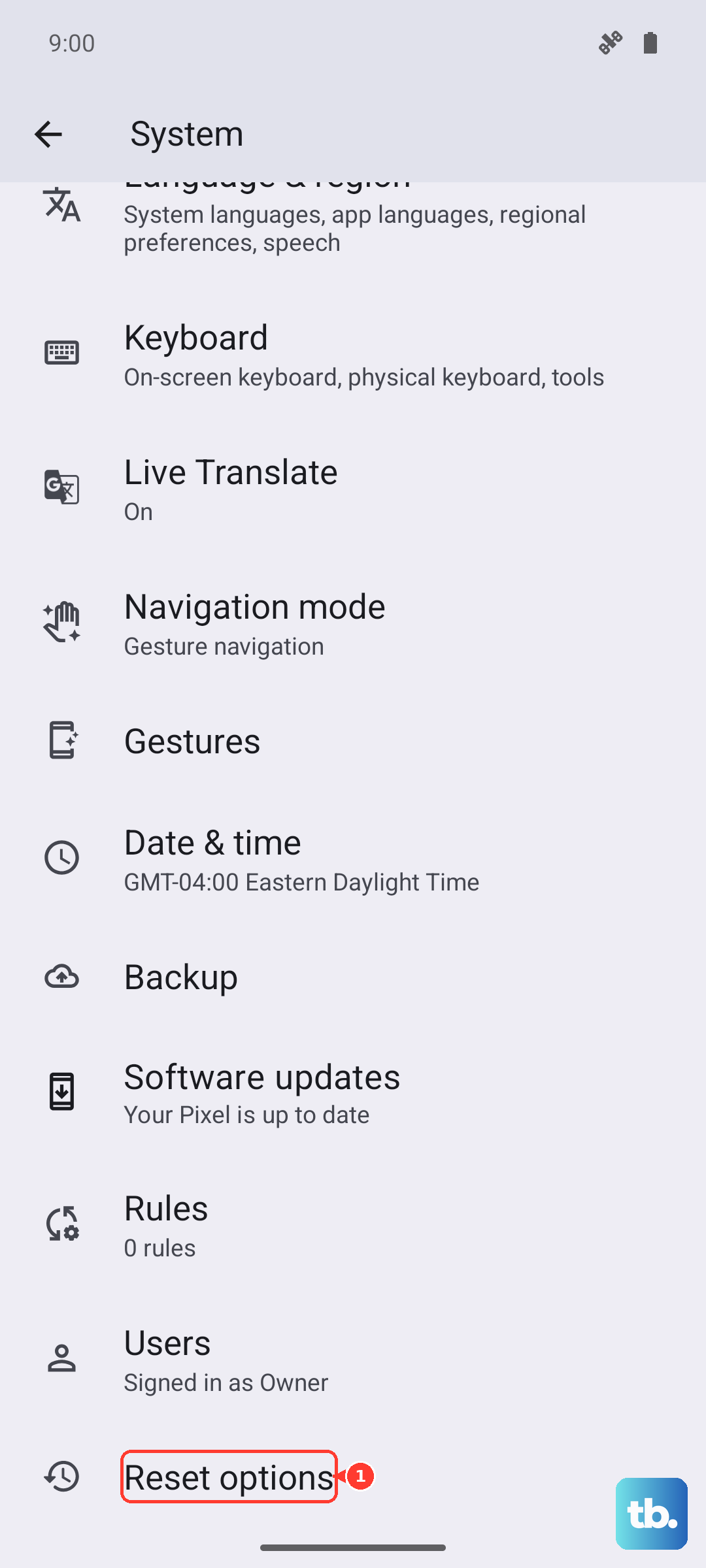
If you've tried everything and the Pixel's internet is still sluggish, resetting the network settings clears out any corrupted configurations, saved WiFi networks, and Bluetooth pairings. This is a nuclear option for the networking stack, but it works.
Go to Settings > System > Reset options > Reset Wi-Fi, mobile & Bluetooth. Confirm the action. The phone will restart, and you'll need to reconnect to your WiFi and pair your Bluetooth devices again, but it often fixes persistent slow data issues.
Keep Android 16 Updated
Google pushes monthly security and performance patches. Some of those patches specifically fix modem driver bugs that can cause slow data speeds. Open Settings > System > System update and check if an update is pending, install it and restart.
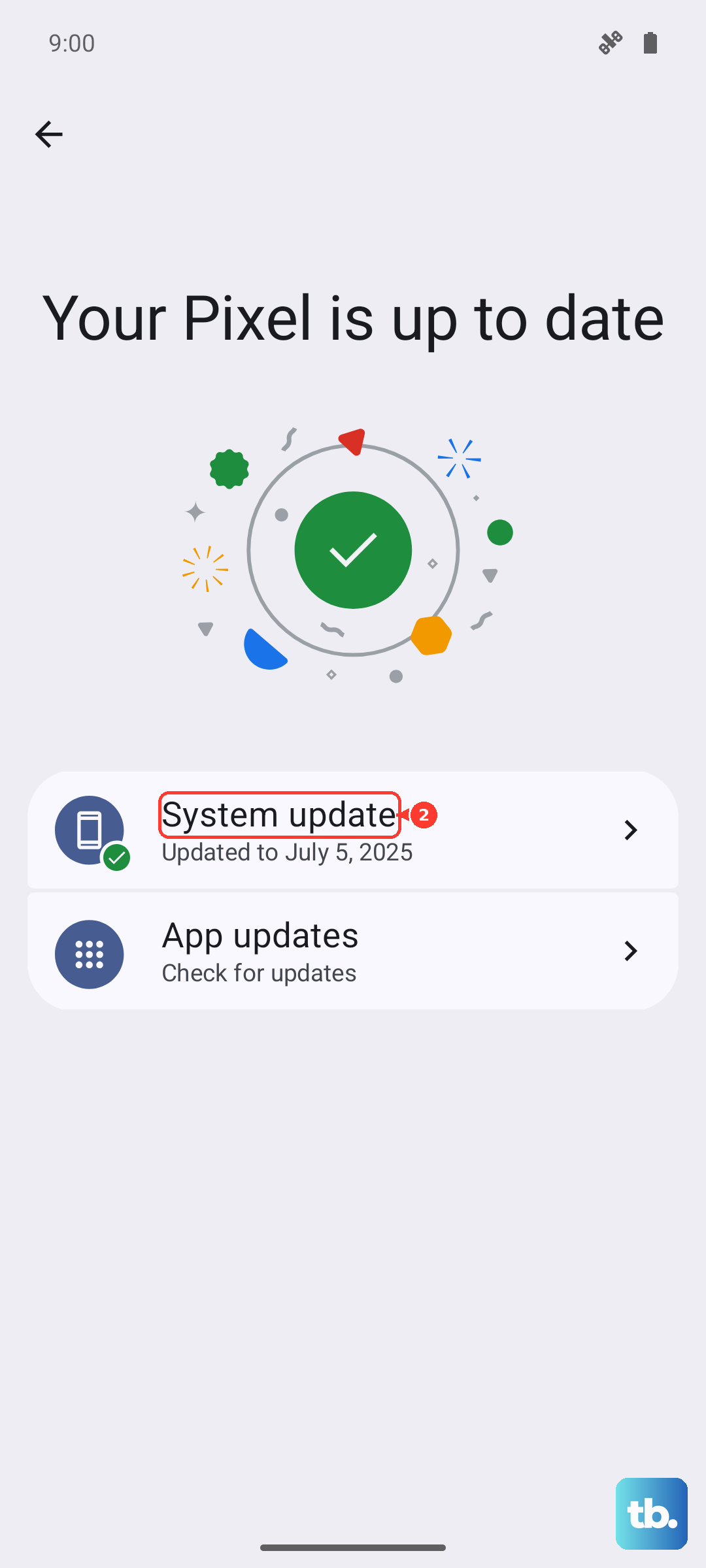
I'd also recommend checking the Google Play System update in the same menu. That's a separate layer that handles carrier services and connectivity components.
Kill Background App Refresh for Problem Apps
Some apps just love using data in the background even when you're not looking. Open Settings > Apps > See all apps, tap an app that feels data-hungry, then tap Mobile data & Wi-Fi and toggle "Background data" off. Repeat for streaming apps, news apps, or anything that doesn't need to refresh when you're not using it.
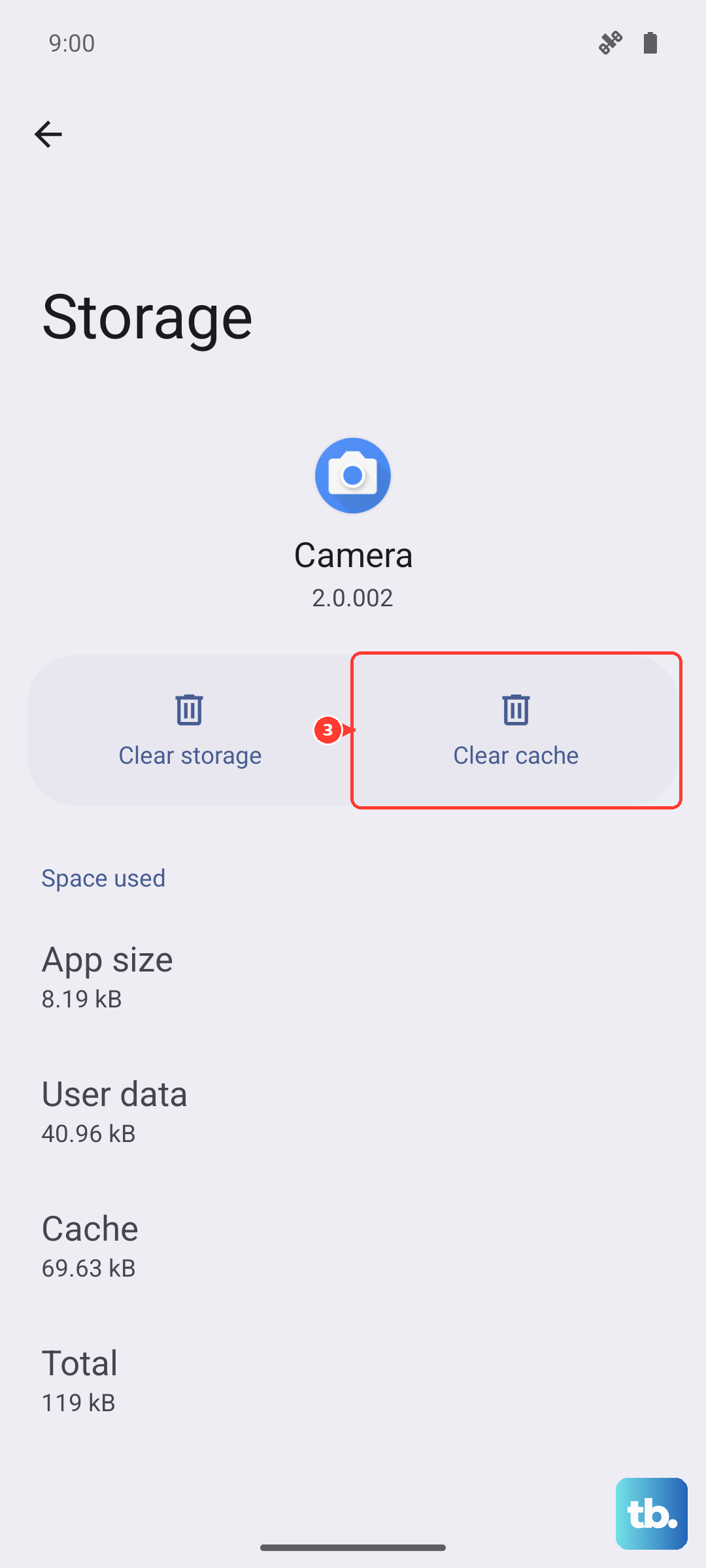
For Google Play Services specifically, which can sometimes misbehave, go to Settings > Apps > Google Play Services > Storage & cache > Clear cache. That's a safe cleaning that won't affect your account data.
Check the Date and Time Settings
Incorrect date and time can break the encrypted connections your Pixel uses for HTTPS traffic, which effectively kills modern web browsing. Head to Settings > System > Date & time and make sure "Set automatically" is turned on. It takes two seconds and it's way more common than you'd think.
Use Lite Mode or Reader View
When you're on a slow connection, switch Chrome to the simplified view. While a dedicated Lite mode isn't built into Chrome on Pixel, you can still open the three-dot menu on a slow page and tap "Desktop site" off, then look for the "AA" icon in the address bar and select "Reader." That strips images and scripts and loads just the text.
For a bigger data savings, consider turning on the "Lite mode" flag in Chrome, but really, Data Saver in system settings does the same thing without needing to flip experimental flags.
Most of these adjustments take less than a minute each. Start with clearing the Chrome cache and checking the network mode, those two alone fix the majority of slow internet reports on the Pixel 10 Pro XL.