
Try a Force Restart First
Press and hold the Volume up and Power buttons simultaneously for 10 seconds, then release when the device restarts. This often kicks a frozen screen back to life without losing any data.
I've seen this work on most Pixel models when the screen stops responding after a software hiccup. Hold it firmly and don't let go early.
Is the Phone Too Hot?
The Pixel 10 Pro XL has a known issue with overheating during charging, and excessive heat can make the touchscreen unresponsive. Remove the phone case right away to improve heat dissipation.
Let the phone sit for five minutes in a cooler spot. If you were charging when the screen froze, unplug it immediately and wait before trying the force restart again.
Boot Into Safe Mode
Safe mode disables all third-party apps, so you can check if a recent download is causing the screen to ignore your taps. Press and hold the Power button and Volume Up button together until the power menu appears, then touch and hold Power off until the Safe mode prompt shows up.
Tap OK to confirm. If the screen works fine in safe mode, uninstall the last few apps you added before the issue started.
Keep the Software Up to Date
Android 16 has received several patches since launch, and some have addressed touchscreen responsiveness. Go to Settings > System > System update and check for any pending updates.
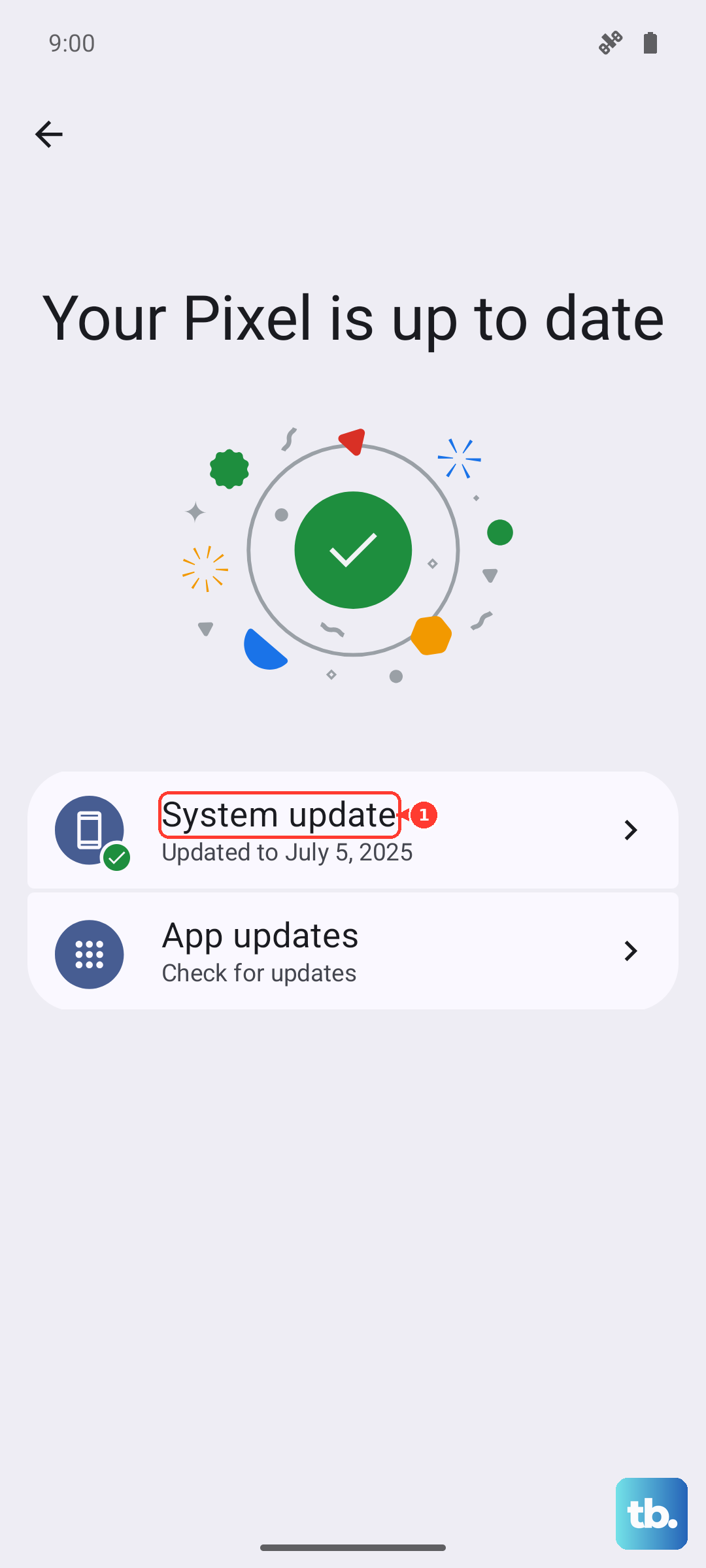
If an update is available, install it and restart the phone. This fix is particularly helpful if the screen became unresponsive after a previous update went wrong.
Remove Any Screen Protector
A poorly fitted or thick screen protector can interfere with the touch sensor on the Pixel 10 Pro XL. Try peeling it off and testing the screen without it.
Some third‑party protectors don't play well with the under‑display fingerprint sensor, and they can also cause dead zones on the touchscreen. If the screen works after removal, look for a Pixel‑specific protector with better compatibility.
Factory Reset as a Last Resort
This erases all your personal data, so back up anything important first. Go to Settings > System > Reset options and tap Erase all data (factory reset).
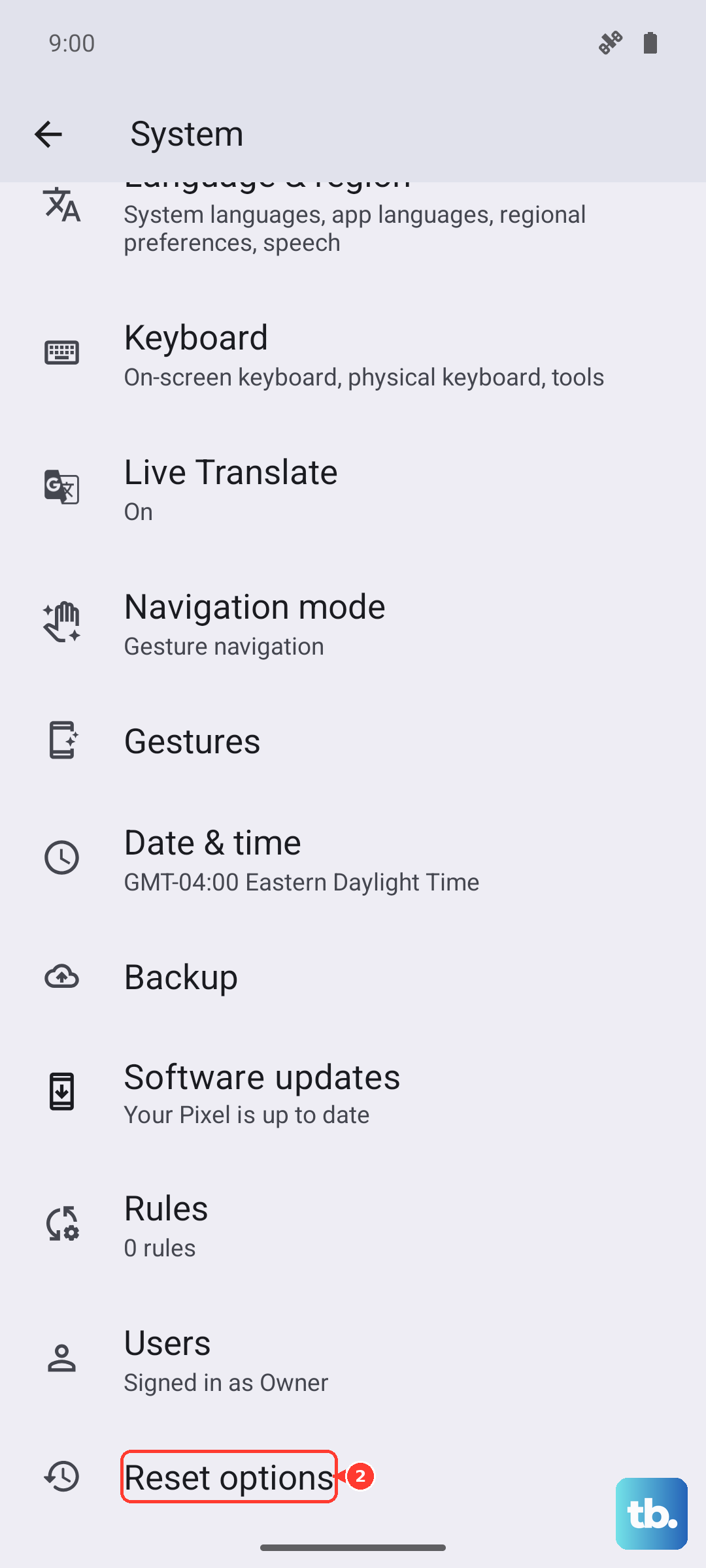
Follow the on‑screen prompts to confirm. After the reset, set up the phone as new and see if the screen starts responding properly. I'd only do this if nothing else has worked.
Check Wireless Charging Alignment
Qi2 charging on the Pixel 10 Pro XL requires precise centering on the pad. If the screen becomes unresponsive while wirelessly charging, remove the phone and check that the coil is aligned correctly.
Misalignment can cause intermittent power delivery and weird touch behavior. Center the phone on the pad and listen for the charging chime to confirm proper connection.
Inspect for Hardware Damage
If you've dropped the phone recently, internal cables may have come loose, especially around the screen connector or the USB‑C port. Check the port for debris or bent pins.
For wireless charging issues, try a 30W+ USB‑C PPS charger on a wired connection to rule out a faulty wireless coil. If the screen stays dead after all these steps, the display itself may need professional repair.