Your Pixel 10 Pro XL is a speed demon on paper, but sometimes software hiccups or storage bloat can make it feel sluggish. Stuttering menus, slow app launches, and touch delays are usually fixable without a trip to the repair shop.
Most lag issues boil down to a handful of common triggers on Android 16. Let's run through the solutions that actually work.
Force restart your Pixel
If the phone is completely frozen or just acting weird, a force restart clears out temporary system junk. It's the first thing I try when my own Pixel starts acting up.
Press and hold Volume up and the Power button simultaneously for about 10 seconds. Keep holding it. The screen will go black, then you'll see the Google logo. Release the buttons and let it boot up normally. This alone fixes a surprising number of lag issues.
Free up storage space
Android needs a certain amount of free space to run smoothly. When your internal storage gets close to full, the system starts to choke. This is probably the most common cause of lag on the Pixel 10 Pro XL.
Open the Files by Google app. It has a built-in cleaner that suggests junk files, old screenshots, and blurry photos to delete. You can also go to Settings > Storage to see exactly what's taking up space. Aim to keep at least 10-15GB free for peak performance.
Close apps you aren't using
Too many apps sitting open in the background can drain RAM and processing power. Swipe up from the bottom of the screen, hold for a second, and you'll see your open apps carousel. Swipe left or right to find apps you don't need, then swipe them up to close them.
If you make this a habit, your phone will feel snappier throughout the day.
Check for a system update
Google frequently pushes Android 16 updates that squash bugs causing stutter and lag. It only takes a minute to check.
Head to Settings > System > Software Update. If there's a pending update, download and install it. A lot of performance complaints disappear after a monthly patch.
Restrict background activity for heavy apps
Some apps are battery hogs and demand constant CPU time. You can check which ones are causing trouble right in the settings.
Go to Settings > Apps > See all apps. Tap on an app that seems to be draining your battery or data, then tap Restrict background activity. This prevents it from running wild when you aren't using it, freeing up resources for the stuff you're doing right now.
Turn down animations
Android's fancy window animations look nice, but they can make the phone feel slower than it really is. Speeding them up or turning them off gives that instant snappy response you're looking for.
First, unlock Developer Options. Go to Settings > About Phone and tap Build Number seven times. Then go to Settings > System > Developer Options. Find Window animation scale, Transition animation scale, and Animator duration scale. Set all three to 0.5x or turn them off entirely.
Watch the temperature
The Pixel 10 Pro XL is known to heat up during charging or intensive tasks. When the processor gets too hot, it throttles down to protect itself, which causes lag and stutter.
If your phone feels warm, take off the case before charging. Stick to a 30W or higher USB-C PPS charger for the most efficient power delivery. Avoid using the phone while it's plugged in, especially for gaming or video calls. For wireless charging, make sure the phone is perfectly centered on the Qi2 pad or it won't charge efficiently and will heat up.
Use Pixel's supported performance checks
Use Google's Pixel troubleshooting flow instead of a recovery-cache wipe. Restart the phone, install any update under Settings > System > Software update, then check Settings > Storage and free space if storage is low.
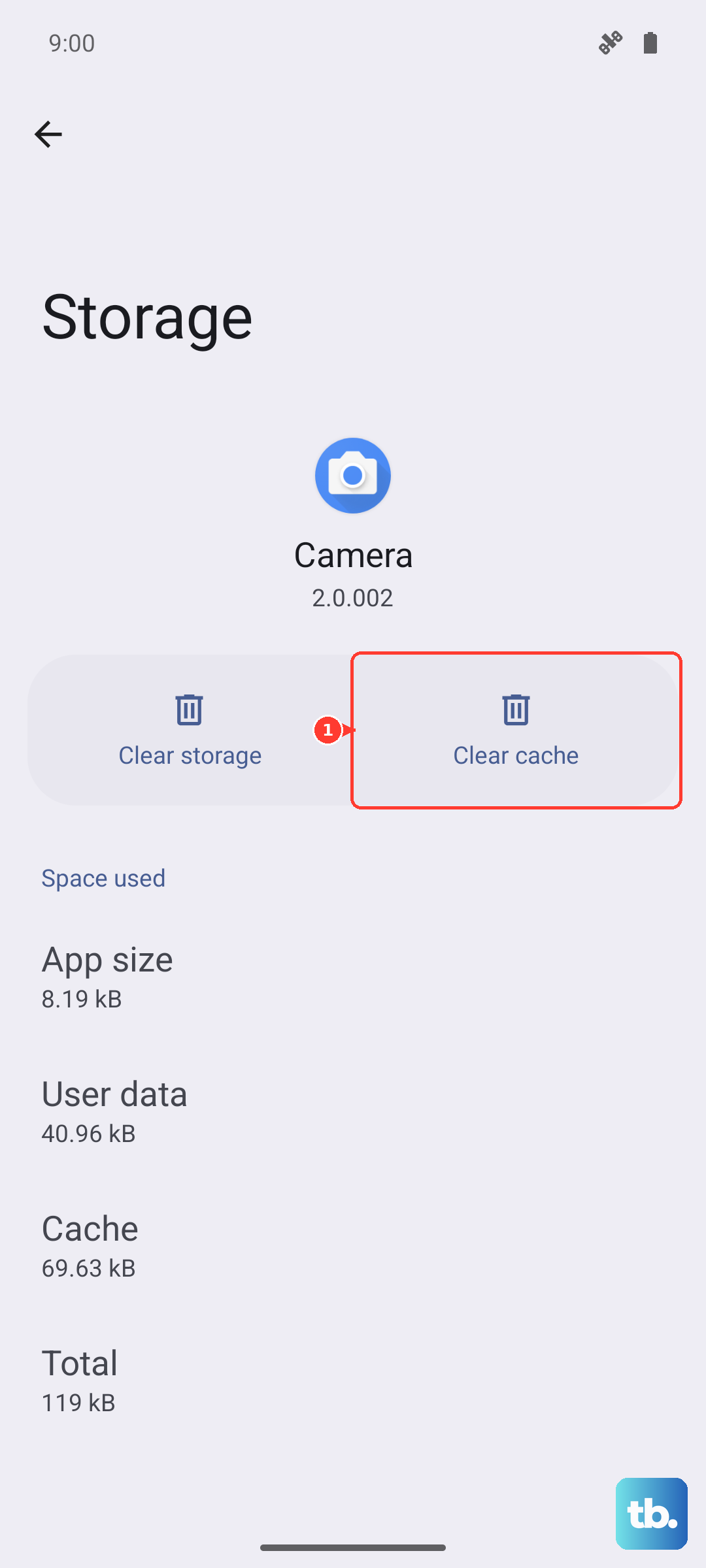
If the lag happens in one app, open Settings > Apps > See all apps, choose that app, then tap Storage & cache > Clear cache. If the issue continues, update the app and test in Safe mode to rule out a downloaded app conflict.
Reset app preferences
If your phone is laggy because apps are crashing or misbehaving, resetting app preferences can help. This doesn't touch your personal data or app files.
Go to Settings > Apps > See all apps. Tap the three dots in the corner and select Reset app preferences. It resets disabled apps, notification settings, and default apps back to their original state, which can clear up software conflicts.
Factory reset your device
If you've tried everything and the phone is still dragging, a factory reset will wipe the slate clean. It's the closest thing to a fresh start.
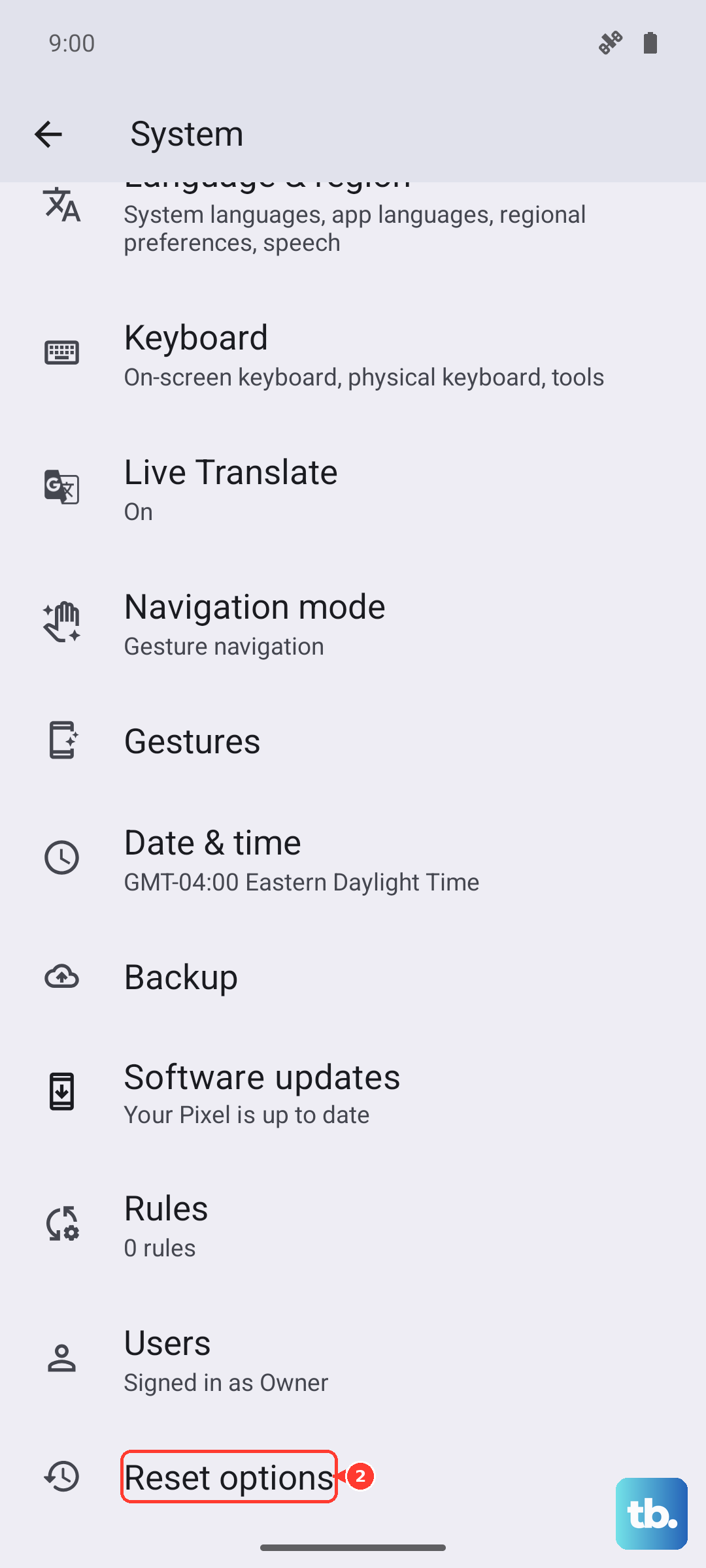
Make sure you back up your photos, contacts, and files first. Go to Settings > System > Reset options > Erase all data (factory reset). After it wipes the phone, set it up as new without restoring an old backup to see if the performance improves. This eliminates any lingering software issues.