
When your Google Pixel 10 Pro XL won't play audio through your headphones, wired or wireless, it's hard to ignore. The phone might keep blasting sound through the speaker, fail to detect your earbuds, or produce garbled audio. Let's walk through the fixes that actually help.
It helps to confirm what actually works before changing settings. Run a left and right audio test, note which channels and frequencies play correctly, and match the result against the steps below.
Make Sure It's Not the Headphones
Before diving into phone settings, check that your headphones work on another device. If they don't work on anything, you've found the problem. If they work fine elsewhere, the issue is with your Pixel.
Force Restart the Pixel 10 Pro XL
Press and hold the Volume up and Power buttons simultaneously for 10 seconds, then release when the device restarts. This is the Android equivalent of a hard reboot and clears temporary glitches that mess with audio routing. I've seen this fix headphone detection issues more often than you'd expect.
Check the Volume and Media Output
With your headphones connected, press the Volume Up button on the side of your Pixel and make sure the slider isn't at zero. Open Settings > Sound & vibration and look at the Media volume setting specifically. On Android 16, you can also expand the volume panel by tapping the three-dot menu to see separate sliders for media, calls, and alarms.
Clean the USB-C Port Thoroughly
The Pixel 10 Pro XL uses USB-C for wired headphones, and pocket lint loves to collect in that port. Grab a wooden toothpick or a soft plastic pick and gently scrape around the inside walls. Don't use anything metal. Compressed air can also dislodge stubborn debris. A clean port is the number one fix for wired headphones that stop working.
Forget and Re-Pair Bluetooth Headphones
Head to Settings > Connected devices and tap your headphones' name. Select Forget to remove the pairing. Then put your headphones back in pairing mode and connect fresh. A corrupt Bluetooth profile is a common culprit, and a clean connection wipes it out.
Toggle Bluetooth Off and Back On
Pull down the Quick Settings panel and tap the Bluetooth icon to turn it off. Wait about 10 seconds, then tap it again. This refreshes the underlying Bluetooth stack and can resolve connection hiccups without needing to forget any devices.
Check the Audio Output Destination
Sometimes Android routes audio to the wrong place. When you play music or a video, tap the Media output tile in Quick Settings. A list of available outputs will pop up, make sure your headphones are selected, not the phone speaker or another device.
Remove the Phone Case While Charging
This one is specific to the Pixel 10 Pro XL. The phone is known to overheat and shut off while charging, and a thick case traps even more heat. If you're using wired USB-C headphones while charging, pull the case off. Less heat means fewer thermal shutdowns and glitches.
Update Android and Apps
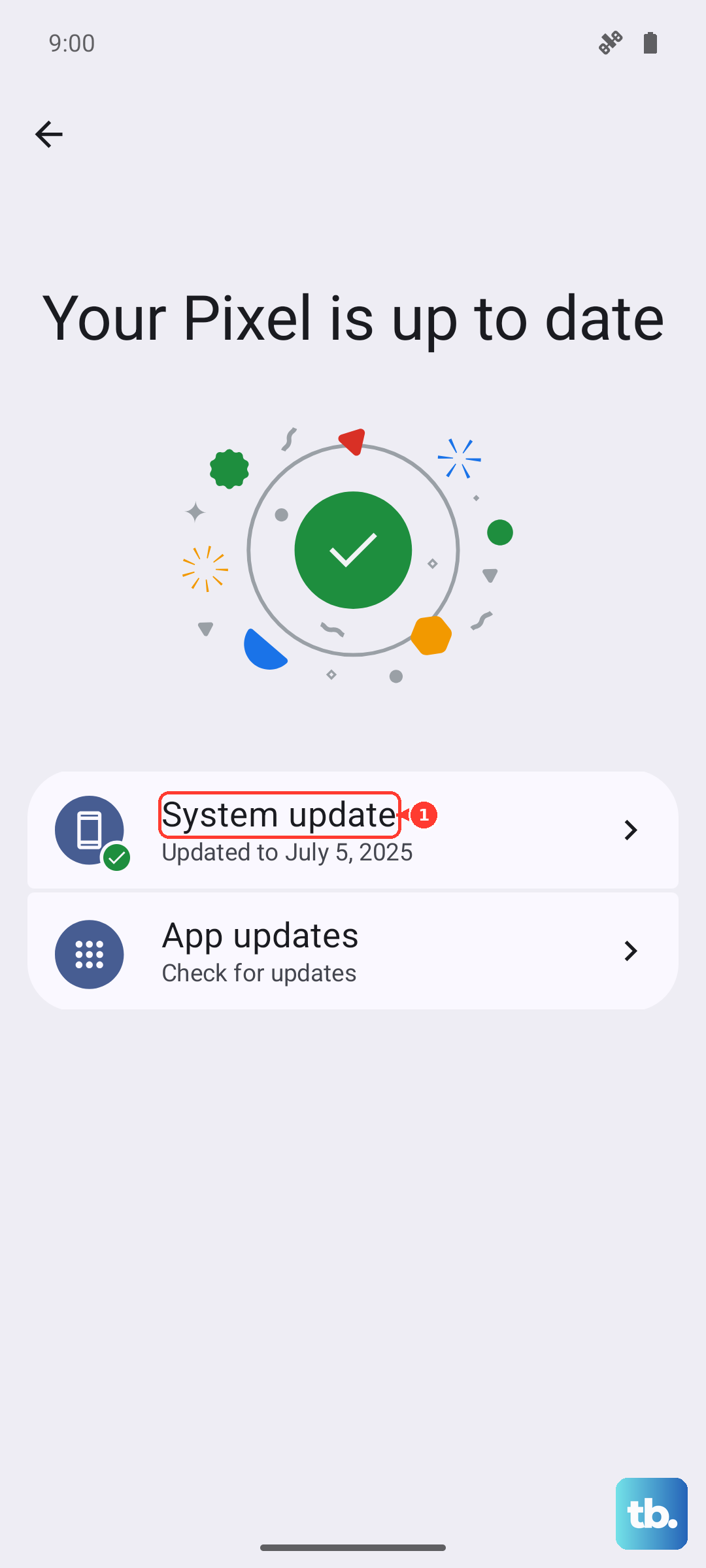
Go to Settings > System > System update. Google regularly pushes fixes for Bluetooth and audio bugs in Android 16 updates. Also check the Play Store for updates to your music or podcast apps, outdated apps can have their own audio routing issues.
Reset All Settings (Not a Full Factory Reset)
If nothing else works, Settings > System > Reset options > Reset Wi-Fi, mobile & Bluetooth. This clears all network and Bluetooth settings without wiping your apps or data. You will need to re-pair every Bluetooth device and reconnect to Wi-Fi networks, but it resolves deep audio routing problems that other steps can't touch.