
Your Pixel 10 Pro XL keeps dropping Bluetooth connections, and it's driving you crazy. Whether it's your car, headphones, or smartwatch, losing audio mid-song or getting constant re-pairing prompts is frustrating. Let's get this fixed.
Most Bluetooth problems on the Pixel 10 Pro XL come down to software glitches, app interference, or a simple device conflict. I've seen these tricks work on Android 16 phones, so work through them in order and test after each step.
Toggle Bluetooth Connection
Pull down the notification shade and tap the Bluetooth icon to turn it off. Wait ten seconds, then tap it again. Try connecting to your device. This quick refresh clears out minor handshake hiccups.
Restart the Phone and the Accessory
Reboots flush out temporary system bugs. Press the power button on your Pixel 10 Pro XL and tap Restart. While it's restarting, turn your Bluetooth accessory off and back on too. Sometimes one device needs a fresh start more than the other.
Forget the Device and Pair Fresh
If connections keep dropping, the stored pairing data might be corrupted. Unpair the problematic device entirely.
Open Settings > Connected devices > Bluetooth. Tap the gear icon next to the device, then select Forget. Put your accessory back into pairing mode and set up the connection from scratch.
Clear Bluetooth Cache and Data
This one fixes a lot of Pixel-specific Bluetooth quirks. Go to Settings > Apps > See all apps, tap the three-dot menu, and enable Show system. Find Bluetooth, tap Storage & cache, then tap Clear cache. If that doesn't help, tap Clear storage. This resets all Bluetooth settings and removes every paired device.
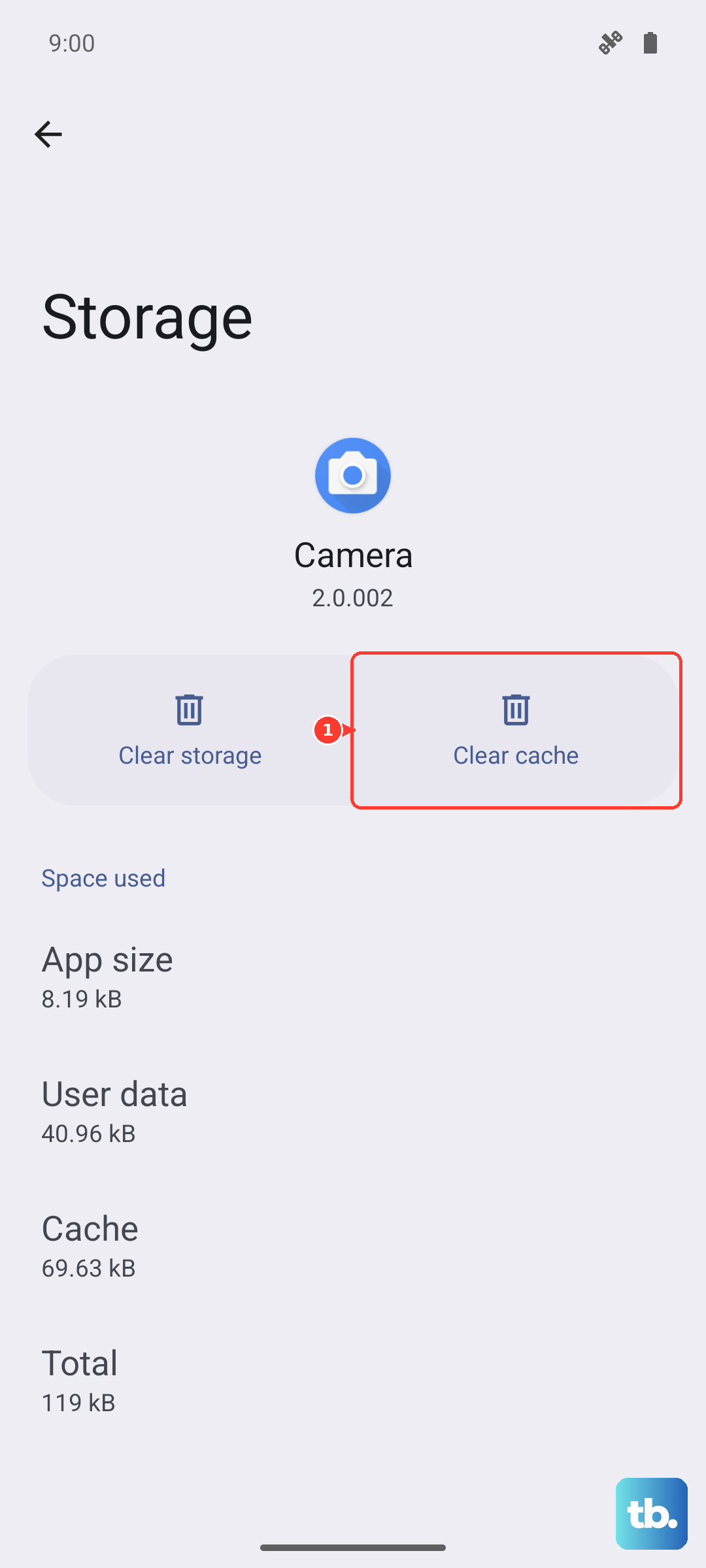
Restart the phone afterward and re-pair your accessories.
Reset Network Settings
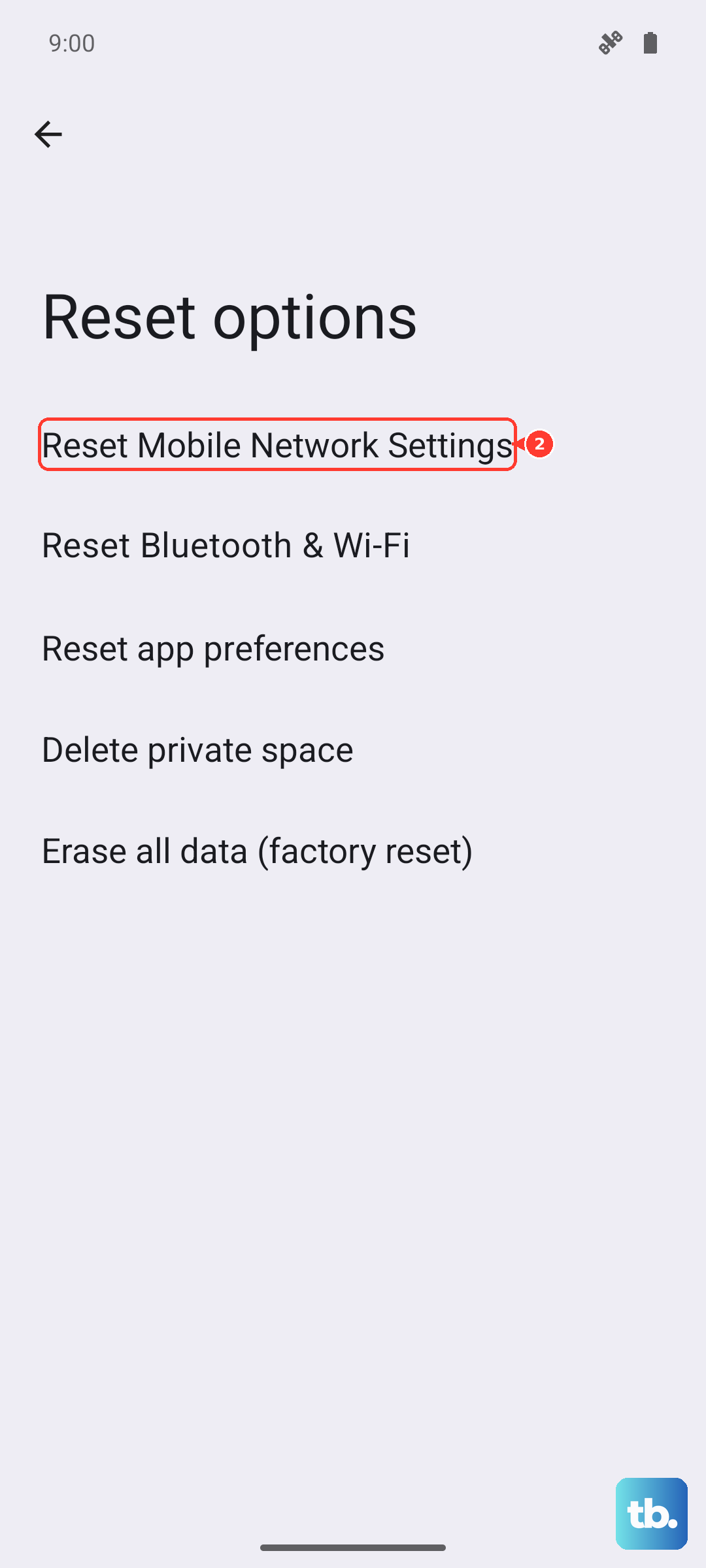
This wipes all Wi-Fi networks, mobile data settings, and Bluetooth pairings. It's safe but saves you from re-entering Wi-Fi passwords later. Go to Settings > System > Reset options > Reset mobile network settings, then Reset Bluetooth & Wi-Fi. Confirm the reset. After the phone restarts, set up Bluetooth again.
Update Your Software
Android 16 gets regular security and bug-fix patches, and some of those specifically target Bluetooth stability. Check for updates at Settings > System > Software update > Check for update. Also look for firmware updates for your Bluetooth accessory through its companion app.
Boot Into Safe Mode
Third-party apps can interfere with Bluetooth in weird ways. Safe Mode temporarily disables all downloaded apps. To enter Safe Mode, press and hold the power button, then long-press Restart in the power menu. Confirm with OK.
Use Bluetooth in Safe Mode for a few minutes. If it stays connected, a third-party app is the culprit. Restart normally and uninstall recently added apps one by one until the issue stops.
Force Restart the Pixel 10 Pro XL
If the phone is acting laggy or the system is locked, a force restart can clear deeper memory issues that affect Bluetooth. Press and hold the Power button for up to 60 seconds, then release when the device begins to reboot and the G logo appears. This doesn't delete any data.
Prevent Overheating
The Pixel 10 Pro XL has a known tendency to overheat, especially while charging. When the phone gets too warm, it can throttle performance or even shut off Bluetooth radios to protect internal components. If you've been charging and using Bluetooth at the same time, unplug the phone and let it cool down for a few minutes.
Also, remove any thick case while charging to improve heat dissipation. The phone supports 45W wired charging and 25W wireless charging via Qi2, but high-speed charging generates heat. For the fastest, most stable wired charging, use a 30W or higher USB-C PPS charger.
Factory Reset Last Resort
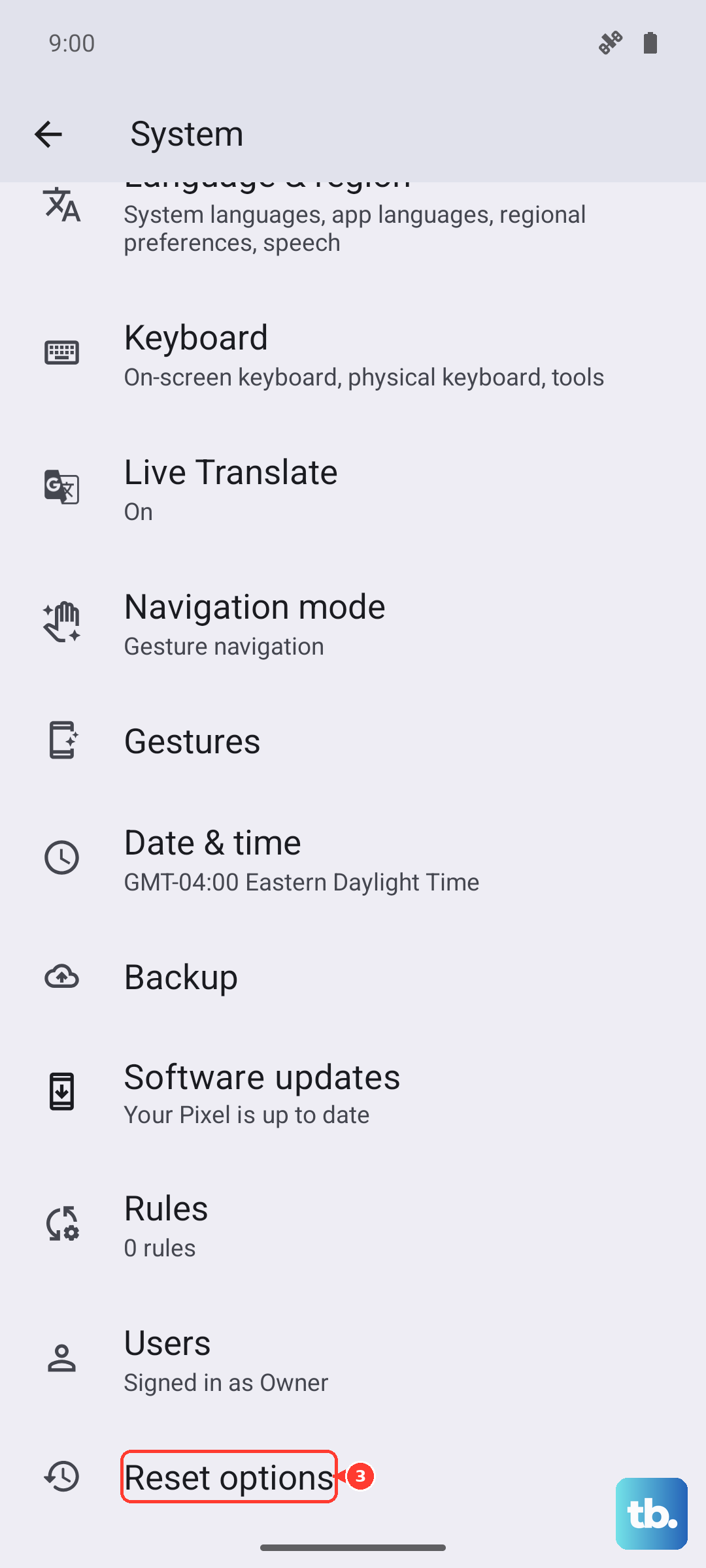
If nothing else works and Bluetooth is still unreliable, a factory reset may be the final fix. Back up your photos, contacts, and other important data first. Go to Settings > System > Reset options > Erase all data (factory reset). Follow the prompts. After the reset, set up your phone without restoring from a backup initially, then test Bluetooth.
If the problem persists even after a factory reset, there might be a hardware defect. The Pixel 10 Pro XL has some reported charging port issues, and while rare, a malfunctioning Bluetooth antenna could be involved. Contact Google support or visit an authorized repair center if the phone is under warranty.