You plug in your USB-C earbuds or reach for your Bluetooth pair, but your Google Pixel 10 Pro keeps routing everything through the loudspeaker, plays no sound at all, or refuses to stay connected. It is a frustrating gap between a phone that handles audio beautifully most of the time and a moment when you just want to listen privately. The good news is that most headphone problems on the Pixel 10 Pro come down to output routing, a stale Bluetooth pairing, or a software hiccup, and you can usually fix them in a few minutes without any special tools.
To rule out the headphones themselves, try a quick headphone test in the browser. If every tone plays cleanly, focus on the device settings covered next.
Before you start, it helps to know how this phone handles headphones. The Pixel 10 Pro does not have a 3.5mm headphone jack; its official audio output is stereo speakers, USB Type-C 3.2, and Bluetooth v6 with antenna diversity. That means your headphones connect either wirelessly over Bluetooth or through the USB-C port (USB-C digital audio, or a 3.5mm-to-USB-C adapter that supports digital audio). The fixes below are ordered from the quickest and safest to the more involved, so work through them in sequence and stop as soon as your sound returns.
Start With a Clean Restart
A quick restart clears the temporary glitches that can mute audio output or drop a headphone connection, and it is the least disruptive thing you can try first. On the Pixel 10 Pro, press and hold the Power button and Volume up button for a few seconds, then tap Restart.
If the screen is frozen or completely unresponsive, you need the force restart instead. Press and hold the Power button for up to 60 seconds; once the phone begins to reboot and the 'G' logo appears, release the Power button. Once it is back up, test your headphones again before moving on.
Make Sure the Sound Is Actually Going to Your Headphones
Very often the headphones are working fine, but the Pixel is still playing through its own speaker. The phone lets you redirect audio from the now-playing controls, so this is worth checking before you assume something is broken.
Swipe down from the top of the screen to the now-playing panel, then at its top right tap the connected device name (for example 'Speakers' or 'Pixel Buds'). Choose your headphones from the list so the sound is redirected to them. If the audio jumps to your headphones immediately, the problem was simply the output target.
Reset the Bluetooth Connection for Wireless Headphones
For wireless headphones, the simplest first round of Bluetooth troubleshooting is to turn Bluetooth off and then on again, confirm your devices are paired and connected, and restart your devices. This clears most transient pairing and connection faults.
To toggle Bluetooth, go to Settings > Connected devices > Connection preferences > Bluetooth, then switch 'Use Bluetooth' off and back on. After it comes back, confirm that your headphones still show as paired and connected. If they reconnect but you still have issues, continue with the next fix.
Turn On Media and Call Audio for the Device
Sometimes headphones connect over Bluetooth but play no sound at all, which usually means audio is not being routed to them. The Pixel keeps separate switches for music and for calls, and either one can be turned off without you realizing it.
Go to Settings > Connected devices, tap the Settings for your device, and turn on 'Media audio' for music and other media. Turn on 'Phone audio' for calls. With both enabled, your headphones should receive the audio they were missing.
Forget the Headphones and Pair Them Fresh
A corrupted pairing can block audio even when everything looks connected, and the cleanest fix is to remove the device and add it again from scratch. This wipes the stored pairing data so the phone and headphones can negotiate a new, healthy connection.
- 1.Open Settings > Connected devices and tap the Settings icon next to the device name.
- 2.Choose 'Forget', then confirm with 'Forget device' to remove it completely.
- 3.Go to Settings > Connected devices > Connection preferences > Bluetooth and tap 'Pair new device'.
- 4.Put your headphones into pairing mode, then tap the headphone's name when it appears to pair fresh.
Check the USB-C Connection for Wired Headphones
Because the Pixel 10 Pro has no 3.5mm jack, wired headphones plug into the USB-C port instead. Make sure your headphones actually use USB-C digital audio; if you are using a 3.5mm-to-USB-C adapter, it must support digital audio, and the phone should be on the latest Android.
Plug the headphones into the USB-C port and watch for the connection notification. If you are using Google's Pixel USB-C earbuds, look for the 'Pixel USB-C earbuds connected' notification and tap 'Finish setup'. A loose or debris-blocked port can also stop the connection, so reseat the plug firmly and confirm it is fully inserted.
Install Any Pending Software Updates
Audio and Bluetooth bugs are frequently resolved in system updates, so keeping the Pixel 10 Pro current is one of the most reliable behind-the-scenes fixes. The phone launched on Android 16, and updates regularly improve connectivity and audio handling.
Open Settings > System > Software update and follow any on-screen steps. Keep in mind that a downloaded update only becomes active the next time you restart the phone, so finish the process with a reboot and then retest your headphones.
Boot Into Safe Mode to Catch a Misbehaving App
If your audio worked before you installed something new, a downloaded app could be interfering. Safe mode temporarily turns off all downloaded apps so you can tell whether one of them is the culprit, without deleting anything.
- 1.Press and hold the Power and Volume up buttons for a few seconds.
- 2.On your screen, tap and hold either the Power off or Restart button.
- 3.Tap OK; you will see 'Safe mode' at the bottom of your screen.
- 4.Test your headphones while in safe mode.
If the headphones work normally in safe mode, a downloaded app is the problem. Restart to leave safe mode, then remove recently installed apps one by one until the audio behaves correctly in normal mode.
Use a Factory Reset Only as a Last Resort
When nothing above restores your sound, a factory reset can clear a deeper software fault, but it should be your final software step. A factory reset erases all your data from your phone, so try every other solution first and do not skip ahead to this one.
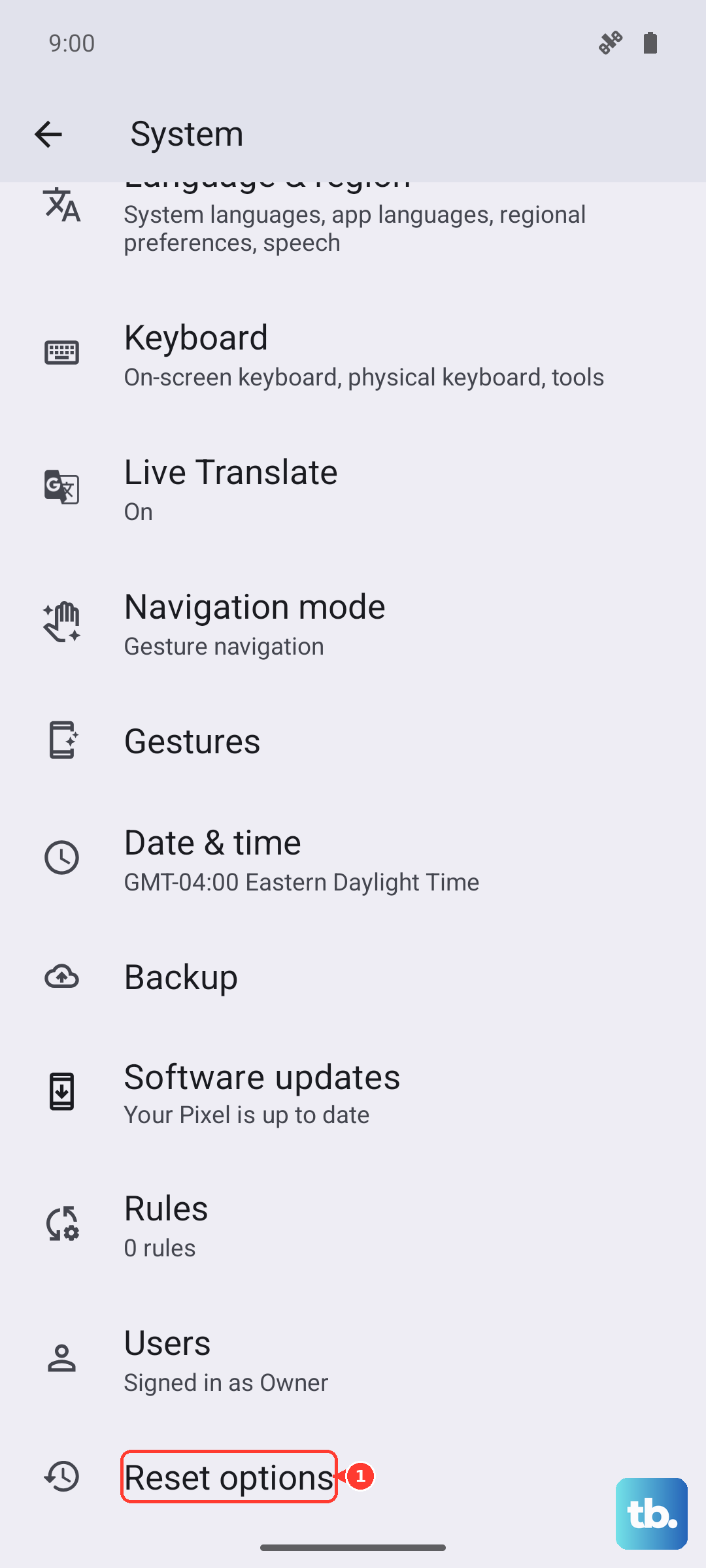
Back up your data before you begin. Then go to Settings > System > Reset options > Erase all data (factory reset) > Erase all data, entering your PIN if prompted. After the phone restarts and you finish setup, pair or plug in your headphones again to see whether the reset cleared the issue.
When It Is Time for a Repair
If your audio still fails after working through every step, the cause may be hardware rather than software, such as the USB-C port, the speakers, or the Bluetooth radio. At that point, the right move is to get the phone looked at officially rather than keep guessing.
Check your warranty status, then start a repair or file a warranty claim through Google's official Pixel support. Having your warranty and device details handy will make the process faster.
Frequently Asked Questions
Does the Pixel 10 Pro have a headphone jack?
No. The Pixel 10 Pro does not have a 3.5mm headphone jack. Its official audio output is stereo speakers, USB Type-C 3.2, and Bluetooth v6, so wired headphones connect through the USB-C port using USB-C digital audio (including a 3.5mm-to-USB-C adapter that supports digital audio), and wireless headphones connect over Bluetooth.
Why do my Bluetooth headphones connect but play no sound?
This usually means audio is not being routed to them. Go to Settings > Connected devices, tap the Settings for your device, and turn on 'Media audio' for music and 'Phone audio' for calls. You can also swipe down to the now-playing panel and tap the connected device name to redirect sound to your headphones.
How do I force restart a Pixel 10 Pro if the screen is frozen?
Press and hold the Power button for up to 60 seconds. Once your phone begins to reboot and the screen displays the 'G' logo, release the Power button. For a normal restart on a responsive screen, press and hold the Power button and Volume up button for a few seconds, then tap Restart.
Will a factory reset delete my files?
Yes. A factory reset erases all your data from your phone, which is why it is recommended only after other solutions have failed. Back up your data first, then use Settings > System > Reset options > Erase all data (factory reset) > Erase all data.
What should I do if headphones still do not work after all the fixes?
The issue may be hardware, such as the USB-C port, speakers, or Bluetooth radio. Check your warranty and start a repair or file a warranty claim through Google's official Pixel support.