
Seeing "Call Ended" or having your Google Pixel 10 Pro drop calls unexpectedly is a common headache. This usually happens when your phone loses its proper connection to the cellular network. Weak signals, a minor software hiccup, or a single incorrect setting are often the culprits.
Here are ten effective ways to fix call failures on your Pixel 10 Pro, starting with the quickest solutions you can try right now.
Toggle Airplane Mode On and Off
Google lists toggling Airplane mode as a mobile-connectivity troubleshooting step because it can shut down active mobile processes.
Swipe down from the top of the screen and tap Airplane mode to turn it on, then tap it again to turn it off. After the phone reconnects, place a test call.
Check Your Signal Strength
Google's Pixel mobile-connectivity help recommends checking signal strength when the mobile connection is bad or calls fail. Turn off Wi-Fi and look at the mobile signal indicator in the top-right corner; the more filled in the triangle is, the stronger the signal is.
If you have little to no signal, move to another location and test again. You can also contact your carrier to check coverage in your area.
Restart Your Pixel 10 Pro
A restart is worth trying, but the Pixel 6-and-later restart sequence is to press and hold the Power and Volume Up buttons for a few seconds, then tap Restart. If the phone is frozen and you need a force restart, hold the Power button for up to 60 seconds and release it when the G logo appears.
Let the phone boot up completely and then try making a call again. I've found this resolves more odd glitches than you might expect.
Check for Do Not Disturb or Focus Modes
Your Pixel's Modes settings, including Do Not Disturb or a custom mode, can block or allow calls depending on the mode's notification filters. Swipe down from the top of the screen to check Quick Settings for an active interruption mode.
If a mode is active, turn it off and test the call again. To review the rule itself, open Settings > Modes, select the active mode, and check the Notification filters for calls and messages.
Verify Your Date and Time Settings
Google documents automatic date and time as a connection troubleshooting check, but not specifically as a cellular-call authentication fix. Treat this as a lower-priority connection check: make sure your phone is set to update time automatically before moving to more disruptive steps.
Open Settings and go to System > Date & time. Ensure the toggle for "Use network-provided time" or "Set time automatically" is switched on.
Review Your Blocked Numbers List
If incoming calls from a specific number are being declined, check whether that number is blocked. Open your Phone app, tap More, then tap Settings > Blocked numbers.
Next to the number you want to unblock, tap Clear, then tap Unblock.
Ensure Mobile Data and Roaming Are Enabled
Check the SIM and mobile-network settings Google documents for Pixel. Open Settings > Network & internet > SIMs, select your carrier, and make sure Mobile data is on if you need cellular data.
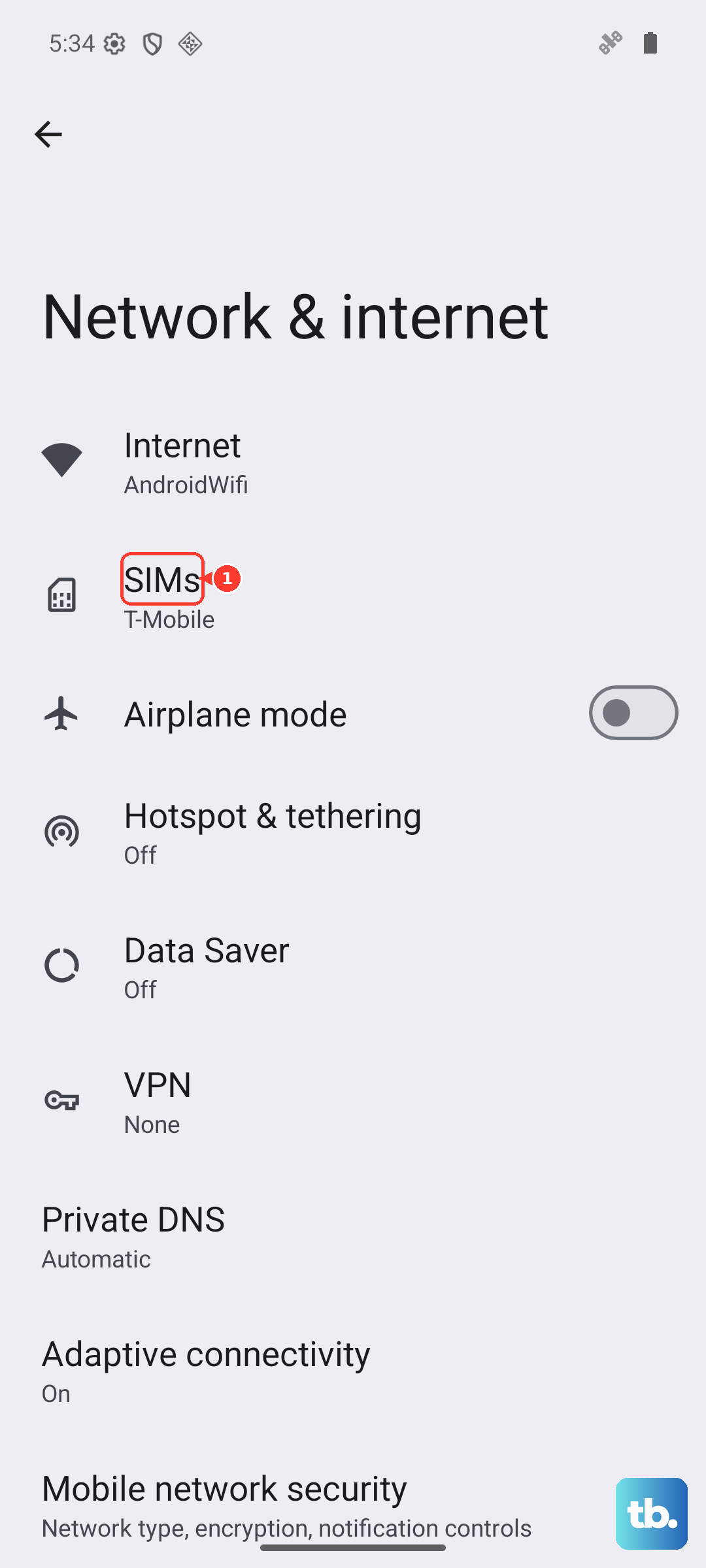
If you are traveling outside your carrier's coverage area, Roaming lets the phone send data over other carriers' networks. Check your carrier plan for fees before enabling roaming.
Update Android and Apps
Google's Pixel help recommends keeping LTE/VoLTE settings and software up to date for voice connectivity and checking system and app updates. Open Settings > System > Software updates, install available system updates, then check for app updates.
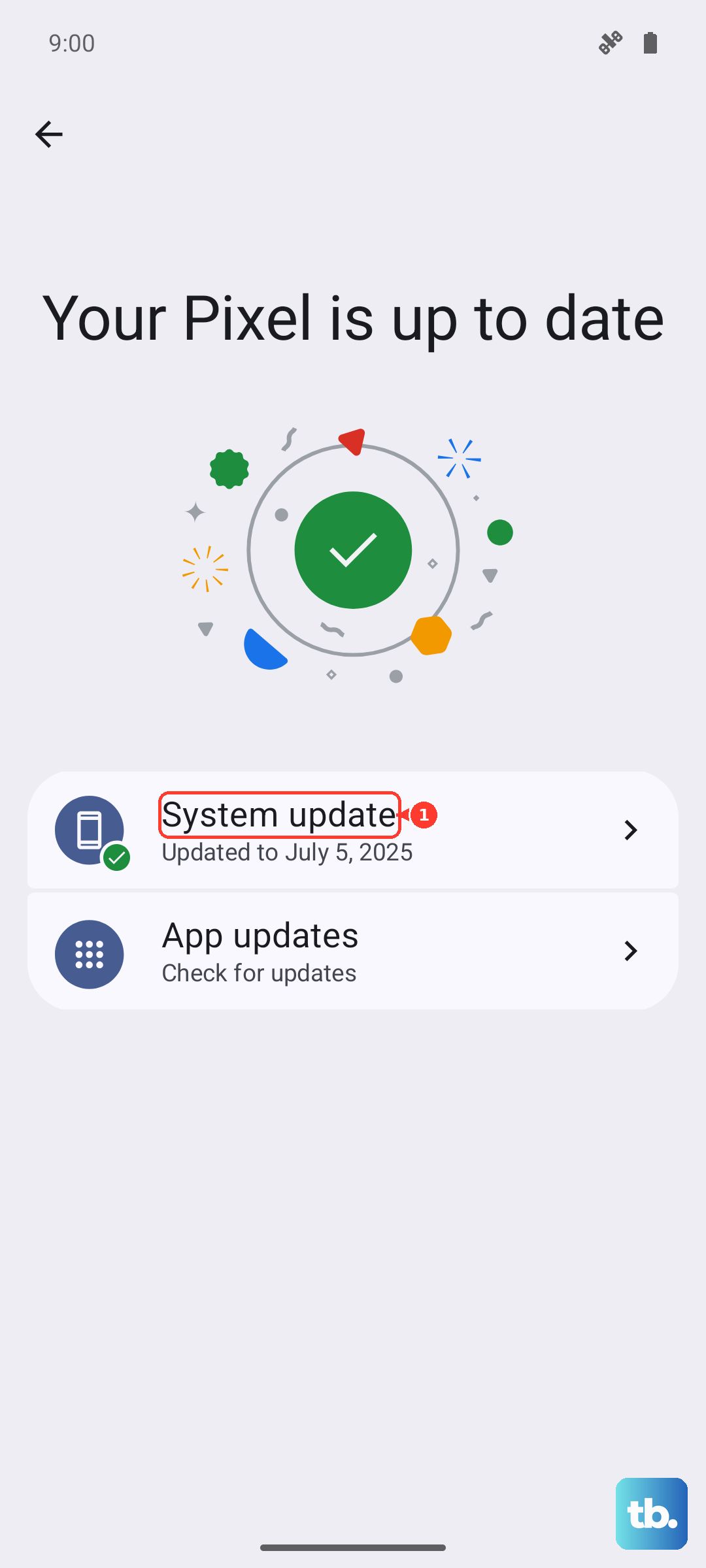
Do not narrow this to Carrier Services unless that specific update is available on the phone.
Try Switching Network Modes (5G to LTE)
If the mobile connection is unreliable, check the preferred network type without assuming 5G is the cause. Google says the available preferred-network options vary by phone, Android version, country, and carrier availability.
Open Settings > Network & internet > SIMs, select your carrier, then tap Preferred network type. If LTE is available, you can select it temporarily and test a call, then switch back to 5G if needed.
Reset Your Network Settings
If the issue persists, reset the network settings that match the problem. For cellular issues, go to Settings > System > Reset options > Reset mobile network settings.
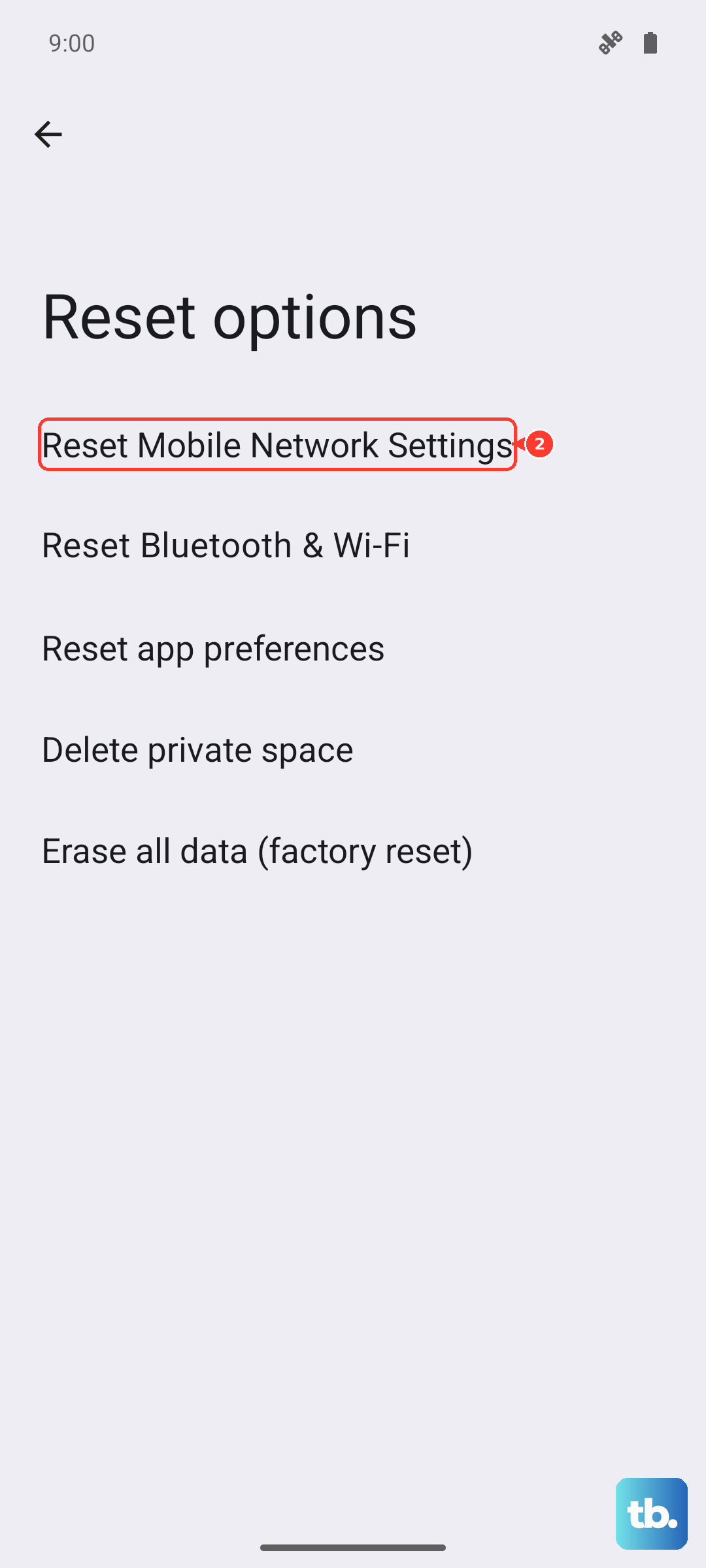
For Wi-Fi or Bluetooth issues, use Reset Bluetooth & Wi-Fi; Google notes that this deletes saved Wi-Fi connections. Reconnect to Wi-Fi afterward if needed, and contact your carrier if calls still fail after the documented mobile-connectivity steps.