
A slow Dell XPS 15 can feel like you're driving a sports car stuck in first gear. It's frustrating when a machine built for performance starts to crawl during everyday tasks. The good news is that most slowdowns are temporary and can be fixed with a few adjustments.
Restart Your XPS 15
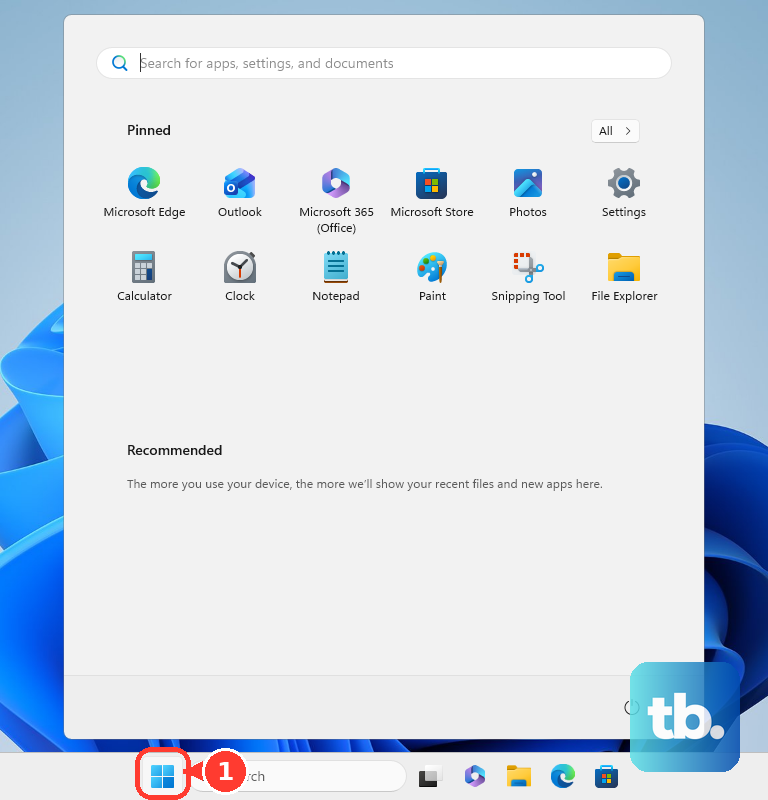
If you've been closing the lid and letting it sleep for days, a full restart is your first step. Click Start > Power > Restart. This clears out cached memory and stops any background processes that have gotten stuck. I've seen this simple fix resolve temporary sluggishness more times than I can count.
Use Dell Power Manager for Thermal Profiles
The XPS 15 is powerful, but that power generates heat. Go to the Windows Start menu and search for Dell Power Manager. Open it and navigate to the Thermal Management section. If it's set to "Quiet" or "Cool," your CPU is being intentionally throttled. Switch it to Optimized or Ultra Performance for full speed, especially when plugged in.
Check Task Manager for Resource Hogs
Press Ctrl + Shift + Esc to open Task Manager directly. Click on the CPU, Memory, or Disk column headers to sort by what's being used the most. Look for any single process using an unusually high percentage. Right-click on non-essential, high-usage tasks and select End task.
Update Your BIOS and Drivers
Outdated system firmware and drivers are a common culprit. Open Dell SupportAssist from your Start menu and run a full scan. It will check for and install critical updates, including BIOS, chipset, and audio drivers. You can also press F12 repeatedly at boot to run Dell's built-in hardware diagnostics first.
Disable Unnecessary Startup Programs
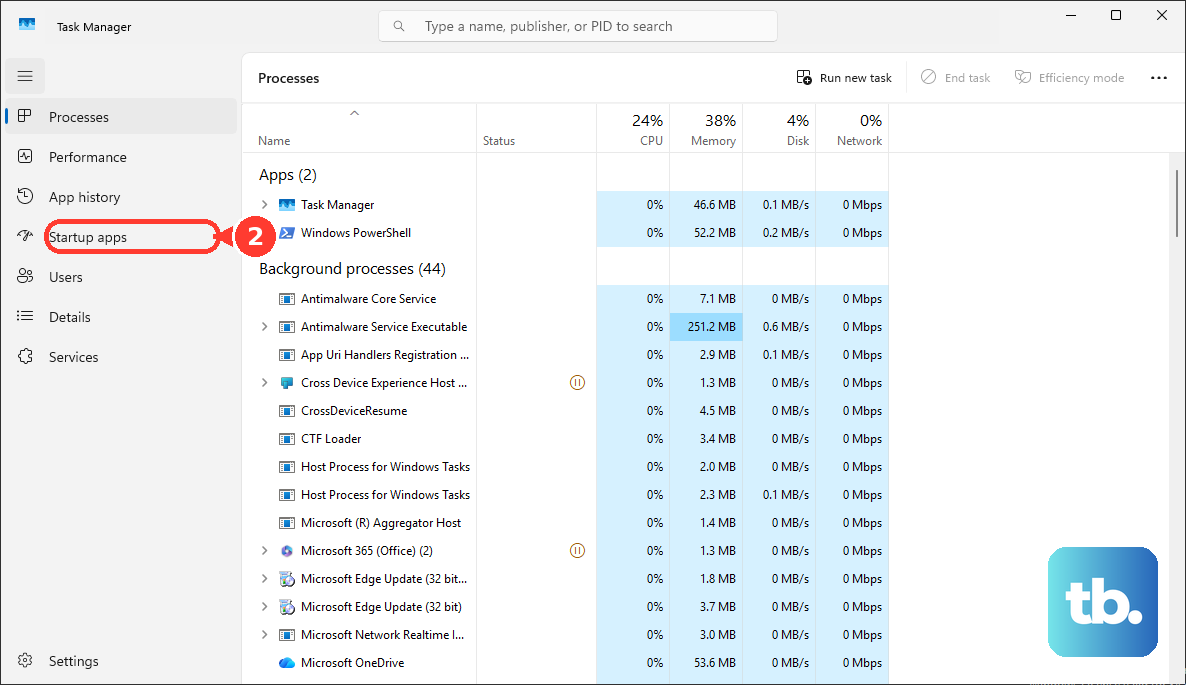
Too many apps launching at boot will slow down your login and consume RAM. Go back to Task Manager and click the Startup apps tab. Right-click on any application you don't need immediately when Windows starts, like Spotify or Adobe Creative Cloud, and select Disable. This only prevents auto-start; you can still open them manually.
Free Up Space on Your SSD
Modern SSDs slow down as they get close to full capacity. Open Settings > System > Storage. Turn on Storage Sense to automate cleanup. For a manual clean, click on Temporary files and select items like "Delivery Optimization Files" and "Windows Update Cleanup" to remove. Aim to keep at least 20% of your main drive free.
Adjust Windows Power Plan
Windows' own power settings can override Dell's tools. Search for "Edit power plan" in the Start menu and open it. Click on Change advanced power settings. In the new window, expand the Processor power management section and set both Minimum processor state and Maximum processor state to 100% when plugged in.
Run a Full Malware Scan
Background malware can consume huge amounts of system resources. Open Windows Security from your taskbar notification area or Start menu. Go to Virus & threat protection and click Scan options. Select Microsoft Defender Antivirus (offline scan) and run it. This deep scan will restart your PC and check for rootkits.
Check for OLED Screen Burn-In Mitigation
If you have an older XPS 15 with an OLED display, the built-in pixel refresh and taskbar hiding features can sometimes cause minor system hiccups. Search for "OLED settings" in Windows Settings to review these features. Temporarily disabling them can help you determine if they're contributing to the slowdown.
Reset or Refresh Windows
If all else fails, a clean Windows installation can remove accumulated software bloat. Go to Settings > System > Recovery. You'll see two options. Reset this PC lets you choose to keep your files while removing all apps and settings. For a less drastic step, try Go back to an earlier restore point if you recently installed something problematic.