
When Bluetooth stops working on your Dell XPS 15, it can leave your wireless mouse, headphones, or speakers useless. You might see the Bluetooth toggle missing, devices failing to pair, or connections that keep dropping. Here's how to get it working again.
Toggle Bluetooth On and Off
Click the network icon in your system tray and make sure the Bluetooth tile is turned on. If it's not there, open Settings > Bluetooth & devices and flip the main Bluetooth switch off, wait a few seconds, and turn it back on. This simple reset clears many temporary glitches.
Restart Your XPS 15
A full system restart reloads all drivers and services, including the Bluetooth stack. It's a reliable first step, especially if the problem started after your laptop woke from sleep or installed a recent update. I'd start with this one.
Remove and Re-Pair the Device
Go to Settings > Bluetooth & devices and find the problematic device. Click the three dots next to it and select Remove device. Then, put your Bluetooth accessory into pairing mode and click Add device to pair it fresh. Corrupted pairing data is a very common culprit.
Run the Windows Bluetooth Troubleshooter
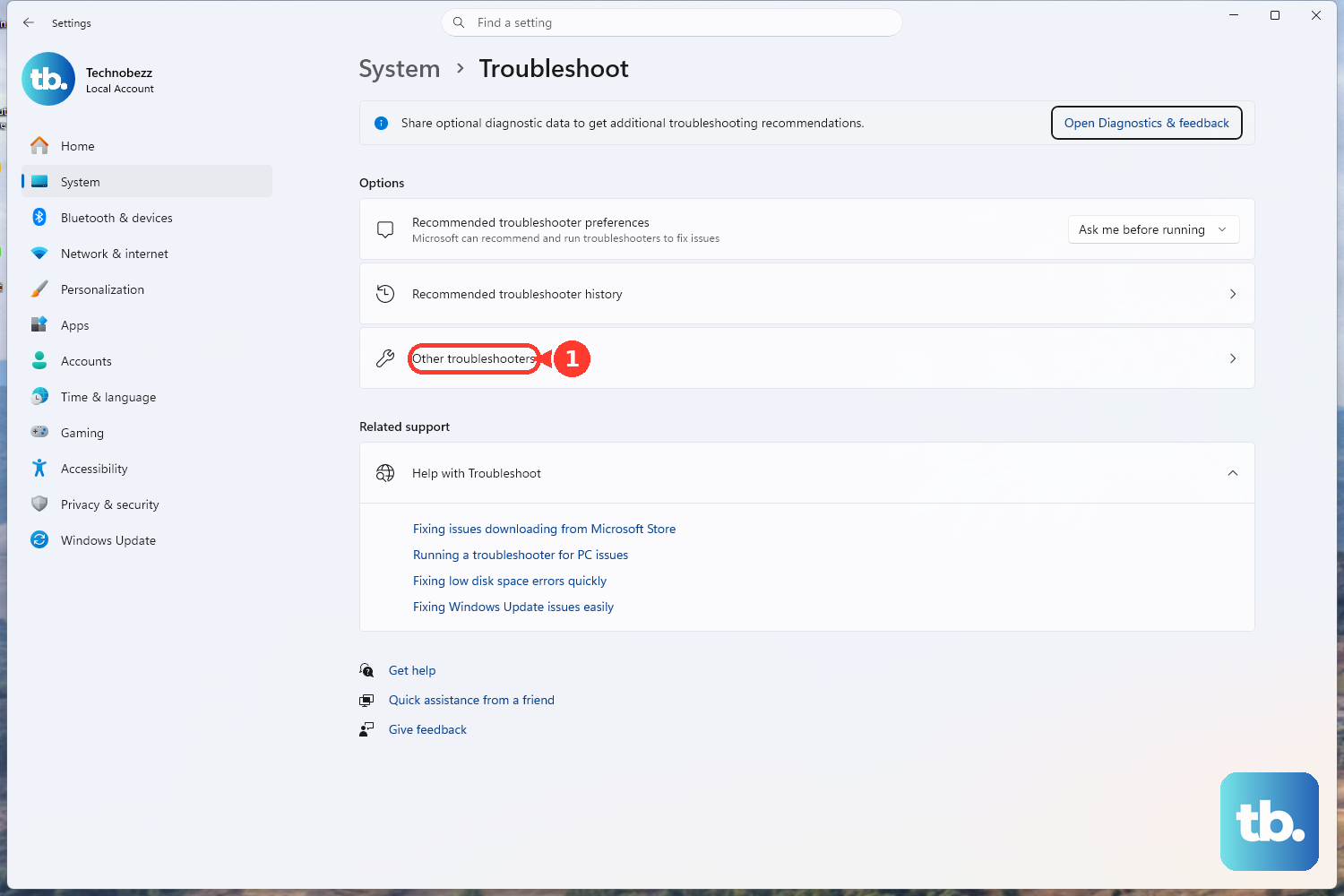
Windows has a built-in tool for this. Go to Settings > System > Troubleshoot > Other troubleshooters. Find the Bluetooth entry and click Run. The troubleshooter will scan for common configuration problems and attempt to fix them automatically.
Update Your Bluetooth Drivers
Outdated or corrupted drivers are a frequent cause. Press Windows Key + X and select Device Manager. Expand the Bluetooth section, right-click your adapter (it's often an Intel or Killer Wireless device), and choose Update driver > Search automatically for drivers.
If that doesn't find anything, use Dell's official tool. Open Dell SupportAssist and check for driver updates. It's the most reliable way to get drivers specifically validated for your XPS 15 model.
Restart the Bluetooth Support Service
Press Windows Key + R, type services.msc, and hit Enter. Scroll down to find Bluetooth Support Service. Right-click it and select Restart. Also, double-check that its "Startup type" is set to Automatic so it runs every time you boot up.
Check for Physical Interference
Bluetooth uses the 2.4GHz band, which can get crowded. WiFi, USB 3.0 ports, and even microwave ovens can cause interference. Try moving your Bluetooth device closer to the laptop. If you're using a USB 3.0 hub or drive near the laptop, try unplugging it temporarily to see if the connection improves.
Install All Windows Updates
Microsoft regularly releases patches that fix connectivity issues. Go to Settings > Windows Update and click Check for updates. Install any available feature or quality updates, then restart your computer. This ensures your system has the latest Bluetooth protocol support and bug fixes.
Reinstall the Bluetooth Adapter
This gives you a completely clean driver installation. In Device Manager, right-click your Bluetooth adapter and select Uninstall device. Check the box that says "Attempt to remove the driver for this device" if you see it. Restart your XPS 15. Windows will detect the hardware on boot and reinstall the driver.
Update Your BIOS
This is a specific tip for Dell laptops. An outdated BIOS can cause all sorts of hardware communication problems, including with Bluetooth. Open Dell SupportAssist and check for BIOS updates under the "Critical" or "Recommended" updates section. Follow the on-screen instructions carefully, as a BIOS update requires your laptop to be plugged in and shouldn't be interrupted.