
Seeing that "Plugged in, not charging" message on your Dell Inspiron 16 is a real roadblock. The issue usually comes down to the power source, a software hiccup, or the battery itself. Let's get it sorted.
Start With a Power Cycle
This is the quickest thing to try and often works. Shut down your laptop completely, not just putting it to sleep. Unplug the charger from both the wall and the laptop. Hold down the power button for about 15 seconds to drain any residual power. Then, plug the charger back in and turn the laptop on. This resets the power delivery system and can clear up a temporary glitch.
Inspect Your Charger and Cable
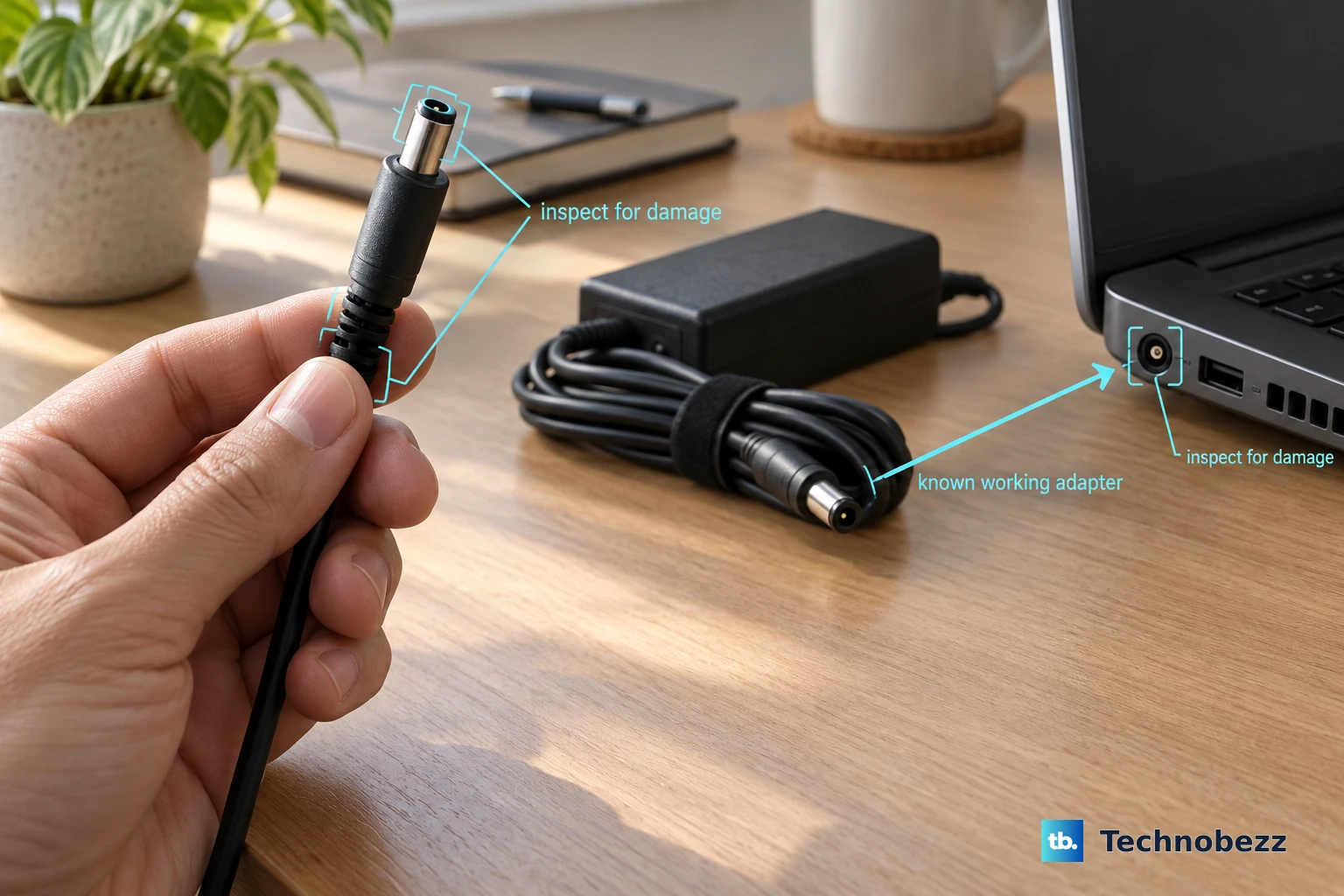
Take a close look at the power adapter brick and the cable running from it to your laptop. Check for any obvious damage, fraying, or kinks. Make sure both ends are plugged in firmly, at the wall outlet and into your Inspiron. I'd also try a different wall outlet to rule out a problem with the power source itself.
If you have access to another Dell charger that's compatible with the Inspiron 16, try it. Adapters can fail over time and may not deliver the full wattage needed, which can prevent charging while the system is on.
Run Dell's Built-In Diagnostics
Dell includes a great hardware diagnostic tool. Restart your laptop and immediately start tapping the F12 key repeatedly as it boots up. This will bring up the one-time boot menu. Use the arrow keys to select Diagnostics and press Enter.
The tool will run a series of tests, including one on the AC adapter and battery. It will tell you if it detects a problem with either component. This is a reliable way to check if the hardware is reporting an issue.
Check for Software and Driver Issues
Sometimes, Windows or a driver gets confused about the power state. Open the Device Manager by right-clicking the Start button. Expand the Batteries section. You'll see a few items, including Microsoft ACPI-Compliant Control Method Battery.
Right-click that battery driver and select Uninstall device. Don't worry, you won't break anything. Restart your laptop after uninstalling. Windows will automatically detect the battery on reboot and reinstall a fresh driver, which often resolves charging detection problems.
Use Dell SupportAssist
Your Inspiron likely came with Dell SupportAssist pre-installed. Open it and look for a troubleshooting or scan option. SupportAssist can automatically check for outdated drivers, including chipset and power management drivers, that could be affecting charging. It can also guide you to the latest BIOS update.
Update Your System BIOS
BIOS updates frequently include fixes for power management and charging circuitry. An outdated BIOS can sometimes cause the exact issue you're facing. Visit the official Dell support website, enter your Inspiron 16's service tag, and look for BIOS updates under the "Drivers & Downloads" section.
Follow Dell's instructions to the letter for updating the BIOS. Make sure your laptop is plugged in during the entire process and don't interrupt it.
Check the Physical Charging Port
Take a look at the barrel charging port on the side of your laptop. Use a flashlight to see if there's any lint, dust, or debris packed inside. If you see anything, you can try to gently remove it with a wooden toothpick or a blast of compressed air. Be very careful not to damage the central pin inside the port.
Review Windows Power Settings
Some laptops have software features that limit the maximum battery charge to prolong its lifespan. While Dell's primary tool for this is their own software, it's worth checking Windows settings. Go to Settings > System > Power & battery.
Look for any battery saver or maintenance settings. Also, check if you have any third-party power management software installed that might be overriding the normal charging behavior.
Generate a Battery Health Report
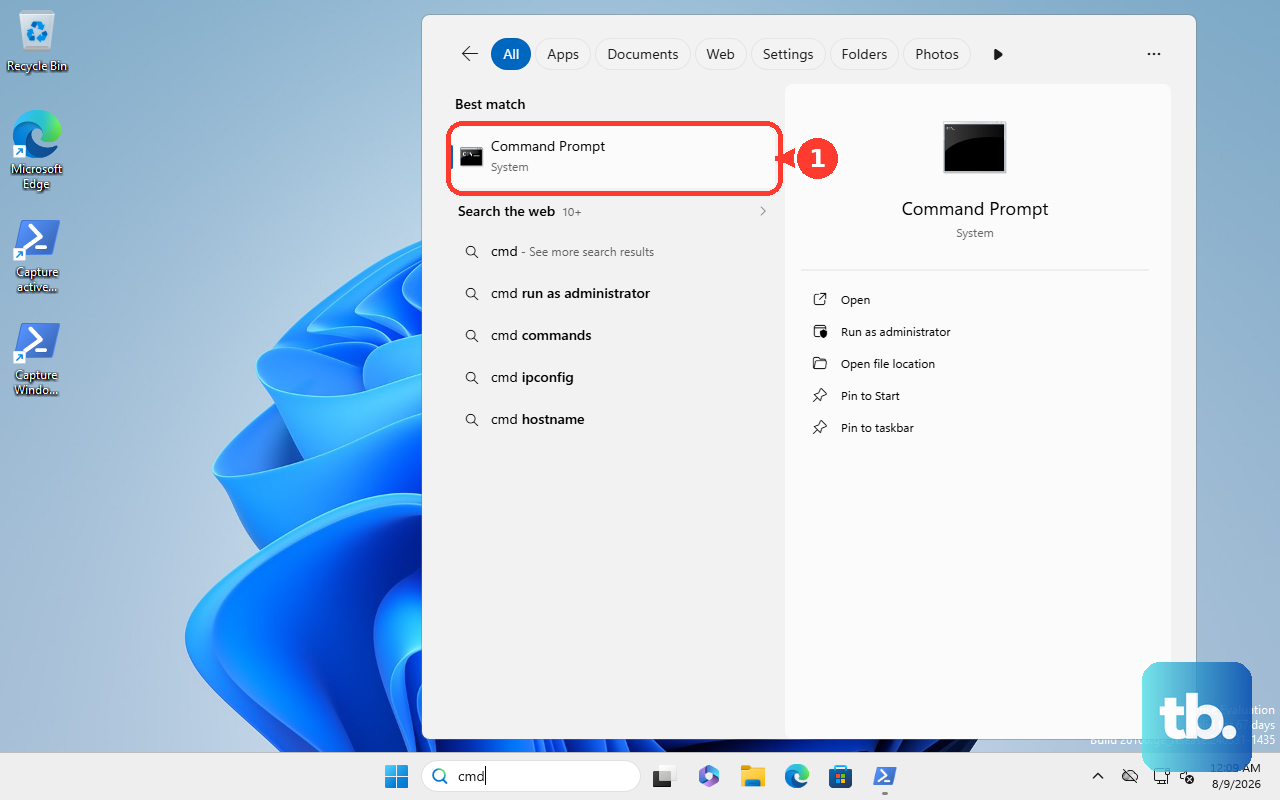
Windows can give you a detailed look at your battery's health. Open Command Prompt as an administrator. Type the command powercfg /batteryreport and press Enter. It will save an HTML file to a folder, usually your user directory.
Open that file in your web browser. Look for the "Design Capacity" and "Full Charge Capacity" numbers. If the full charge capacity is significantly lower than the design capacity, your battery has degraded and may be unable to hold a charge properly, which could explain the symptoms.