
When your Dell Inspiron 15 won't connect to WiFi, it feels like you're cut off from the world. Whether the network list is empty, you're stuck on "Connecting...", or you have a connection but no internet, these steps will get you back online.
Run the Windows Network Troubleshooter
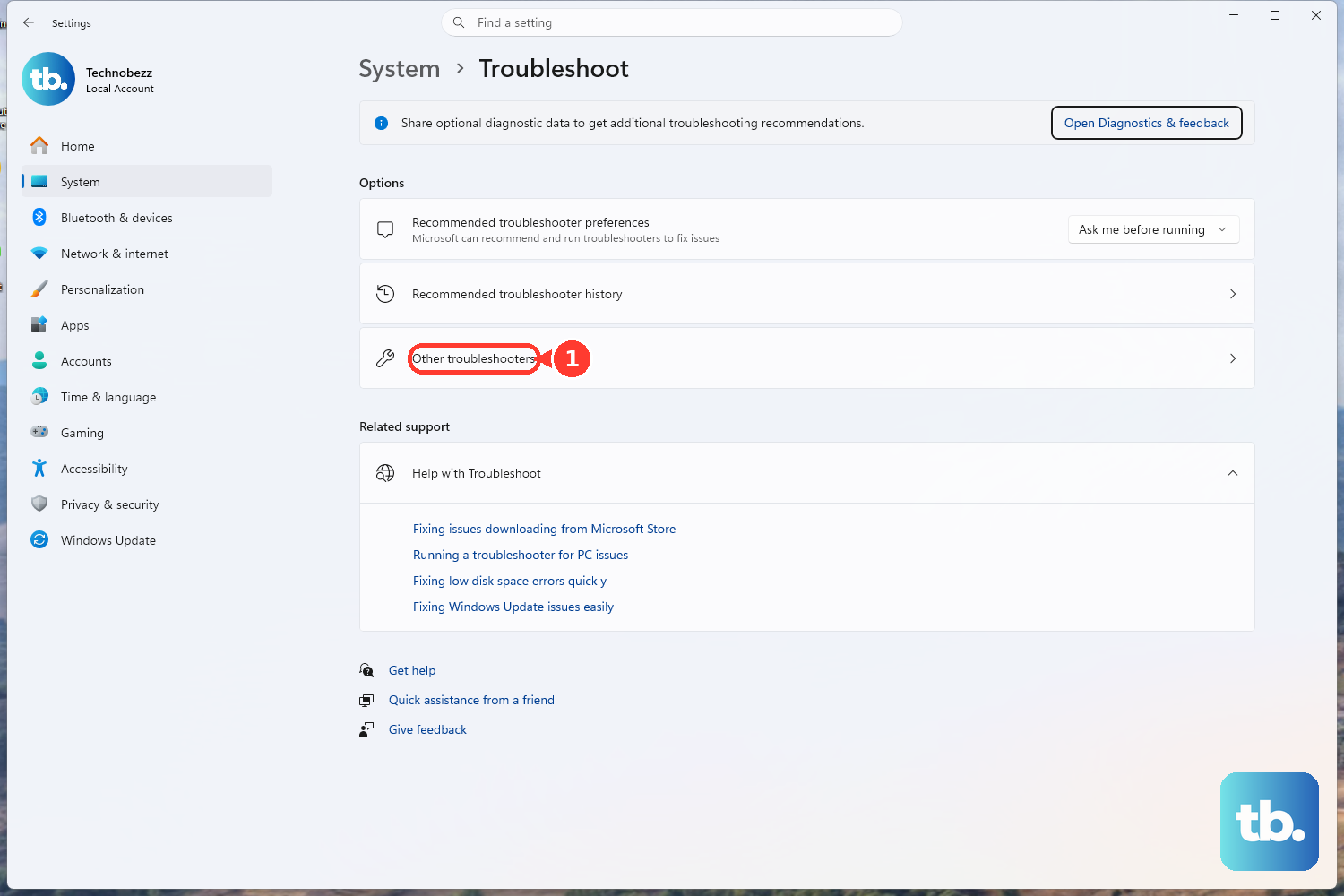
This is the quickest place to start. Right-click the WiFi icon in your taskbar and select Troubleshoot network problems. Windows will automatically scan for and try to fix common issues like IP address conflicts or adapter problems. On Windows 11, you can also navigate to Settings > System > Troubleshoot > Other troubleshooters and run the Network and Internet troubleshooter from there.
Toggle Your WiFi Adapter
Click the network icon in the system tray and toggle the WiFi switch off. Wait about ten seconds, then turn it back on. This simple action forces your Inspiron's wireless card to reinitialize and can clear up temporary glitches. You can achieve the same result by toggling Airplane mode on and off from the same menu.
Forget and Re-add Your Network
Sometimes, the saved profile for your WiFi network gets corrupted. Go to Settings > Network & Internet > Wi-Fi > Manage known networks. Click on your network name and select Forget. Then, scan for available networks, select yours again, and re-enter the password. This creates a fresh, clean connection.
Update Your WiFi Driver
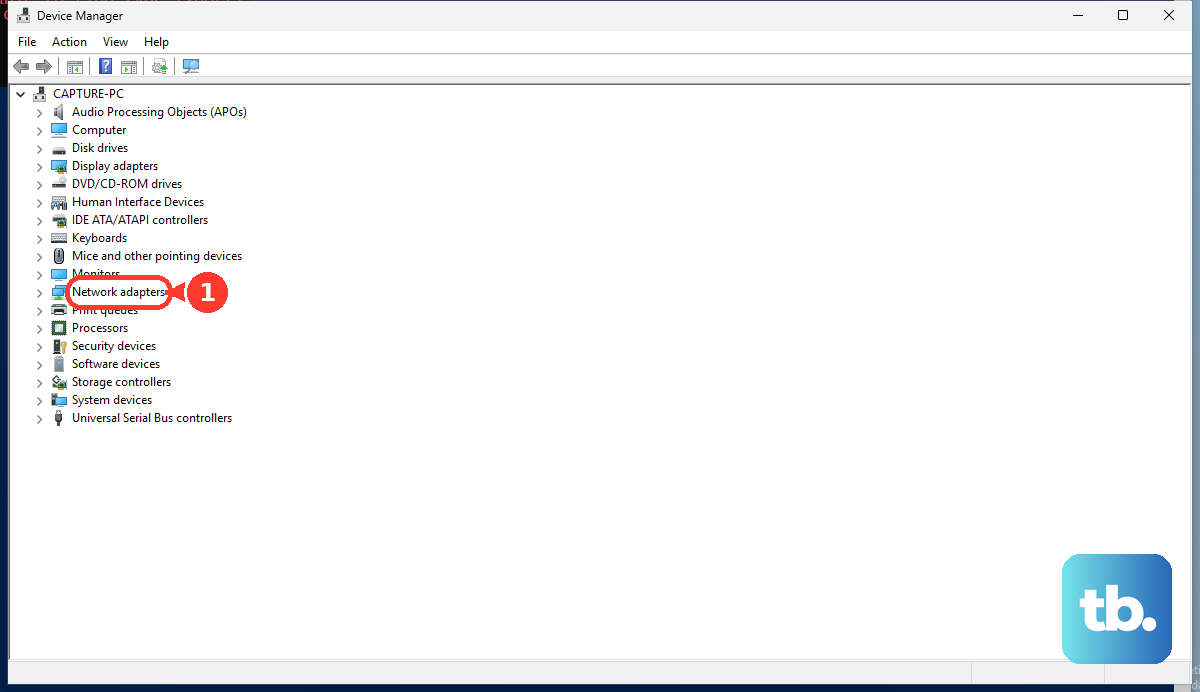
Outdated or corrupted drivers are a frequent culprit for Dell laptops. Press the Windows key + X and choose Device Manager. Expand the Network adapters section, right-click your wireless adapter (it will likely have "Intel" or "Realtek" in the name), and select Update driver > Search automatically for drivers.
If that doesn't find an update, you should get the driver directly from Dell. Go to support.dell.com, enter your Inspiron 15's Service Tag, and download the latest wireless driver under the "Drivers & Downloads" section. I've found this manual method often works better than Windows Update for Dell-specific hardware.
Restart Your Laptop and Router
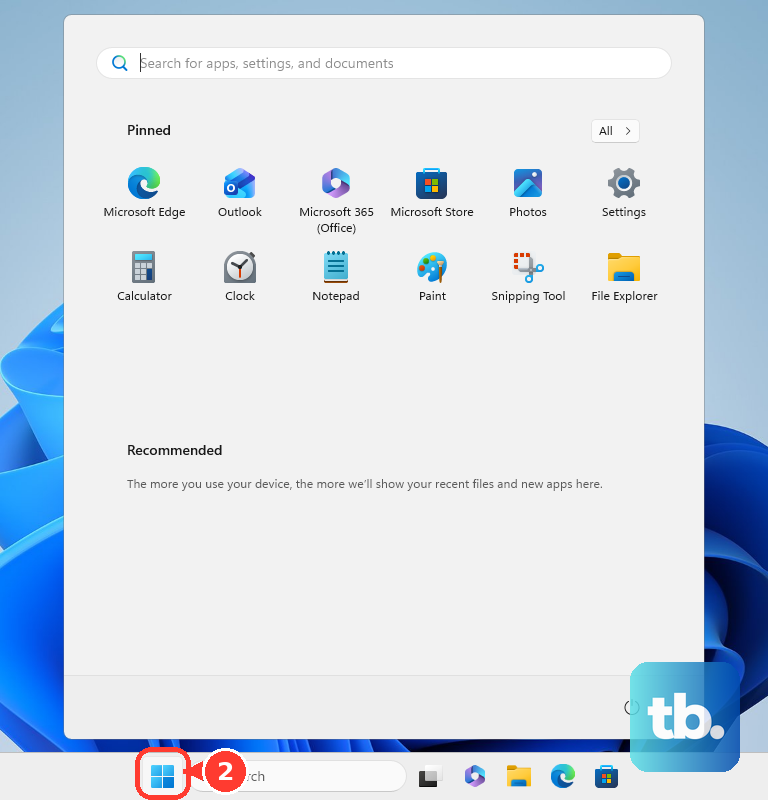
Give both devices a fresh start. For your Inspiron, click Start > Power > Restart. For your router and modem, unplug them from power for a full 30 seconds before plugging them back in. Wait for all the lights to settle, then try connecting your laptop again. This resolves a huge number of intermittent connectivity issues.
Disable and Re-enable the Network Adapter
This is a more direct refresh than just toggling WiFi. Go back into Device Manager > Network adapters, right-click your wireless adapter, and select Disable device. Wait a moment, then right-click it again and choose Enable device. Your adapter will restart, which can clear stuck states that a simple toggle might not.
Reset Your Network Stack
If you're still having trouble, it's time to reset the core networking components. Open the Start menu, type cmd, right-click on Command Prompt, and select Run as administrator. Type the following commands one at a time, pressing Enter after each:
netsh winsock reset
netsh int ip reset
ipconfig /flushdns
ipconfig /release
ipconfig /renew
After running these, restart your laptop. You will need to re-enter your WiFi password afterward.
Check for Windows and Dell Updates
Make sure your system is completely up to date. Go to Settings > Windows Update and install any available updates. Microsoft frequently patches network-related bugs. Next, open the Dell SupportAssist app that came pre-installed on your Inspiron. Run a scan to check for any critical driver or firmware updates specific to your model that Windows Update might have missed.
Check Your Power Management Settings
Windows can sometimes turn off your WiFi adapter to save power, which can cause dropouts. In Device Manager, right-click your wireless adapter and select Properties. Go to the Power Management tab and uncheck the box that says Allow the computer to turn off this device to save power. Click OK to save the change.
Perform a Network Reset
This is a more comprehensive nuclear option. Go to Settings > Network & Internet > Advanced network settings. At the bottom, click Network reset. This will remove and reinstall all your network adapters and set every networking component back to its default settings. You'll need to reconnect to all your WiFi networks from scratch after the restart.
If you've tried all these steps and your Inspiron 15 still won't connect, try connecting to a different network, like a phone's mobile hotspot. If it connects to the hotspot, the issue is likely with your primary router or internet service. If it can't connect to any network, there may be a hardware concern with the wireless card itself.