
When you plug your Dell Inspiron 14 into a monitor or TV and get no picture, it's usually a quick settings or driver fix. Let's get that second screen working.
The fastest thing to try is the Windows projection shortcut. Press the Windows key + P on your keyboard. A menu will pop up on the right side of your screen. Make sure it's not set to "PC screen only," as that disables the external output. Choose Duplicate or Extend instead.
Inspect Your HDMI Cable and Port
Unplug the HDMI cable from both your laptop and the monitor. Take a quick look at the port on your Inspiron 14 for any obvious debris or bent pins. Plug everything back in firmly, ensuring the cable clicks into place.
If you have a spare HDMI cable, try it. Cables can fail internally without showing any external damage. Also, double-check that your TV or monitor is set to the correct HDMI input source using its remote or buttons.
Run a Display Detection
Right-click on your desktop and select Display settings. In the new window, click the Detect button. Windows will actively search for any connected displays.
If your monitor appears, click on its icon in the settings diagram. Scroll down and make sure the resolution and refresh rate are set to values your monitor supports. A good, safe starting point is 1920 x 1080 at 60Hz.
Update Your Graphics Drivers
Outdated or corrupted display drivers are a common culprit for HDMI problems on the Inspiron 14. I'd start here if the basic checks don't work. The best method is to use your laptop's Service Tag on the Dell support site for the exact driver.
You can also use Dell's own tool. Open the Dell SupportAssist app, go to the driver management section, and check for updates, especially for your Intel, AMD, or NVIDIA graphics. Installing the driver package from Dell is often more reliable for HDMI functionality than the generic one from Windows Update.
Restart With the Cable Connected
Shut down your laptop completely. With the HDMI cable still plugged into both the laptop and the monitor, turn the Inspiron 14 back on. Some systems only initialize the external display port during the boot sequence, and a restart can force a fresh detection.
Refresh the Display Adapter in Device Manager
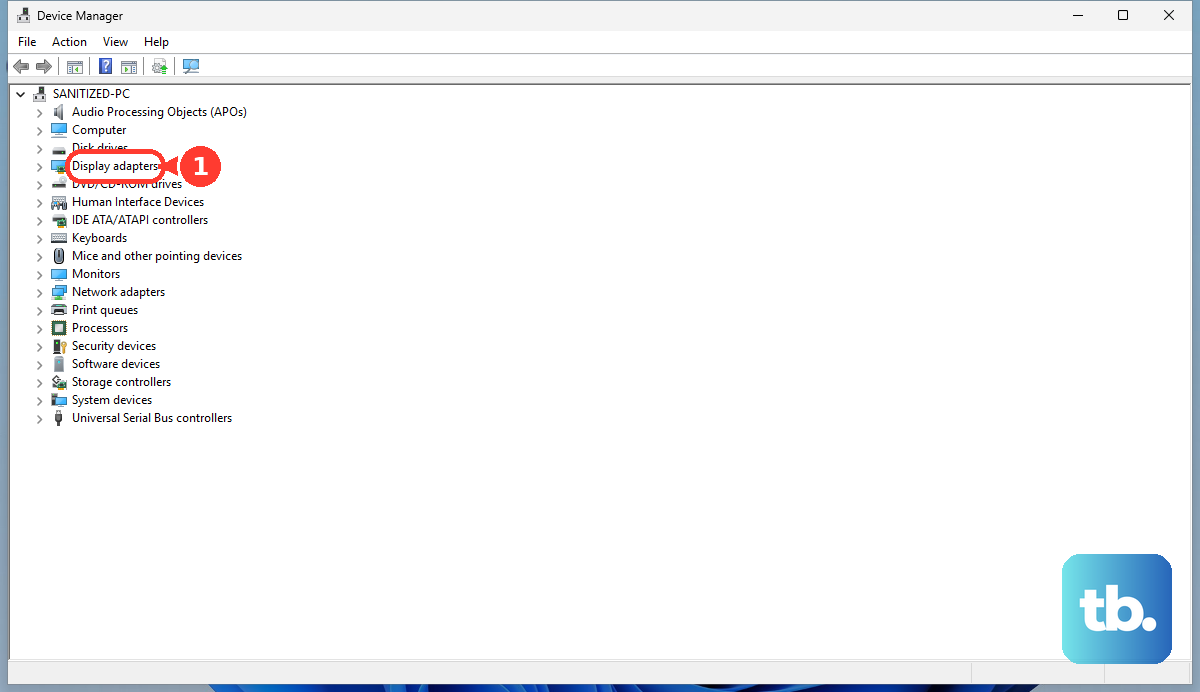
Press Windows key + X and choose Device Manager. Expand the Display adapters section. Right-click on your graphics adapter (like Intel Iris Xe or AMD Radeon Graphics) and select Disable device.
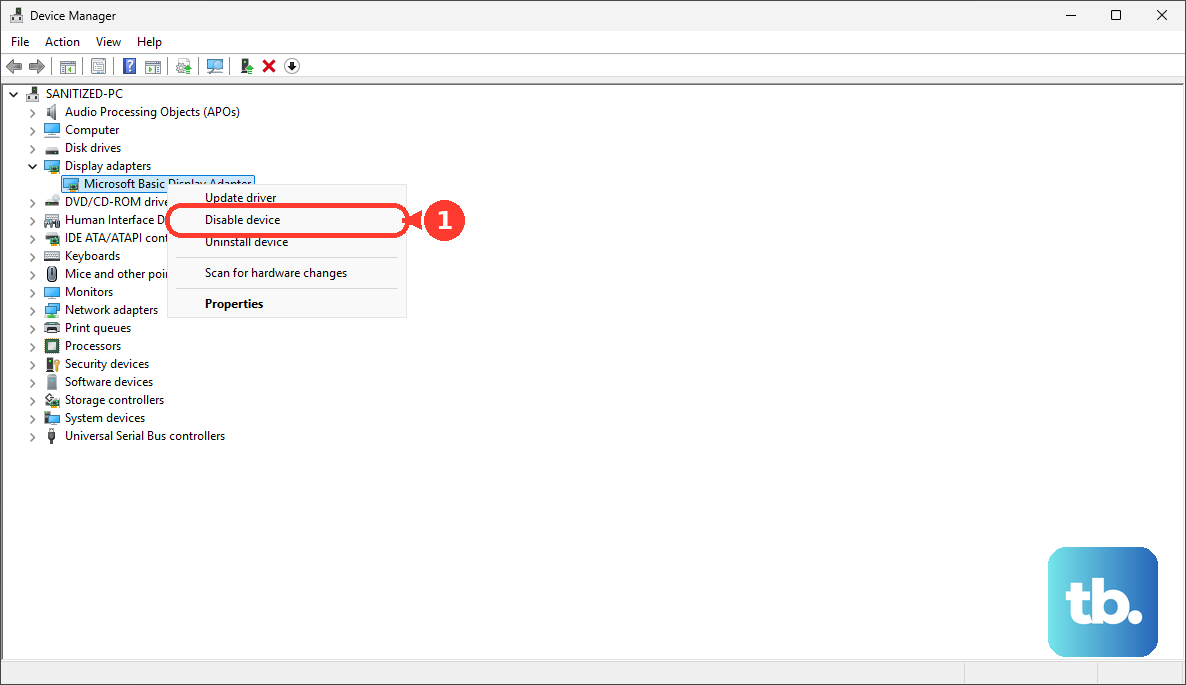
Wait about ten seconds, then right-click it again and choose Enable device. This resets the adapter and can clear up output issues. Your screen will flicker as it reinitializes.
Test a Different Display or Port
To rule out the monitor itself, try connecting your Inspiron 14 to a different TV or display with the same cable. If it works, the issue is with the first monitor's input or settings.
Many Inspiron 14 models also have a USB-C port that supports DisplayPort Alt Mode. If your HDMI port isn't cooperating, try using a USB-C to HDMI adapter. If that works, it points to a potential issue with the laptop's dedicated HDMI hardware.
Run the Built-in Dell Diagnostics
Dell includes a hardware diagnostic tool that can test the display outputs. Restart your laptop and tap the F12 key repeatedly as it boots to enter the one-time boot menu.
Use the arrow keys to select Diagnostics and press Enter. The tool will run a series of checks, including ones for the video system, which might identify a hardware fault with the HDMI port.
If you've recently updated your system BIOS or audio drivers, be aware that some users have reported odd conflicts. Ensuring all your drivers, especially chipset and audio, are current from the Dell site can sometimes resolve these hidden conflicts.