
When your Dell G16 can't find Bluetooth devices, your wireless headset, mouse, or controller is suddenly useless. The Bluetooth icon might be missing, or your laptop just spins endlessly while searching. It's a common Windows hiccup, but it's usually fixable.
Toggle Bluetooth On and Off
First, click the network icon in your taskbar and make sure the Bluetooth tile is lit up. If it's off, click it to turn it on. If you don't see the tile there, open Settings > Bluetooth & devices and flip the main Bluetooth switch off, wait a moment, then turn it back on.
Restart Your G16
This is the simplest fix that works more often than you'd think. A full restart clears out any temporary software glitches that can hang up the Bluetooth radio, especially if the issue started after the laptop woke from sleep or hibernation.
Forget and Re-Pair Your Device
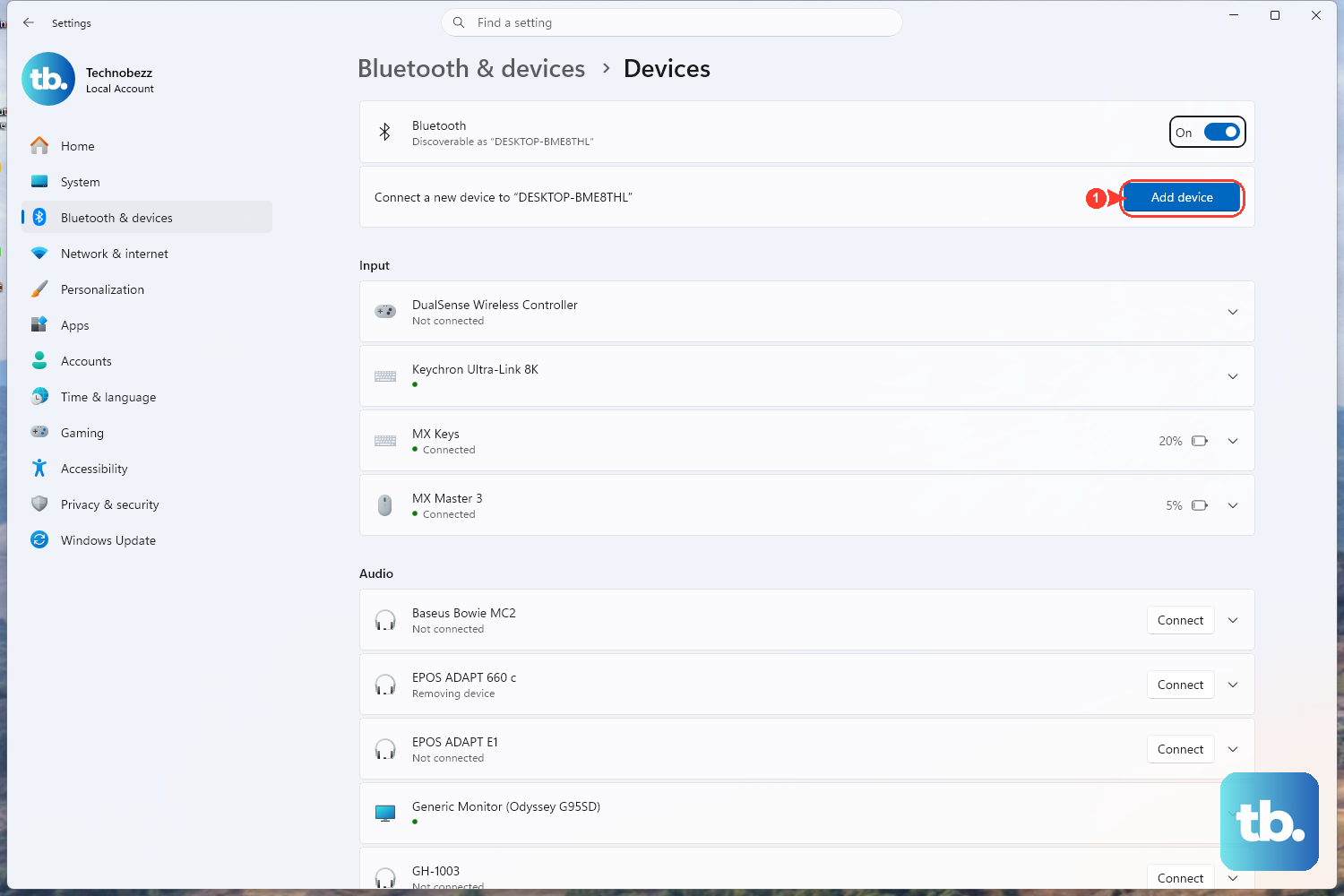
Go to Settings > Bluetooth & devices and find the device that won't connect. Click the three dots next to it and select Remove device. Then, put your headset or controller into pairing mode and click Add device to pair it from scratch. A corrupted pairing profile is a very frequent culprit.
Run the Windows Bluetooth Troubleshooter
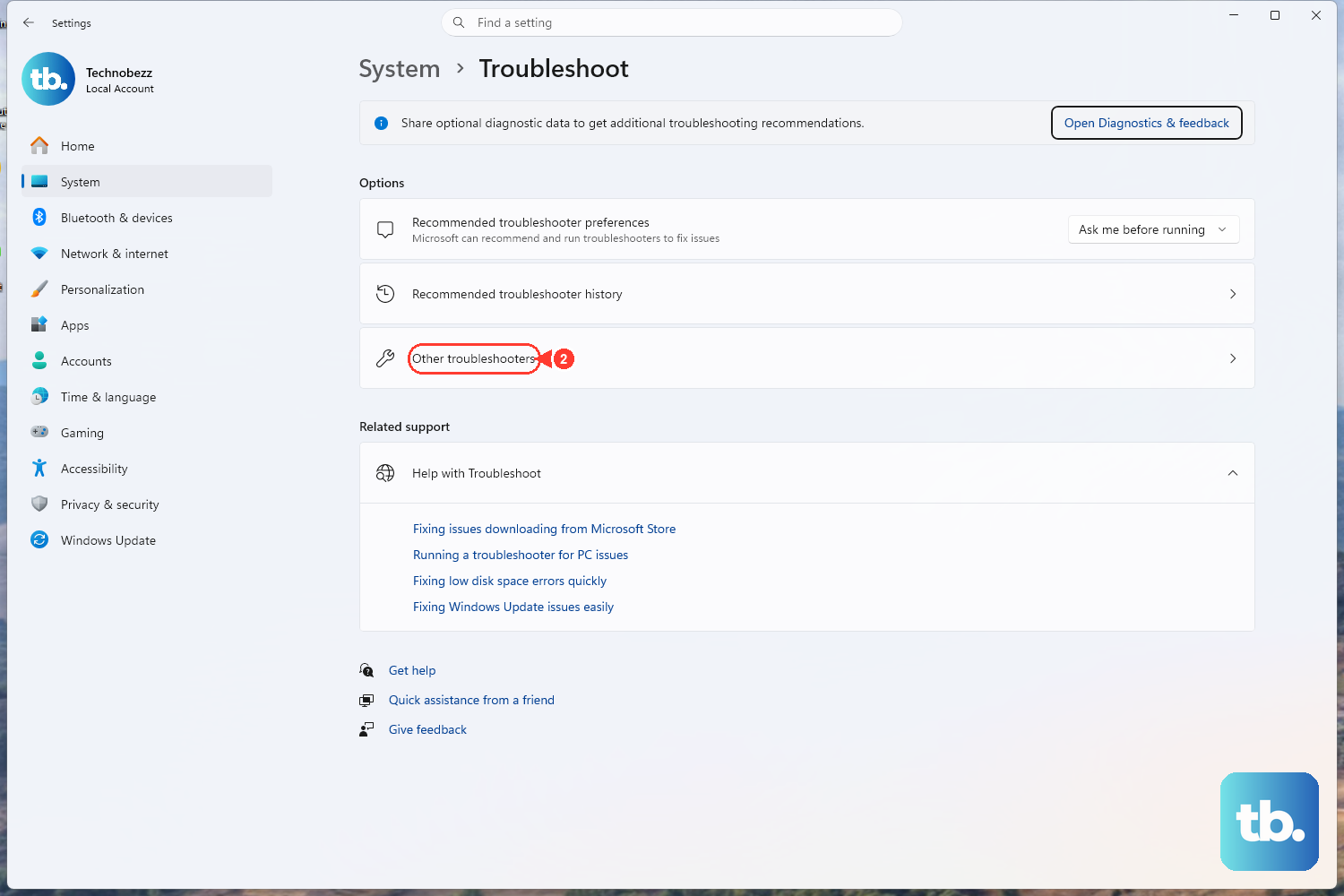
Windows has a built-in tool for this. Go to Settings > System > Troubleshoot > Other troubleshooters. Find the Bluetooth troubleshooter in the list and click Run. It will scan for common configuration problems and try to apply fixes automatically.
Update Your Bluetooth Drivers
Outdated or corrupted drivers are a prime suspect. Press the Windows key + X and select Device Manager. Expand the Bluetooth section, right-click on your Bluetooth adapter (it might be listed as Intel or Realtek), and choose Update driver > Search automatically for drivers.
If Windows says you have the best driver, I'd recommend going to the source. Visit the official Dell support site, enter your G16's service tag, and download the latest Bluetooth driver directly from there. Installing the manufacturer's driver is often more reliable than the generic one Windows Update provides.
Restart the Bluetooth Support Service
Sometimes the background service that manages Bluetooth stops running. Press Windows key + R, type services.msc, and hit Enter. Scroll down to find Bluetooth Support Service.
Right-click it and select Restart. Then, double-click it to open its properties and ensure the Startup type is set to Automatic. This ensures the service runs every time you start Windows.
Check for Wireless Interference
Your G16's WiFi and Bluetooth both use the 2.4GHz band, and they can interfere with each other. USB 3.0 devices and cables can also emit noise in that frequency. Try moving your Bluetooth device closer to the laptop, or temporarily switch your WiFi to the 5GHz band if your router supports it.
If you have any USB 3.0 hubs or external drives plugged in, try unplugging them to see if your Bluetooth discovery suddenly starts working.
Install All Windows Updates
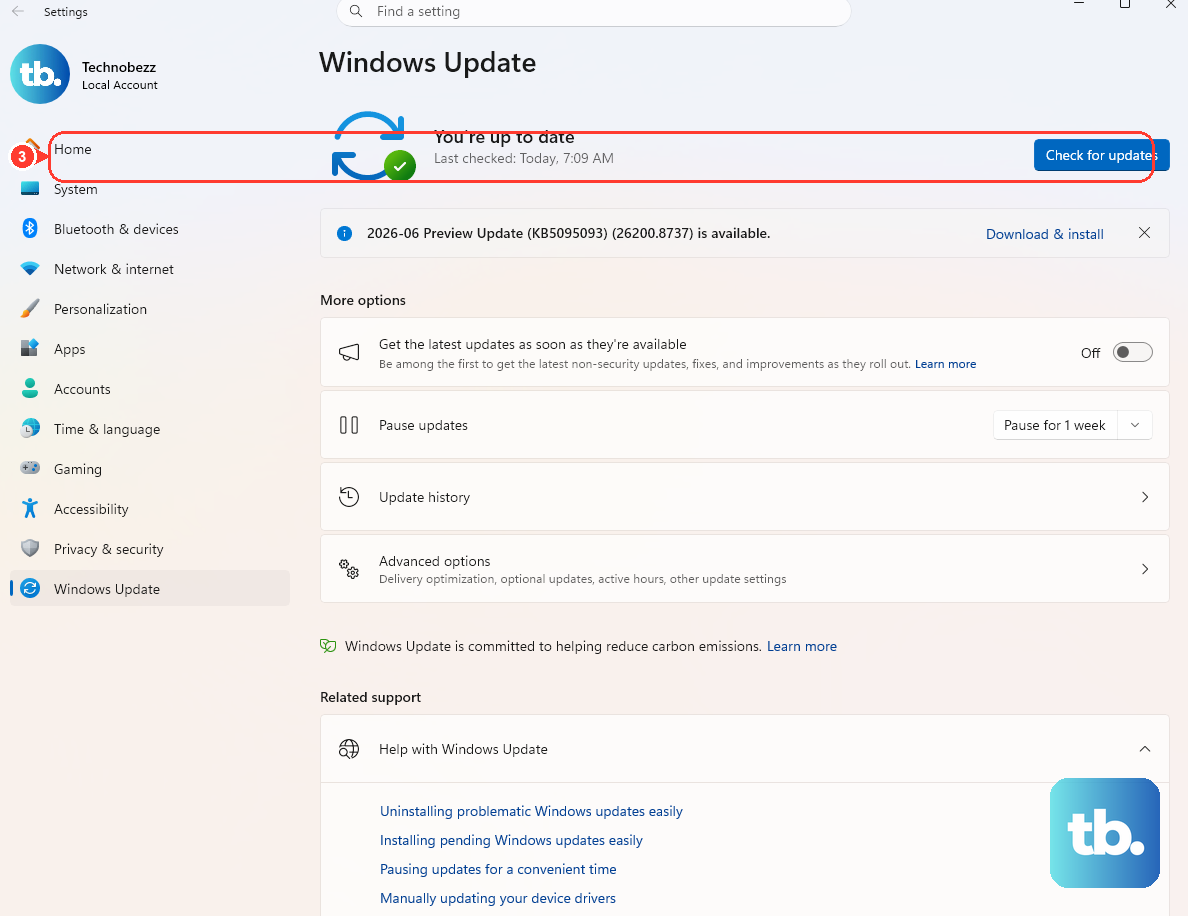
Head to Settings > Windows Update and click Check for updates. Install any available feature or quality updates. Microsoft regularly releases patches that fix connectivity issues with Bluetooth stacks and specific hardware.
Reinstall the Bluetooth Adapter
If nothing else works, a clean driver install might be needed. Go back to Device Manager, find your Bluetooth adapter under the Bluetooth section, right-click it, and select Uninstall device. Check the box that says Attempt to remove the driver for this device if it appears.
After you click Uninstall, restart your Dell G16. Windows will detect the hardware on boot and reinstall the Bluetooth adapter with a fresh set of default drivers. You'll then need to pair your devices again.