
Screen flickering on your ASUS VivoBook 15 is incredibly distracting, turning a simple task into a frustrating ordeal. The display might flash, show horizontal lines, or have intermittent blackouts. Let's get it fixed.
Update Your Display Drivers
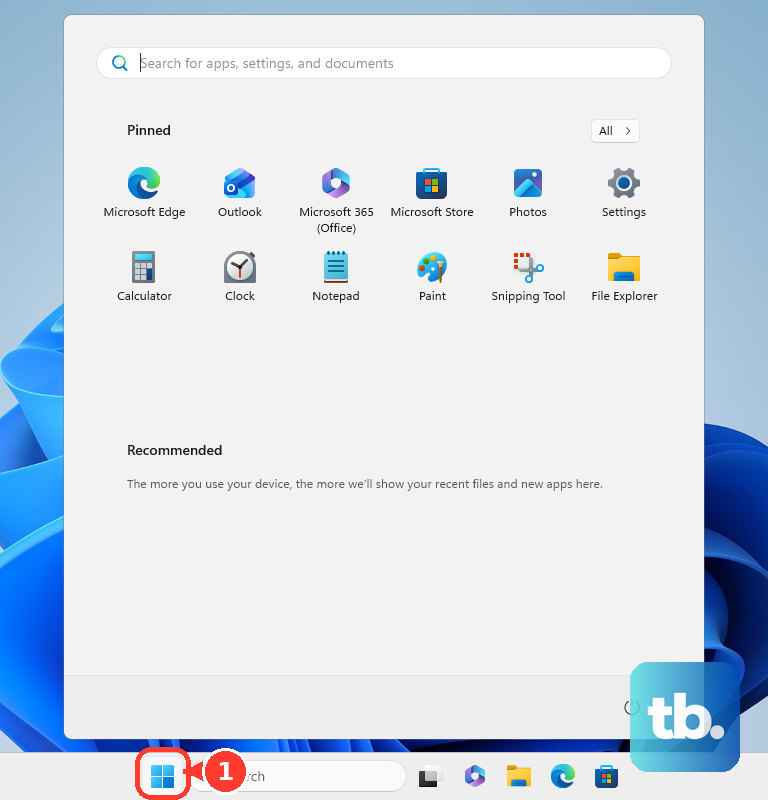
Outdated or corrupted graphics drivers are the most common cause of flickering. I'd start here every time. Open the Start menu and type "Device Manager," then expand the "Display adapters" section.
Right-click on your graphics adapter (it will likely be Intel UHD Graphics or an AMD Radeon chip) and select "Update driver." Choose "Search automatically for drivers." For a more thorough update, visit the official ASUS support page for your specific VivoBook 15 model and download the latest graphics driver from there.
Use the MyASUS App for System Health
Your VivoBook comes with the MyASUS app, which is actually useful for this. Open it and navigate to the "Customer Support" or "System Diagnosis" section. Run a display check or a full hardware diagnostic.
This tool can identify driver conflicts and even offer optimized driver versions specifically validated for your laptop. It's a good first stop before diving deeper into Windows settings.
Adjust Your Screen's Refresh Rate
Sometimes the display panel and the graphics driver have a slight mismatch. Right-click on your desktop and select "Display settings." Scroll down and click "Advanced display."
Look at the "Refresh rate" dropdown. If it's set to 60Hz, try switching it to 59.94Hz or 50Hz to see if the flickering stops. This simple change can resolve timing issues that cause the screen to flash.
Check for a Loose Internal Cable
If the flickering gets worse when you open or close the lid or gently flex the plastic chassis, you might have a hardware issue. The ribbon cable connecting the screen to the motherboard can work loose over time.
This is more common on laptops that see a lot of travel. While you can sometimes reseat this cable by carefully opening the bottom panel, it often requires a professional repair, especially to avoid damaging the delicate connectors.
Boot Into Safe Mode to Isolate the Problem
This tells you if the problem is with Windows itself or a program running in the background. Restart your laptop and immediately start pressing the F8 key repeatedly before the Windows logo appears. If that doesn't work, hold the Shift key while clicking "Restart" in the Start menu power options.
Navigate to Troubleshoot > Advanced options > Startup Settings > Restart. After your PC reboots, press 4 or F4 to enable Safe Mode. If the screen is stable in Safe Mode, a third-party driver or startup app is the culprit.
Uninstall Problematic Software
If Safe Mode fixes the flicker, a recently installed program is likely to blame. Common offenders include certain antivirus suites, cloud storage apps, or older display customization tools. Go to Settings > Apps > Installed apps and sort by install date.
Consider removing any unnecessary ASUS pre-installed apps you don't use, as this bloatware can sometimes cause conflicts. Uninstall one app at a time, restarting after each, to identify the problem software.
Disable Hardware Acceleration in Apps
Apps like Chrome, Discord, and Zoom use your GPU to render content, which can conflict with drivers. In Chrome, go to Settings > System and turn off "Use hardware acceleration when available."
Restart the browser after making the change. Check the settings of any other app where the flickering is most pronounced for a similar option. This takes the load off the graphics driver for that specific application.
Roll Back a Recent Display Driver
If the flickering started right after a Windows or driver update, rolling back can help. Go back to Device Manager, right-click your display adapter under "Display adapters," and select "Properties."
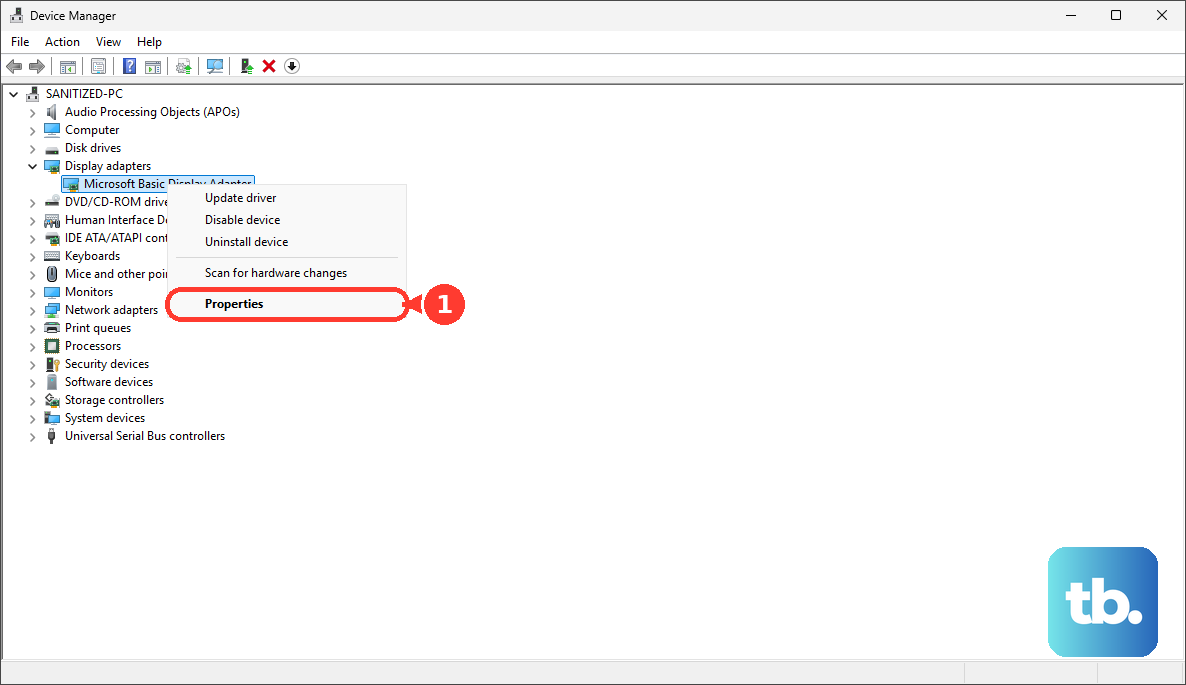
Click the "Driver" tab. If the "Roll Back Driver" button is clickable, select it and follow the prompts. This will revert your graphics driver to the previous version, which was likely more stable for your system.
Run All Windows Updates
Finally, make sure Windows itself is completely up to date. Go to Settings > Windows Update and click "Check for updates." Install all available updates, including optional driver updates if offered.
Microsoft frequently releases patches for known display and graphics issues. A major Windows feature update can also include a newer, more compatible graphics driver that resolves the flickering for good.