
A slow VivoBook 15 can turn a simple task into a frustrating wait. The good news is that sluggish performance on this laptop is almost always a software issue you can fix yourself. I'd start with the basics, as they often clear things right up.
Restart Your VivoBook
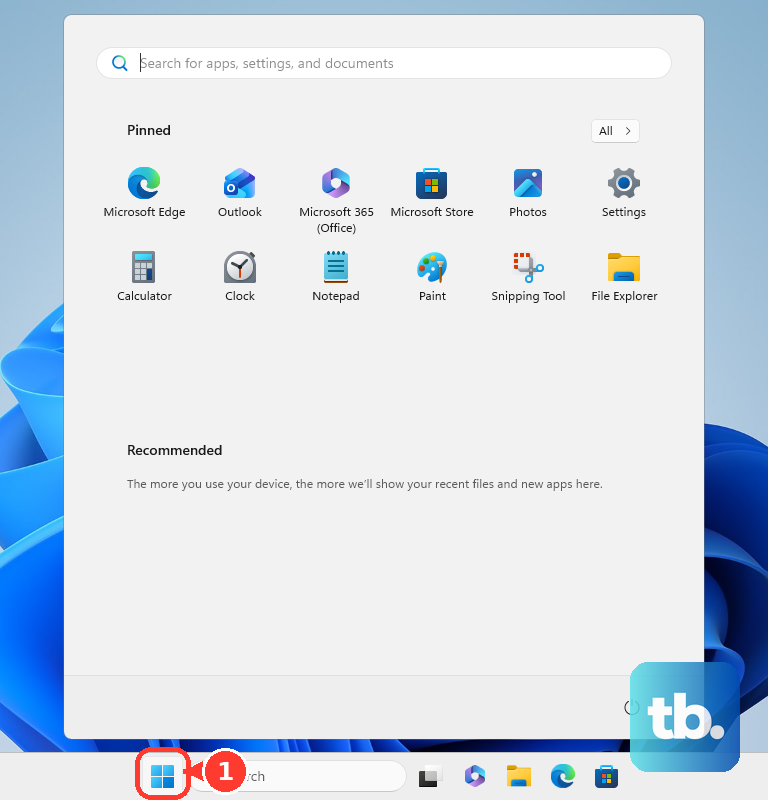
If you usually just close the lid, your laptop has likely been in sleep mode for weeks. This lets background processes and memory leaks pile up. Click Start > Power > Restart to give your system a fresh start. It's a simple step, but it works surprisingly often.
Manage Startup Programs
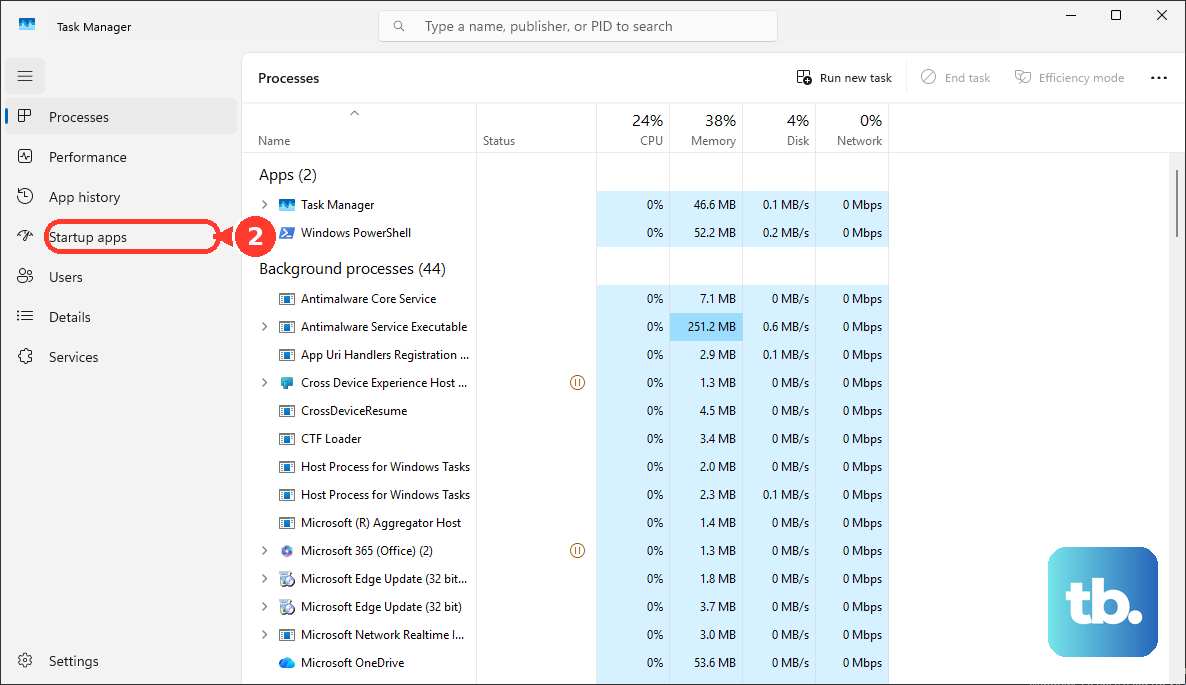
Too many apps launching at boot is a major culprit for slow startups and general lag. Press Ctrl + Shift + Esc to open Task Manager, then click the Startup apps tab. Look for and disable anything you don't need immediately, like Spotify, Discord, or OneDrive. Pay special attention to any unnecessary ASUS utilities that came pre-installed.
Use the MyASUS App
ASUS includes the MyASUS app for a reason. Open it and head to the Customer Support or System Diagnosis section. Run a system health check first. Then, go to LiveUpdate to ensure all your drivers, especially for the chipset and WiFi, are current. This is often easier than hunting on the support website.
Check for Resource Hogs
While Task Manager is open, click the CPU and Memory columns to sort by usage. A single process using a high percentage could be slowing everything down. Common offenders on the VivoBook 15 include background Windows Update tasks, too many browser tabs, or the pre-installed McAfee antivirus if it's running a scan.
Free Up Disk Space
A drive that's over 85% full will noticeably slow down your system. Go to Settings > System > Storage and turn on Storage Sense to automate cleanup. For a manual clean, click Temporary files and remove items like Windows Update cleanup files and your recycle bin contents.
Adjust Your Power Plan
Windows often defaults to a balanced or power-saving plan to extend battery life, which can throttle your CPU. Plug in your laptop, then go to Settings > System > Power & battery. Find the power mode and switch it to Best performance. You'll see an immediate responsiveness boost for tasks like web browsing and document editing.
Address the WiFi Adapter
Some VivoBook 15 models use a budget WiFi adapter that can drop connections or perform slowly, making browsing feel laggy. First, update the driver via MyASUS. If problems persist, consider purchasing a reputable USB WiFi adapter. It's a small investment that can solve a persistent network-related slowdown.
Reduce Visual Effects
Search for "Adjust the appearance and performance of Windows" in the Start menu. In the Visual Effects tab, you can select Adjust for best performance to turn off all animations. Alternatively, manually uncheck items like "Animate windows when minimizing and maximizing" and "Transparency effects" for a snappier feel with minimal visual impact.
Consider a Hardware Upgrade
If your VivoBook has only 4GB of RAM, upgrading to 8GB is the most impactful change you can make for multitasking. If it still uses a traditional hard drive (HDD), swapping it for a solid-state drive (SSD) is a night-and-day difference. An SSD makes Windows boot, apps launch, and files load in seconds instead of minutes.
Perform a Windows Refresh
If you've tried everything and the lag remains, a refresh can help. Go to Settings > System > Recovery and click Reset PC. Choose Keep my files to reinstall Windows while preserving your personal documents. This removes all apps and settings, giving you a clean slate without the accumulated software clutter.