
When your ASUS VivoBook 15 is plugged in but the battery percentage just won't budge, it's a real roadblock. The problem could be with the power adapter, the port, the battery itself, or even a software setting. Let's walk through the most effective fixes to get you charging again.
Inspect Your Charger and Cable
Start with the physical components. Check your ASUS power adapter and the cable for any obvious damage, like fraying or kinks. Try plugging it into a different wall outlet to rule out a faulty socket.
Look for the LED light on the brick of the adapter; it should be lit when it's receiving power from the wall. If it's not, the adapter itself might have failed. I'd start with this check, as it's the most common culprit.
Perform a Full Shutdown and Restart
Don't just put the laptop to sleep. Click the Windows Start menu, select the power icon, and choose Shut down. Wait a full minute, then press the power button to turn it back on while it's still plugged into the charger.
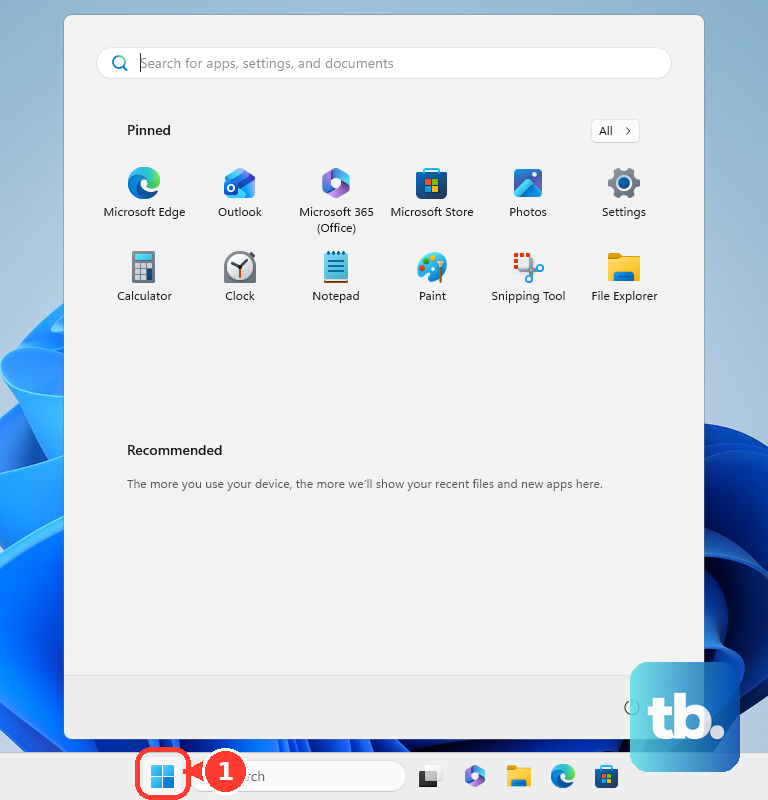
This simple reboot can reset the laptop's Embedded Controller, which manages power and charging. It often clears up temporary glitches that prevent the system from recognizing the adapter.
Run a Battery Health Report
Windows has a built-in tool to check your battery's condition. Press the Windows key, type cmd, and run Command Prompt as an administrator. In the black window, type powercfg /batteryreport and hit Enter.
This command saves an HTML file to your user folder. Open that file in your web browser and look for the "Design Capacity" versus "Full Charge Capacity." If the full charge capacity is significantly lower, your battery may be worn out and need replacing.
Update or Reinstall Battery Drivers
Outdated or corrupted drivers can confuse Windows. Right-click the Start button and select Device Manager. Expand the Batteries section.
Right-click on Microsoft ACPI-Compliant Control Method Battery and select Uninstall device. Do the same for the AC Adapter entry if you see one. Restart your VivoBook, and Windows will automatically reinstall fresh drivers upon boot.
Check the MyASUS App for Settings
ASUS includes its MyASUS app for system management. Open it and look for battery or power settings. Some models have a Battery Health Charging feature that limits the maximum charge to 60% or 80% to prolong battery lifespan.
If this is enabled, your laptop will stop charging before it reaches 100%. You can toggle this setting off if you need a full charge for the day. The app is also great for checking system health and running diagnostics.
Clean the Charging Port Carefully
Over time, the barrel charging port on your VivoBook can collect pocket lint and dust. Shine a flashlight into the port and look for any debris blocking a solid connection.
Use a wooden toothpick or a can of compressed air to gently dislodge any gunk. Be very careful not to scrape or bend the central metal pin inside the port, as this can cause permanent damage.
Test With a Different, Compatible Charger
If you can, try charging your laptop with a known-good adapter that matches its specifications. The original VivoBook 15 charger is typically a 45W or 65W unit.
Using an underpowered charger, like one from a phone, often won't work or will charge extremely slowly. The voltage and connector must match exactly, so borrowing a friend's ASUS laptop charger is your best bet for testing.
Update Your System BIOS
BIOS updates from ASUS frequently include fixes for power management and hardware detection. You can check for updates within the MyASUS app or by visiting the official ASUS support website for your specific VivoBook 15 model.
Download the latest BIOS file and follow ASUS's instructions precisely. Make sure your laptop is plugged in during the update process, as an interruption can cause serious issues.
Remove Unnecessary Background Software
Some pre-installed ASUS utilities or other background apps can interfere with power states. Open Settings > Apps > Installed apps and look for any non-essential ASUS software you don't use.
You can uninstall these to free up system resources. Also, check the system tray (bottom-right corner) for any third-party battery management tools that might be overriding Windows settings.