
That sudden blue screen on your ASUS VivoBook 15 can feel like a full stop, especially if it started after a recent update. It's Windows hitting the emergency brake because something went wrong, often a driver conflict or a corrupted file introduced during an update. The good news is you can almost always get things running smoothly again with a few targeted steps.
Restart and See if It Happens Again
The first thing to do is a normal restart. Sometimes a BSOD is a one-time glitch caused by a temporary driver hiccup. If your VivoBook boots up to the desktop and runs normally, you can likely chalk it up to a fluke. If the blue screen comes back immediately or within a few minutes of use, you've got a persistent issue to solve.
Write Down the Stop Code
When the blue screen appears, look for the all-caps error code near the bottom. Common ones include DRIVER_IRQL_NOT_LESS_OR_EQUAL, SYSTEM_SERVICE_EXCEPTION, or KERNEL_SECURITY_CHECK_FAILURE. Jot this code down. It points to the category of the problem, which is useful if the general fixes don't work and you need to search for a more specific solution later.
Boot Into Safe Mode to Isolate the Problem
If the crashes are preventing you from reaching the desktop, you'll need to boot into Safe Mode. On your VivoBook, you can do this by holding the Shift key while you click Restart from the Windows login or power menu. After it restarts to a blue menu, go to Troubleshoot > Advanced options > Startup Settings > Restart. Once it reboots again, press the 4 key to enable Safe Mode. This loads Windows with only essential drivers, which can help you determine if a third-party app or driver is the culprit.
Uninstall the Latest Windows Update
Since the problem started after an update, this is a prime suspect. From within Windows (or Safe Mode), go to Settings > Windows Update > Update history. Near the top, click Uninstall updates. Look for the most recent quality update or feature update, right-click it, and select uninstall. Your PC will restart. I've seen this resolve update-induced blue screens on many laptops, including recent VivoBook models.
Update or Roll Back Your Drivers
Outdated or buggy drivers are the most common cause of BSODs. Pay special attention to your graphics, chipset, and wireless drivers. For your VivoBook 15, the absolute best tool for this is the MyASUS app that came pre-installed. Open it and check the Live Update or Customer Support section for official, tested driver updates from ASUS. You can also use Device Manager to update drivers individually or roll back a driver if the problem started after you installed a new one.
Run the System File Checker
Corrupted Windows system files can trigger crashes. To check for this, open the Start menu, type cmd, right-click Command Prompt, and select Run as administrator. In the black window, type sfc /scannow and press Enter. This scan will look for and attempt to repair any corrupted protected files. If it finds problems it can't fix, run DISM /Online /Cleanup-Image /RestoreHealth first, then run the sfc command again.
Check Your Memory with Windows Diagnostic
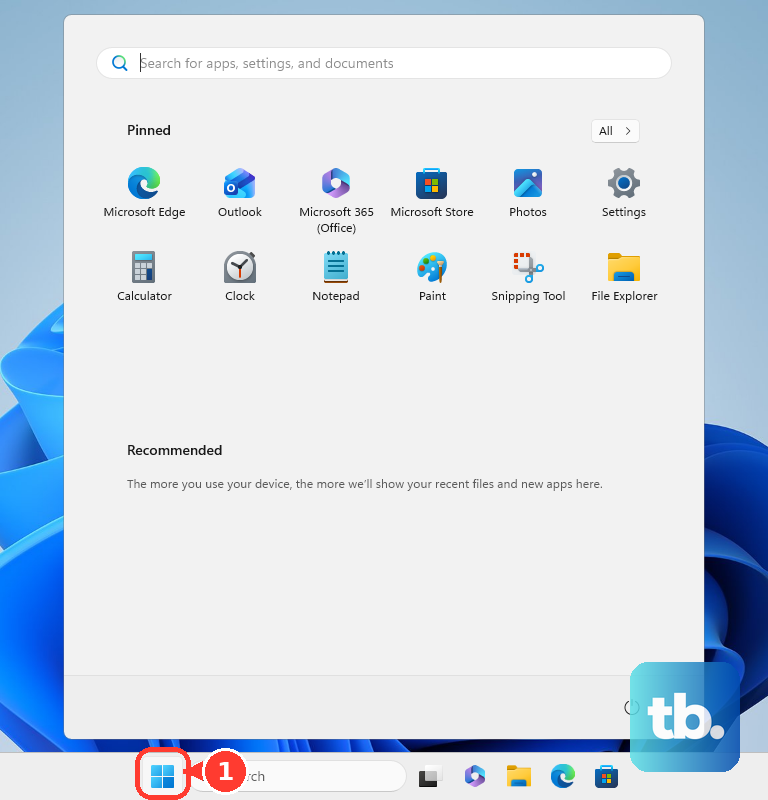
Faulty RAM is a classic hardware cause of blue screens. Windows has a built-in tool to test it. Search for Windows Memory Diagnostic in the Start menu and open it. Choose Restart now and check for problems. Your VivoBook will reboot and run a comprehensive memory test, which can take several minutes. If it reports any errors, you may need to reseat the RAM modules or, in rarer cases, replace them.
Scan Your Drive for Errors
A failing SSD can also cause instability. To check it, open an Administrator Command Prompt like before. Type chkdsk C: /f /r and press Enter. It will schedule the check for the next restart. Type Y to confirm, then restart your laptop. The check will run before Windows boots, looking for and repairing bad sectors on your drive.
Manage Pre-installed Software and Check for Overheating
Some pre-installed ASUS software can use background resources and occasionally cause conflicts. It's worth opening Settings > Apps > Installed apps and removing any ASUS or third-party apps you don't recognize or use. Also, the plastic chassis on the VivoBook 15 can mean it heats up a bit more. Ensure the vents on the bottom and sides are clear of dust and not blocked by blankets or pillows. Using the laptop on a hard, flat surface helps a lot with airflow.
Perform a System Reset
If you're still facing blue screens, a system reset is a powerful last resort. Go to Settings > System > Recovery. Click Reset this PC. Choose Keep my files to remove apps and settings but preserve your personal documents. This will cleanly reinstall Windows and often resolves deep-seated driver conflicts or system file corruption that other tools can't fix.