Getting into your ASUS router settings is the first step to changing your WiFi password, updating firmware, or fixing a connection problem. If you have forgotten the admin login, there are reliable ways to get back in. This guide walks through every method, from the web dashboard and the mobile app to a full factory reset, using the current ASUSWRT interface.
For the reset itself, a browser based password generator builds a long random password in one click. It runs entirely on your device, so the new password is never transmitted anywhere.
How to Log In to Your ASUS Router on the Web
The fastest way to reach your router settings is through a web browser. First, connect the device you are using to the router, either over WiFi or with an Ethernet cable plugged into a LAN port. You cannot reach the login page if you are not connected to the router's own network.
Open any browser such as Chrome, Edge, Firefox, or Safari and type one of these addresses into the address bar:
- http://www.asusrouter.com
- http://router.asus.com
- 192.168.50.1 (the default IP on many current ASUS models)
- 192.168.1.1 or 192.168.0.1 (used by some models)
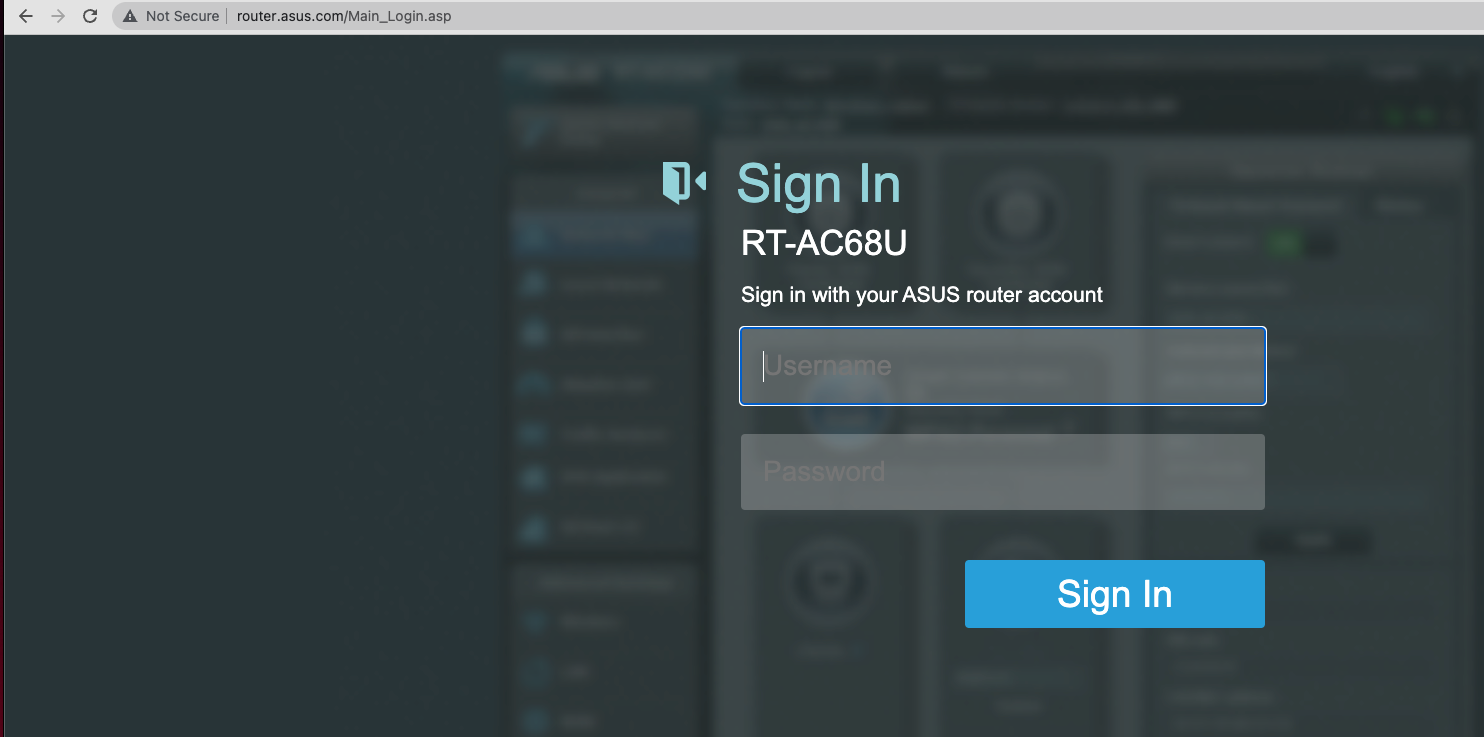
When the sign-in screen loads, enter your admin username and password and select Sign In. This is the management login, not the WiFi name and password you use to join the network. They are two separate things.
Default ASUS Login Details and IP Addresses
If you have never changed the credentials, the default username and password on most ASUS routers are both admin. Some newer models ship with a unique password printed on a sticker, so always check the label first.
The sticker on the back or bottom of the router lists the model-specific defaults, the default network name, and often the login address. Use the table below as a quick reference for the standard ASUS values.
| Setting | Default value |
|---|---|
| Login URL | www.asusrouter.com or router.asus.com |
| Default IP (current models) | 192.168.50.1 |
| Default IP (some models) | 192.168.1.1 or 192.168.0.1 |
| Username | admin |
| Password | admin, or the value on the router label |
Passwords on ASUS routers are case sensitive, so check your capitalization if a known password is rejected. After your first setup, ASUS recommends a password longer than 10 characters that mixes uppercase letters, numbers, and symbols.
Log In Using the ASUS Router App
If you would rather manage your router from your phone, the free ASUS Router app handles login, settings, and reboots. Download it from the App Store on iPhone or iPad, or from Google Play on Android.
Connect your phone to your router's WiFi network first, then open the app. Tap your router when the app detects it, and sign in with the same admin username and password you would use on the web dashboard.
Once you are in, the app lets you view connected devices, change the WiFi name and password, run firmware updates, and add AiMesh nodes. The login credentials are shared between the app and the web interface, so changing the password in one place updates both.
How to Find Your Router IP Address
If the standard addresses do not load the login page, your router may use a different IP. You can find the exact address, listed as the default gateway, on any device that is already connected to the network.
Windows 11
- Press the Windows key, type cmd, and open Command Prompt.
- Type ipconfig and press Enter.
- Find your active adapter and read the Default Gateway line. That number is your router IP.
Mac
Open the Apple menu, choose System Settings, then Network. Click your active connection, then click Details and open the TCP/IP tab. The address next to Router is your router IP.
iPhone or iPad
Open Settings, tap Wi-Fi, tap the name of your connected network, and read the Router field.
Android
Open Settings, tap Wi-Fi, tap your connected network or its info icon, and look for the Gateway field. Type that address into your browser to reach the login page.
Reset a Forgotten Admin Password Without Losing Settings
There is no way to recover a forgotten ASUS admin password without resetting it, because ASUS does not store it. If you can still log in but want to change the password, you can do so from the dashboard without wiping your configuration.
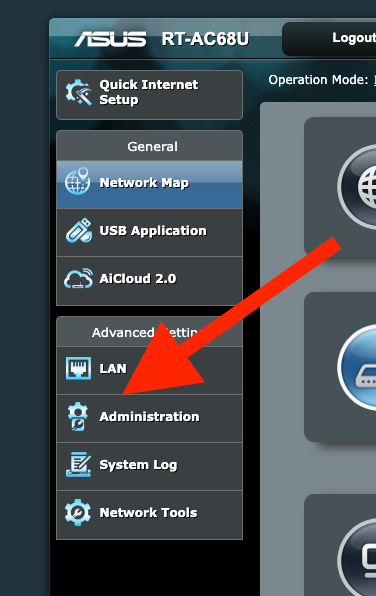
After signing in, open the Administration section and go to the System tab. Change the router login name and password fields, then select Apply to save. This updates only the admin credentials and leaves your WiFi and internet settings intact.
If you only forgot your WiFi password but can still log in, you can view it instead of resetting anything. On current firmware go to Network, open the main network profile, and read the Wireless Security field. On older firmware go to Wireless, open General, and read the WPA-PSK Key field.
Factory Reset Using the Physical Button
When you cannot log in at all because the admin password is lost, a hardware reset is the only way back in. This erases everything, so use it as a last resort.
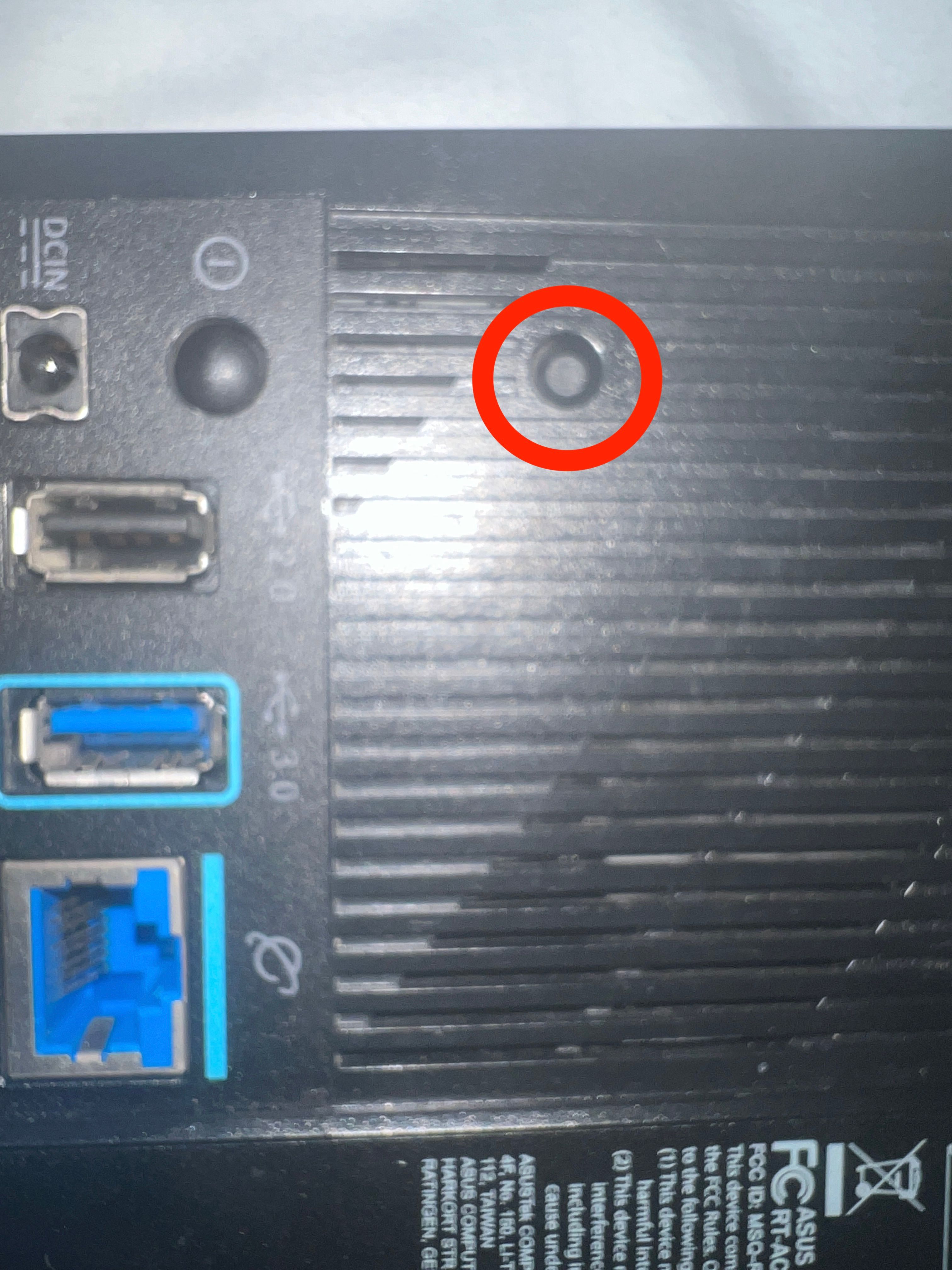
With the router powered on, find the small recessed RESET button on the back. Press and hold it for 5 to 10 seconds until the power LED starts to flash, then release. The router will reboot on its own, which can take a couple of minutes.
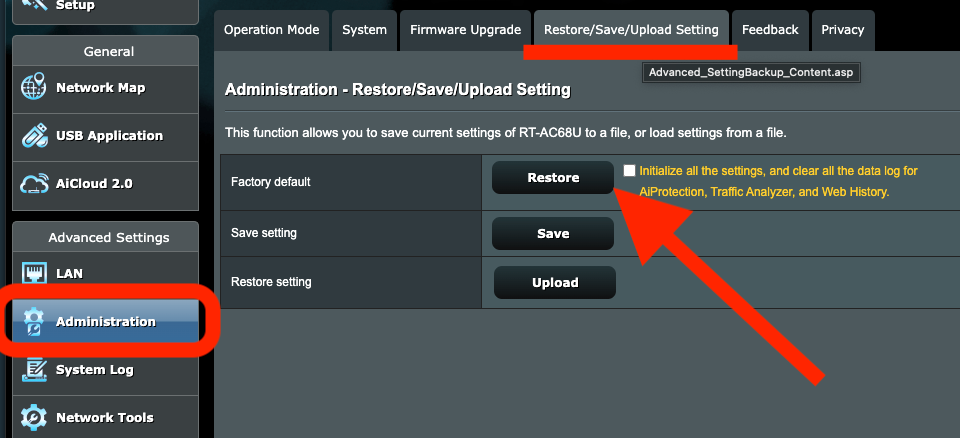
Do not unplug or power off the router while it is restoring, as that can corrupt the firmware. If the standard reset does not work on your model, ASUS provides a separate hard factory reset procedure in its support pages for your specific router.
What to Do After a Reset
A factory reset returns the router to its out-of-the-box state. Your custom WiFi name and password, internet settings, port forwarding rules, and any other configuration are erased, and the admin login reverts to the default on the label.
To set it up again, connect to the default network printed on the router label, then open www.asusrouter.com or the ASUS Router app. The Quick Internet Setup wizard will walk you through creating a new admin password, naming your WiFi network, and reconnecting to the internet.
If the login page still will not load after a reset, try a wired connection, switch browsers, or clear your browser cache. Confirm you are connected to the router and not a neighboring network, then re-enter the gateway IP you found earlier.
Frequently Asked Questions
What is the default username and password for an ASUS router?
On most ASUS routers both the username and password are admin. Some newer models use a unique password printed on the sticker on the back or bottom of the router, so check the label if admin does not work.
Why does 192.168.1.1 not open my ASUS router login page?
Many current ASUS models use 192.168.50.1 instead, and some use 192.168.0.1. Try www.asusrouter.com or router.asus.com, or find the exact default gateway address on a connected device and enter that.
Can I log in to my ASUS router without the password?
No. ASUS does not store or recover admin passwords, so if you cannot remember it you must perform a factory reset using the physical RESET button, then set a new password during the setup wizard.
Will resetting my ASUS router delete my WiFi name and password?
Yes. A factory reset erases all settings, including your WiFi network name and password, internet configuration, and admin login. You will need to set everything up again afterward.
Should I use the ASUS Router app or the web interface?
Both use the same login and reach the same settings. The app is convenient for quick changes and reboots from your phone, while the web interface offers the full settings dashboard on a larger screen.
How do I change my ASUS router admin password without a full reset?
Log in, open Administration, go to the System tab, update the login name and password fields, and select Apply. This changes only the admin credentials and keeps your WiFi and internet settings.
First published October 13, 2025. Last updated June 4, 2026.