
When your ASUS ROG Zephyrus G16 won't connect to WiFi, it can feel like your high-performance machine has been completely grounded. Whether you're seeing no networks, getting a "Can't connect to this network" error, or have a connection with no internet, these steps will get you back online.
Toggle WiFi and Airplane Mode
Click the network icon in your taskbar and turn WiFi off. Wait about ten seconds, then turn it back on. If that doesn't work, toggle Airplane mode on and off from the same menu. This quick refresh of the wireless radio can clear up temporary glitches.
Run the Windows Network Troubleshooter
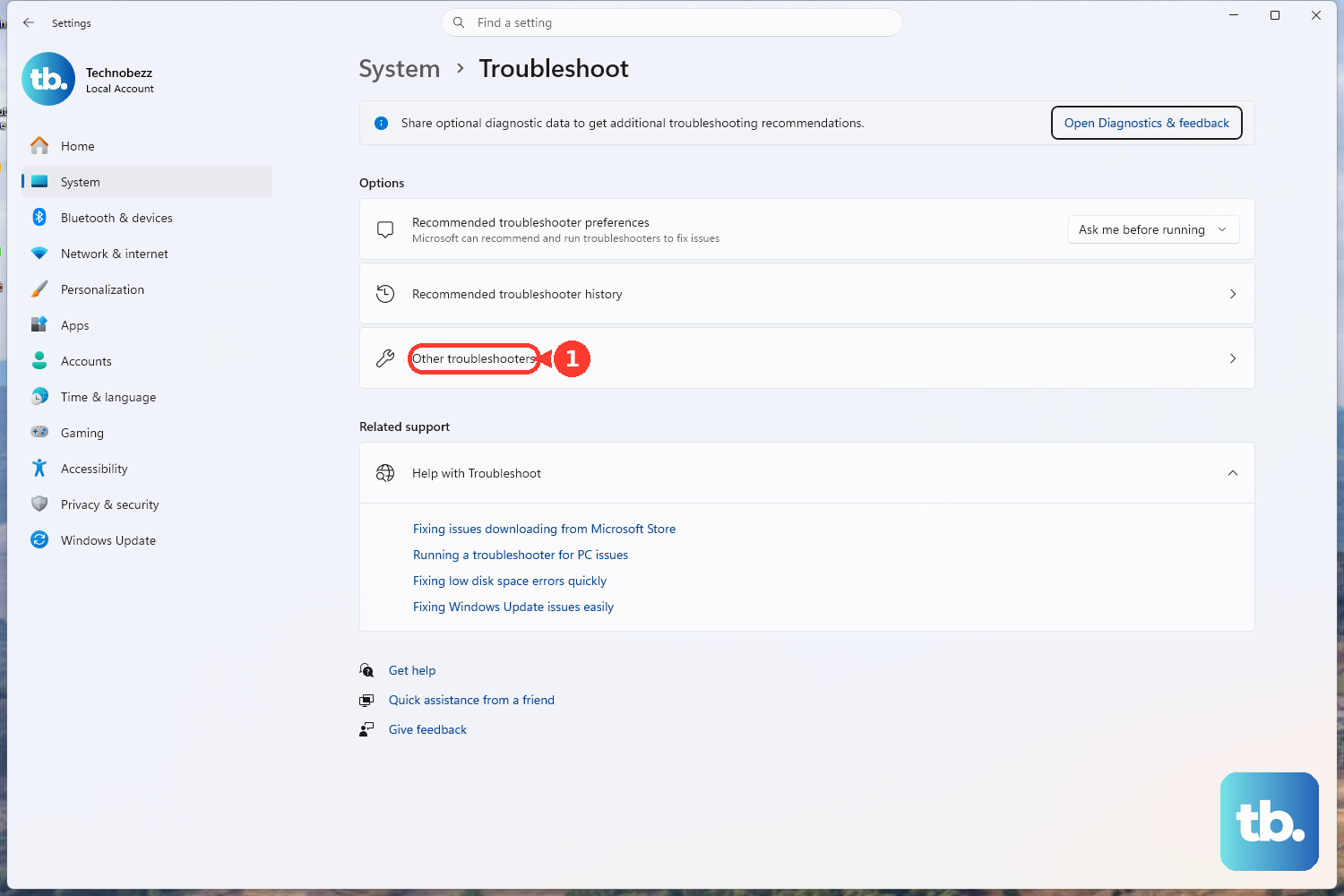
Right-click the WiFi icon in your taskbar and select Troubleshoot network problems. Windows will automatically scan for and attempt to fix common connectivity issues. You can also find it by going to Settings > System > Troubleshoot > Other troubleshooters.
Forget and Reconnect to Your Network
Go to Settings > Network & internet > Wi-Fi > Manage known networks. Find your home or work network in the list and click the Forget button. Then, scan for networks again, select yours, and re-enter the password. This clears out any corrupted connection profiles.
Restart Your Zephyrus G16
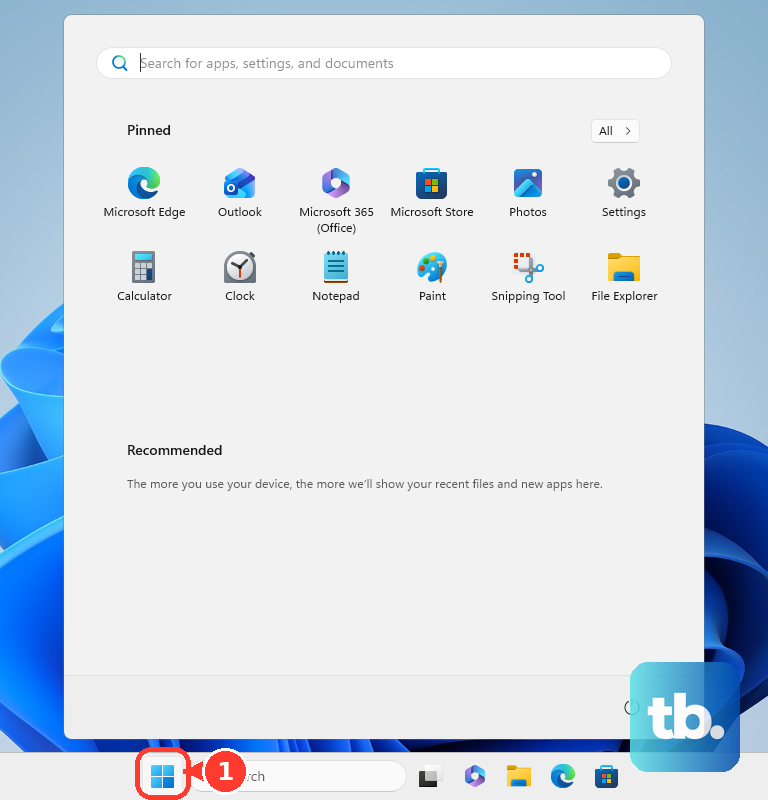
This is the classic fix for a reason. Click Start > Power > Restart. A full reboot clears the network stack and reloads all drivers from scratch. I'd start with this one if the troubleshooter didn't work, as it resolves a lot of driver state issues.
Update Your WiFi Driver Manually
For the ROG Zephyrus G16, it's best to get drivers directly from ASUS. Go to the ASUS support site, enter your exact model, and download the latest Wireless LAN (WiFi) driver under the "Driver & Tools" section. Run the installer and restart your laptop. Avoid relying solely on Windows Update or Armoury Crate for this critical driver.
Disable and Re-enable the Network Adapter
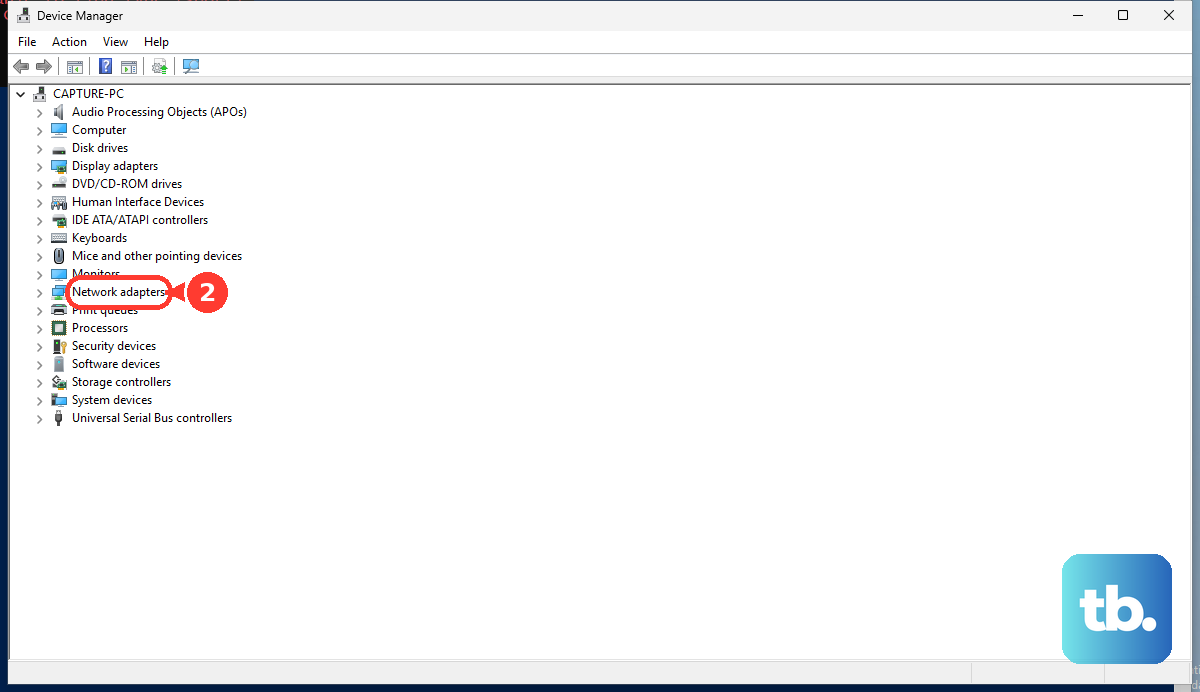
Press Windows Key + X and select Device Manager. Expand the Network adapters section, right-click your Intel or MediaTek WiFi adapter, and choose Disable device. Wait a moment, then right-click it again and select Enable. This forces a fresh initialization.
Reset Your Network Settings in Windows
Go to Settings > Network & internet > Advanced network settings > Network reset. Click Reset now. This will remove all network adapters and reinstall them, and it will wipe saved WiFi networks and VPN settings. You'll need to reconnect to your WiFi afterward.
Check for Conflicts with Armoury Crate
The Armoury Crate software is central to the G16's operation, controlling performance modes and the GPU MUX switch. Sometimes, switching between performance profiles or a bug in the software can affect connectivity. Try closing Armoury Crate from the system tray, or reboot after changing your performance profile to see if it stabilizes the connection.
Flush DNS and Reset Network Stack via Command Prompt
Search for "Command Prompt," right-click it, and select Run as administrator. Type the following commands one at a time, pressing Enter after each: ipconfig /flushdns, netsh winsock reset, and netsh int ip reset. You'll need to restart your laptop for these changes to take full effect.
Check Your Router and Internet Source
If other devices in your home also can't connect, the issue is likely with your router or internet service. Unplug your router and modem from power for 30 seconds, then plug them back in. As a test, try connecting your G16 to a different network, like a mobile phone hotspot, to confirm its WiFi hardware is functioning properly.