
When your ASUS ROG Zephyrus G16's webcam shows a black screen or isn't detected by apps like Zoom or Discord, it can stop your gaming streams or video calls cold. The fixes are usually straightforward, starting with a quick check of a physical slider.
Before digging into settings, open a quick online camera test in your browser. If the preview shows a live picture, the camera hardware works and the issue is with app permissions or configuration.
Check the Physical Privacy Shutter
Look at the top bezel of your screen, right above the display. The Zephyrus G16 has a built-in privacy shutter, which is a small plastic slider you can move side-to-side. If it's covering the camera lens, no software fix will work. Simply slide it open to reveal the camera.
Restart Your Laptop
A simple restart can clear out any software glitch that's holding the camera driver in a bad state. This is especially relevant for the G16, as switching between performance modes or the GPU MUX switch in Armoury Crate can sometimes require a full reboot for all components to reinitialize correctly.
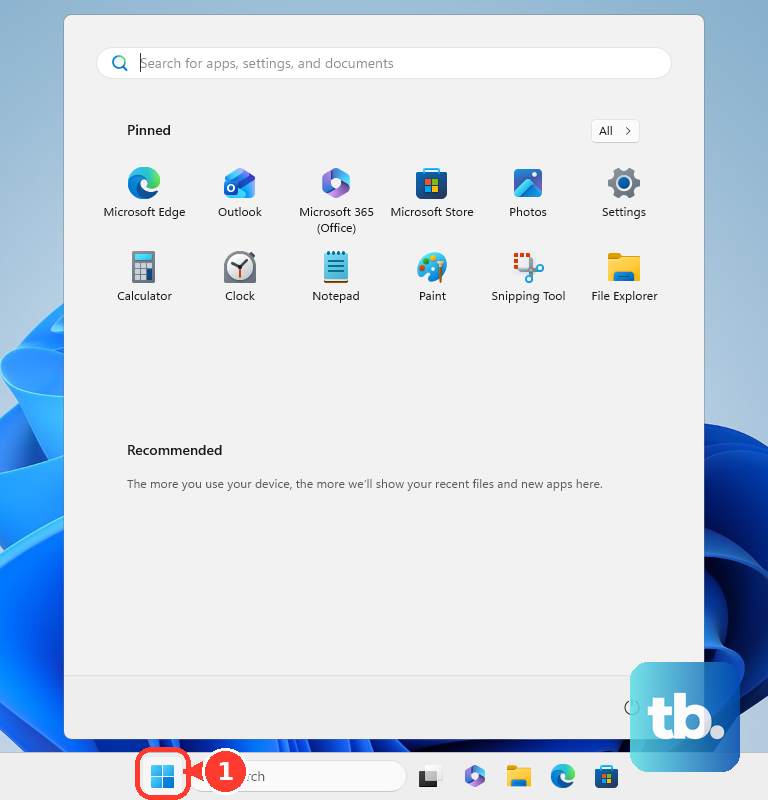
Make sure to save your work, then click Start > Power > Restart. Don't just shut down and turn it back on; use the Restart option to ensure a full refresh.
Check Windows Camera Privacy Settings
Windows has a system-level toggle for camera access. Press the Windows key and type "camera privacy" to open the settings page directly. Make sure the main "Camera access" switch is turned On.
Scroll down to "Let apps access your camera" and ensure it's also enabled. Finally, check the individual app list below and verify the app you're trying to use (like Discord, OBS, or Chrome) has permission set to On.
Close Other Apps Using the Camera
Only one application can have exclusive control of the webcam at a time. If you have another program running in the background, like the Xbox Game Bar, the built-in Camera app, or even a previous Zoom session you thought was closed, it can lock the camera.
Press Ctrl+Shift+Esc to open Task Manager and look under the "Processes" tab for any apps that might use the camera. End their tasks before trying your camera app again.
Update or Reinstall the Camera Driver
Press the Windows key, type "device manager," and open it. Expand the "Cameras" or "Imaging devices" section. Right-click on your ASUS Webcam and select "Update driver." Choose "Search automatically for drivers."
If that doesn't work, right-click the camera again and select "Uninstall device." Check the box that says "Attempt to remove the driver for this device" if it appears. Restart your laptop, and Windows will attempt to reinstall a fresh driver upon startup.
Check for Driver Updates via MyASUS
ASUS provides system-specific drivers through the MyASUS app, which should be pre-installed on your G16. Open MyASUS, go to the "Customer Support" section, and click "Live Update." Look for any available camera, chipset, or system firmware updates here, as they can include important compatibility fixes.
Check for Conflicts with Armoury Crate
Armoury Crate is central to controlling your G16, but its services can occasionally interfere with other hardware. I'd try temporarily closing Armoury Crate from the system tray (right-click its icon and exit) to see if the camera starts working in your desired app.
If that helps, check for updates to Armoury Crate itself within the app, as ASUS frequently releases patches for such conflicts.
Run the Hardware Troubleshooter
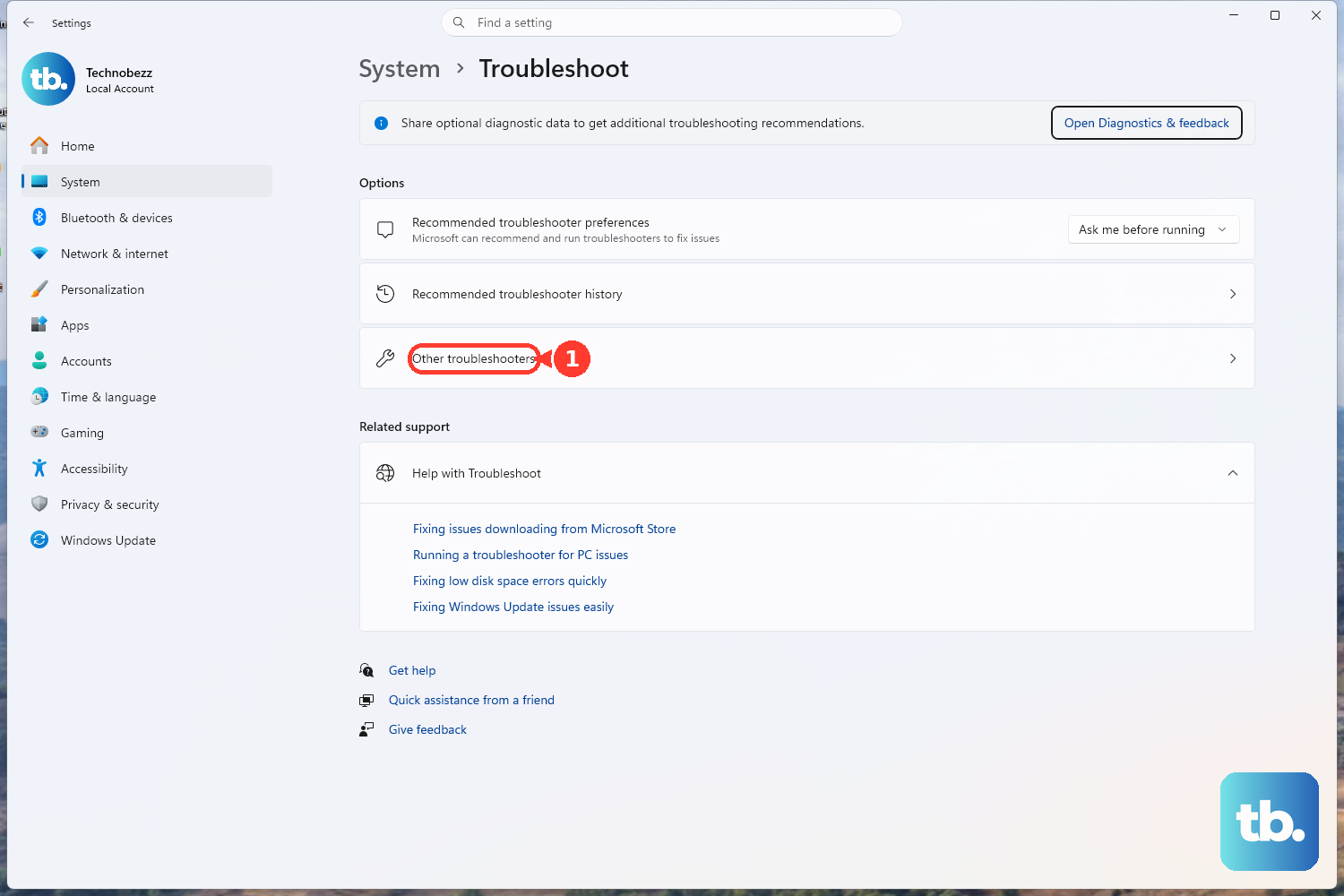
Windows includes built-in diagnostic tools. Go to Settings > System > Troubleshoot > Other troubleshooters. Find "Camera" in the list and click "Run." The troubleshooter will attempt to detect and automatically fix common permission and driver state issues.
Perform a System Restore
If the camera recently stopped working after a new software installation or update, you can roll the system back. Type "create a restore point" in the Windows search bar, open the System Properties window, and click "System Restore."
Follow the prompts to choose a restore point from a date when the camera was definitely working. This will revert system files and settings but leaves your personal files untouched.