
You're in the middle of a firefight and your ROG Ally X suddenly decides to look up at the ceiling. The camera drifts on its own, or your character starts walking sideways without you touching the stick. That's stick drift on the built-in gamepad, and it's a problem you can usually fix in about five minutes.
The fastest first step is a combo of compressed air and a recalibration. Tilt the drifting stick fully in one direction so the gap opens up, then fire a few short bursts of compressed air around the base. After that, run the Windows game controller calibration tool. That cleans out dust and resets the stick's center point, handling most minor drift cases on the spot.
Why ROG Ally X Sticks Drift
The built-in gamepad uses potentiometer-based sticks, the same kind found in most controllers. These tiny resistive sensors wear down over time from use, dust, and skin oils. On a handheld like the Ally X, you're also dealing with heat and the constant jostling of portable play.
A few things speed up the wear:
- Dust and debris that work their way into the gap where the stick meets the housing.
- Aggressive stick play in shooters and racing games that wears the inner track faster.
- Firmware or driver glitches after a Windows update that mess up the stick's dead zone or center calibration.
- Armoury Crate SE updates that occasionally reset or corrupt controller profiles.
If your drift showed up right after a Windows 11 update, it's more likely a software issue than a hardware one. That's good news because software fixes are faster.
Clear Dust with Compressed Air
Hold the ROG Ally X so the drifting stick is easy to reach. Tilt the stick fully up, left, down, and right one at a time, and hit each side with a short burst of compressed air. Keep the can upright to avoid liquid spray. The goal is to dislodge any dust that's settled between the stick collar and the housing.
After blowing each side, work the stick in a full circle a dozen times to redistribute any remaining particles. Then test it in a game. This clears about half of all minor drift cases on its own.
Recalibrate the Gamepad in Windows
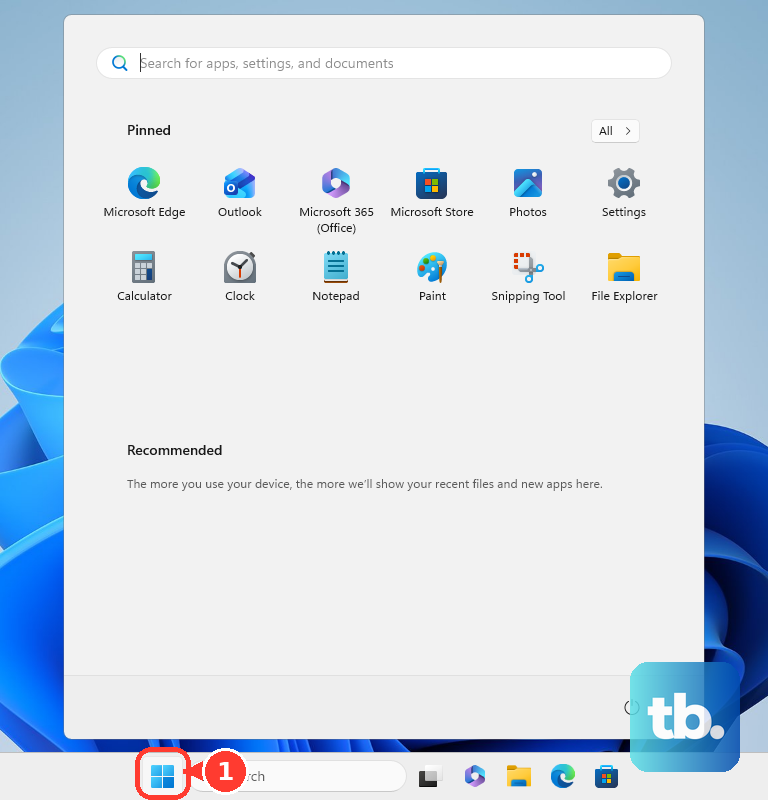
The Windows game controller calibration tool resets the stick's center point and range. Open the Start menu and type "game controller", then select Set up USB game controllers. Find your built-in gamepad in the list, click Properties, then go to the Settings tab and choose Calibrate. Follow the on-screen prompts, which take about a minute.
If the calibration looks correct but the drift remains, you might need to adjust the stick's dead zone manually. Armoury Crate SE has a built-in dead zone slider for the built-in gamepad (a configurable inner dead zone and outer threshold, plus a response curve), and many games have their own settings too. Check the controller or aim settings in whatever game you're playing, and bump the inner dead zone from the default up to about 0.10 or 0.15. You lose a tiny bit of fine aim precision, but drift symptoms disappear.
Update Windows, Drivers, and Armoury Crate SE
Outdated system software can cause controller input glitches. First, run Windows Update and install any pending patches. The ROG Ally X runs Windows 11 24H2 or later, so make sure you're on that version. Then update Armoury Crate SE through the app's own updater.
Driver updates for the built-in gamepad sometimes come through Windows Update or the ASUS support site. Check the MyASUS app for any pending driver updates. If the drift started after a specific Windows or Armoury Crate SE update, rolling back that update might fix it.
Clean with Isopropyl Alcohol
If compressed air didn't do the trick, dab a small amount of 90% or higher isopropyl alcohol on a cotton swab and squeeze out the excess. Tilt the stick to open the gap, then carefully run the damp swab around the base. The alcohol dissolves the greasy buildup of skin oils and dust that air can't always move.
Give it about 10 minutes to dry completely. Then work the stick in full circles and recalibrate again. This step buys most sticks another solid block of clean input before hardware wear sets in.
Test in Different Games and Modes
Some games have their own dead zone settings that can mask or expose drift. Try playing a game that doesn't have any dead zone adjustment, like a light platformer or an indie title. If the drift shows up there too, it's a system-level issue.
Switch between the ROG Ally X's power modes using the Command Center. Silent, Performance, and Turbo modes adjust system clock and fan speeds but don't directly affect stick input. If the drift behaves differently across modes, it's probably a thermal or performance interaction, not a hardware failure.
You can also test with an external controller connected via USB or Bluetooth. If the external controller has no drift, the problem is specific to the built-in gamepad. If both drift, the issue is in the software or game itself.
Factory Reset as a Last Resort
If you've tried everything and the drift persists, a factory reset can clear any deep software corruption that's causing stick input errors. This wipes all your data, so back up anything important first. Go to Settings > System > Recovery > Reset this PC and choose the option to keep your files or remove everything.
A reset restores Windows 11 to a clean state, including all controller drivers and Armoury Crate SE settings. It takes about 30 minutes total. If the drift is still there after a fresh Windows setup, it's a hardware problem.
When the Stick Hardware Is Worn Out
If cleaning and recalibrating only fixes the drift for a few hours or a day, the potentiometer inside the stick is physically worn. The ROG Ally X's built-in gamepad isn't designed for user replacement, so this means a repair through ASUS or a professional service.
If your Ally X is still under warranty, start there. If not, a replacement on the repair market runs around what you'd expect from a premium handheld. The most important thing is to confirm it's hardware before you go that route, and the steps above will tell you for sure.