
If your Xiaomi 14T Pro's camera app is crashing, freezing, or just showing a black screen, start with a simple restart. Press and hold the power button for a few seconds until the shutdown menu appears, then tap Restart. I've seen this fix work for most temporary software glitches that cause the camera to act up.
A browser based webcam test is the fastest way to check whether the camera works at all. It shows a live preview along with the detected resolution and frame rate.
Key Points
- Restart and Update: A simple reboot or software update can resolve many camera app conflicts.
- Clear App Cache and Data: Corrupted temporary files are a common culprit for camera failures.
- Check for App Conflicts: Other apps, especially those using the camera, can interfere.
- Inspect Physical Hardware: A dirty or obstructed lens or sensor will cause problems.
- Reset Camera Settings: Restoring the camera app to its default state can clear misconfigurations.
- Boot into Safe Mode: This helps determine if a third-party app is causing the issue.
Give the phone a full minute to reboot completely before trying the camera again. Sometimes background processes just need a fresh start.
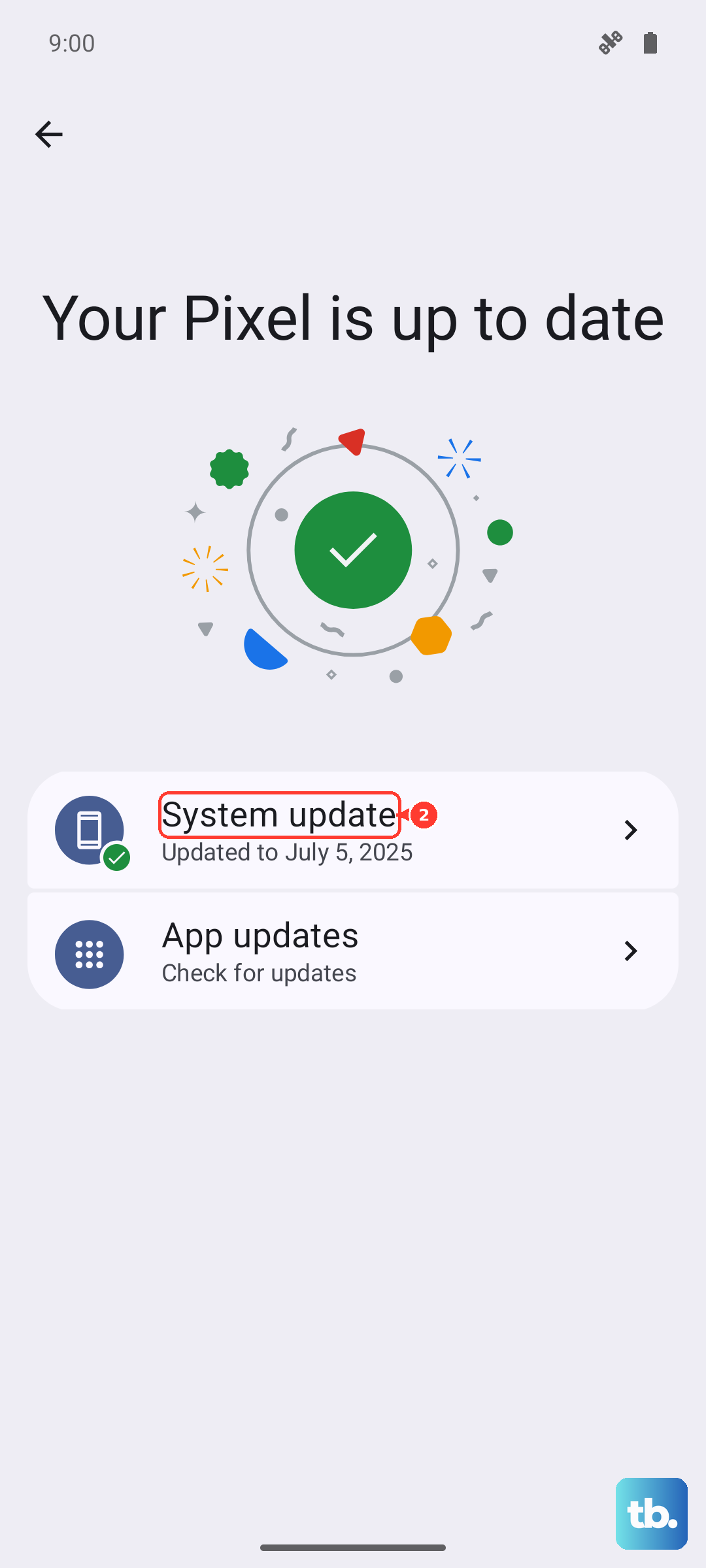
If the problem started after a recent HyperOS update, check for another one. Xiaomi often releases follow-up patches to fix bugs introduced in larger updates. Go to Settings > About phone > HyperOS version and tap "Check for updates". Install any available updates and restart your phone afterward.
Force Close and Reopen the Camera App
Start by force-stopping the camera application. Swipe up from the bottom of your screen and hold to enter the recent apps view, then swipe the Camera app card all the way up to close it. Alternatively, go to Settings > Apps > Manage apps, find "Camera", tap it, and then tap "Force stop".
Wait a few seconds, then tap the camera icon again to relaunch it. This clears the app from your phone's active memory and can resolve temporary freezes or crashes caused by a stuck process.
Clear the Camera App's Cache and Data
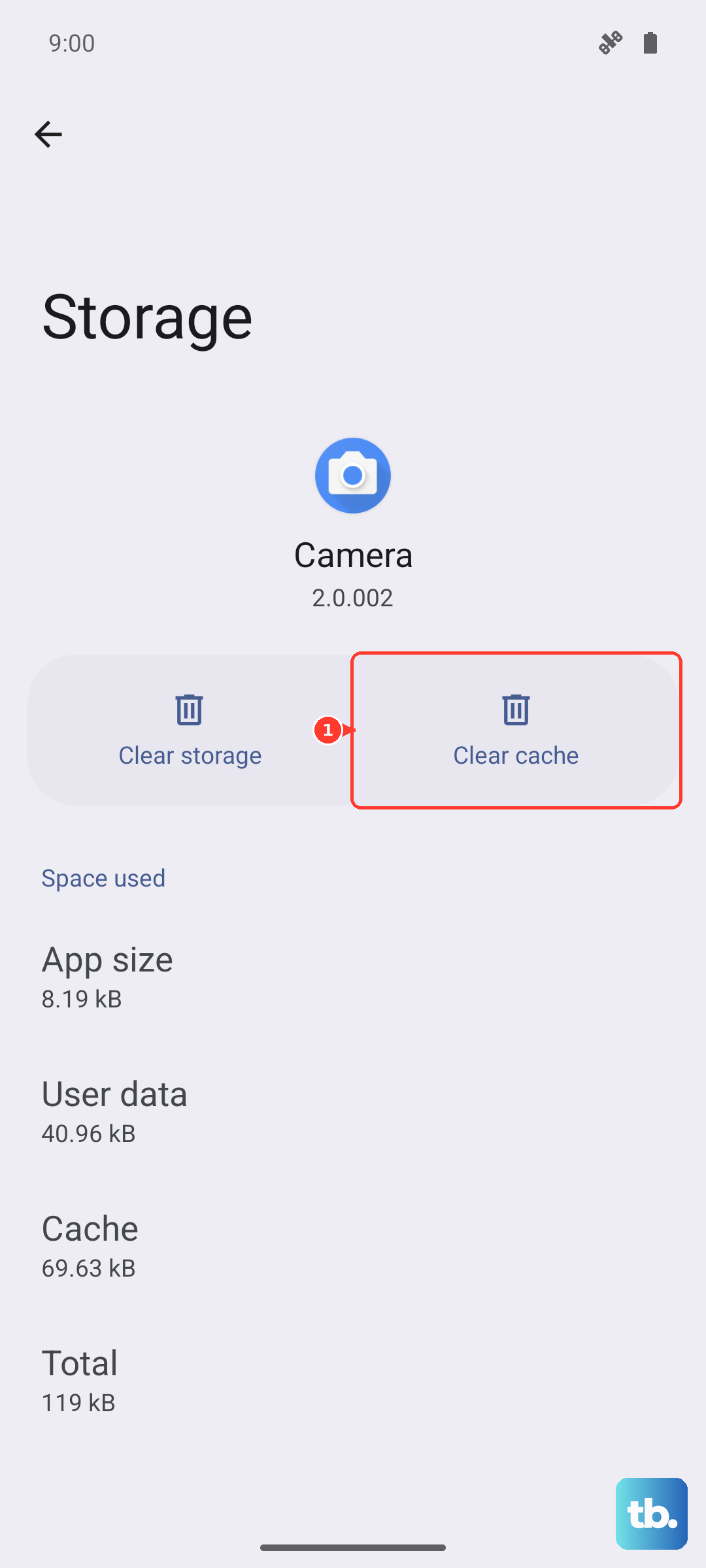
Corrupted cache files are a frequent cause of camera malfunctions. Clearing them is safe and won't delete your photos. Navigate to Settings > Apps > Manage apps and select the "Camera" app. Tap on Storage usage at the bottom.
First, tap "Clear cache". This removes temporary files. If the camera still isn't working, you can try "Clear data". Be aware this will reset all camera settings to factory defaults, but your personal photos and videos in the gallery remain untouched. After clearing data, open the camera app again and it will start fresh.
Check for Other App Interference
Other applications can sometimes hijack or block the camera. If you recently installed a new app that uses the camera, like a social media platform, QR scanner, or video calling app, it might be causing a conflict. Try uninstalling that recent app to see if your main camera functionality returns.
Also, make sure no other app is actively using the camera in the background. Swipe away all recent apps from the multitasking view to ensure the camera hardware is fully free for the dedicated camera app to use.
Inspect the Camera Lens and Sensors
Take a close look at the camera module on the back of your Xiaomi 14T Pro. Use a clean, dry microfiber cloth to gently wipe all the lenses. Fingerprints, dust, or smudges can significantly degrade image quality or cause focusing issues, making it seem like the camera is broken.
Also, check the small sensors near the front-facing camera. If your case is poorly fitted or you have a screen protector that encroaches on these sensors, it can interfere with the camera's light metering and face detection features. Remove the case and see if the camera performance improves.
Update All Related Apps
Don't just check for system updates. Open the Google Play Store, tap your profile icon, and go to Manage apps & device > Updates available. Look for updates to the "Camera" app itself, as Xiaomi pushes improvements through the Play Store. Also, update any other apps you use for photography or scanning.
Sometimes, an outdated gallery app or photo editing tool can cause conflicts with the camera's saving process. Ensuring everything is on the latest version rules out compatibility issues.
Reset All Camera Settings
If you've tweaked a lot of settings in the camera app, one of them might be causing a crash. You can reset them without clearing your personal data. Open the Camera app and tap the hamburger menu (three lines) or the settings gear icon. Scroll down to find the "Restore defaults" or "Reset settings" option.
This will revert scene modes, video resolution, grid lines, and other preferences back to how they were when you first got the phone. It's a good way to eliminate a bad setting that's causing the app to malfunction.
Boot Your Phone in Safe Mode
Booting into Safe Mode temporarily disables all third-party apps you've installed. This tells you if the problem is with Xiaomi's software or something you downloaded. Press and hold the power button until the power off menu appears. Then, press and hold the "Power off" option on your screen.
A prompt will appear asking if you want to reboot to Safe Mode. Tap "OK". If the camera works perfectly in Safe Mode, a third-party app is the culprit. You'll need to uninstall recently added apps one by one to find the offender. Restart your phone normally to exit Safe Mode.
Check for Heating and Performance Throttling
The Xiaomi 14T Pro's powerful Dimensity 9300+ chip can get warm during extended use, like recording long 4K videos. If the phone is hot to the touch, the system may be throttling performance to cool down, which can cause the camera app to lag or shut down.
Let the phone cool off for a few minutes. Avoid using it while it's charging with the 120W adapter, as this also generates significant heat. Try the camera again once the device temperature has normalized. For longevity, consider enabling the battery protection feature in settings to cap charging at 80%, which reduces heat during charging cycles.