


Your iPhone comes with a powerful safety feature that could be crucial when you need help fast. Emergency SOS lets you quickly contact emergency services and notify your loved ones with your location, whether you're hiking in remote areas, walking alone at night, or facing any urgent situation.
Setting Up Emergency SOS
Getting your iPhone ready for emergencies takes just a few minutes. Here's how to configure everything properly.
Enable Call with Hold and Release
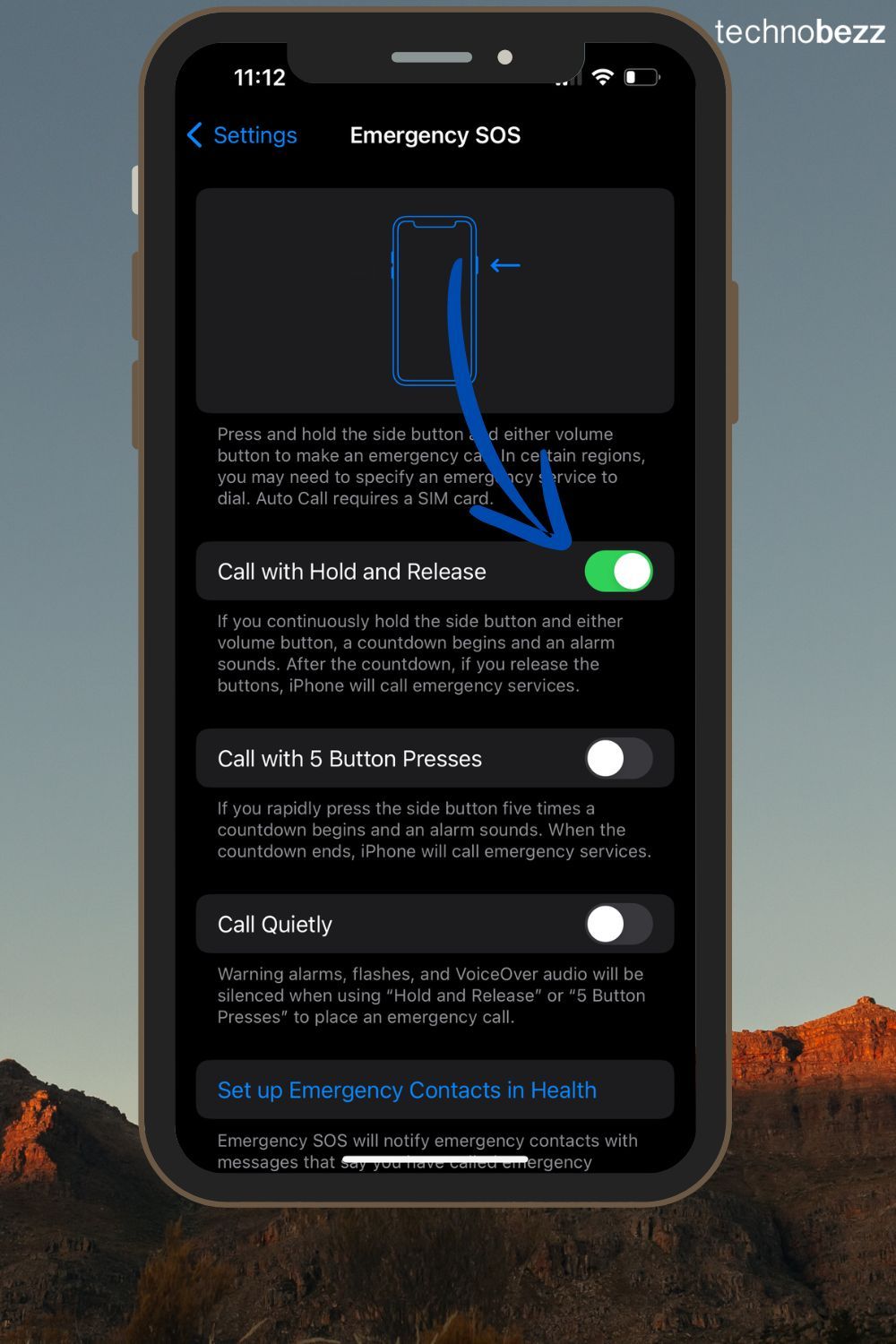
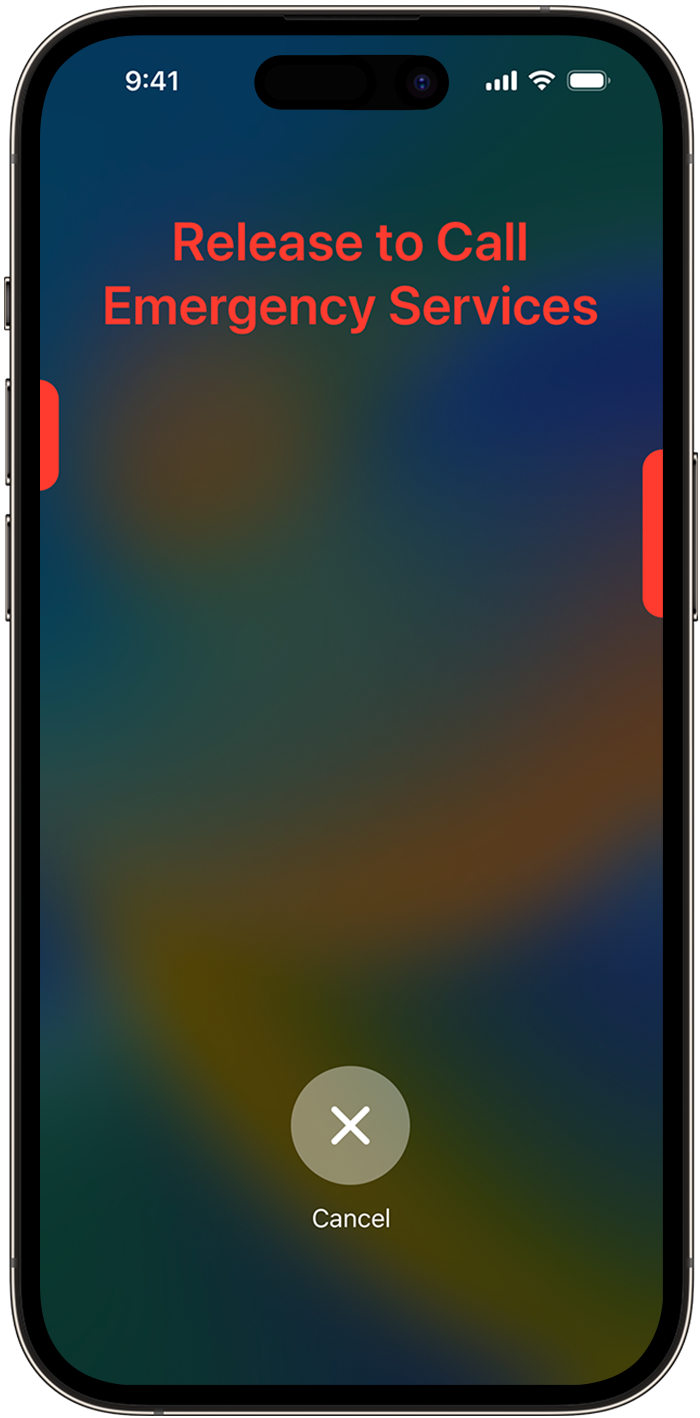
Open Settings and tap Emergency SOS. Turn on "Call with Hold and Release" - this lets you start a countdown by holding the side button and a volume button. If you keep holding until the countdown ends, your iPhone automatically calls emergency services.
Use 5 Button Presses
You can also rapidly press the side button five times to bring up the Emergency Call slider. This method works on all iPhone models and provides another quick way to reach help.
Activate Call Quietly
For situations where you need to be discreet, enable "Call Quietly" in the Emergency SOS settings. This silences warning alarms and flashes when making emergency calls, available in iOS 16.3 and later.
Set Up Emergency Contacts
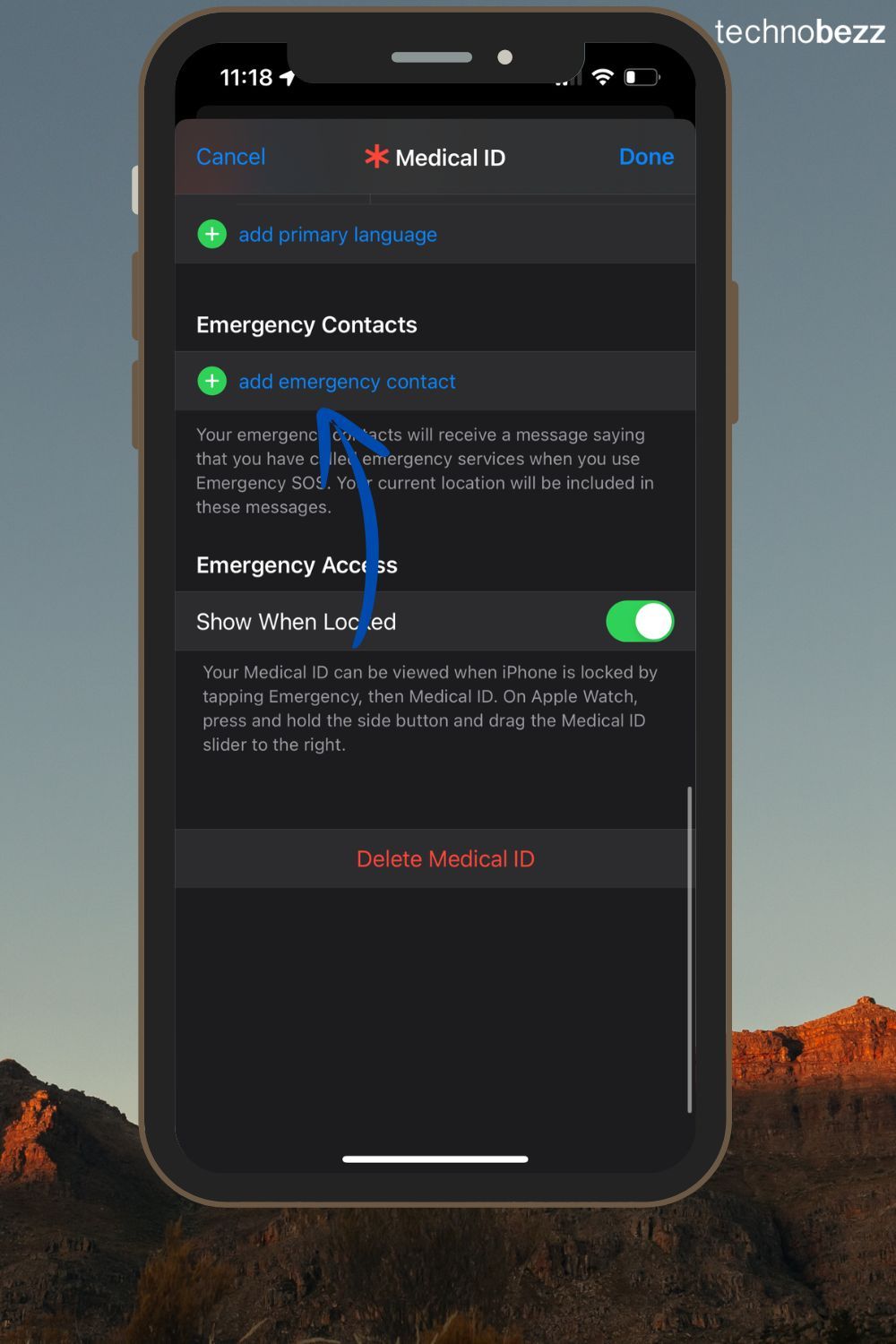
Your emergency contacts receive automatic messages with your location when you use Emergency SOS. To add them:
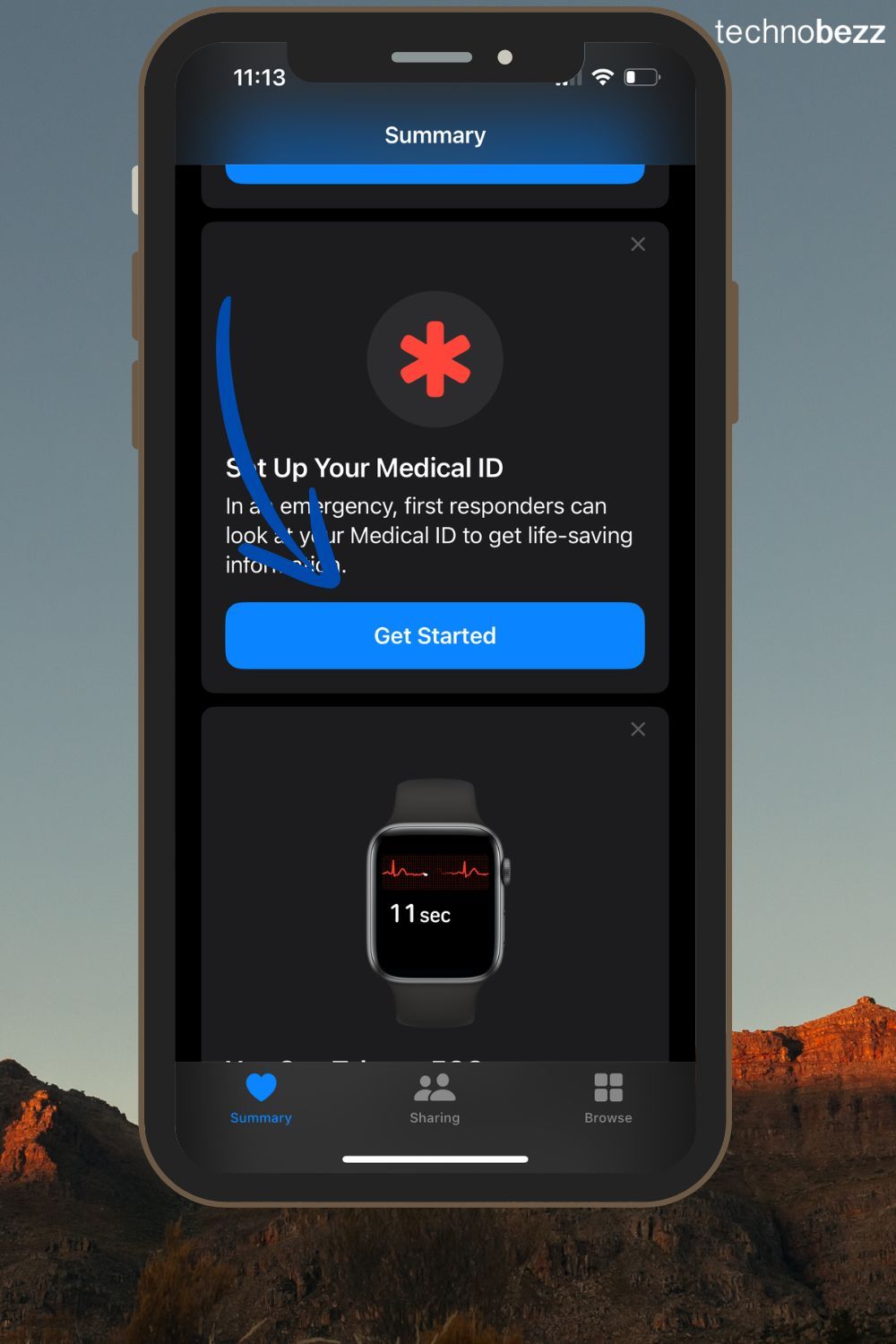
- Open the Health app and tap your profile picture
- Select Medical ID, then tap Edit
- Scroll to Emergency Contacts and add your trusted people
Using Emergency SOS
iPhone 8 and Later Models
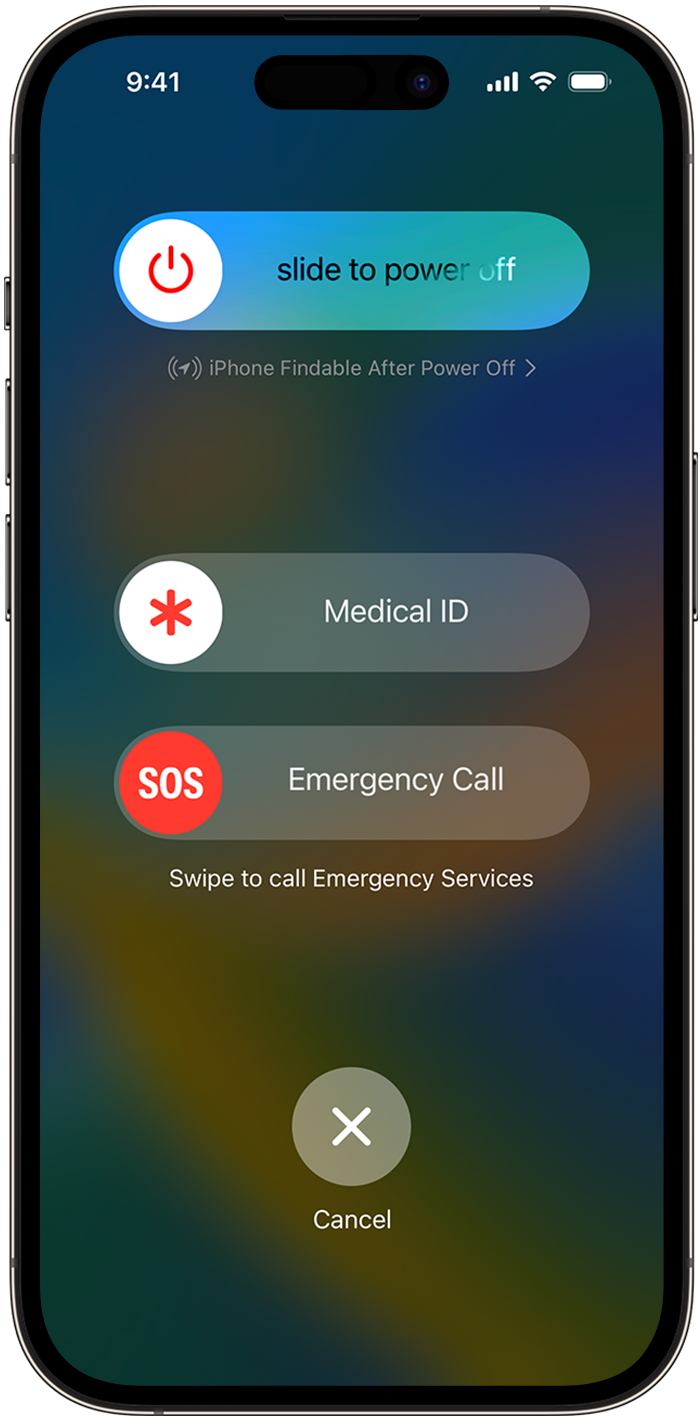
Press and hold the side button and either volume button until the Emergency SOS slider appears. Drag the slider to call emergency services immediately, or keep holding the buttons to let the countdown complete for automatic calling.
iPhone 7 and Earlier Models
Rapidly press the side (or top) button five times. The Emergency Call slider will appear - drag it to call emergency services.
Advanced Safety Features
Emergency SOS via Satellite
iPhone 14 and later models can use satellites to send emergency messages when you're outside cellular or Wi-Fi coverage. This feature ensures you can contact help even in remote locations where traditional networks aren't available.
Automatic Location Sharing
After making an emergency call, your iPhone automatically sends your current location to your emergency contacts. If your location changes, they'll receive updates to help responders find you.
Crash Detection
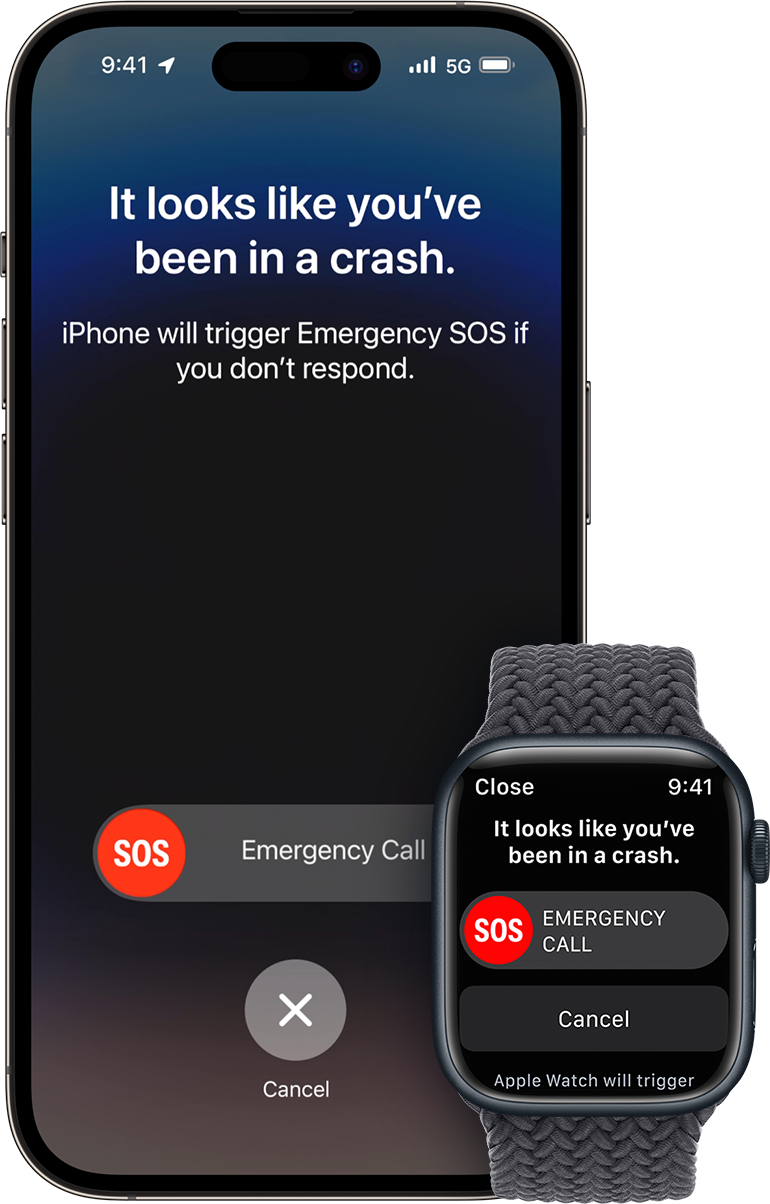
On iPhone 14 and later, your device can detect severe car crashes and automatically call emergency services. It notifies your emergency contacts with your location, providing crucial assistance when you might not be able to call for help yourself.
Helpful Tips
Practice with the Demo
Familiarize yourself with Emergency SOS by trying the demo in Settings > Emergency SOS. This shows how the feature works without actually calling emergency services.
Handle Accidental Activation
If you accidentally start the SOS countdown, release the buttons before it ends to cancel. If the call already started, stay on the line and explain the mistake to the responder.
Set Up Medical ID
Your Medical ID can be accessed from the lock screen, showing important medical information to first responders. Set it up in the Health app under Medical ID to ensure responders have critical health details when needed.
By taking a few minutes to set up Emergency SOS and understand how it works, you're adding an important layer of safety to your daily life. This simple preparation could make all the difference when seconds count.