Opening your library only to watch the Kindle app close itself is a fast way to ruin a reading session. The crashes usually trace back to a stuck cache, an outdated app, a flaky connection, or a sync that never finished.
The fixes below move from the fastest to the most thorough, and they cover both Android phones and iPhones. Work down the list and stop as soon as the app stays open.
Force Quit and Relaunch the App
A single crashed session can leave the app in a broken state in memory. Force quitting clears that state without touching your books or settings, so it is always worth trying first.
On Android:
- Open the recent apps screen
- Swipe the Kindle card away, or tap Close all
- Reopen the Kindle app
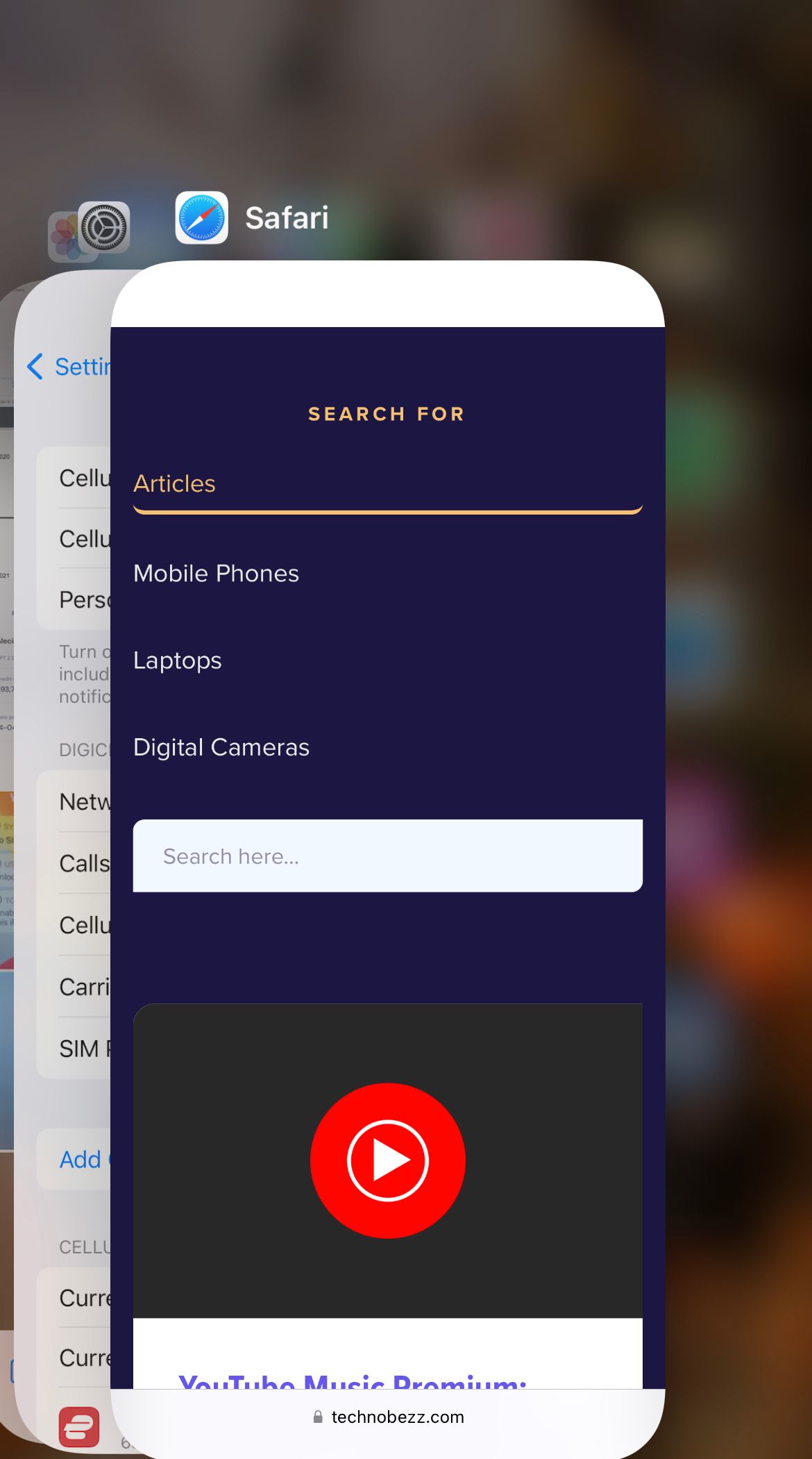
On iPhone:
- Swipe up from the bottom of the screen and pause, or double-click the Home button on older models
- Swipe the Kindle preview up and off the screen
- Reopen the Kindle app
Restart Your Device
If a relaunch is not enough, restart the whole device. A reboot clears temporary memory and shuts down background processes that may be conflicting with the app.
Power the phone or tablet off, wait about ten seconds, then turn it back on. Open Kindle before anything else so you can tell whether the restart fixed it.
Open the App in Airplane Mode
Many crashes happen the instant the app tries to sync over a weak or unstable connection. Loading it offline first lets the library open before any network call can stall it.
Turn on Airplane Mode (or switch Wi-Fi off), open the Kindle app, and wait a minute for it to settle. Once the library is showing, turn the connection back on and let it sync.
If the app only behaves offline, the problem is your connection rather than the app. Switch between Wi-Fi and mobile data, restart your router, and confirm other apps can reach the internet.
Clear the App Cache and Data on Android
A corrupted cache is one of the most common causes of repeat crashes on Android. Clearing the cache deletes temporary files only, so your downloaded books and login stay intact.
Go to Settings > Apps > Kindle > Storage and tap Clear cache, then reopen the app. While you are on that screen, you can also tap Force stop first for a clean restart.
If crashes continue, return to the same screen and tap Clear data or Clear storage. This resets the app to a fresh state and signs you out, so you will sign back in afterward. Your books are stored in your Amazon account and download again automatically.
Offload or Reinstall the App on iPhone
iOS has no separate cache button, so the equivalent reset is offloading or reinstalling. Offloading removes the app but keeps its local data, which often clears a bad install without a full sign-in.
Go to Settings > General > iPhone Storage > Kindle and tap Offload App, then tap Reinstall App on the same screen. If that does not help, choose Delete App instead, then reinstall Kindle from the App Store for a completely fresh copy.
After a delete and reinstall you will sign in with your Amazon account again. Your library and reading positions sync back once you do.
Update the Kindle App
An out-of-date app can crash on devices and book formats it was never patched for. Installing the newest version is one of the most reliable fixes because it ships the developer's own bug patches.
On Android: open the Google Play Store, tap your profile icon, choose Manage apps & device, then look under Updates available and update Kindle if it is listed.
On iPhone: open the App Store, tap your profile icon, scroll to the pending updates list, and update Kindle if it appears.
Update Your Device Software
Older operating systems can break newer app builds, and the resulting crashes are usually fixed in a system update. Keeping the OS current also patches the underlying frameworks the Kindle app relies on.
On Android: go to Settings > System > Software update and install anything available. The wording varies by brand, so check under System or About phone if you do not see it.
On iPhone: go to Settings > General > Software Update and download any pending release.
Free Up Storage Space
The app needs room to download books and write temporary files, and a nearly full device can crash it mid-action. Freeing space gives the app the headroom it needs to run cleanly.
Check your available storage in Settings, then delete apps and files you no longer use, clear other apps' caches, and move photos or videos to the cloud. A few gigabytes of free space is usually enough to stop storage-related crashes.
Move the App to Internal Storage on Android
If you installed Kindle to an SD card, that is a known source of instability. The app expects to run from internal storage and can crash or fail to load from removable media.
Uninstall Kindle, then reinstall it directly to your device's built-in storage rather than the card. Keep the app on internal storage going forward, even if your books take up space elsewhere.
Sync Your Library
Sometimes the app opens but crashes when it touches a half-downloaded book or a stalled sync. Forcing a manual sync clears that pending state and refreshes your library from Amazon.
Pull down on the library screen to trigger a sync, or open the menu and tap the Sync option. To keep your reading position and notes consistent across devices, make sure Sync (also called Whispersync for Books) is turned on in the app's settings, since it is normally enabled by default.
Deregister and Register the App Again
When the crashes survive a reinstall, the link between the app and your Amazon account may be the issue. Deregistering disconnects the account and forces a clean re-sync when you sign back in, and it does not delete your books.
Open the Kindle app menu, go into Settings, choose the deregister option, and confirm. Then sign in again with your Amazon credentials so the app rebuilds its account data from scratch.
If you own more than one Amazon account, make sure you are signing in to the one that actually owns the books you are trying to read. A book bought on a different account will not appear and can leave the library in a confused state.
When Nothing Else Works
If you have run the full list and the app still crashes, the cause is likely on Amazon's side or specific to your account. A quick check rules out the obvious before you reach out for help.
Look at Amazon's service status to rule out an outage, then contact Amazon support with your device model and OS version. They can see registration and account errors that are invisible inside the app.
Frequently Asked Questions
Why does my Kindle app crash as soon as I open it?
The most common causes are a corrupted cache, an outdated app version, or a sync that stalls during launch. Force quit the app, then clear the cache on Android or offload it on iPhone, and update to the latest version.
Will clearing data or reinstalling delete my books?
No. Your purchases and reading progress are stored in your Amazon account, not only on the device. After you clear data, reinstall, or reregister and sign back in, everything downloads and syncs again.
Does opening the app in Airplane Mode really help?
It can, because it lets the library load before the app attempts a network sync that may be causing the crash. Once the app is open and stable, turn your connection back on and let it sync normally.
Why does the Kindle app crash only on Wi-Fi or only on mobile data?
That points to an unstable connection rather than the app itself. Switch between Wi-Fi and mobile data, restart your router, and confirm the Kindle app has permission to use the network in your phone's app settings.
Should I offload or delete the Kindle app on iPhone?
Try offloading first, since it removes the app but keeps its local data for a faster fix. If crashes continue, delete the app and reinstall it from the App Store for a completely fresh copy.
What does deregistering the Kindle app do?
It disconnects your Amazon account from that copy of the app without removing your books from your account. Signing back in afterward forces a clean re-sync, which often clears crashes that survive a reinstall.
First published October 15, 2025. Last updated June 4, 2026.