If you dialed *#9900# on your Samsung Galaxy and spotted a "Low Battery Dump" toggle, you are not alone in wondering whether it can squeeze more life out of your battery. The short answer is no. It is a developer diagnostic tool, not a power saver.
This guide explains exactly what Low Battery Dump does, what the rest of the *#9900# SysDump menu is for, and the settings that genuinely reduce battery drain on a Galaxy phone in 2026.
What Low Battery Dump Mode Actually Does
Low Battery Dump is one option inside Samsung's hidden SysDump (System Dump) tool, the panel that opens when you dial *#9900#. SysDump exists for troubleshooting and diagnostics, the kind of thing a Samsung technician or app developer uses to investigate problems.
When Low Battery Dump is turned on, your phone writes a system dump file when the battery reaches a critically low level, around 5 percent or just before the phone shuts down. That file is a snapshot of logs and technical state, meant to help diagnose why something failed at low power.
It does not save power, slow charging loss, or extend screen-on time. It only captures data, and the file sits in storage until you clear it. For almost everyone, the right setting is Off.
How to Open the SysDump Menu
You reach Low Battery Dump through the same code that opens every Samsung diagnostic screen. A few conditions have to be met first, which is why the code sometimes appears to do nothing.
- 1.Open the Samsung Phone app (the built-in dialer, not Google Phone or another third-party dialer)
- 2.Type *#9900# on the keypad
- 3.The SysDump screen opens automatically
- 4.Scroll down and tap Low Battery Dump to toggle it on or off
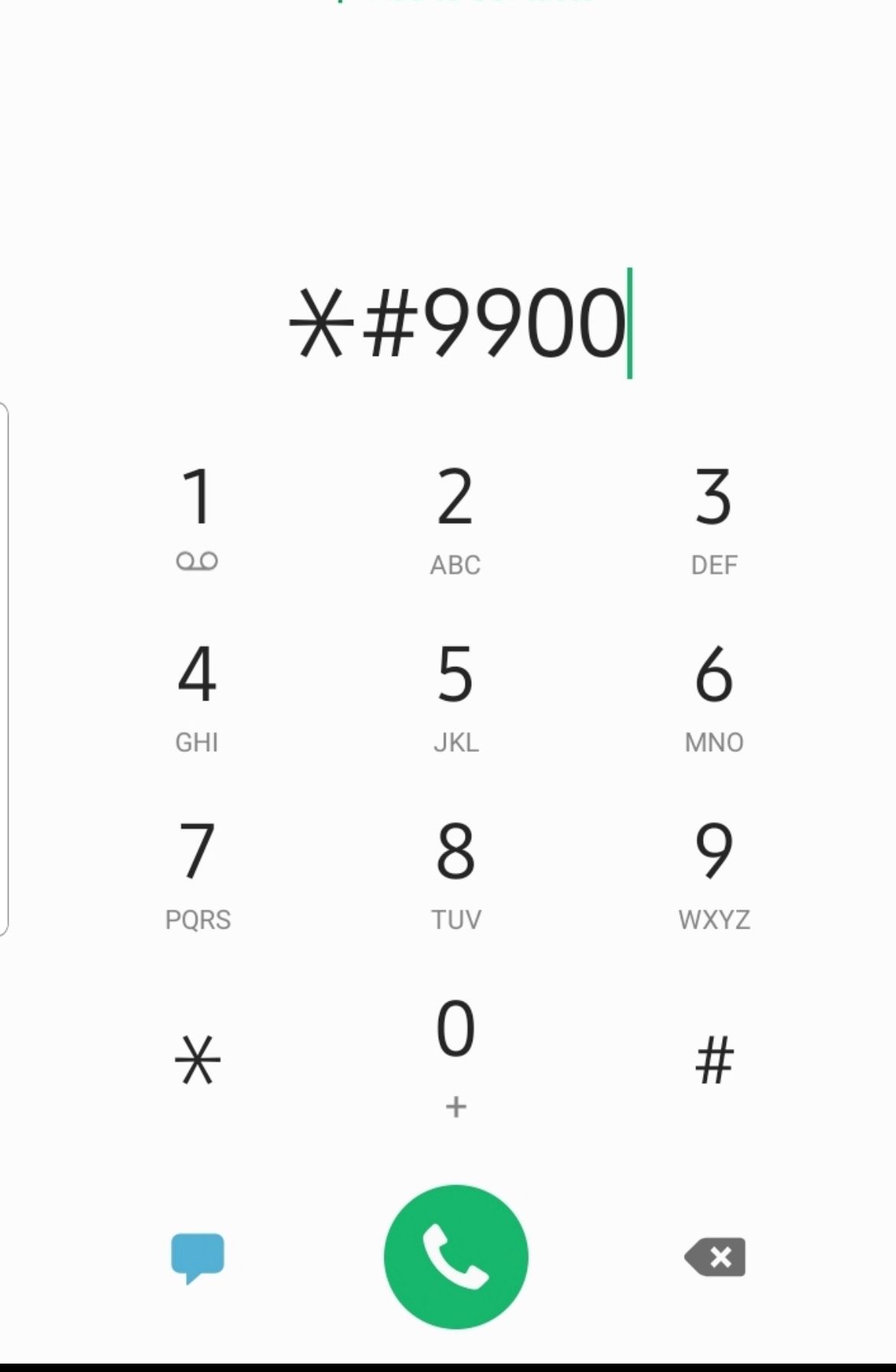
If nothing happens when you enter the code, see the section below on why secret codes get blocked. On most phones Low Battery Dump is already off by default, so there is usually nothing to change.
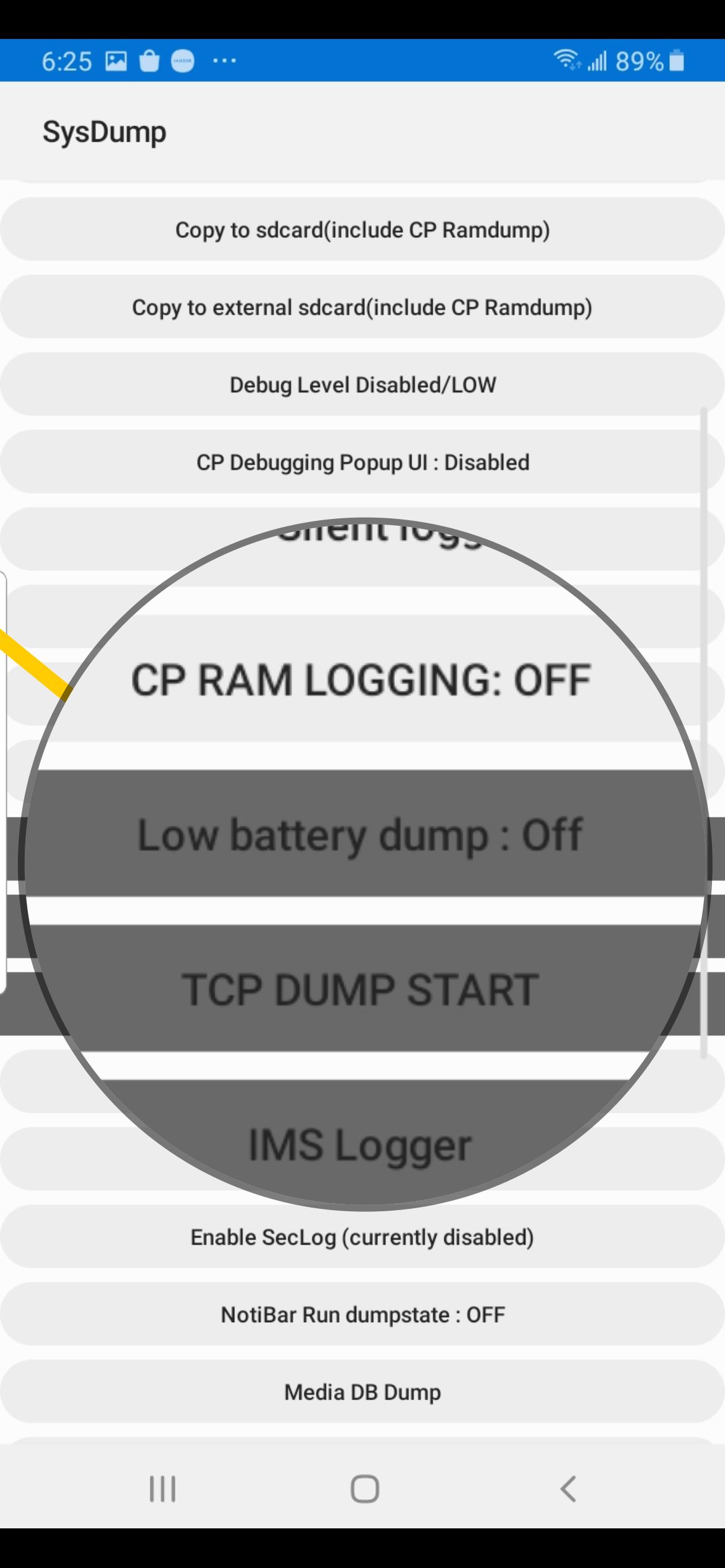
The Other SysDump Options Worth Knowing
While you are in the *#9900# menu, a few other options are genuinely useful, unlike Low Battery Dump. These are the tools support teams actually ask people to run.
Delete dumpstate/logcat clears accumulated system log files. Crashes, failed connections, and background hiccups all write logs over time, and clearing them can free up storage that shows under System or Other. This is the most practical option for everyday users.
Run dumpstate/logcat generates a full diagnostic log, and Copy to sdcard saves a timestamped .log file to the /log folder, which you can open in the My Files app. Support staff sometimes request this file. Generate and copy it promptly, since the log buffer clears after about 15 minutes.
Debug Level sets how detailed system logging is, with Low, Mid, and High options. Leave it on Low unless support tells you otherwise, because higher levels increase logging overhead.
Why *#9900# Sometimes Does Nothing
If the code refuses to open SysDump, the cause is almost always a security or software restriction rather than a broken phone. Newer Galaxy phones lock these codes down by default.
Samsung's Auto Blocker feature, included on One UI 6 (Android 14) and later, blocks USSD and secret codes as a safety measure. To use *#9900# you may need to turn it off temporarily.
Settings > Security and privacy > Auto Blocker
Two other reasons codes fail: the code only works in Samsung's stock Phone app, so a third-party dialer will not run it, and some carriers disable diagnostic codes entirely on their branded phones. If yours is blocked at the carrier level, there is no workaround through the dialer.
Does Low Battery Dump Fix Battery Drain
No. This is the central misconception, and it is worth being blunt about. Turning Low Battery Dump on or off has no effect on how fast your battery drains or how it charges.
If anything, leaving it on can waste a small amount of space and a sliver of power by writing dump files you will never use. The feature is diagnostic by design and was never built to improve battery life.
Real battery gains come from the standard Settings menus, not hidden codes. The rest of this guide covers the changes that actually move the needle.
Reset Battery Stats When the Percentage Lies
If your phone dies at 15 percent, sticks at 100 percent, or jumps in odd increments, the problem is often a software miscalibration rather than a worn cell. The battery percentage is an estimate, and that estimate can drift.
The most reliable reset is a full discharge and charge cycle. Let the phone run down until it shuts off on its own, then charge it uninterrupted to 100 percent and leave it a little longer before unplugging. This realigns the percentage with the actual charge.
This recalibration only fixes a misleading display. It cannot restore a battery that has physically degraded with age, which shows up as genuinely shorter runtime no matter what you reset.
Find and Tame Battery Draining Apps
One misbehaving app can account for most of your drain, so this is the first place to look. Galaxy phones rank apps by how much power they consume.
Settings > Battery
On One UI 6 and earlier the path is Settings > Battery and device care > Battery. Either way, tap into the usage breakdown to see apps listed from highest to lowest consumption. An app burning 10 to 15 percent or more without heavy use is worth investigating.
For a heavy offender, select it and choose Put to sleep or Put in deep sleep to cut its background activity. Updating the app, clearing its cache, force stopping it, or uninstalling it if you rarely use it are the next steps.
Use Power Saving Mode and Background Limits
When you need to stretch the charge, Power saving mode is the fastest lever. It dims the display, caps performance, and curbs background activity while keeping core functions working.
Settings > Battery > Power saving
Toggle it on, and review its sub-options if you want a lighter or more aggressive profile. It is fine to leave on full time if you prioritize endurance over peak speed.
For an automatic version, use Background usage limits in the same Battery menu to put unused apps to sleep. This stops apps you rarely open from running and draining power in the background without you noticing.
Screen Settings That Save the Most Power
The display is usually the single biggest battery consumer, so a few screen tweaks add up quickly on a Galaxy phone with an OLED panel.
Turn on Dark mode at Settings > Display > Dark. On OLED screens, black pixels are effectively switched off, which cuts power on dark interfaces.
Lower brightness or enable Adaptive brightness at Settings > Display, and shorten the screen timeout to 15 or 30 seconds at Settings > Display > Screen timeout. If you use Always On Display, turning it off from the Quick Settings panel or the Display menu reclaims power that runs around the clock.
Protect the Battery for the Long Term
Beyond daily settings, Galaxy phones include a charging feature that slows long-term wear. Keeping the cell from sitting at a constant 100 percent helps it hold capacity over the years.
Settings > Battery > Battery protection
The options typically include Basic, which simply stops at 100 percent, Maximum, which caps charging at a lower set level, and Adaptive, which learns your routine, holds the charge back overnight, and then tops up to full shortly before your usual wake time. Adaptive is a good default for most people.
None of these change how fast the battery drains today, but they reduce the degradation that makes drain worse months from now.
Frequently Asked Questions
Is Low Battery Dump safe to turn on or off
Yes. Toggling it is harmless. It only controls whether a diagnostic file is written at very low battery, and it has no lasting effect on your phone either way.
Does *#9900# improve charging speed or battery life
No. SysDump is a diagnostic tool. No option inside it, including Low Battery Dump, increases charging speed or extends battery life. Charging speed is governed by your charger, cable, and the phone's hardware.
Why does *#9900# not open anything on my phone
The most common reason is Auto Blocker on One UI 6 and later, which blocks secret codes. Turn it off temporarily in Settings, use the built-in Samsung Phone app rather than a third-party dialer, and note that some carriers disable these codes entirely.
Where are the SysDump log files saved
When you tap Copy to sdcard, a timestamped .log file is written to the /log folder, which you can open in the My Files app. Copy it within about 15 minutes, since the log buffer clears after that.
What is the best single change to reduce battery drain
Find your heaviest app in the Battery usage list and put it to sleep, then turn on Dark mode and lower the screen timeout. The display and one runaway app account for most avoidable drain.
First published October 14, 2025. Last updated June 4, 2026.