
If your Samsung Galaxy Z Fold 7 can't lock onto a GPS signal or shows the wrong location, you're not getting what you paid for. The good news is that most GPS hiccups on this phone are software-related and pretty easy to fix. Here's what to try.
Start with the Force Restart
Before anything else, do a forced restart on the Z Fold 7. This clears temporary system glitches without losing any data.
Press and hold the Volume down and Side buttons together for about 10 seconds. Keep holding until the Samsung logo appears and the device restarts. That's it.
This is the Z Fold 7's version of a "hard reboot" and it fixes a surprising number of GPS issues on its own.
Check Your Location Mode
Android 15 on the Z Fold 7 lets you choose how accurate you want location to be. If it's set to "Battery saving," your GPS will be less reliable.
Open Settings > Location and make sure Location is turned on. Then tap Location services and select Google Location Accuracy. Turn on Improve location accuracy, this uses GPS, Wi-Fi, and mobile networks together for the best fix.
I'd also recommend checking app-specific permissions. Go to Settings > Apps, pick your navigation app (like Google Maps or Waze), then tap Permissions and set Location to Allow all the time while using navigation.
Disable Power Saving Mode
The Z Fold 7's battery optimization can limit GPS performance to save juice. If your location keeps dropping or seems slow, turn off power saving.
Go to Settings > Battery and toggle off Power saving. Also check Battery > Background usage limits and make sure your navigation app isn't being put to sleep.
You can also set individual apps to "Unrestricted" battery usage in Settings > Apps > [App Name] > Battery.
Update Apps and System Software
Outdated software is a common cause of GPS problems. Samsung pushes regular updates to the Z Fold 7, and app updates often include fixes for location bugs.
Open the Google Play Store, tap your profile picture, then Manage apps & device and hit Update all. For system updates, go to Settings > Software update > Download and install.
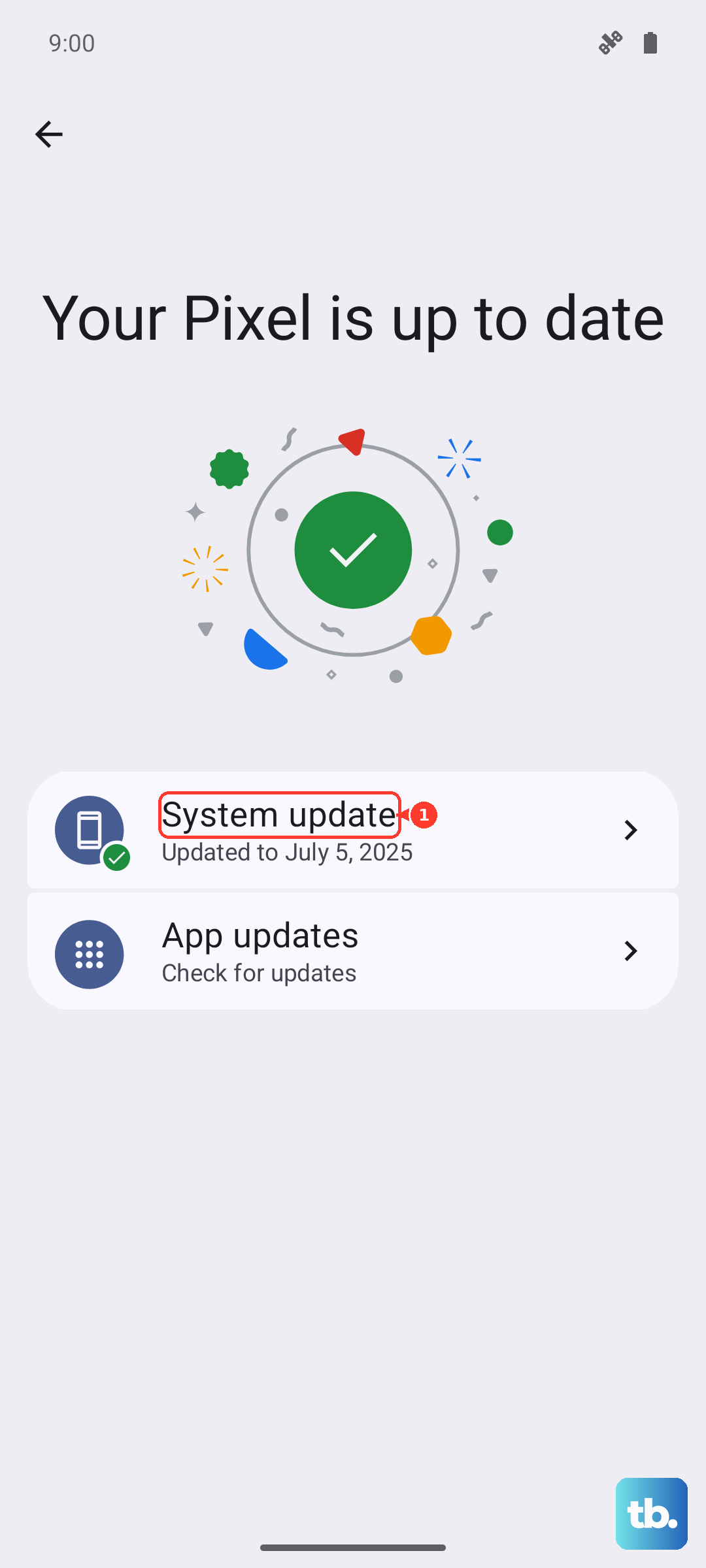
Don't skip this step, I've seen a single system patch fix persistent GPS drift on foldables.
Clear GPS App Cache and Data
Corrupted cache files in your navigation app can interfere with GPS signal acquisition. Clearing them gives the app a fresh start.
Go to Settings > Apps > Google Maps (or your preferred app). Tap Storage, then Clear cache. If the problem continues, try Clear data, this will reset the app's settings but won't delete your saved locations if you're signed in.
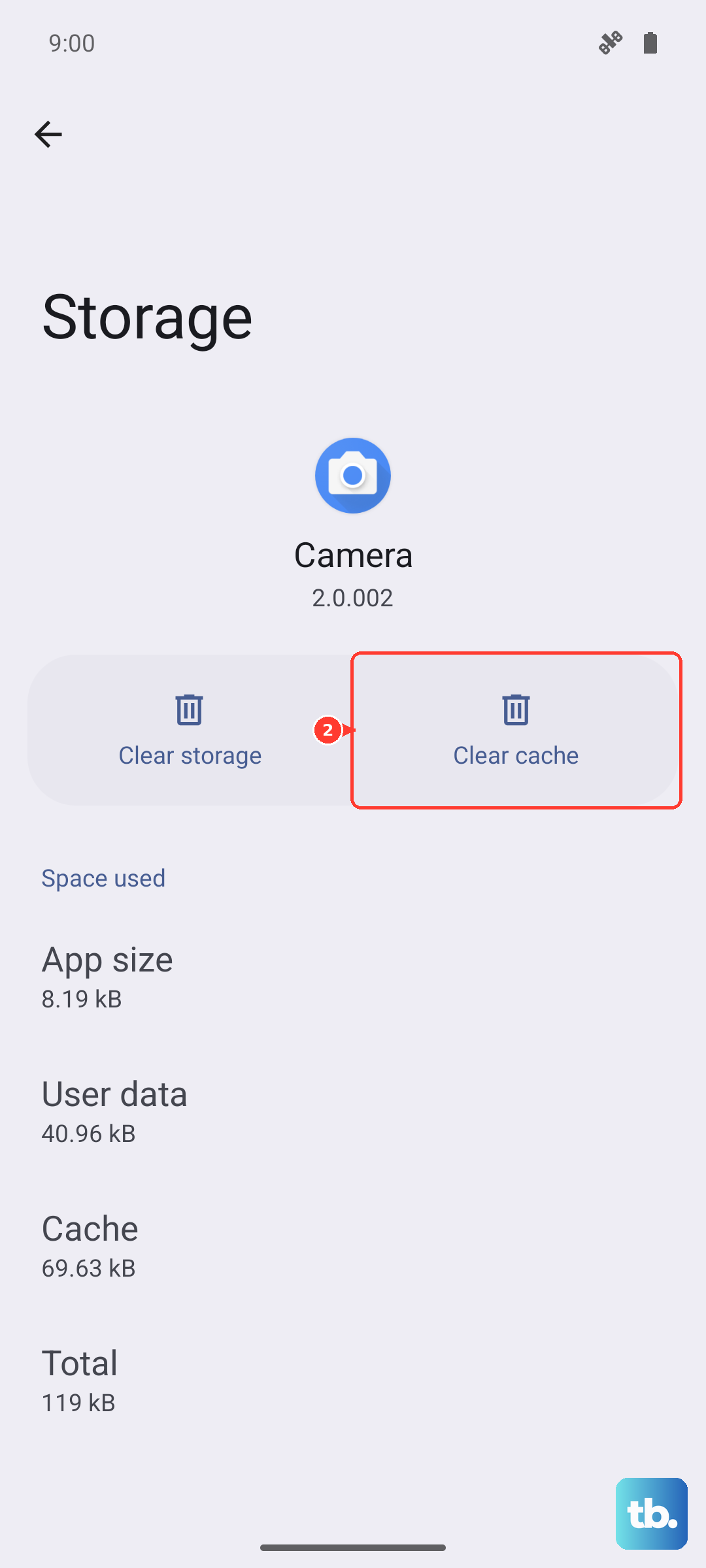
After clearing, open the app again and give it a moment to recalibrate.
Toggle Airplane Mode
This trick resets all wireless radios, including the GPS receiver. It's quick and costs nothing.
Swipe down twice from the top of the screen to open Quick Settings. Tap the Airplane mode icon to turn it on. Wait about 15 seconds, then tap it again to turn it off. Test your GPS.
If that doesn't work, try toggling just the Location icon off and on from the same Quick Settings panel.
Test in Safe Mode
Sometimes a third-party app is interfering with GPS. Safe mode temporarily disables all downloaded apps so you can see if the problem goes away.
Press and hold the Side button and Volume Down button until the power menu appears. Tap and hold the Power off icon until you see Safe mode, then tap it to confirm. The phone will restart with "Safe mode" at the bottom left.
Try your GPS. If it works perfectly here, a downloaded app is the culprit. Restart normally to exit safe mode, then uninstall recently installed apps one at a time until you find the troublemaker.
Check for Obstructions and Your Case
The Z Fold 7's GPS antenna is usually fine, but certain thick cases, especially metal or magnetic ones, can weaken the signal.
Remove any case or accessory and test the GPS outside with a clear view of the sky. Also avoid using the phone in basements, tunnels, or near tall buildings that can reflect GPS signals.
If you're using a magnetic mount in your car, move the phone away from it temporarily to see if that helps.
Calibrate Your Compass
A misaligned compass can make the GPS think you're facing the wrong direction, which causes navigation issues.
Open Google Maps and tap the blue dot that shows your location. If you see a "Compass calibration needed" message, follow the on-screen instructions. You'll usually need to move the phone in a figure‑8 pattern a few times.
You can also install a free app like GPS Status & Toolbox to see satellite data and recalibrate sensors directly.
Clear System Cache Partition
This is a more advanced step, but it clears residual system files that can cause GPS instability. It doesn't affect your personal data.
Turn off the Z Fold 7. Press and hold the Volume Up and Side buttons simultaneously until the Samsung logo appears, then release. Use the volume keys to navigate to Wipe cache partition and press the Side button to select it. Confirm with Yes, then wait for the process to finish. Finally, select Reboot system now.
Your phone will restart with a clean system cache. Test the GPS afterward.