
When your Samsung Galaxy Z Flip 7 can't send texts, it usually shows a "Not delivered" message or the text just hangs without sending. This can happen on SMS, MMS, or RCS messages, and the fix depends on why it's stuck.
Force Restart First
Press and hold Volume Down + Side key for 10 15 seconds until the device restarts. This force restart clears out temporary software glitches that can block messaging services. It's the quickest way to test if the issue is a one-time hiccup.
Check Your Signal and Mobile Data
Text messages require a cellular connection. Look at the signal bars in the top corner. If you have weak or no signal, move to a spot with better reception. You can also swipe down twice to open the quick settings panel and toggle Airplane Mode on, wait 5 seconds, then turn it off to refresh the network connection.
For RCS messages (the enhanced chat features in Google Messages), you also need mobile data or Wi-Fi. Make sure mobile data is turned on in quick settings or go to Settings > Connections > Data usage to check.
Check the Messages App Settings
Open the Messages app (Google Messages, by default on the Z Flip 7). Tap the three dots in the upper right, then Settings. Make sure SMS is set as the default texting app, and that Auto-download MMS and Auto-download MMS when roaming are both turned on. If chat features (RCS) are enabled, try turning them off temporarily to see if SMS goes through.
Verify You Haven't Blocked the Recipient
If texts fail to only one person, open the Phone app, tap the three dots, and go to Settings > Blocked numbers. Check if the recipient is listed. If they are, tap the remove icon next to their name. Blocked contacts silently reject all incoming and outgoing texts.
Reset Network Settings
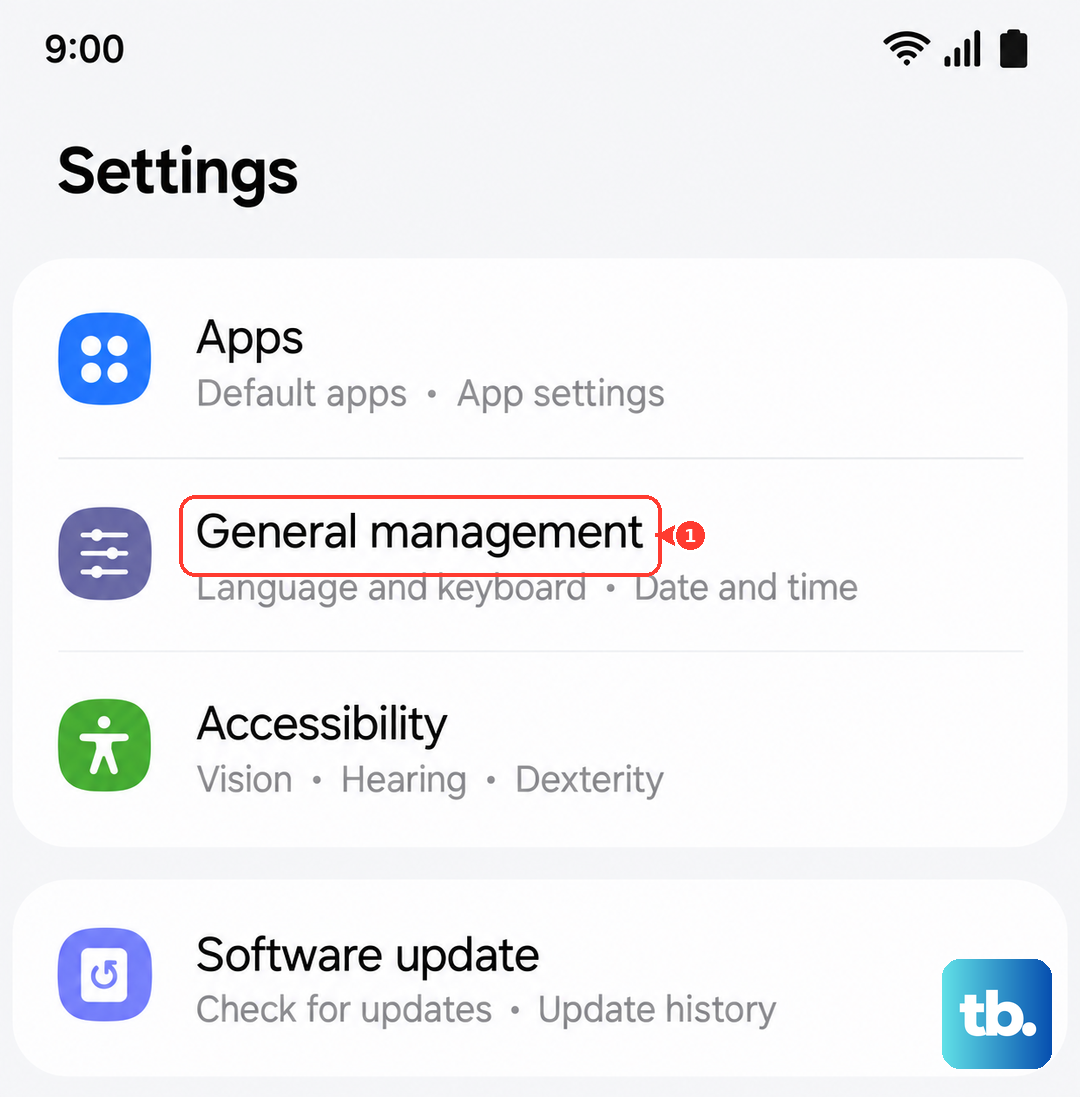
Go to Settings > General management > Reset > Reset network settings. This clears saved Wi-Fi networks, Bluetooth pairings, and cellular configurations. You'll need to reconnect to Wi-Fi afterward, but it can fix deep-level messaging problems. Enter your PIN or password if prompted, then tap Reset settings.
Remove and Reinsert Your SIM
Power off the phone (or do a force restart to turn off). Use the SIM eject tool that came with the Z Flip 7 or a paperclip to pop out the SIM tray. Wait about 30 seconds, then reinsert the SIM and power the phone back on. This forces the device to re-register with your carrier's network.
Check for System and Carrier Updates
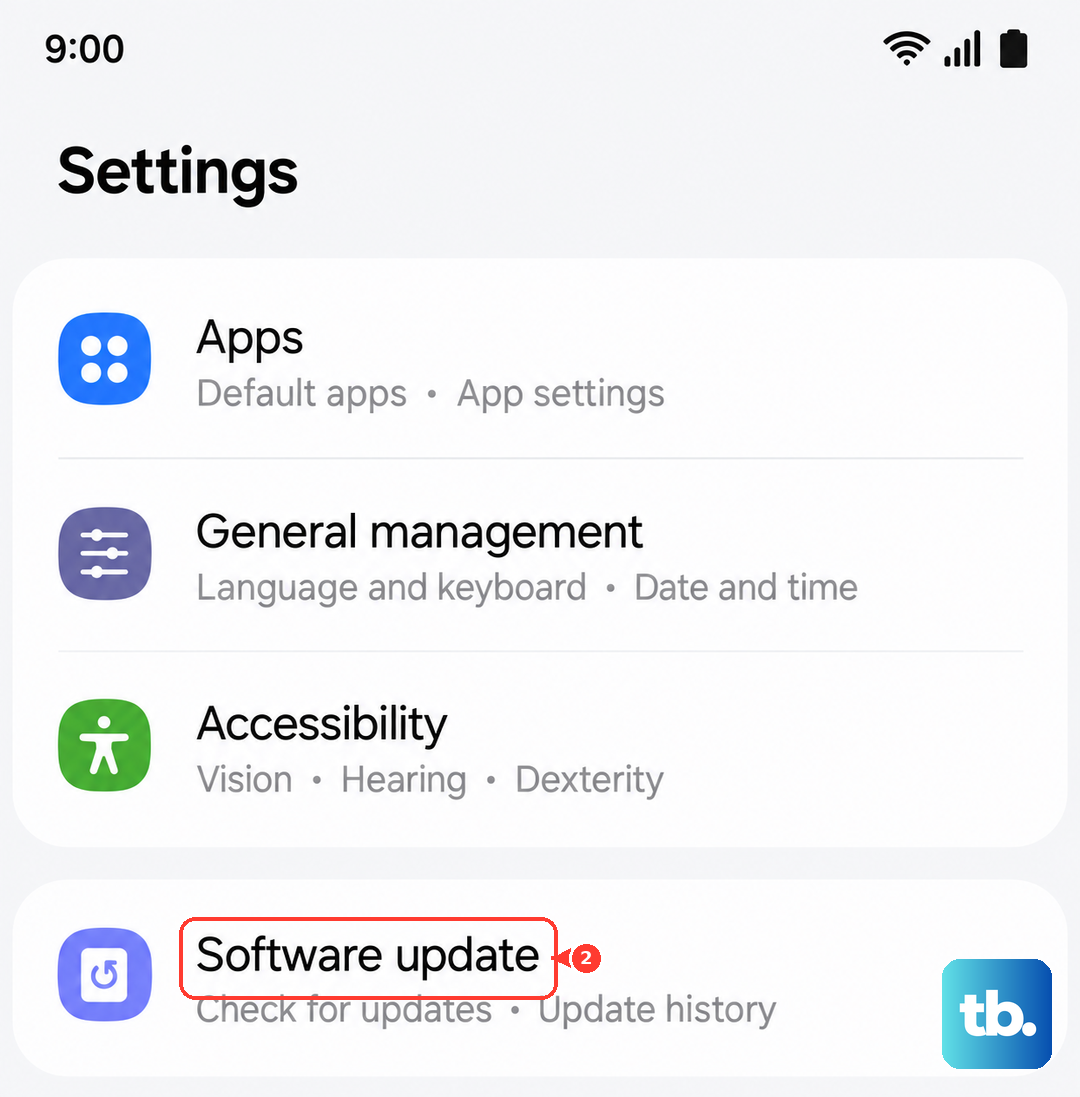
Go to Settings > Software update > Download and install. If an update is available, install it. Updates often include carrier setting patches that fix messaging issues. You can also check for carrier-specific updates by going to Settings > About phone > Status > SIM card status, if a carrier update prompt appears, follow it.
Contact Your Carrier
If none of these steps work, the problem may be on your carrier's side. Your SMS/MMS services could be blocked, suspended, or incorrectly provisioned on your account. Call your carrier and ask them to verify that messaging is active and that there are no network outages in your area. They can also reset your connection from their end.