If your Samsung Galaxy Z Flip 6 camera app is crashing, freezing, or just showing a black screen, the first thing to try is a simple restart. Press and hold the Volume Down button and the Side button together for about 10 seconds until you see the Samsung logo. I'd start with this one, as it clears out temporary glitches that can affect the camera sensor or app.
A browser based online camera test is the fastest way to check whether the camera works at all. It shows a live preview along with the detected resolution and frame rate.
Key Points
- Restart and Update Your Phone: A force restart is the fastest way to fix a frozen camera app.
- Clear the Camera App's Cache: Corrupted temporary data can cause the camera to crash or lag.
- Check for Physical Obstructions: The unique folding design means you need to check both the main and cover screen cameras.
- Reset Camera Settings: This reverts all camera options to default without deleting your photos.
- Use Safe Mode: Boot into Safe Mode to see if a third-party app is interfering with the camera.
- Inspect for Software Conflicts: Recent app installs or updates can sometimes break camera functionality.
Give the phone a moment to fully reboot, then open the camera again. If it was a minor software hiccup, this often does the trick.
Clear the Camera App's Cache and Data
Sometimes the camera app's stored data gets corrupted. Clearing the cache is a safe first step that won't delete your pictures. Go to Settings > Apps > Camera. Tap on Storage, then hit Clear Cache.
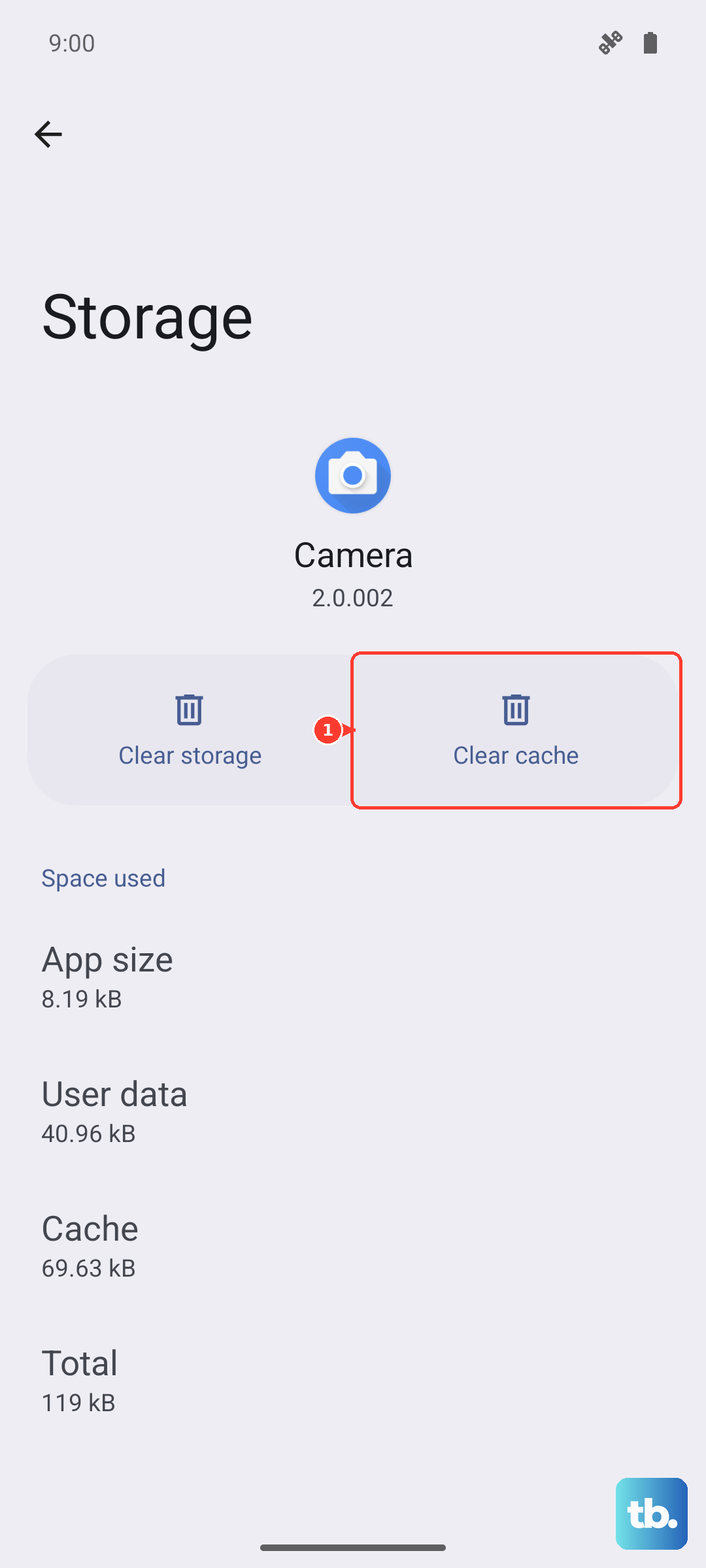
If the camera is still not working, you can try clearing the app data from that same menu. This will reset the camera app to its original settings, so you'll lose any custom modes or preferences you've set up, but your photos and videos in the Gallery will be safe.
Check for Physical Obstructions and Damage
With a folding phone, it's important to check both camera modules. Look at the main triple-lens camera on the back, as well as the front-facing camera on the inner display when the phone is open. Make sure there's no protective film, dirt, or fingerprints covering the lenses.
Also, check the hinge area. If you've accidentally closed the phone on a small object, it could potentially misalign the inner display or affect the sensors that tell the phone when it's open or closed, which can impact the camera switching between the cover screen and main screen.
Update Your Software and Camera App
Outdated software is a common culprit. Head to Settings > Software update and tap Download and install. Samsung frequently releases updates that fix bugs, including camera performance issues.
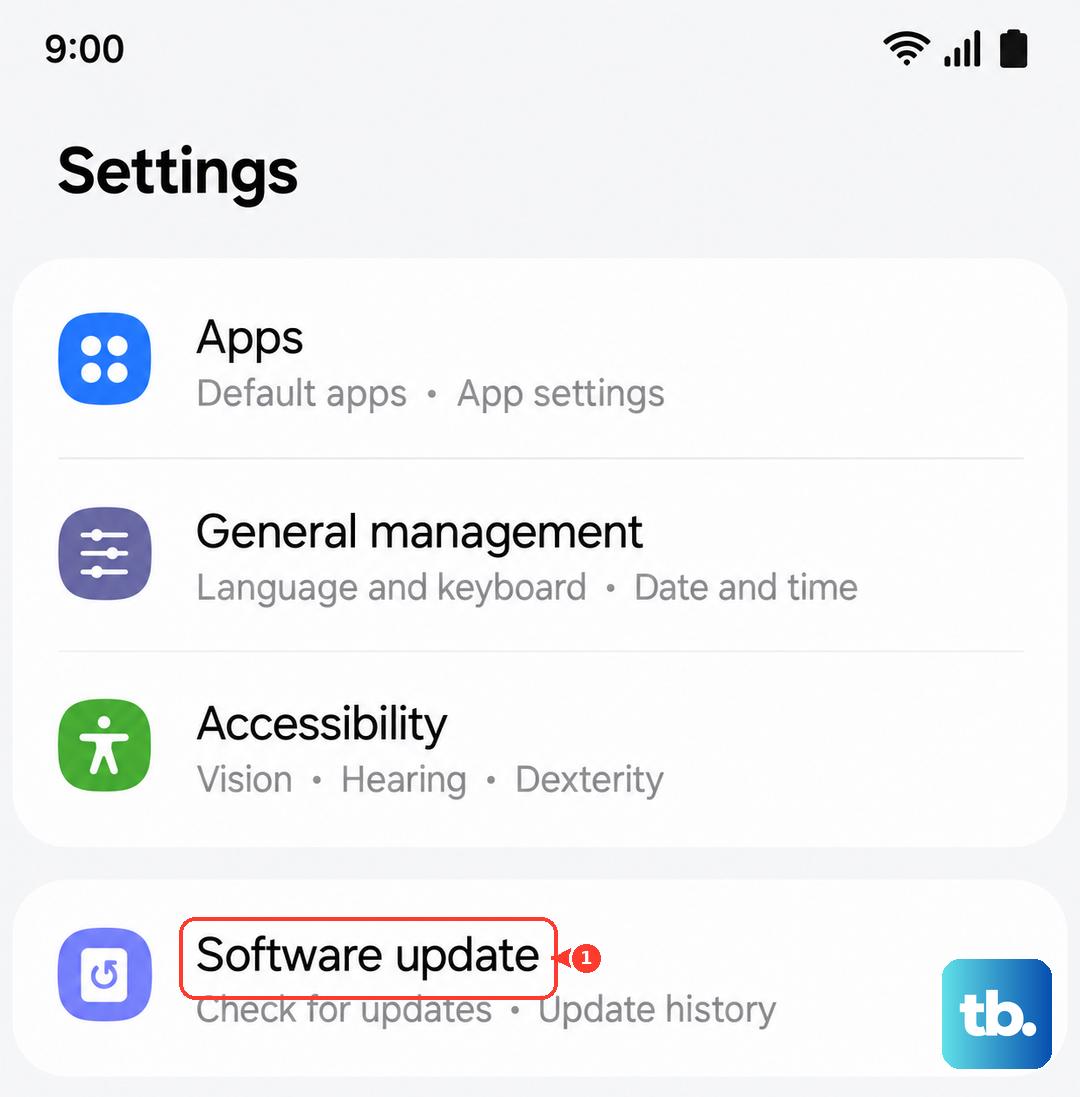
While you're at it, open the Galaxy Store or Google Play Store and check for updates specifically for the Samsung Camera app. An update might be waiting there that addresses the exact problem you're having.
Reset Your Camera Settings
If you've changed a lot of settings, something might be misconfigured. You can reset just the camera options without affecting the rest of your phone. Open the Camera app, tap the settings gear icon, scroll to the bottom, and select Reset settings.
This will revert everything like scene optimizer, shot suggestions, and storage location back to the factory defaults. It's a good way to rule out a settings-related problem.
Boot Into Safe Mode
To check if a recently downloaded app is causing a conflict, restart your Z Flip 6 in Safe Mode. Press and hold the power button until the power menu appears; if that opens your voice assistant instead, press and hold the power button and Volume up together (power and Volume down on Samsung phones). Then, tap and hold the Power off option until you see a prompt to reboot in Safe Mode.
If the camera works perfectly in Safe Mode, you know a third-party app is to blame. Start by uninstalling apps you installed around the time the camera problems began, especially other camera apps, social media, or utility tools.
Check for Flex Mode and Cover Screen Conflicts
The Z Flip 6's folding nature can introduce unique issues. If you're trying to use the camera in Flex Mode (partially folded) and it's not working, try fully opening or closing the phone first. Sometimes the sensor that detects the hinge angle can get confused.
Similarly, if you're using the cover screen to take selfies with the main camera and it's not responding, ensure the phone is fully closed. You can also check the cover screen settings by going to Settings > Advanced features > Labs to see if any experimental cover screen features are enabled that might be interfering.
Perform a Network Settings Reset
This might seem unrelated, but if your camera is failing when trying to use modes that require location or data, like uploading to the cloud or using AR features, a network reset can help. Go to Settings > General management > Reset > Reset network settings.
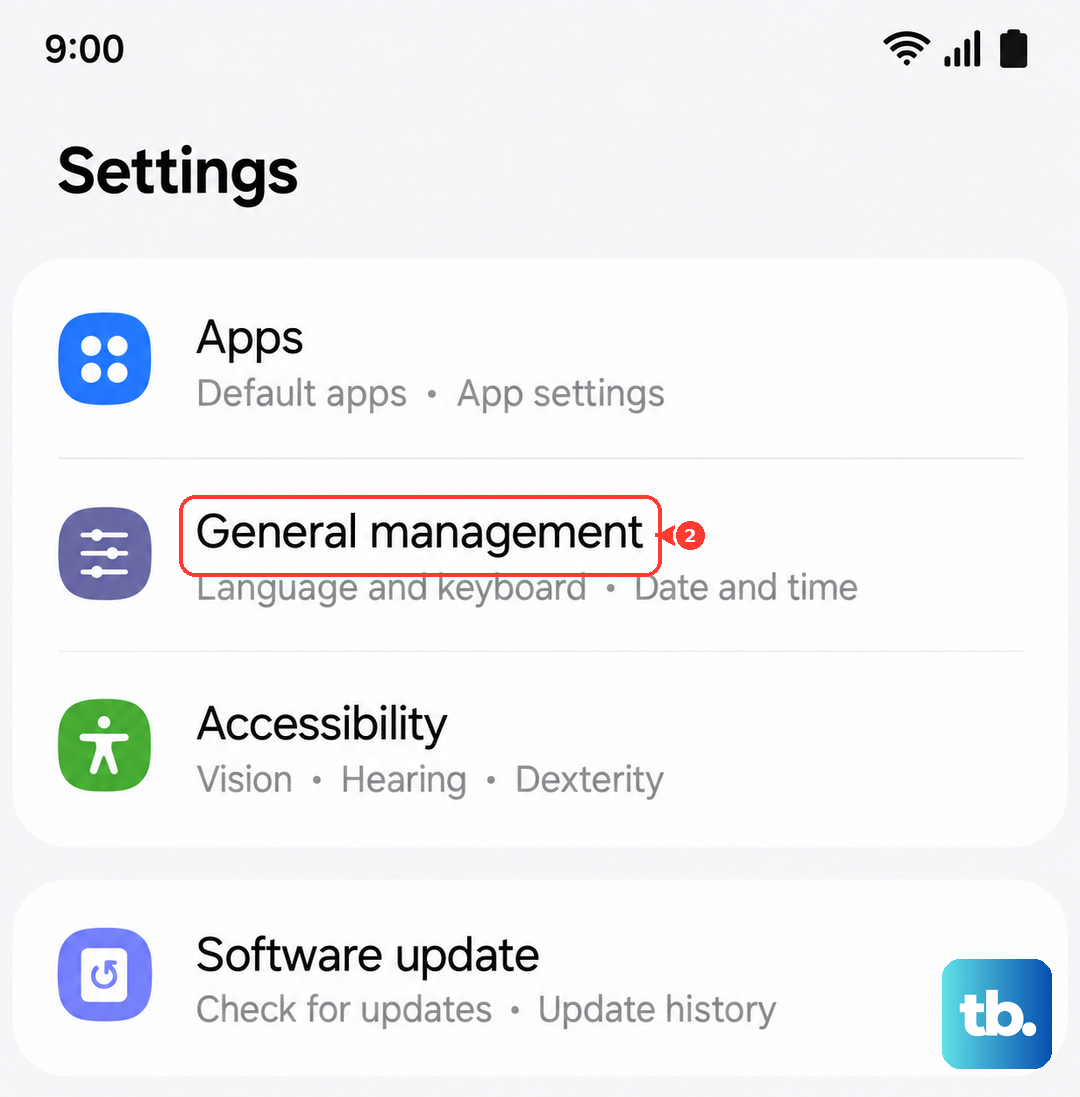
This will erase all Wi-Fi passwords, Bluetooth pairings, and mobile network settings, so be prepared to reconnect to your networks afterwards. It can resolve deeper system conflicts that affect app permissions.
Consider a Factory Reset
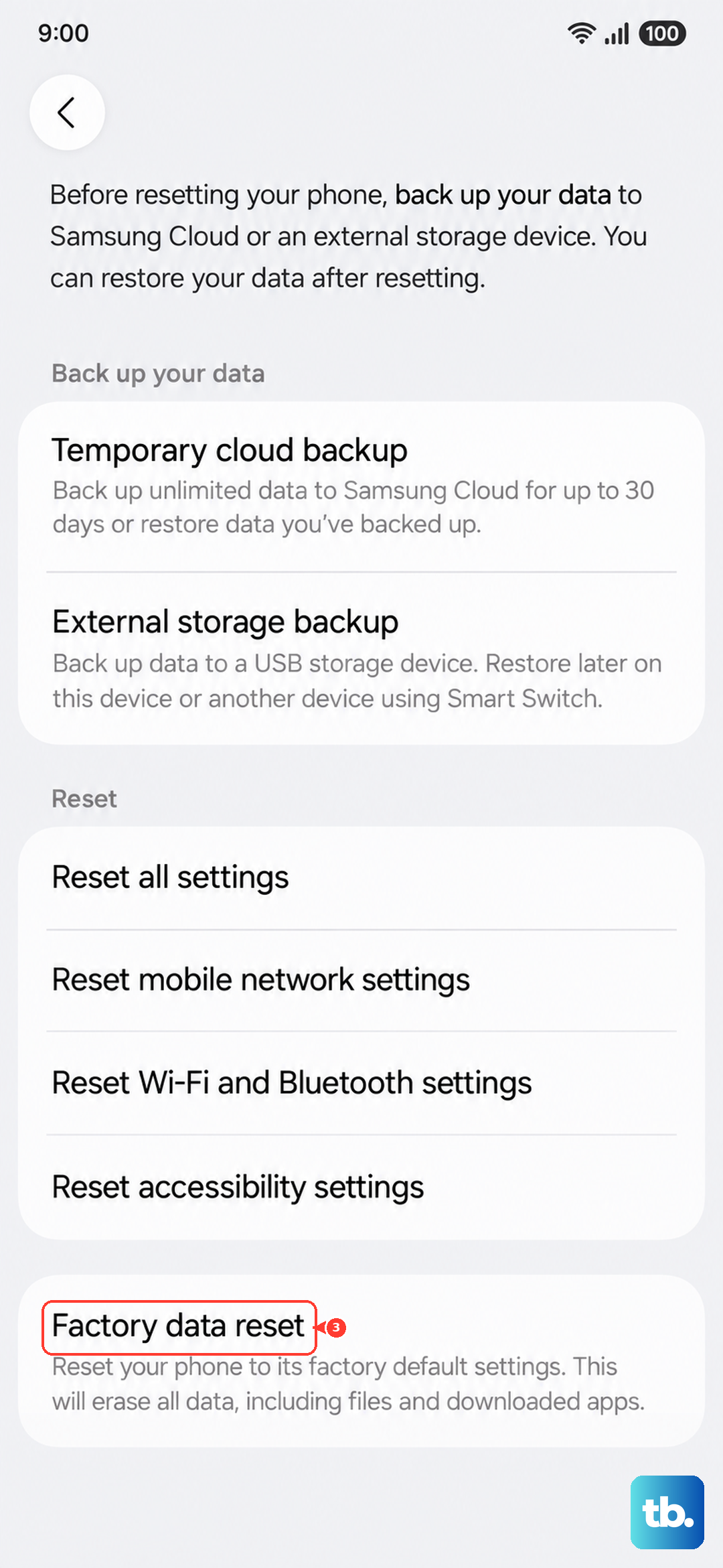
If you've tried everything else and the camera is still broken, a factory reset is the last software step. This will erase all data on your phone, so it's crucial to back up everything important first using Samsung Cloud or a computer.
Once backed up, go to Settings > General management > Reset > Factory data reset. If the camera works after the reset, it confirms it was a software issue. If it still doesn't work, the problem is likely with the camera hardware itself.