
When your Galaxy S26 Ultra's voice assistant stops responding, it can feel like you've lost a key part of your phone's functionality. Whether it's Bixby, Google Assistant, or both that aren't listening, the fixes are usually straightforward. Let's get your assistant talking again.
Verify Your Voice Assistant is Enabled
First, confirm which assistant you're trying to use and that it's actually turned on. On the S26 Ultra, you can have Bixby, Google Assistant, or even both set up. Open the Settings app and head to Advanced features > Bixby to check its status. For Google Assistant, open the Google app, tap your profile picture, and go to Settings > Google Assistant.
Make sure the "Hey Google" or "Hi Bixby" wake word feature is toggled on. I'd start here, as sometimes a simple software update or a conflicting app can accidentally turn these settings off.
Check for Microphone Blockages
The S26 Ultra has several microphones, and if they're covered, your assistant can't hear you. Check the small pinholes at the top, bottom, and back of the phone. A common issue with the S Pen slot is that debris can get trapped and potentially migrate near the USB-C port and bottom microphone.
Gently clean these areas with a soft, dry brush. Avoid using compressed air directly into the ports, as it can push debris further in. Also, check if your phone case is properly aligned and not covering any of the microphone openings.
Retrain the Voice Model
If your assistant hears you but doesn't activate consistently, retraining the voice model can make a big difference. This is especially helpful if you've changed your speaking pattern or are in a new, noisier environment.
For Bixby, go to Settings > Advanced features > Bixby and look for the voice training option. For Google Assistant, you'll find the "Voice Match" training in the Google app settings. The process takes about a minute and involves you saying a few phrases so the phone can learn your voice better.
Review App Permissions and Battery Settings
Your voice assistant apps need the correct permissions to run in the background. Go to Settings > Apps, select either Bixby or the Google app, and tap Permissions. Ensure the Microphone permission is allowed.
Next, check the battery optimization settings. Tap Battery within the app's settings and select Optimize battery usage. Change the dropdown to "All apps" and make sure your chosen assistant app is set to "Don't optimize." This prevents One UI from putting it to sleep.
Disable Conflicting Accessibility Features
Certain accessibility services can interfere with the always-listening function. Go to Settings > Accessibility and look at features like "Sound detectors" or any third-party listening services you may have installed.
Try turning these off temporarily to test if your main voice assistant starts working again. You can always re-enable them later once you've identified the culprit.
Perform a Force Restart
A quick force restart clears the phone's temporary memory and can fix minor software glitches causing the issue. On the S26 Ultra, press and hold the Volume Down button and the Side/Power button simultaneously for about 10 seconds.
Release the buttons when you see the Samsung logo appear on the screen. This is different from a standard power off and on, and it's a good first step for any quirky software behavior on a new device.
Update Your Software
Since the S26 Ultra is a new device, early software bugs are possible. Samsung frequently releases updates to patch these kinds of issues. Connect to Wi-Fi and go to Settings > Software update > Download and install.
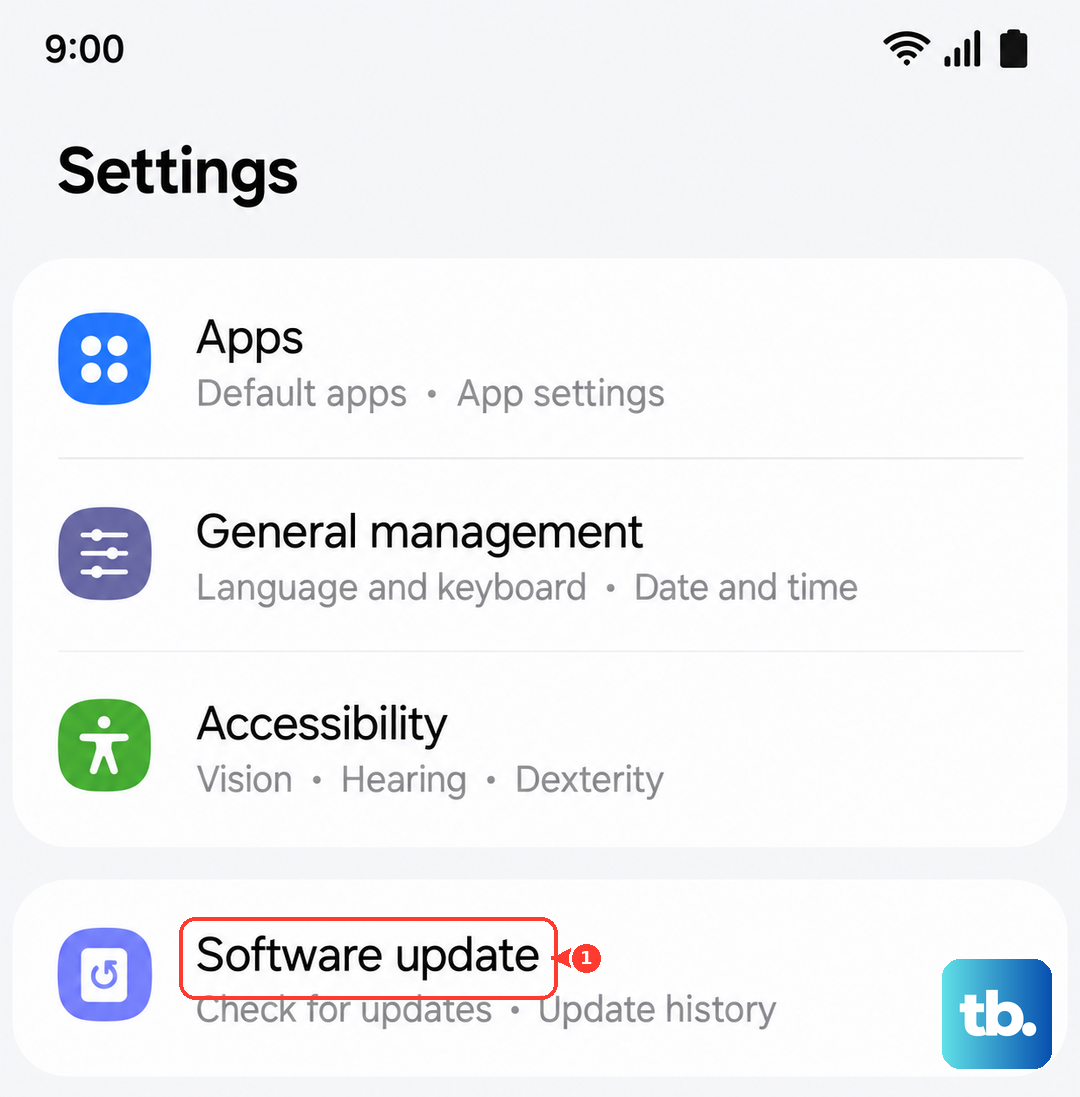
Make sure your phone is charged above 50% or plugged in. An update can often resolve conflicts between system processes and the voice recognition services.
Clear the Assistant App's Cache
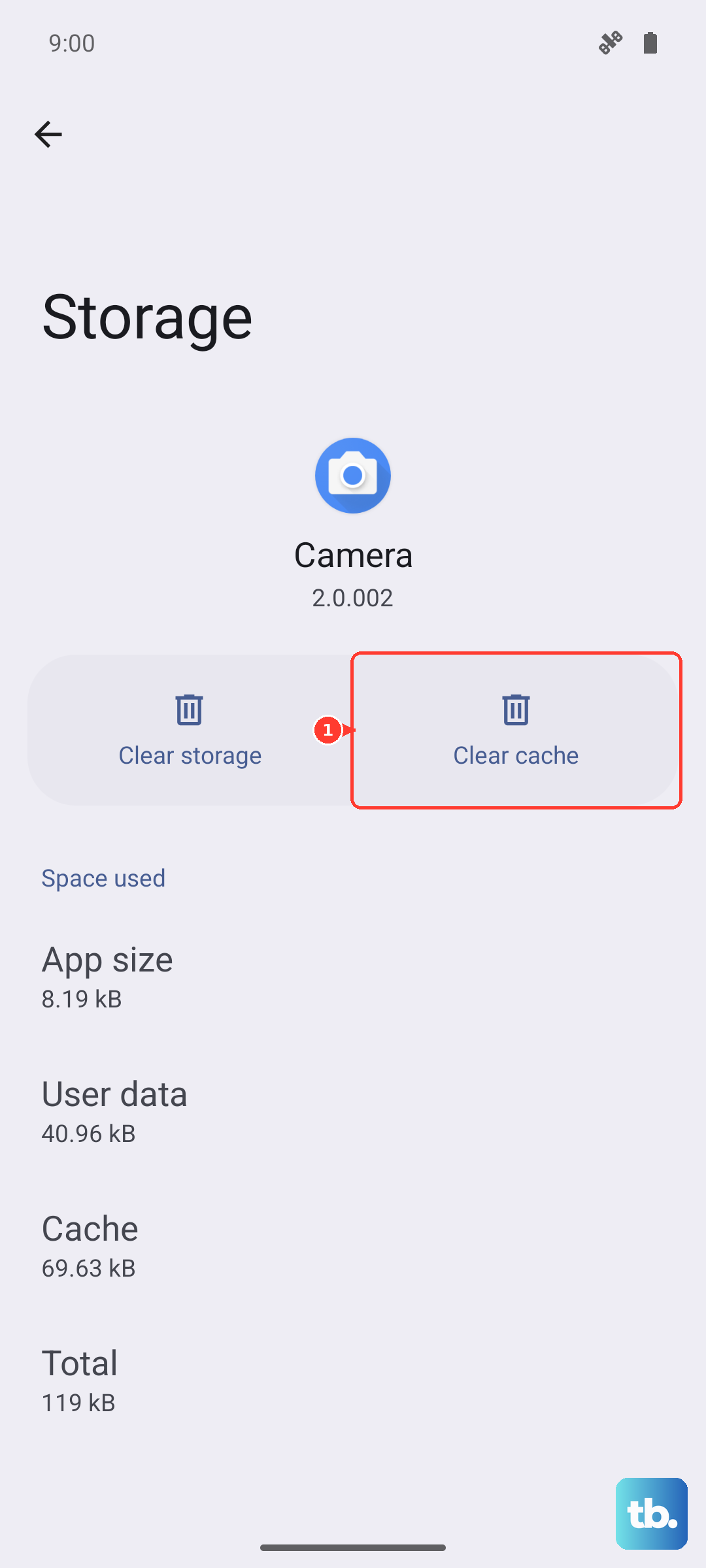
Corrupted temporary data can cause the app to malfunction. Go to Settings > Apps, find and select the Google app or Bixby, then tap Storage.
Tap "Clear cache" first. This deletes temporary files without touching your personal data or settings. If the problem persists, you can try "Clear data," but be aware this will reset the app to its default state and you'll need to set it up again.
Check Your Network Connection
While basic commands are processed on-device, many voice assistant requests require an internet connection to fetch answers, control smart home devices, or get live information. Test your Wi-Fi or mobile data connection by opening a webpage.
If you're using a VPN or a custom DNS (like in Settings > Connections > More connection settings > Private DNS), try disabling it temporarily. Some network configurations can block the servers your assistant needs to communicate with.
Reset All Settings
If you've tried everything else, this can resolve deeper configuration conflicts without erasing your personal data. It will reset network settings, Bluetooth pairings, sound options, and all system preferences to default.
Go to Settings > General management > Reset > Reset all settings. You'll need to re-enter Wi-Fi passwords and reconfigure things like ringtones, but your photos, messages, and apps will remain untouched. After the reset, go back and re-enable your preferred voice assistant.