
If your brand new Samsung Galaxy S26 Ultra is making videos look choppy or freeze up, it's a real buzzkill on such a powerful phone. The good news is this is almost always a software hiccup you can sort out yourself. I'd start with the quick fixes at the top of this list.
If motion feels less smooth than it should, an online refresh rate test settles the question in seconds by measuring the true refresh rate.
Restart Your Phone
It sounds too simple, but a restart clears out temporary glitches in One UI 8.5 that can mess with video processing. Press and hold the Volume Down button and the Side/Power button together for about 10 seconds until you see the Samsung logo. Let it boot back up and try your video again.
Check for a Software Update
Since the S26 Ultra is a new 2026 model, early software bugs are a real possibility. Samsung is likely pushing out updates to smooth things over. Head to Settings > Software update and tap "Download and install." Make sure you're on Wi-Fi and have your phone plugged into that 60W charger, as this can take a few minutes.
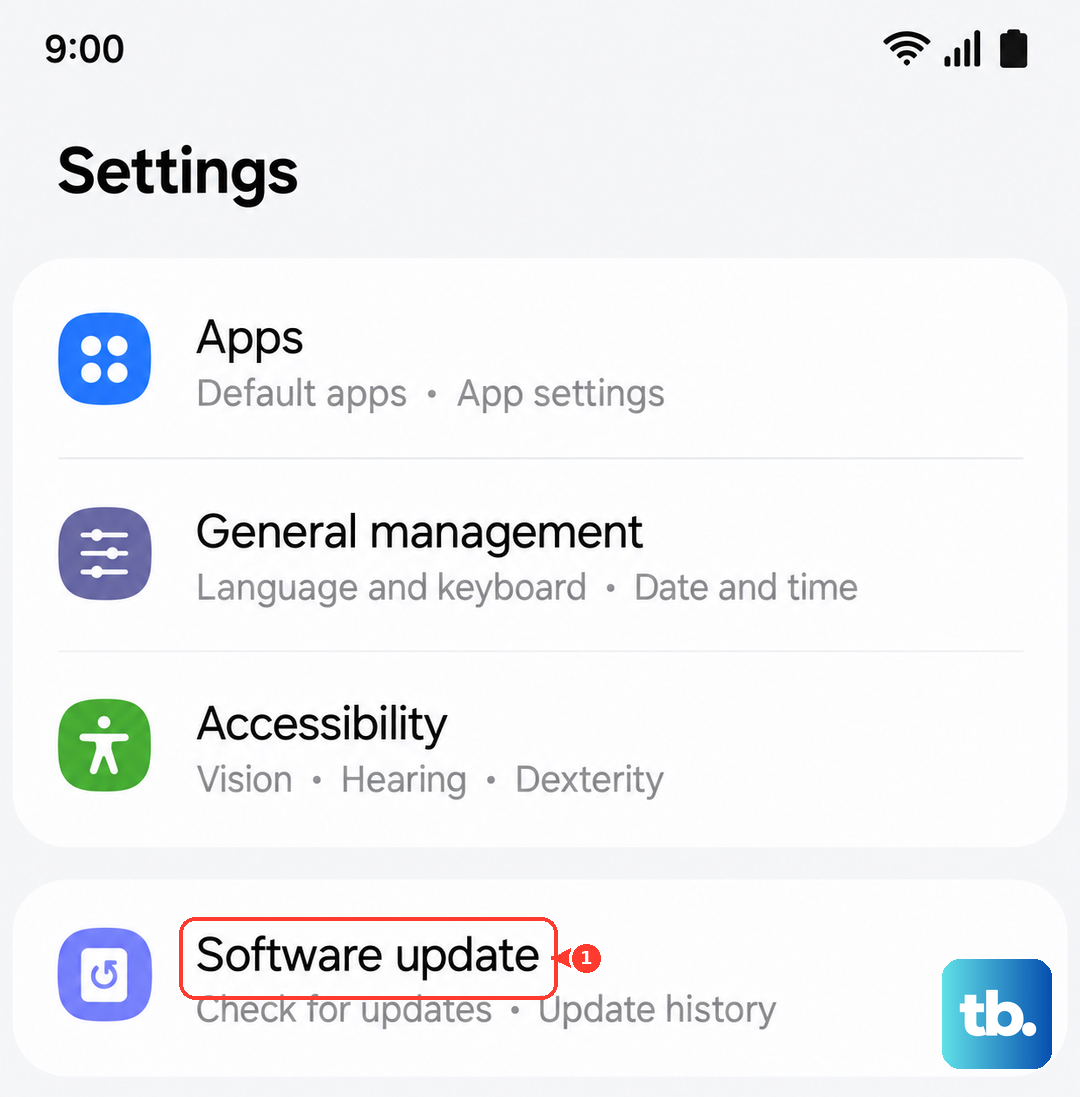
While you're there, also check for updates in the Galaxy Store and Google Play Store for your video apps. An outdated YouTube, Netflix, or Samsung Gallery app could be the culprit.
Free Up Storage Space
Your S26 Ultra needs breathing room to buffer and process high-resolution video files smoothly. If your storage is nearly full, things can get choppy. Go to Settings > Device care > Storage to see how much space you have left.
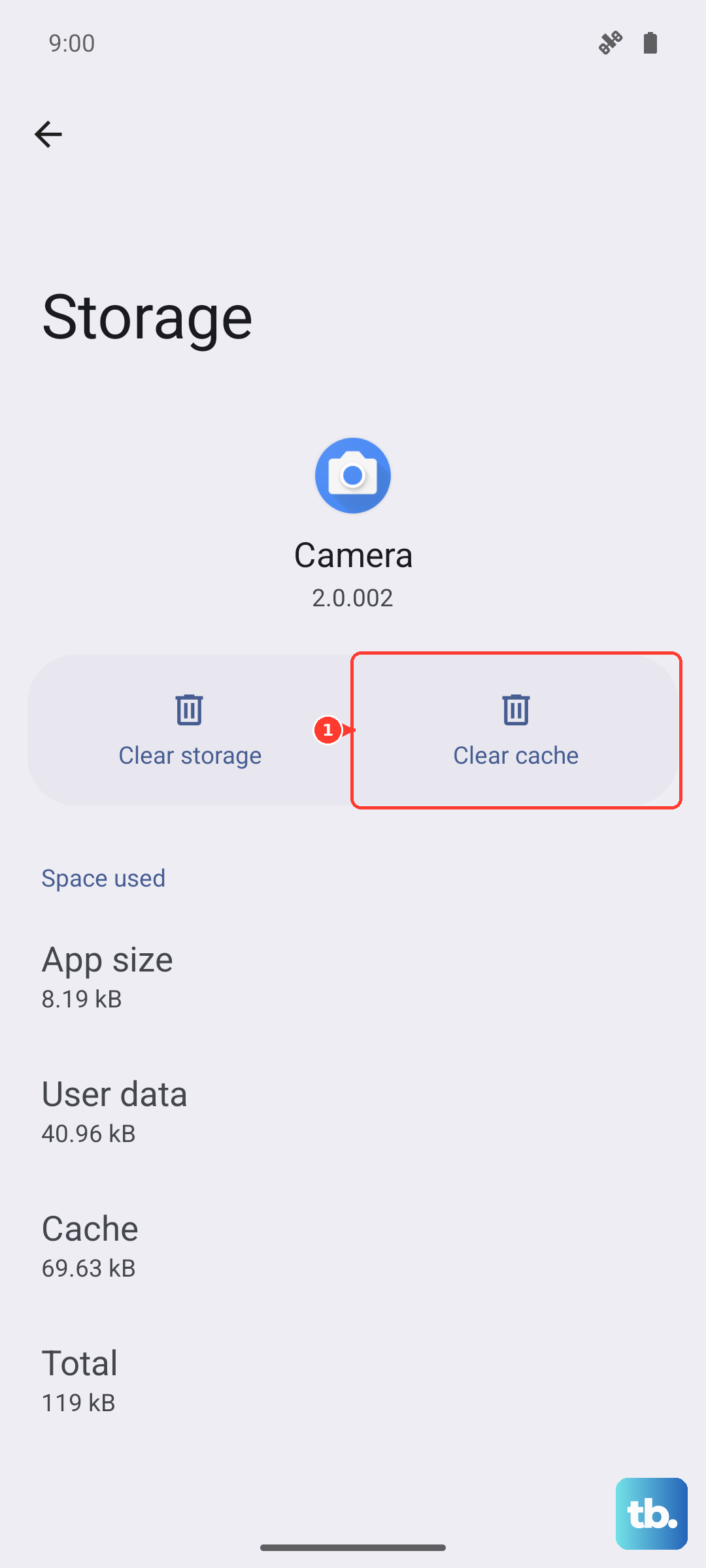
If you're running low, clear the cache for your video apps. In Settings, go to Apps, select the app giving you trouble (like YouTube), and tap "Storage." Then hit "Clear cache." This wipes temporary files without touching your personal data.
Examine Your Network Connection
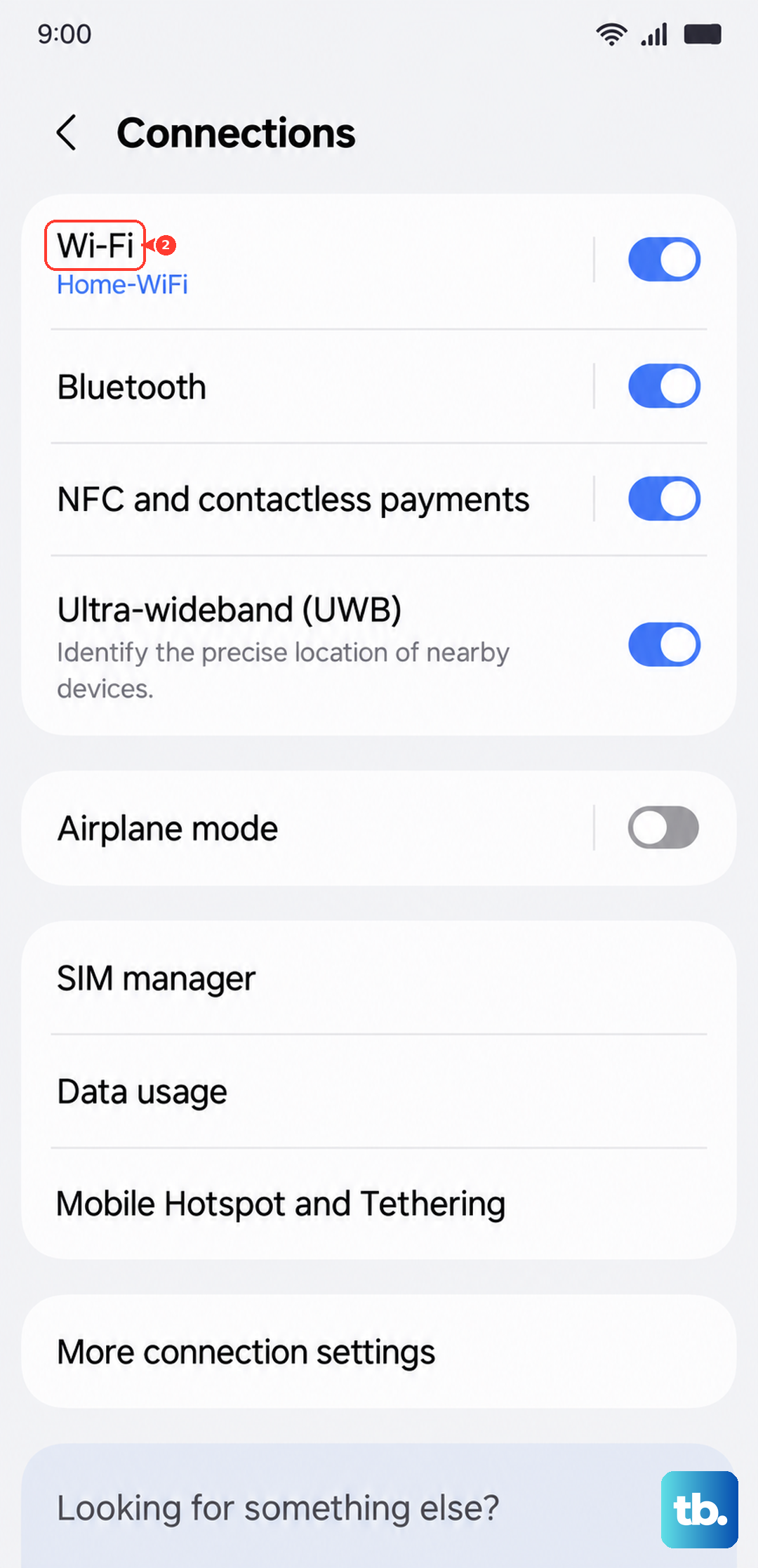
For streaming videos, a weak or unstable connection is the most common cause of stuttering and buffering. First, try switching between Wi-Fi and your 5G/4G data to see if the problem follows you. If your Wi-Fi seems slow, restart your router.
You can also run a quick network diagnostic. Go to Settings > Connections > Wi-Fi, tap the gear icon next to your network, and then select "View more." Check your signal strength and consider moving closer to your router.
Adjust Video Player Settings
Sometimes the issue is with a specific setting in your video player. If you're using Samsung's native video player or Gallery app, look for a toggle called "Video brightness" or "Optimize video." Try turning these off, as they can sometimes interfere with smooth playback.
For streaming apps like Netflix or Disney+, check the playback settings within the app itself. You might be trying to stream in 4K HDR on a connection that can't handle it, forcing the app to constantly buffer and stutter. Manually lowering the playback quality can provide an instant fix.
Close Background Apps and Boost Performance
Your S26 Ultra is a multitasking beast, but having too many apps running can still steal resources from your video player. Swipe up from the bottom and hold to enter the recent apps view, then close everything you're not using.
For a more thorough cleanup, use the device care tool. Open Settings > Device care and tap "Optimize now." This closes background processes and frees up RAM.
Check for Overheating
If your phone gets too hot, it will throttle its performance to cool down, which can lead to video stutter. This can happen if you're charging with Super Fast Charging 3.0 while watching a video in a bright, hot environment.
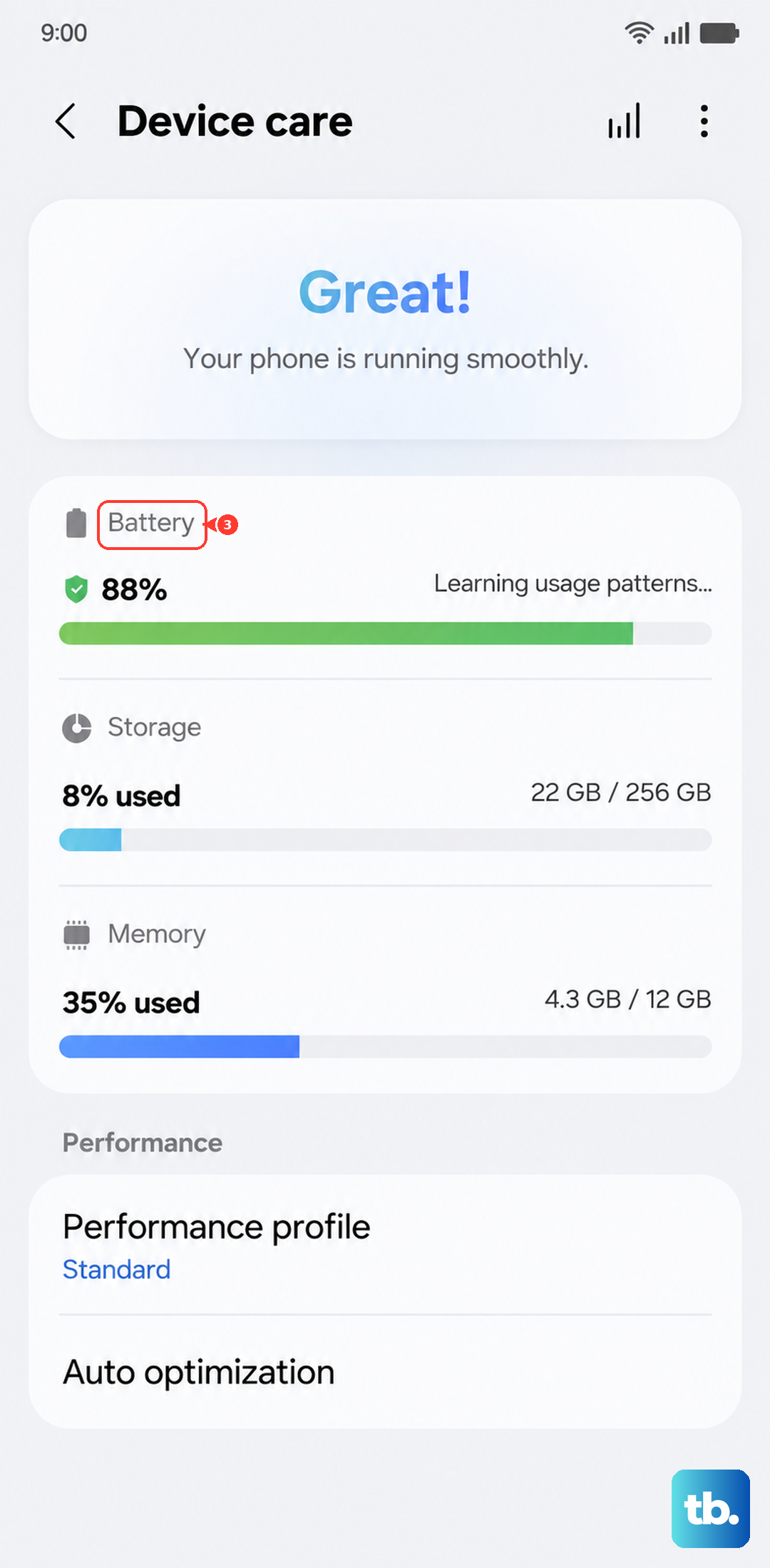
Take the case off for a bit, move out of direct sunlight, and pause the fast charging if you can. You can check the temperature in Settings > Device care > Diagnostics > Battery status.
Reset App Preferences
This is a useful middle-ground step that resets all your app permissions, notifications, and default apps without deleting any of your personal data. It can fix conflicts where one app is interfering with another.
Go to Settings > Apps, tap the three-dot menu in the top right, and select "Reset app preferences." Confirm the action. You'll need to re-grant permissions when you use apps again, but it's a quick process.
Boot into Safe Mode
Safe mode temporarily disables all third-party apps. If your videos play perfectly in safe mode, you know a downloaded app is causing the conflict. To enter safe mode, press and hold the power button until the power menu appears.
Then, tap and hold the "Power off" option on your screen. You'll get a prompt to reboot into safe mode. Tap "Safe mode." Test your video playback. To exit, just restart your phone normally.
Consider a Factory Reset
If you've tried everything else and the stuttering persists across every app, a factory reset is the final software step. This will erase all your data and return the phone to its out-of-box state, so a full backup is absolutely essential first.
Use Samsung Cloud or a computer to back up everything. Then, go to Settings > General management > Reset > Factory data reset. Follow the prompts. After the reset, set the phone up as new before restoring your backup, to see if the problem is truly gone.