If your brand new Samsung Galaxy S26 Ultra is refusing to send pictures or videos, it's a frustrating way to start with a flagship phone. This is often a quick settings or network hiccup, especially with early software on a new device. Let's get your multimedia messages flowing.
The very first thing I'd check is your mobile data. MMS can't travel over Wi-Fi alone; it needs an active cellular data connection. Swipe down twice from the top of your screen to open the Quick Settings panel and make sure the mobile data icon is lit up.
If it's on but you're still stuck, try temporarily turning off Wi-Fi. Some networks can interfere with the MMS data pathway. Send a test picture using just your 5G or LTE signal.
Verify Your MMS Settings in Samsung Messages
Open your Samsung Messages app and tap the three-dot menu in the top right. Go to Settings and then select Multimedia messages.
Here, ensure that Auto download is turned on. You should also enable Roaming auto download if you're traveling, though that's more for receiving. For sending issues, this menu is a good first stop to confirm nothing is disabled.
Clear the Cache for Your Messages App
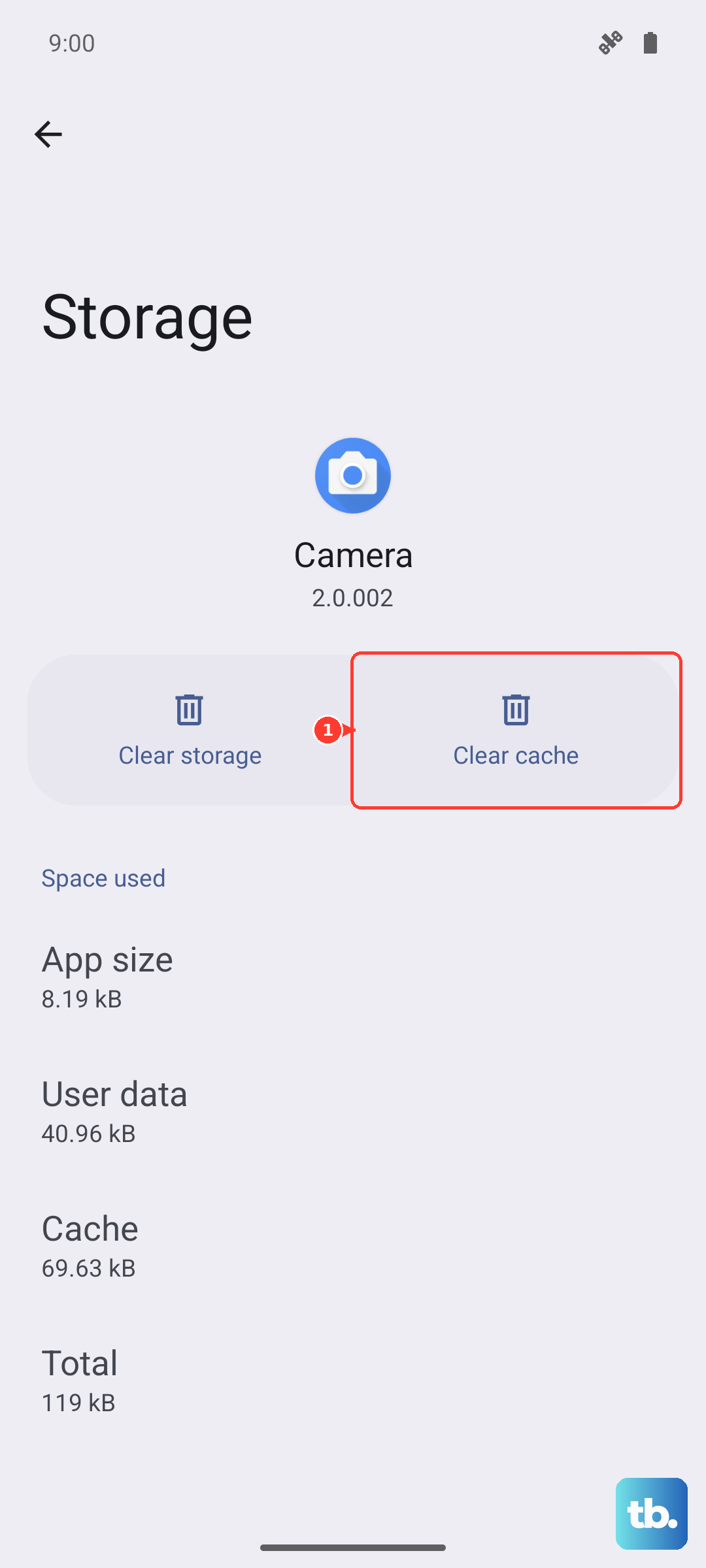
Corrupted temporary files can block the messaging app from working correctly. This won't delete your conversations.
Go to Settings > Apps, then find and select Messages. Tap on Storage and hit Clear cache. This takes two seconds and often clears up minor glitches. If problems persist, you can tap Clear data, but be warned this will erase your entire message history within the app.
Check and Update Your APN Settings
Incorrect Access Point Name (APN) settings are a classic culprit. These tell your phone exactly how to connect to your carrier's MMS service.
Navigate to Settings > Connections > Mobile networks > Access Point Names. You should see a list of APNs, with one selected (usually your carrier's name). If this list is empty or looks wrong, you'll need the correct settings from your carrier.
You can usually find these on your carrier's support website by searching for "APN settings for Samsung" or by contacting their customer service directly. They can often send a configuration message that sets it up automatically.
Perform a Force Restart
A simple reboot can clear out a temporary software snag. For the S26 Ultra, press and hold the Volume Down button and the Side/Power button together for about 10 seconds until you see the Samsung logo appear, then release.
This forces a fresh start for all system processes, including those handling your network connection and messaging services. It's different from a normal restart and can resolve issues that a standard reboot doesn't.
Update Your Phone's Software
Given this is a new 2026 model, early software bugs affecting connectivity are a real possibility. Samsung is typically quick to push out fixes.
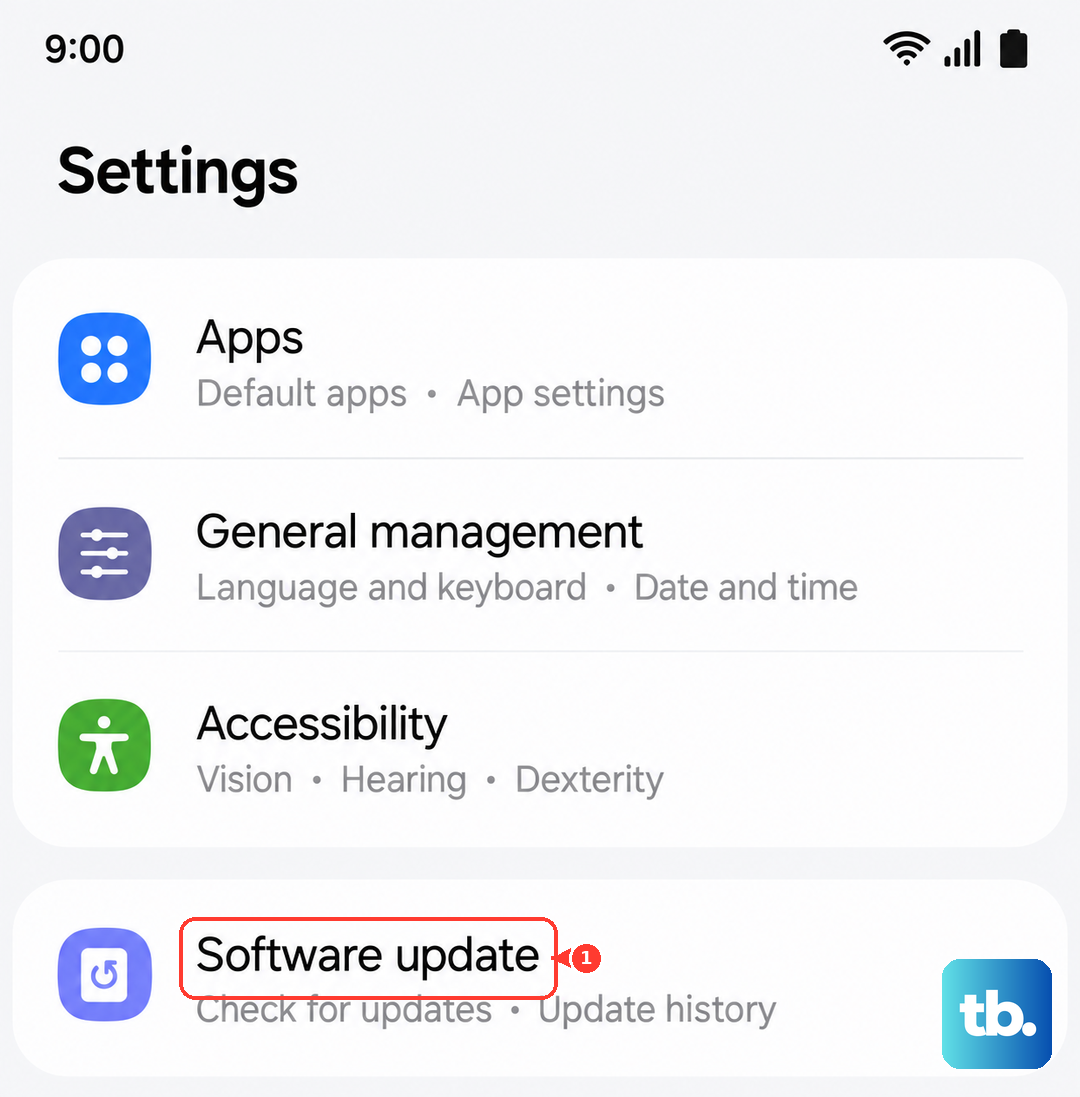
Head to Settings > Software update > Download and install. If an update is available, install it and let your phone restart. An update can patch the exact issue preventing MMS from sending.
Reset Your Network Settings
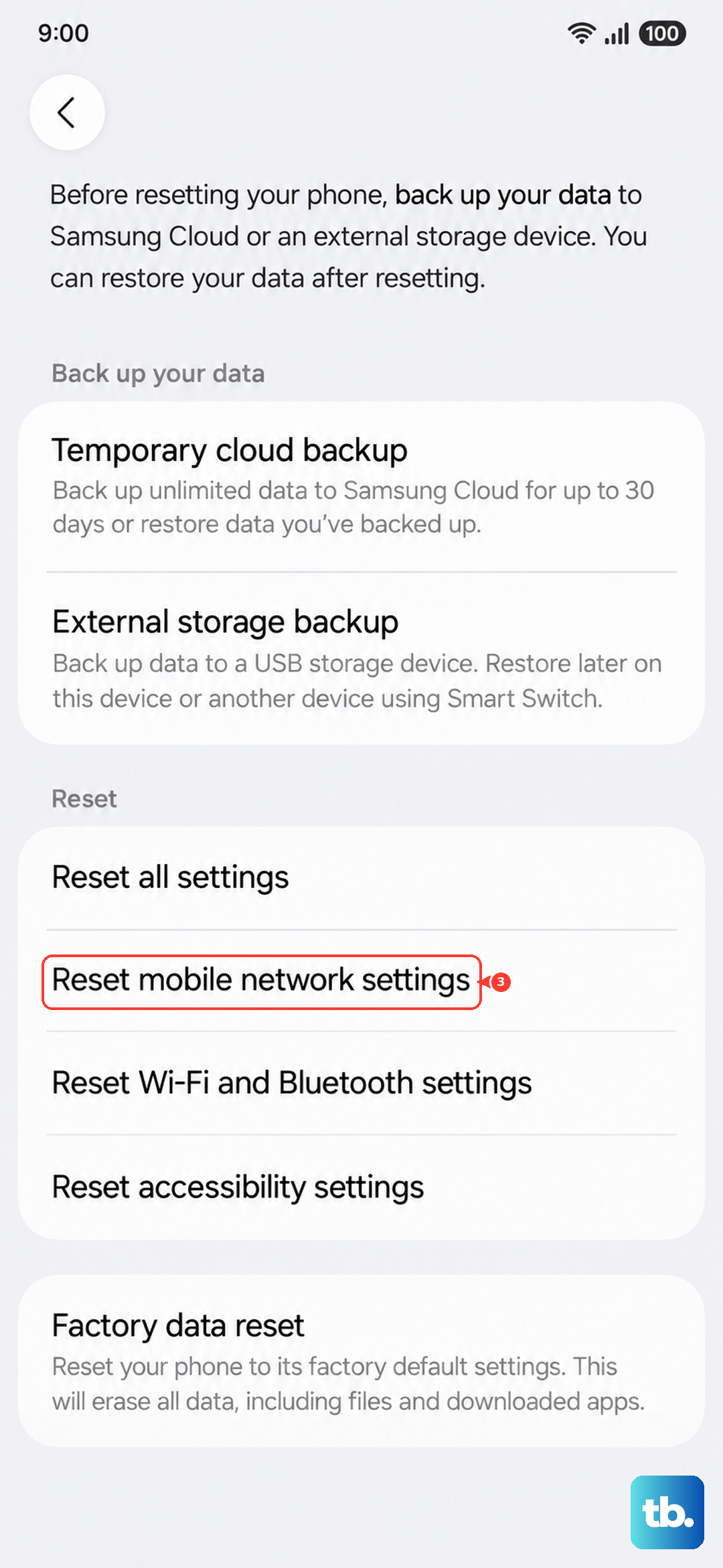
This is a more thorough step that resets all network-related configurations back to factory defaults. It will erase saved Wi-Fi networks, paired Bluetooth devices, and mobile data settings, but it won't touch your personal files or apps.
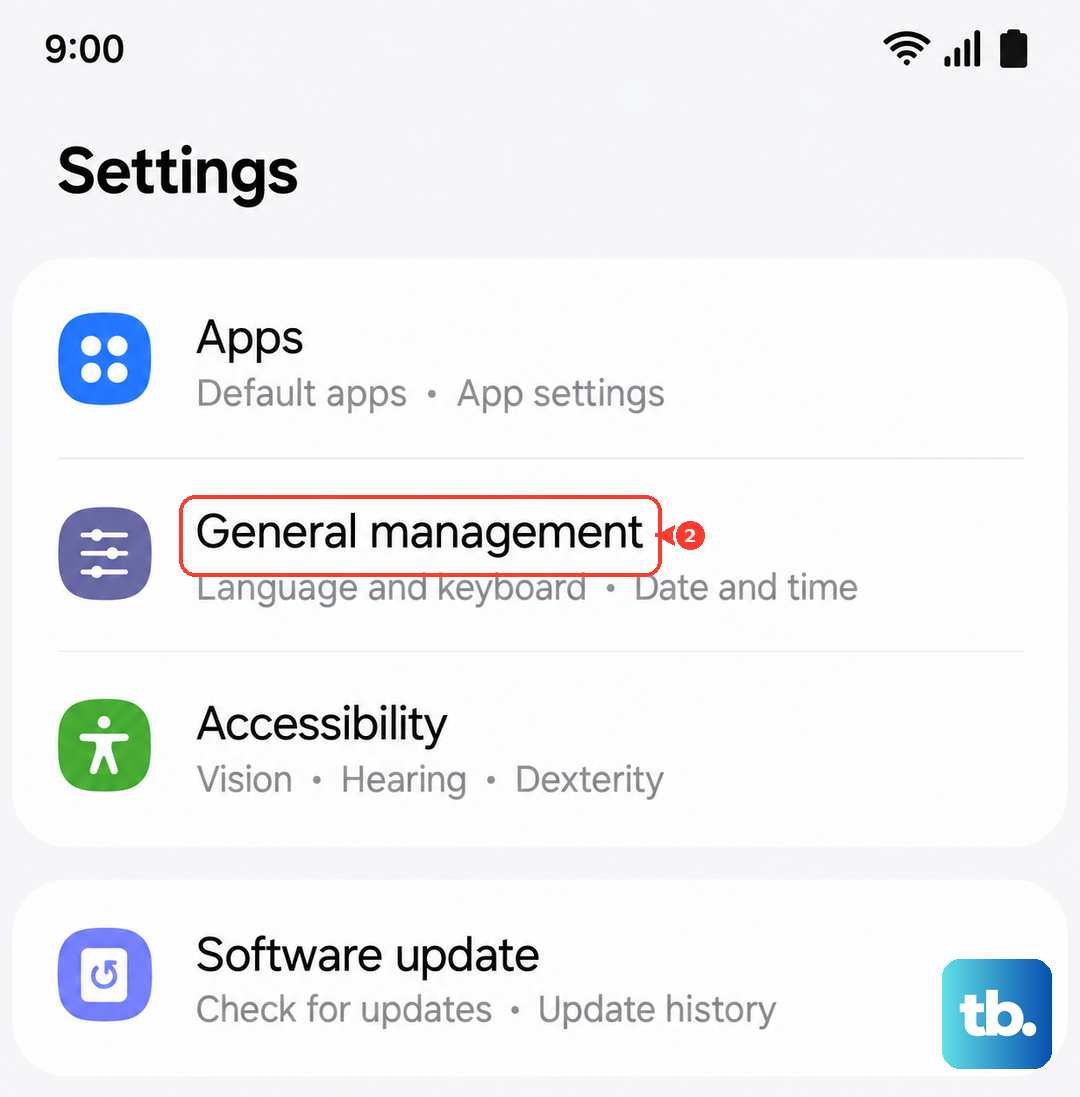
Go to Settings > General management > Reset > Reset network settings. Confirm the action. Your phone will restart, and you'll need to reconnect to Wi-Fi and re-pair Bluetooth accessories, but it often resolves persistent MMS and data issues.
Check for a Storage Space Issue
Your phone needs a little free space to process and send multimedia files. If your internal storage is completely full, it can fail silently.
Open Settings > Device care > Storage. See how much space is free. Try clearing out some old downloads or unused apps to free up a few gigabytes. Also, check within your Messages app settings for an option to delete old auto-downloaded media, which can accumulate quickly.
Try Google Messages as an Alternative
If Samsung's default app is having a persistent issue, using Google Messages can be a great workaround. It's a highly compatible app that's frequently updated.
Download Google Messages from the Play Store. When you open it, it will ask to be set as your default messaging app. Allow this, then grant it the necessary permissions. Try sending an MMS from there. Many users find it handles multimedia more reliably, especially across different carriers and phone types.
Contact Your Mobile Carrier
If you've worked through all these steps, the issue might be on your carrier's end. There could be a service outage in your area, a problem with your specific line, or a provisioning issue with MMS on your account.
Give them a call or use online chat support. Tell them you've already verified your APN settings and reset network settings on your Samsung Galaxy S26 Ultra. They can check your account status, reprovision your MMS service, or confirm if there are any known issues affecting sending pictures and videos.