
When you tap on a picture or video message on your Galaxy S25 and it just spins forever, it's a real pain. MMS messages need a solid data connection and the right settings to come through. On Samsung's One UI 7, the problem is usually a quick setting that got switched off or a temporary network hiccup.
Let's get those photos and videos downloading again. I'd start with the first couple of fixes here, as they solve the issue most of the time.
Restart Your Galaxy S25
It sounds too simple, but a restart clears out temporary glitches that can hang up the messaging service. Just press and hold the Volume Down button and the Side button together for about 10 seconds until you see the Samsung logo. Your phone will reboot and often that's all it takes.
Check Your Mobile Data Connection
MMS doesn't use Wi-Fi to download. It requires your mobile data to be on and working. Swipe down from the top of your screen to open the Quick Settings panel and make sure the Mobile Data icon is lit up. If you're in a spot with weak signal, try moving to a different area.
Also, double-check that Data Saver isn't blocking it. Go to Settings > Connections > Data Usage > Data Saver and make sure it's turned off, or add your Messages app to the "Allowed" list while Data Saver is on.
Enable Auto-Download MMS
The most common fix is to make sure auto-download is enabled. Open your Samsung Messages app and tap the three dots in the top right corner. Go to Settings > Multimedia messages.
Here, you'll see an "Auto download" option. Make sure this is toggled on. While you're here, also check the "Roaming auto download" setting below it if you're traveling.
Force Stop and Relaunch Messages
If the app itself is stuck, force stopping it gives it a clean start. Go to Settings > Apps, find and tap on "Messages". On the app info page, tap "Force stop" and then confirm. Open the Messages app again and see if the download completes.
Clear the Messages App Cache
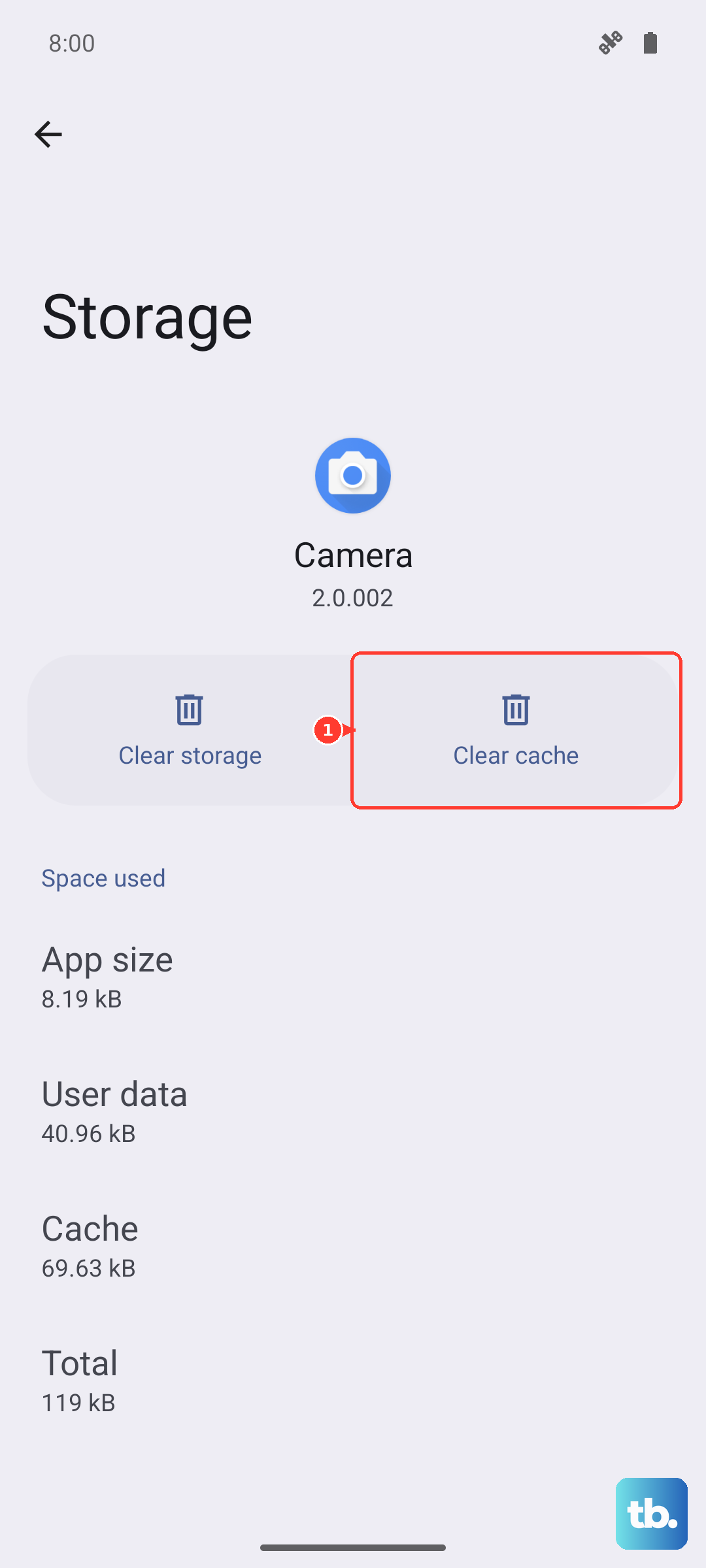
Corrupted temporary files can cause download failures. Clearing the cache won't delete your texts. Head back to Settings > Apps > Messages > Storage.
Tap "Clear cache". For more stubborn issues, you can tap "Clear data", but be warned this will erase your entire message history, so only do this if you're backed up or don't mind losing your threads.
Verify Your APN Settings
Incorrect Access Point Name settings from your carrier will break MMS. These can sometimes get messed up after a software update. Go to Settings > Connections > Mobile Networks > Access Point Names.
You should see a list of APNs. Tap the one that's currently selected (it will have a filled-in circle). Look for fields labeled "MMSC", "MMS proxy", and "MMS port". If any are blank or look wrong, you'll need the correct info from your carrier's website or customer support.
Reset Your Network Settings
This will wipe all your Wi-Fi passwords, Bluetooth pairings, and mobile network settings back to default, fixing any deep configuration errors. Go to Settings > General Management > Reset > Reset network settings.
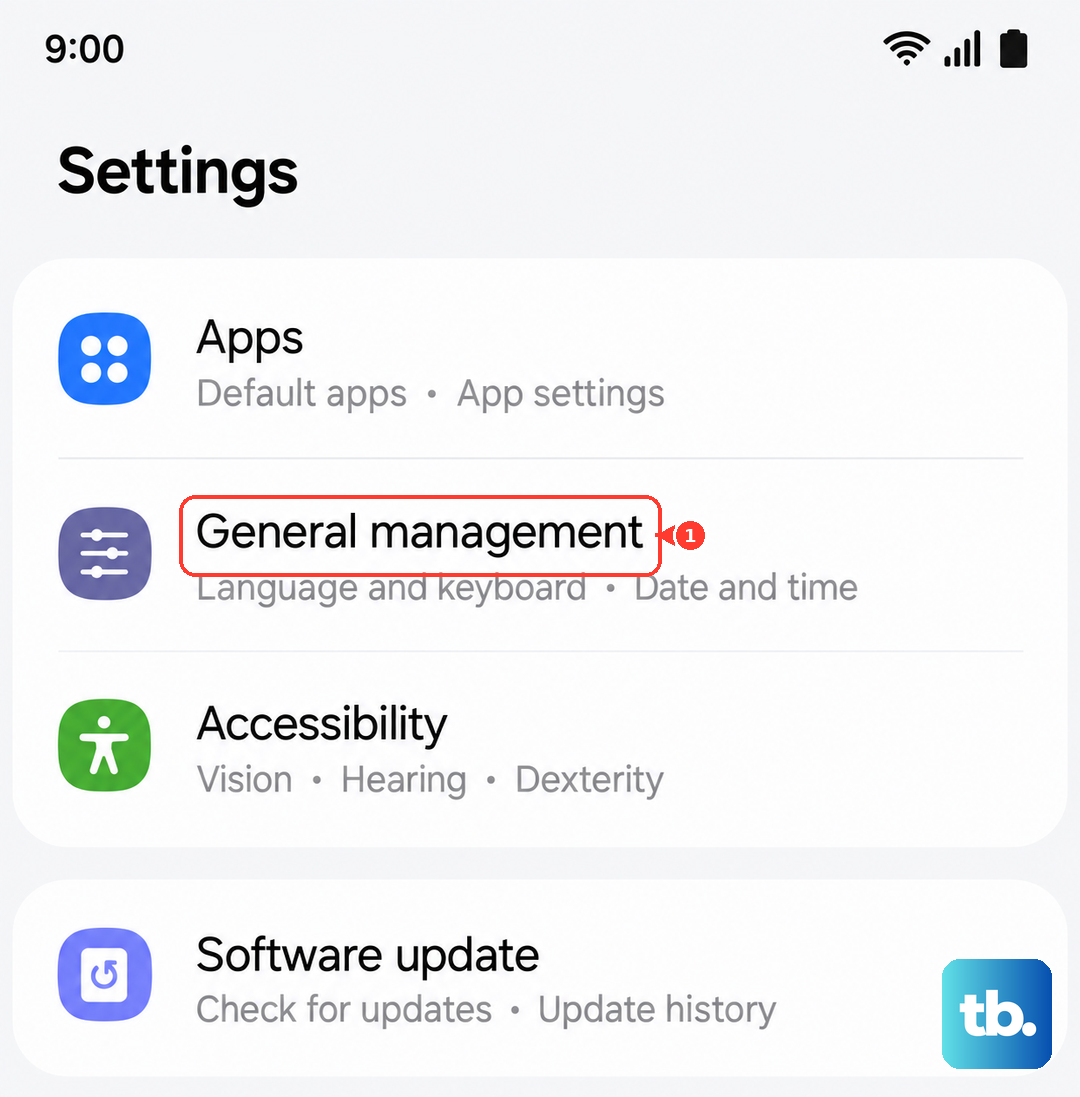
Tap to confirm. After your phone restarts, you'll need to reconnect to Wi-Fi and Bluetooth devices, but your MMS connection should be fresh.
Check for a Software Update
Bugs in One UI or the Android system can affect messaging. Samsung regularly pushes out fixes. Go to Settings > Software Update > Download and install.
Let it check for updates. If one is available, install it. I've seen updates specifically mention "improvements to message stability" in the patch notes.
Try a Different Messaging App
This is a great way to figure out if the problem is with the Samsung Messages app itself or with your phone's connection. Download Google Messages from the Play Store and set it as your default.
See if MMS downloads work in the new app. If they do, the issue is with your stock app. You can stick with the new app or use this as a sign to clear the data for the Samsung app as mentioned earlier.
Contact Your Mobile Carrier
If you've tried everything and those picture messages are still stuck, the problem might be on your carrier's end. They can check if MMS services are active on your line and sometimes push refreshed settings directly to your Galaxy S25.
It's also worth asking them if there are any known network issues in your area that could be affecting multimedia messages.