
If your Samsung Galaxy S25 FE videos are stuttering, freezing, or buffering, it can ruin the experience. This is a common annoyance that usually has a straightforward cause, and I'd start with the quick fixes first.
Force Restart Your Phone
This is the fastest thing to try. A force restart clears out temporary glitches in the system memory that can cause apps, including your video player, to act up. Just press and hold the Volume Down button and the Side button together for about 10 seconds.
Keep holding until you see the Samsung logo appear on the screen. This won't delete any of your personal data or files, it just gives the phone a fresh start.
Check Your Internet Connection for Streaming
If you're watching videos on YouTube, Netflix, or another streaming service, a weak connection is the most likely culprit. The S25 FE supports both Wi-Fi 6E and 5G, but signal strength matters more than the technology.
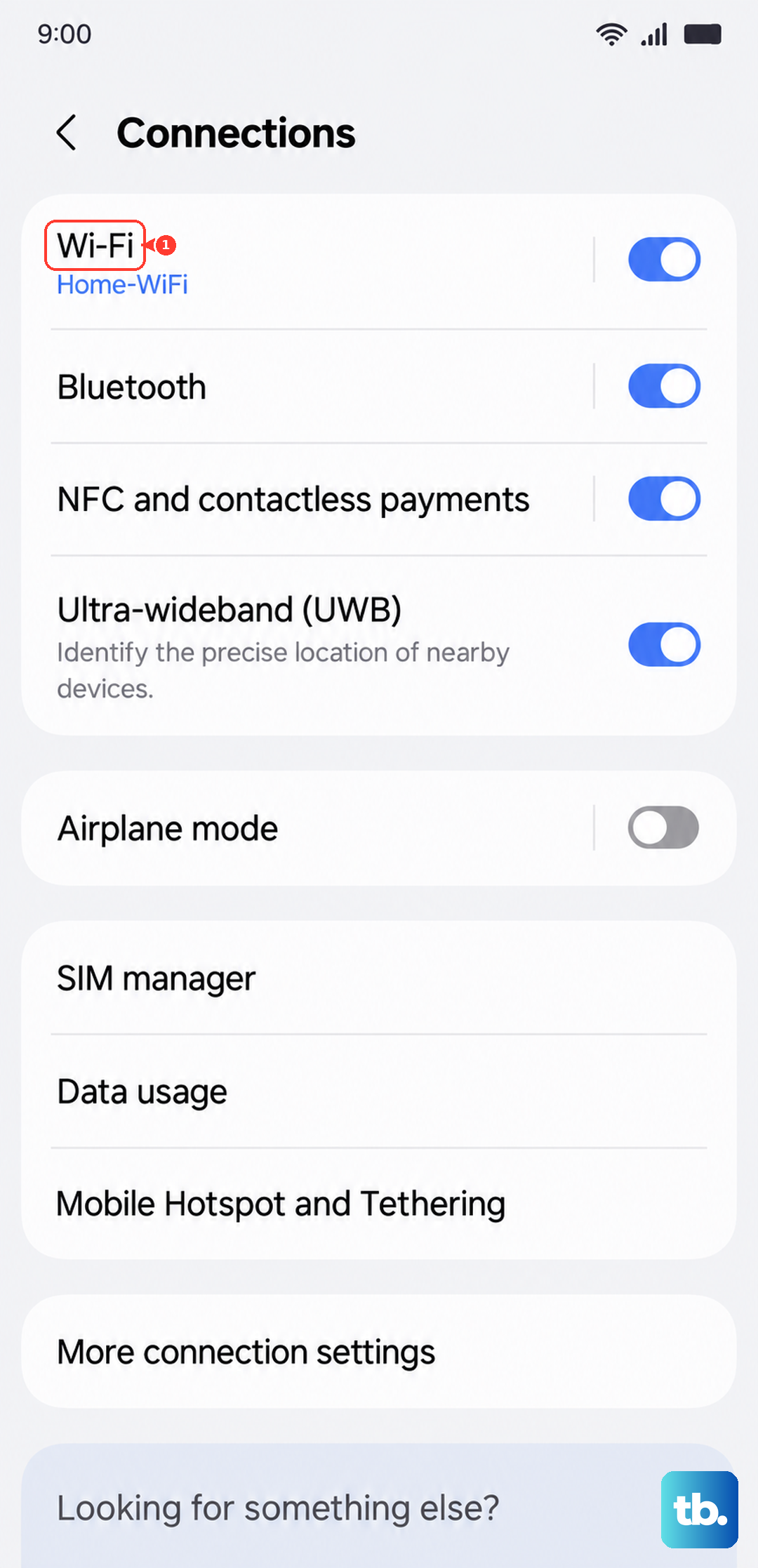
Try switching from Wi-Fi to your mobile data, or vice versa, to see if the problem goes away. If you're on Wi-Fi, you can also try moving closer to your router. For a deeper check, go to Settings > Connections > Wi-Fi, tap on your network, and look at the connection speed.
Free Up Storage Space
When your phone's internal storage is nearly full, it struggles to read and write data smoothly. Video files, especially high-resolution ones, need a lot of bandwidth. Go to Settings > Device care > Storage.
Android 15 and One UI 7 will show you a breakdown. Aim to keep at least 10-15GB free. You can use the built-in cleanup tools to remove junk files, or manually offload old videos and photos to cloud storage or a computer.
Update Your Software and Apps
An outdated version of Android, One UI, or the video app itself can have bugs that cause playback issues. Samsung is pretty good about pushing regular updates, especially for a model like the S25 FE.
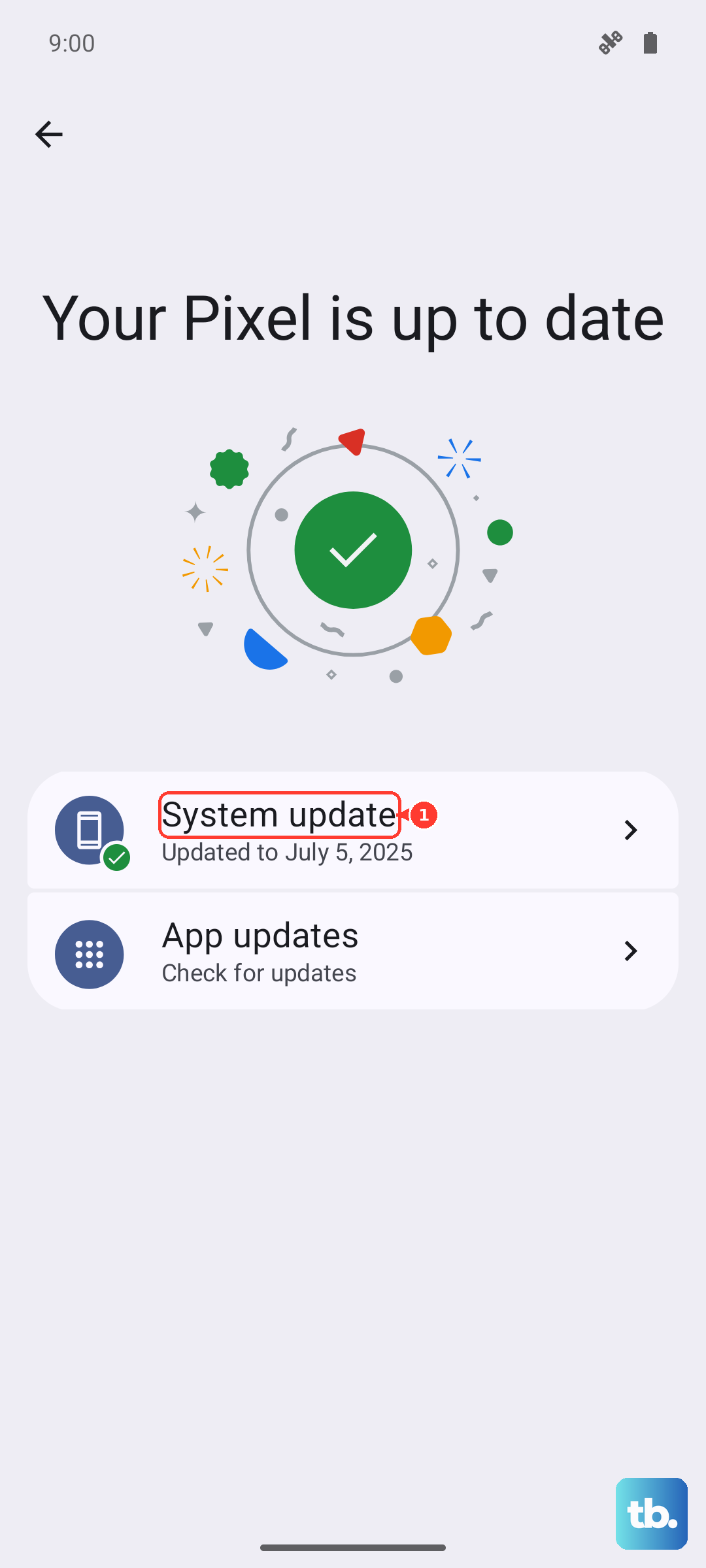
Check for a system update by going to Settings > Software update > Download and install. For your apps, open the Galaxy Store or Google Play Store, go to your profile menu, and tap "Update all."
Clear the App's Cache and Data
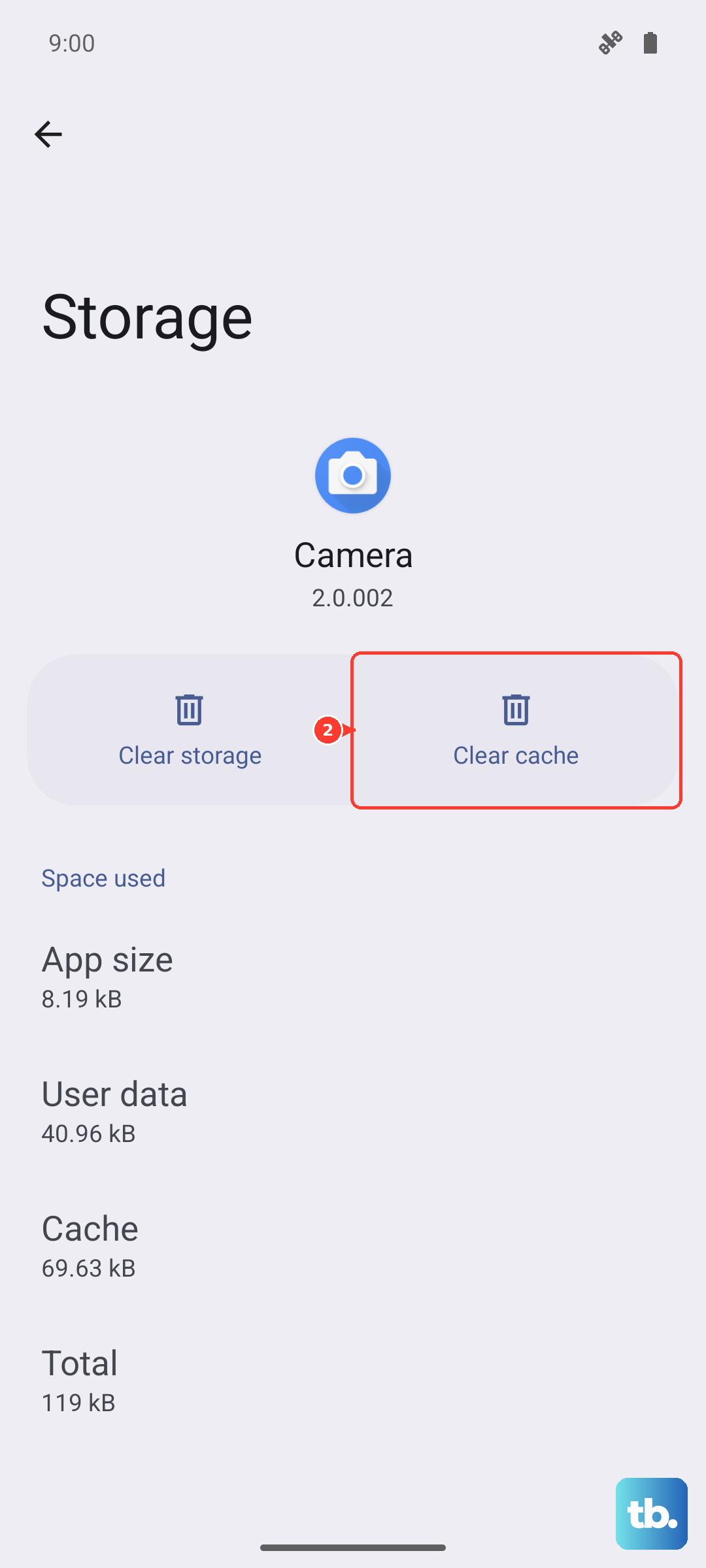
This is particularly effective if the lag is happening in one specific app, like YouTube or Samsung Gallery. Corrupted temporary files (cache) can interfere with playback. Go to Settings > Apps, select the problematic app, and then tap "Storage."
Tap "Clear cache" first. If that doesn't help, you can try "Clear data." Just be aware that clearing data will reset the app to its default state, so you might lose saved preferences or offline downloads within that app.
Disable Video Enhancements Temporarily
The S25 FE has features like Video Brightness and the Vision Booster that dynamically adjust the screen. Sometimes these can conflict with certain video files or streaming codecs. You can quickly test this by pulling down your notification shade twice to open the Quick Settings panel.
Look for the "Video brightness" toggle and turn it off. For a more permanent setting, go to Settings > Display > Motion smoothness and try switching from "Adaptive" to "Standard." This reduces the refresh rate to 60Hz, which some older videos play back more smoothly on.
Check for Phone Overheating
The Exynos 2400 chip in the S25 FE is powerful, but it can run warm during extended use like long gaming sessions or 4K video recording. When the phone gets too hot, it will throttle performance to cool down, which can manifest as video lag.
If the back of your phone feels very warm to the touch, give it a break. Close any demanding apps, take it out of a case if you're using one, and avoid charging it while watching long videos, especially with a 45W fast charger.
Try a Different Video Player
The issue might not be with your phone, but with the default gallery app's decoder. Download a reputable third-party video player like VLC or MX Player from the Play Store and try opening the same laggy video file there.
These apps often support a wider range of video codecs and have their own software decoding settings that can handle problematic files better than the stock player.
Reset App Preferences
This is a less drastic step than a full reset. It will reset all your app permissions, default apps, and background restrictions back to factory settings without deleting any app data. It can fix weird conflicts between apps.
Go to Settings > Apps > Menu (three dots) > Reset app preferences. You'll need to re-grant permissions when you use apps for the first time afterward, but it's a useful middle-ground troubleshooting step.
Perform a Factory Reset
If you've tried everything else and the lag persists across every app and video file, a software issue might be deeply rooted. A factory reset will wipe your phone back to its original out-of-the-box state.
This is a last resort. Before you do anything, ensure all your important data is backed up to Samsung Cloud or Google Drive. Then, go to Settings > General management > Reset > Factory data reset. Follow the prompts to erase everything. After the phone restarts, you can set it up as new to see if the problem is gone before restoring your backup.