
When your Samsung Galaxy S25 FE's Mobile Hotspot stops working, it leaves your other gadgets stranded without internet. Whether other devices can't find the network, fail to connect, or get dropped, the issue is usually something you can fix yourself without too much hassle.
Toggle Mobile Hotspot Off and On
Head into Settings > Connections > Mobile Hotspot and Tethering. Tap the switch at the top to turn Mobile Hotspot off. Wait about 10 seconds, then tap it again to turn it back on. This quick reset often clears a temporary software glitch that's preventing the service from starting properly.
Restart Your Galaxy S25 FE
If toggling doesn't help, a full restart is the next logical step. Press and hold the Volume Down button and the Side key together for about 10 seconds until you see the Samsung logo. This force restart is more thorough than a standard reboot and can resolve deeper system hiccups affecting the network stack.
Verify Your Mobile Data Connection
Your hotspot is completely dependent on your phone's cellular data. Pull down the Quick Settings panel and make sure mobile data is enabled. If you're in an area with a weak signal, the hotspot will be unstable or not work at all. It's also worth checking your carrier account online to confirm your plan includes tethering, as some budget plans restrict it.
Reset Your Phone's Network Settings
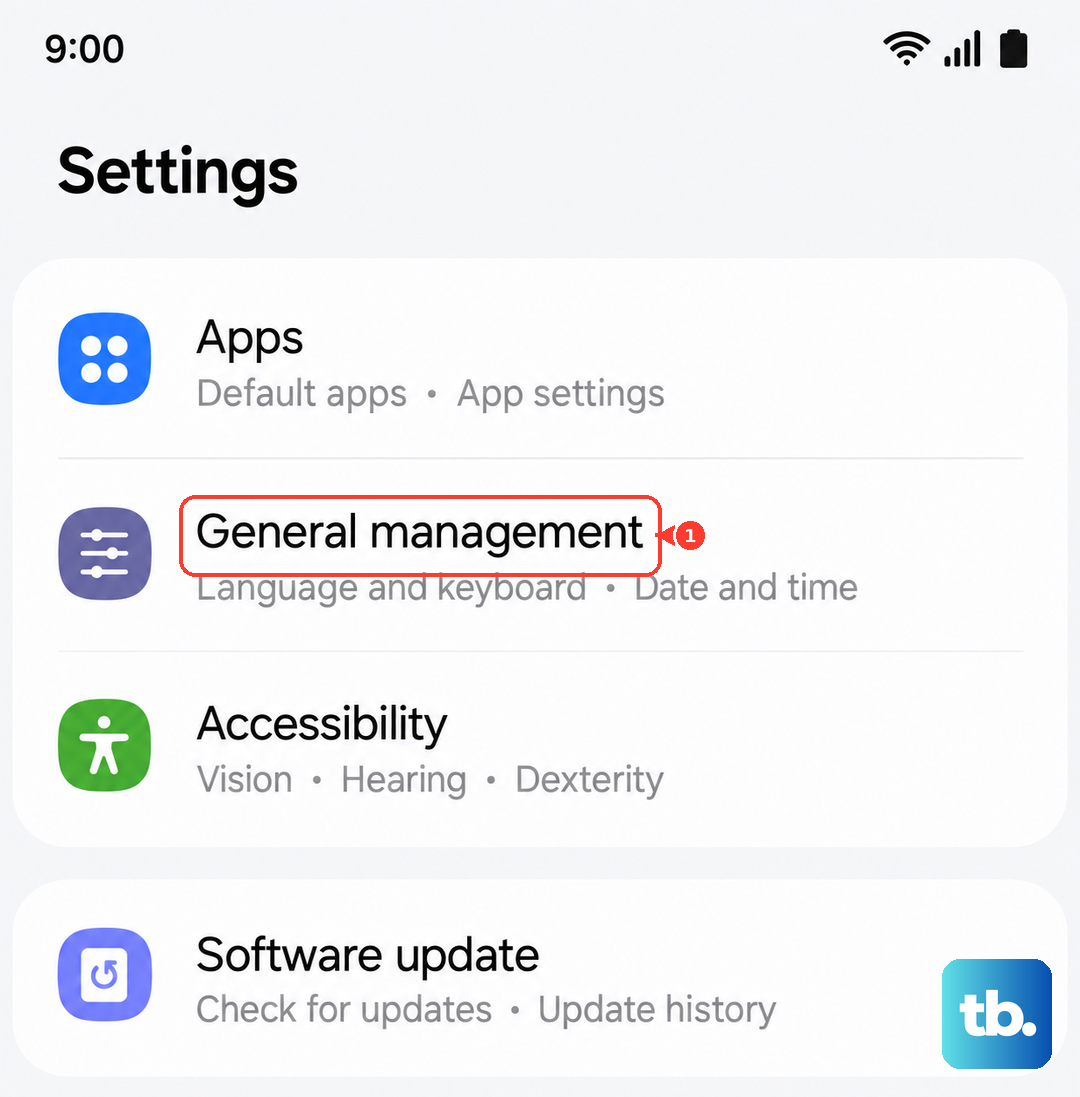
This is a powerful fix for persistent connection problems. Go to Settings > General Management > Reset > Reset network settings. Tap to confirm. This will erase all your saved Wi-Fi networks, Bluetooth pairings, and cellular network preferences. You'll have to reconnect to your Wi-Fi and re-pair Bluetooth devices, but it often solves stubborn hotspot issues by starting fresh.
Check for a Carrier Settings Update
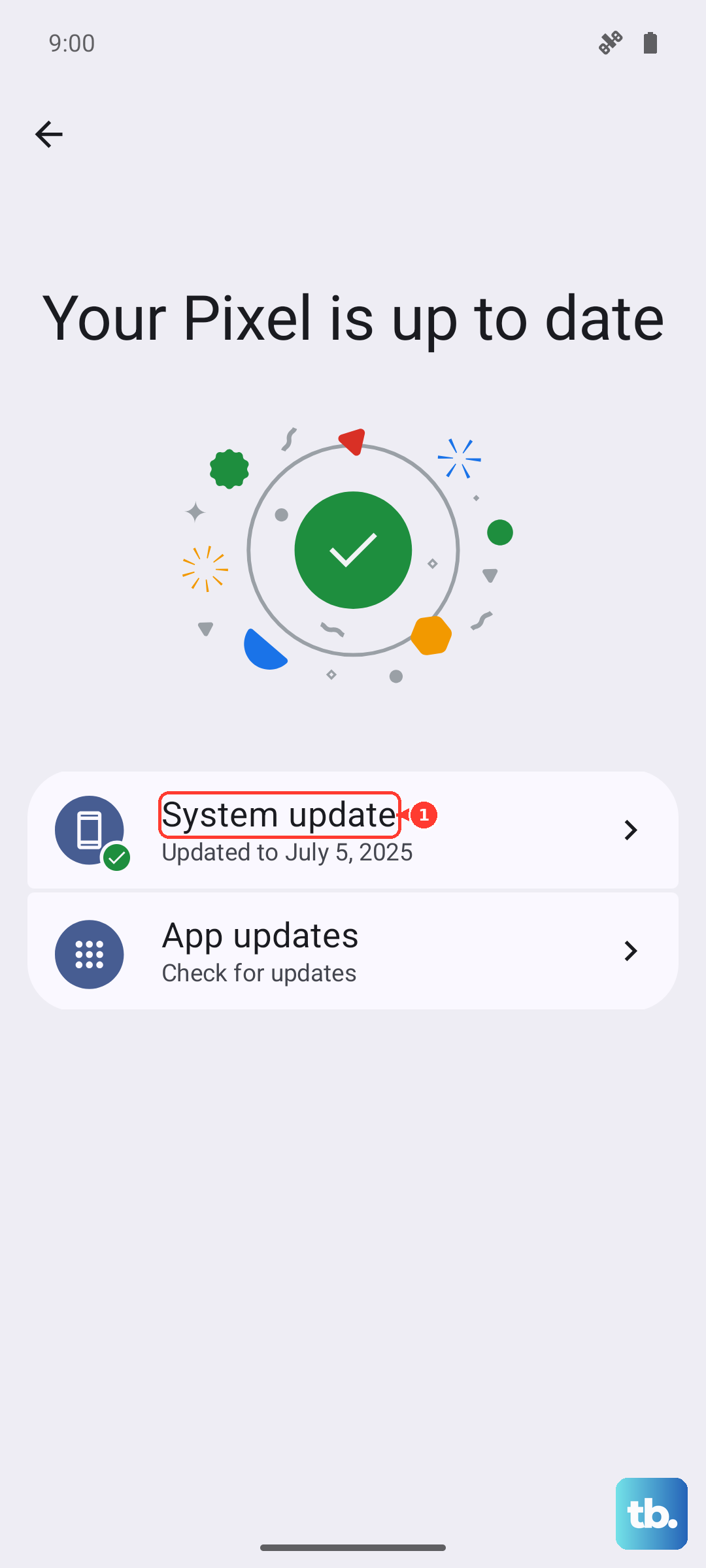
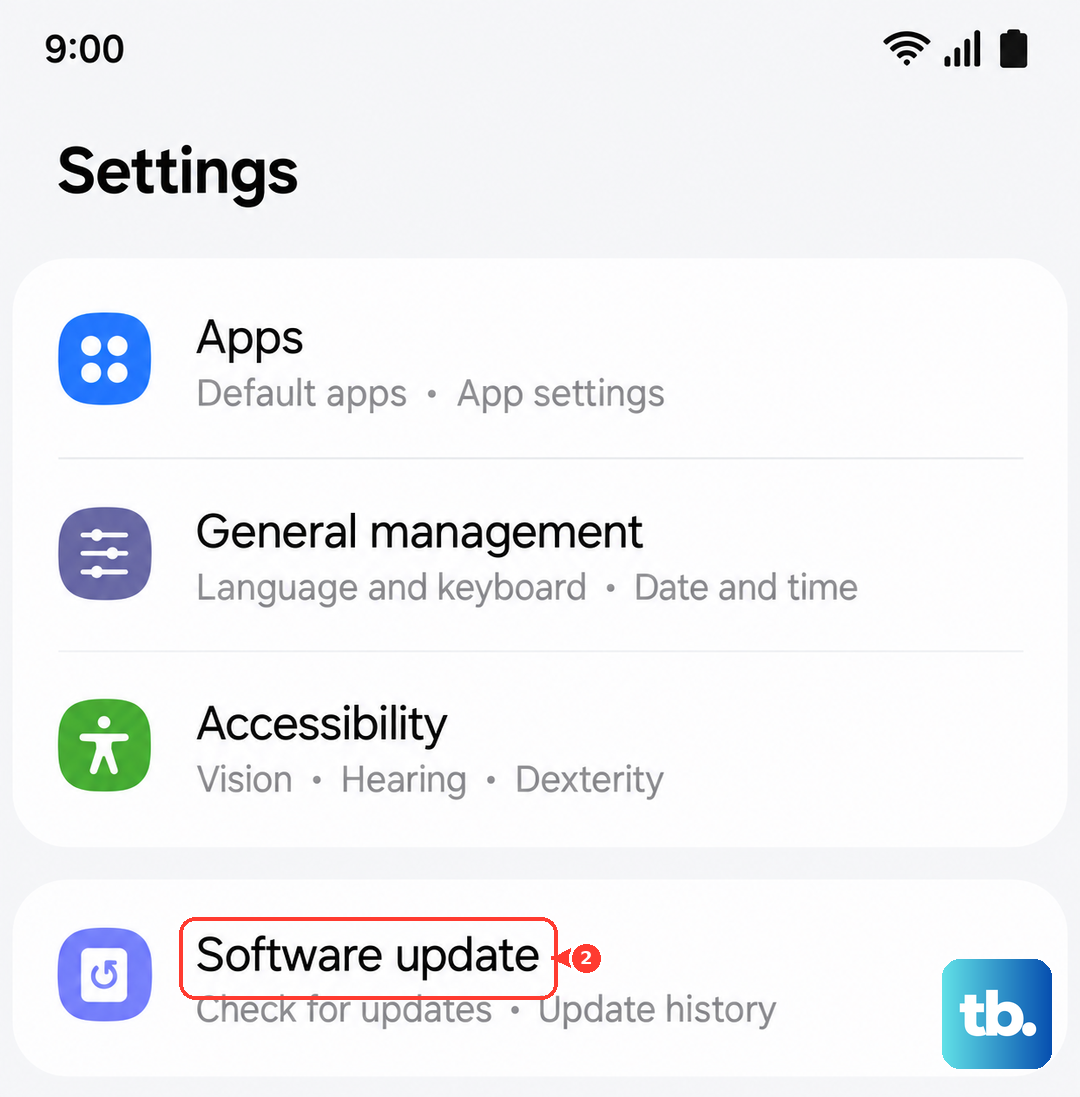
Carriers occasionally push small updates that fix network connectivity. On your S25 FE, go to Settings > Software update and tap Download and install to check for any system updates, as carrier updates are bundled with those. You can also try inserting your SIM into another phone to see if the hotspot works there, which helps rule out a carrier-side problem.
Forget the Network on the Connecting Device
The problem might be with the device trying to connect, not your phone. On your laptop or tablet, go into its Wi-Fi settings and find your phone's hotspot name. Choose to forget the network. Then, search for available networks again, select your S25 FE's hotspot, and enter the password fresh. This clears any corrupted connection data on the client side.
Change Your Hotspot's Name and Password
Go back to Settings > Connections > Mobile Hotspot and Tethering. Tap Mobile Hotspot again, then tap the three-dot menu and select Configure. Here you can change the Network name (SSID) and the Password. Save the changes. This forces a completely new network identity, which can bypass authentication errors.
Try USB or Bluetooth Tethering Instead
If the Wi-Fi hotspot is being difficult, use a different method. For USB tethering, connect your S25 FE to your computer with a USB-C cable, then go to the Mobile Hotspot menu and enable USB tethering. For Bluetooth, pair your phone to the other device first, then enable Bluetooth tethering on your phone. These are great workarounds.
Install the Latest Software Update
Software bugs in Android 15 or One UI 7 can sometimes break the hotspot feature. Go to Settings > Software update and tap Download and install. I've seen updates specifically mention fixes for connectivity and tethering issues. Make sure your phone is connected to Wi-Fi and has a good charge before starting the update.
Look for Device-Specific Interference
The S25 FE's Exynos chipset can run warm, and if the phone gets too hot, it may throttle or disable certain features like the hotspot to cool down. If you've been gaming or using the phone heavily, let it cool off. Also, try turning off 5G by going to Settings > Connections > Mobile networks > Network mode and selecting LTE/3G/2G. This can reduce heat and sometimes improve connection stability.