
You pick up your Samsung Galaxy S25 Edge and notice the status bar shows "No Service" or "Emergency Calls Only." It's a frustrating message, but it usually means the phone can't lock onto a cellular signal. Let's walk through what's going on and how to get you back online.
Most of the time, this problem comes down to a temporary software hiccup, a misconfigured setting, or a SIM issue. The Galaxy S25 Edge runs Android 15, so some menu paths differ slightly from older models. Start with the quickest fixes before diving into the deeper stuff.
Start With a Force Restart
A simple restart clears out minor glitches more effectively than you'd think. On the Galaxy S25 Edge, press and hold the Volume Down and Side (power) buttons together for about 10 seconds until the Samsung logo appears. This is a force restart, and it won't erase any of your data. Let the phone boot back up and check if the signal returns.
If that doesn't do it, turn Airplane Mode on for about 30 seconds and then switch it off. Go to Settings > Connections and toggle Airplane Mode. This forces the phone to re-register on the network.
Check the SIM Card
A loose or dirty SIM card is a common culprit. Pop out the SIM tray on your S25 Edge and inspect the card for any visible damage or grime. Wipe the gold contacts gently with a dry cloth and reinsert it firmly. Make sure the tray clicks closed completely.
If you have another phone handy, try the SIM in that device. If it works there, the problem is likely with your Galaxy. If it doesn't work in either phone, contact your carrier for a replacement SIM.
Tweak the Network Mode
The S25 Edge's network mode might be set to something your carrier doesn't support well. Head to Settings > Connections > Mobile Networks > Network Mode. Select the option that says "Automatic" or "LTE/5G" depending on what your carrier uses. In most cases, Automatic is the safest bet. Wait a minute after changing it to see if the signal comes back.
Reset Network Settings
Corrupted network configurations can cause the phone to forget how to connect. Go to Settings > General Management > Reset > Reset Network Settings. This will erase saved Wi‑Fi networks and Bluetooth pairings, but your photos, apps, and accounts remain untouched. After the reset, you'll need to reconnect to Wi‑Fi networks manually, but the cellular problem often clears right up.
Update the Software
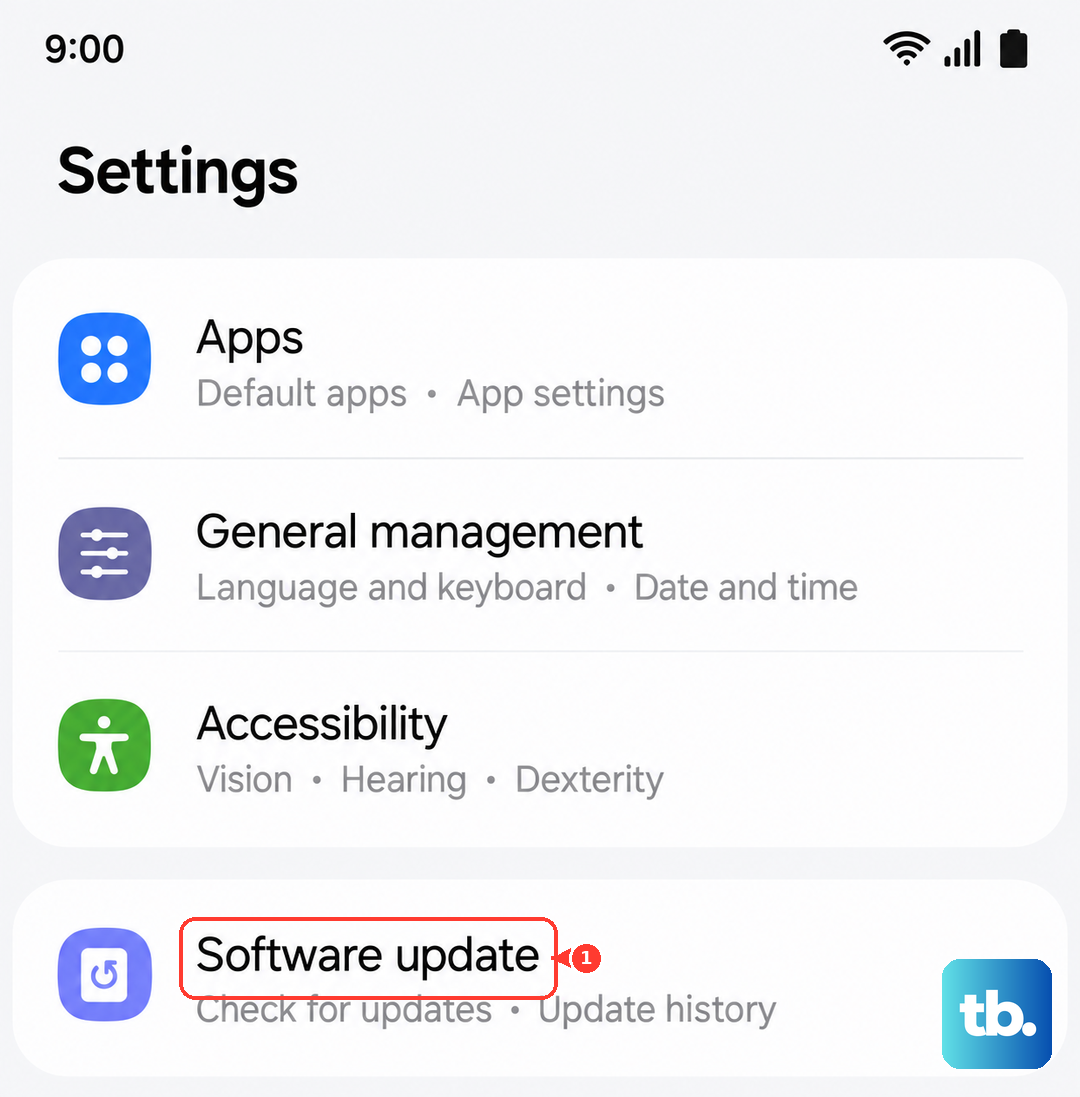
Outdated software can introduce bugs that affect radio performance. Open Settings > Software Update and check for any available updates. The Galaxy S25 Edge should prompt you to download and install if something is waiting. A restart after the update is automatic, and it's worth checking the signal once the phone is running the latest Android 15 build.
Check Your APN Settings
Access Point Name (APN) settings tell your phone how to connect to your carrier's data and messaging services. If they're wrong, you might see "No Service" even if the signal bars are present. Go to Settings > Connections > Mobile Networks > Access Point Names. Tap the three‑dot menu and select "Reset to default." If that doesn't work, contact your carrier and ask for the correct APN values to enter manually.
Disable VPN Connections
A VPN app can sometimes interfere with the phone's ability to register on the cellular network. Open Settings > Connections > More Connection Settings > VPN and remove any active VPN profiles. After disabling, restart the phone and see if service returns.
Use the Hidden Testing Menu
Android includes a diagnostic menu that can help force the radio to reconnect. Open your phone dialer and enter *#*#4636#*#* (no spaces). Tap "Phone Information." From the dropdown menu, select "GSM Auto (PRL)" or "LTE/GSM auto (PRL)" depending on your carrier. Then press the "Turn off radio" button, wait a few seconds, and tap "Turn on radio." Exit the menu and give the phone a minute to reacquire the network.
If the testing menu doesn't appear, don't worry, it's not available on all carrier variants of the S25 Edge.
Factory Reset as a Last Resort
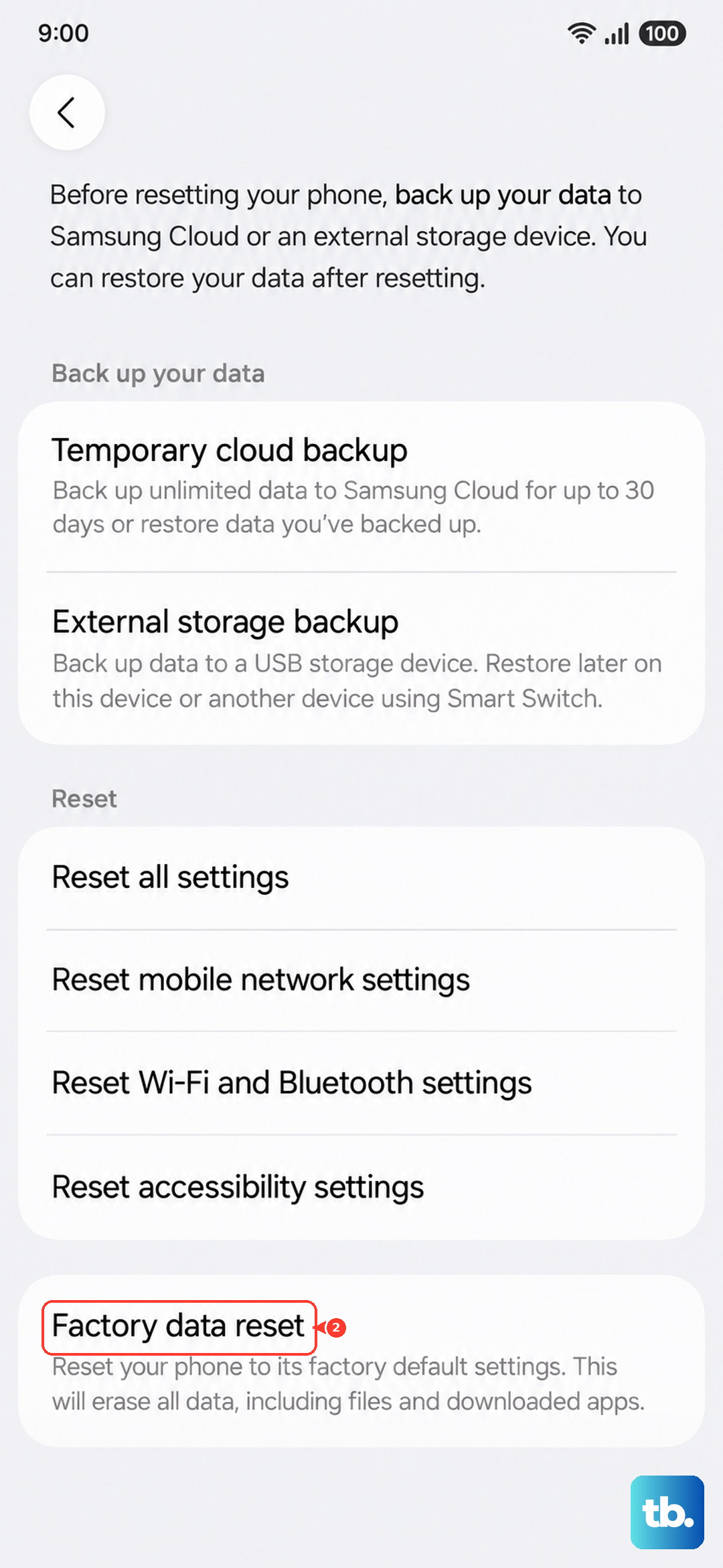
If you've tried everything and still see "No Service," a factory reset might be necessary. This will wipe all data from the phone, so back up your photos, contacts, and anything else important before proceeding. Go to Settings > General Management > Reset > Factory Data Reset. Follow the prompts to confirm.
After the reset, set up the phone as new and check the network before restoring any backup. If the no‑service issue persists, it's likely a hardware problem with the antenna or modem. At that point, reaching out to Samsung support or your carrier for a repair is the best next step.