
Seeing a "SIM Not Provisioned" message on your Samsung Galaxy S24 can stop you in your tracks. This error means your phone can't connect to your carrier's network, so calls, texts, and mobile data won't work. The good news is it's usually a simple fix, and I'd start by checking if the SIM is properly activated.
Restart Your Galaxy S24
Before you do anything else, give your phone a quick restart. This clears out any temporary software glitches that might be blocking the network connection. Just press and hold the side button, then tap "Restart" on the screen.
If the phone is completely unresponsive, you can force a restart. Press and hold the Volume Down button and the Side button together for about 10 seconds until you see the Samsung logo appear.
Check Your SIM Card Activation and Account
This is the most common reason for this error. If you just got a new SIM card or a new phone number, it might not be fully activated on your carrier's system yet. You'll need to contact your mobile provider directly to check.
For prepaid plans, your service might have been suspended due to an insufficient balance. Log into your carrier's app or website to top up your account. Even on postpaid plans, a billing issue could cause a service interruption.
Reinsert the SIM Card
The SIM tray on the S24 is quite slim, and sometimes the card can get slightly misaligned. Grab the SIM ejector tool that came in the box (a paperclip works in a pinch) and gently pop out the tray.
Take out the SIM card and give the gold contacts a quick look. If you see any dust or lint, gently wipe them with a soft, dry cloth. Carefully place the SIM back into the tray, making sure it's seated flush and the notch is aligned, then slide the tray back into the phone.
Toggle Airplane Mode
This trick forces your phone to completely disconnect from and then reconnect to all radio networks. Swipe down twice from the top of your screen to open the full Quick Settings panel.
Tap the Airplane Mode icon to turn it on. Wait about 15-20 seconds, then tap it again to turn it off. Your phone will search for the network again, which often clears up the provisioning error.
Update Your Phone's Software
Sometimes, a bug in the system software or carrier settings can cause network problems. Samsung and your carrier release updates to fix these issues. Go to Settings > Software update and tap "Download and install."
Also, check the Google Play Store for updates to the "Carrier Services" app, as this handles communication between your phone and the network. Open the Play Store, tap your profile icon, go to "Manage apps and device," and apply any available updates.
Manually Select Your Network Operator
Your phone usually picks the best network automatically, but sometimes this process gets stuck. You can manually tell it which network to use. Go to Settings > Connections > Mobile networks.
Tap "Network operators." Your S24 will search for a moment. When the list appears, select your specific carrier's name from the options. Don't choose one that says "Forbidden," as that means your SIM isn't allowed on that network.
Reset the Network Settings
If you're still seeing the error, resetting all network settings can help. This will erase your saved Wi-Fi networks, Bluetooth pairings, and mobile data preferences, so you'll have to set those up again.
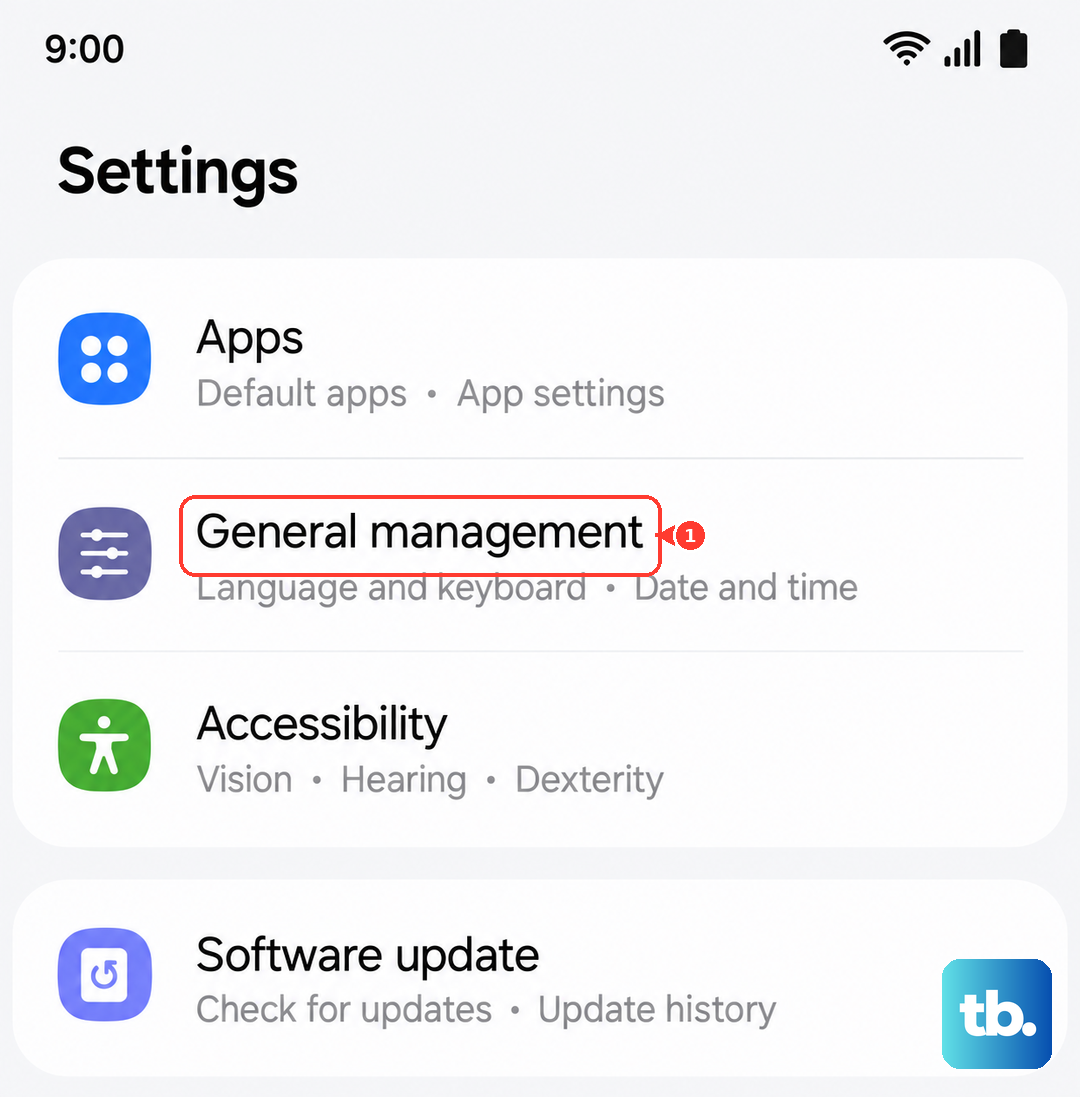
To do this, go to Settings > General management > Reset. Tap "Reset network settings" and confirm your choice. Your phone will reboot, and you'll need to reinsert your SIM PIN if you use one.
Test the SIM in Another Phone
This is the best way to figure out if the problem is with your SIM card or with the Galaxy S24 itself. Find another unlocked phone (or borrow a friend's), turn it off, and insert your S24's SIM card.
If the other phone also shows a "Not Provisioned" error, then the issue is definitely with the SIM or your carrier account. If the SIM works perfectly in the other device, then the problem is likely within your S24's hardware or software.
Contact Your Mobile Carrier
If you've tried everything here, your next step is to call your carrier's support line. They can look at your account on their end to see if there's a provisioning error, a network outage in your area, or if the SIM card itself has failed.
They can often fix account issues remotely. If the SIM card is damaged or too old, they can mail you a replacement or you can pick one up at a store. For an S24, you'll likely need a newer nano-SIM or an eSIM, which they can also help you set up.