
Seeing "No Service" or "Emergency Calls Only" on your Samsung Galaxy S24 can stop you in your tracks. It means your phone can't find a cellular network for calls, texts, or mobile data. The good news is this is usually a temporary glitch you can fix yourself in a few minutes.
I'd start with the simplest fix first. Toggle Airplane Mode on and off. Swipe down from the top of your screen twice to open the Quick Settings panel and tap the airplane icon. Wait about ten seconds, then tap it again to turn it off. This forces your phone's modem to reconnect to the network and often solves the problem immediately.
Restart Your Galaxy S24
If toggling Airplane Mode didn't work, give your phone a fresh start. A standard restart clears out temporary software bugs that can mess with the cellular radio. Just press and hold the Side button and Volume Down button together, then tap "Restart" on the screen.
For a more thorough reset, try a force restart. This is different and can clear deeper glitches. Press and hold the Volume Down button and the Side button for about 10 seconds. Keep holding them until you see the Samsung logo appear, then let go. Your phone will boot up fresh.
Check Your Physical SIM Card
A loose or dirty SIM card is a common culprit for signal loss. You'll need the SIM ejector tool that came in the box (a small paperclip works too). Find the tiny pinhole on the bottom edge of your S24, insert the tool, and gently push to pop out the SIM tray.
Take out the SIM card and give the gold contacts a quick look. If you see any dust or smudges, gently wipe them with a soft, dry cloth. Blow any dust out of the SIM tray slot as well. Carefully reinsert the SIM card, making sure it's seated correctly in the tray, and push the tray back into the phone until it clicks.
Update Your Carrier Settings and Software
Carrier settings updates are small files that help your phone communicate properly with your specific network. These can install automatically, but it's worth checking. Go to Settings > Connections > Mobile networks and look for a "Carrier settings" or "Access Point Names" option to see if an update is pending.
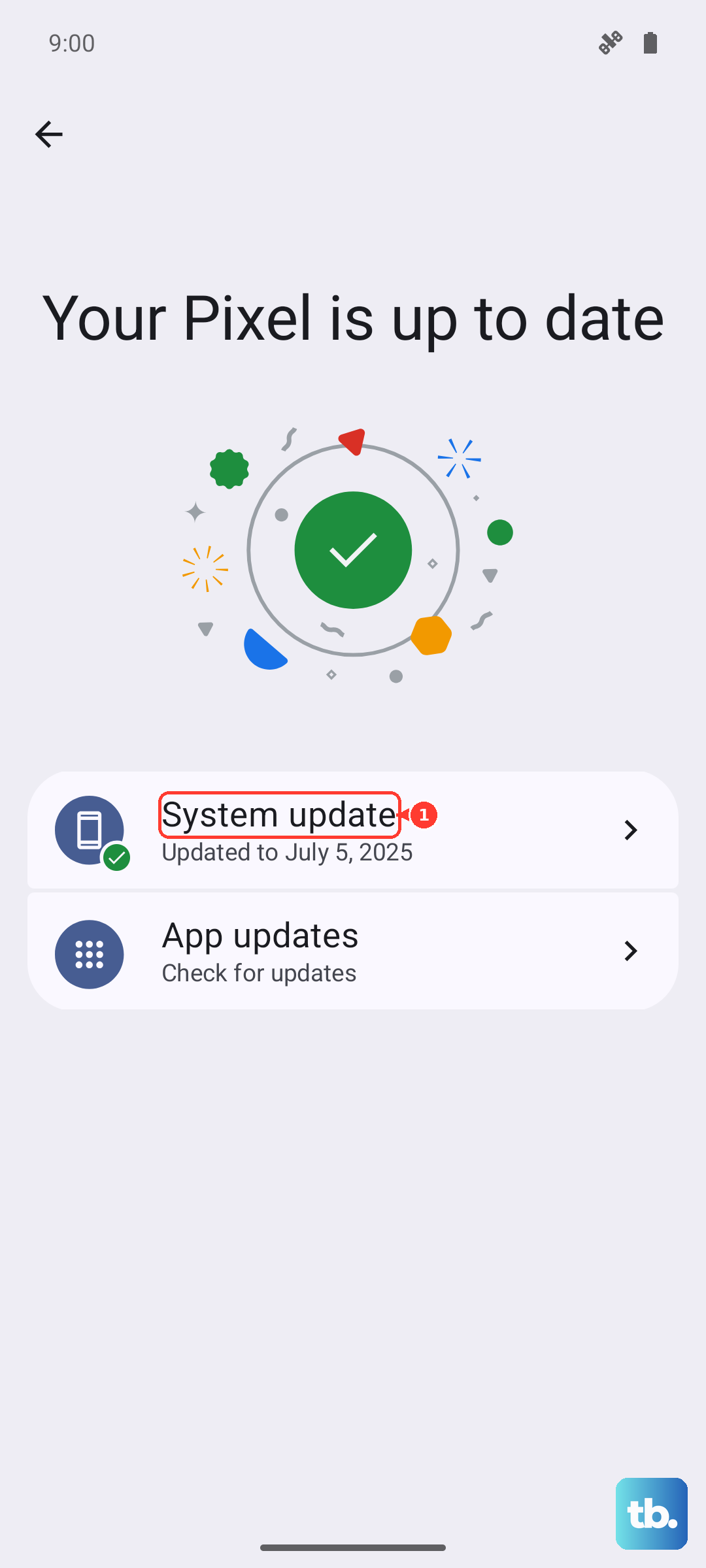
Next, check for a full system update. Samsung frequently releases patches for One UI that fix connectivity bugs. Open Settings > Software update and tap "Download and install." Make sure your phone is connected to Wi-Fi and has enough battery before proceeding.
Reset Your Network Settings
This is a very effective step that resets all your network-related configurations back to factory defaults. It will erase your saved Wi-Fi passwords, Bluetooth pairings, and any custom mobile network settings, but it won't touch your personal photos, messages, or apps.
To do it, go to Settings > General management > Reset. Tap on "Reset network settings" and confirm. Your phone will reboot. Afterward, you'll need to reconnect to Wi-Fi networks and re-pair Bluetooth devices, but it often clears up persistent "No Service" errors.
Manually Select Your Network Operator
Sometimes your phone gets stuck trying to connect to a weak or unavailable network tower. You can force it to search for and lock onto your proper carrier. Head to Settings > Connections > Mobile networks > Network operators.
Your S24 will search for a moment. When the list pops up, tap "Select automatically" if it's an option. If not, manually choose your carrier's name from the list. This tells your phone to stop searching and connect directly to the strongest signal from your provider.
Verify Your APN Settings
The Access Point Name (APN) is like the address your phone uses to get data from your carrier's network. If these settings are wrong, you might have bars but no mobile internet. Go to Settings > Connections > Mobile networks > Access Point Names.
You should see a list with at least one APN for your carrier. If the list is empty or you're unsure, the safest move is to tap the three-dot menu in the top right and select "Reset to default." If that doesn't work, you'll need to get the correct APN details directly from your carrier's website or customer support and enter them manually here.
Use the Phone Information Menu
Your Galaxy S24 has a hidden diagnostic menu that lets you interact directly with the cellular radio. Open your Phone app and dial *#*#4636#*#*. This should open the "Testing" menu. Tap on "Phone information."
Look for a "Run Ping Test" button to check basic connectivity. More importantly, find the "Set preferred network type" dropdown menu. Try changing this setting. For most users, selecting "NR/LTE/WCDMA/GSM" is a good choice, as it uses all available network types. You can also try tapping "Turn off radio" and then "Turn on radio" to cycle the modem.
Check for Problematic Apps or VPNs
Third-party apps, especially VPNs, firewalls, or aggressive battery savers, can block your phone's connection to cellular networks. If you recently installed an app and then lost service, try uninstalling it to see if the signal returns.
For VPNs, go to Settings > Connections > More connection settings > VPN. If you see any VPN profiles here, tap the settings icon next to them and select "Delete." Even if the VPN isn't currently active, its configuration can sometimes interfere.
Contact Your Carrier and Consider Hardware
If you've tried everything on the phone itself, the issue might be external. There could be a widespread service outage in your area. Contact your carrier's customer service, they can tell you if there's an outage and check if there's a problem with your account or SIM card.
They might also suggest getting a new SIM card, as old or physically damaged SIMs can fail. If a new SIM doesn't work and you're still under warranty, it's worth exploring if there's a hardware issue with the phone's internal antenna, though this is less common than software or account-related problems.