When the speaker on your Samsung Galaxy A55 goes quiet or sounds distorted, it can really throw off your day. Whether you're missing calls, struggling to hear videos, or dealing with crackly audio, the problem usually has a straightforward fix. The A55's audio system is generally reliable, but like any phone, it can run into software hiccups or physical blockages that muffle the sound.
It is worth confirming the basics with a quick quick sound test. If neither channel plays a tone, you are looking at a hardware or connection problem rather than a settings issue.
Let's start with the quickest fix that often works. Press and hold the Volume Down button and the Side button (power button) together for about 10 seconds. Keep holding until you see the Samsung logo appear, then let go. This force restart can clear out temporary glitches that might be silencing your speaker, and it takes less than a minute to try.
Check All Your Volume Levels
It sounds simple, but it's the most common oversight. The Galaxy A55 has separate volume sliders for media, notifications, and calls. You might have turned one down without realizing it.
Open Settings and go to Sounds and vibration. Tap on Volume to see all the sliders. Make sure Media, Ringtone, and Notifications are all turned up. While you're there, check that your sound mode isn't set to Vibrate or Silent; the toggle should be on Sound.
Clean the Speaker Grille Carefully
The bottom-firing speaker on the A55 can easily collect pocket lint and dust. Even a small amount can dramatically reduce volume and cause distortion. Grab a small, soft-bristled brush (a clean makeup brush works perfectly) and gently sweep across the speaker grille.
You can also use a dry cotton swab. Avoid using compressed air, as it can push debris further in. Never use a pin or SIM ejector tool, as you can easily puncture the delicate speaker membrane. A quick visual check with your phone's flashlight can show you if there's an obvious clog.
Disconnect Bluetooth and Accessories
If your phone thinks audio should go somewhere else, it won't use its own speaker. Swipe down from the top of your screen to open the Quick Settings panel and make sure the Bluetooth icon isn't blue or active. If it is, tap it to turn it off.
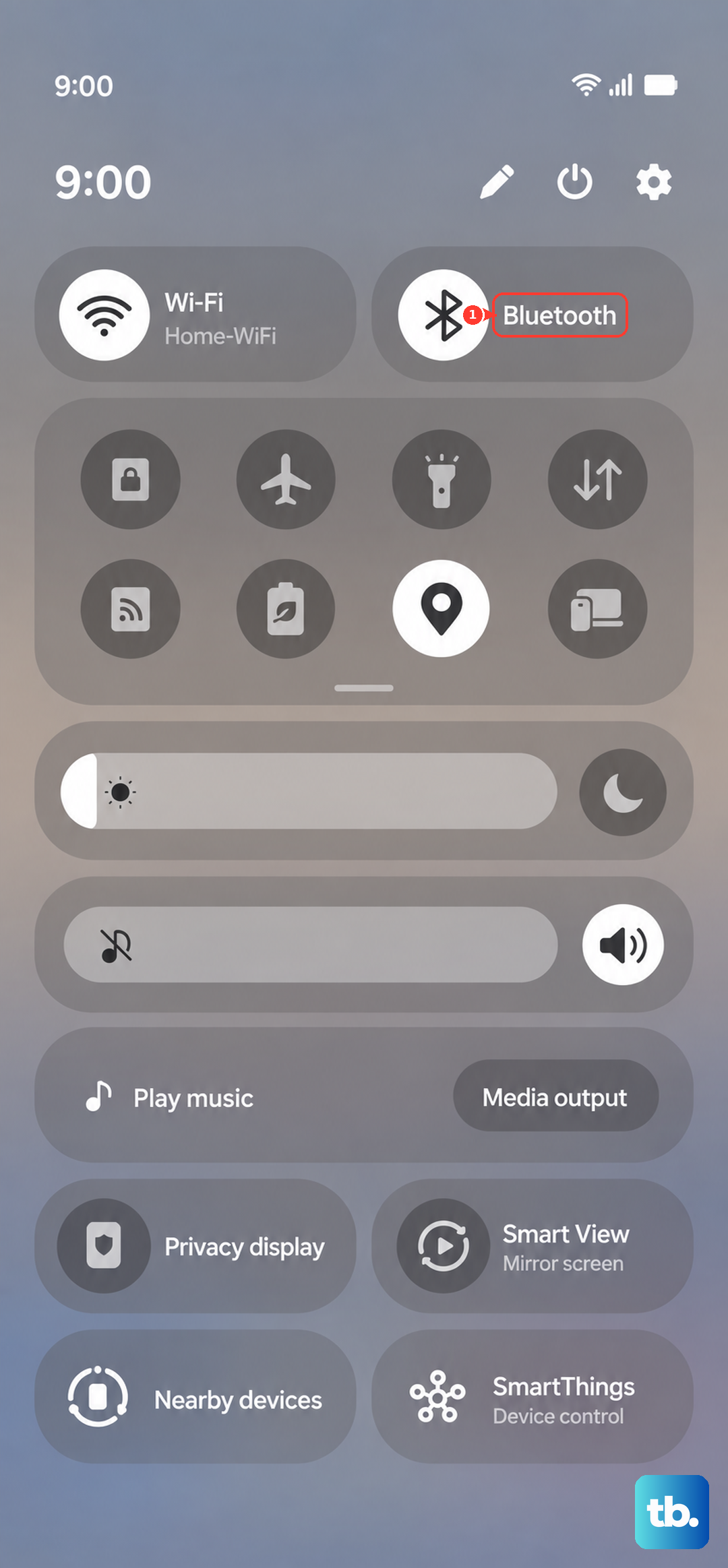
For good measure, go into Settings > Connections > Bluetooth and look at the list of paired devices. If something like headphones or a car stereo shows as "Connected," tap the settings icon next to it and select Disconnect. Also, remove any cases or screen protectors that might be covering the speaker cutout.
Review Do Not Disturb and App-Specific Sound
Some settings can mute audio in specific scenarios. First, check Do Not Disturb by going to Settings > Notifications > Do Not Disturb. Make sure it's toggled off, or check the rules to see if it's scheduled to turn on automatically.
Next, Samsung has a feature called Separate app sound. This lets you route audio from specific apps (like Spotify) to a different output. To check it, go to Settings > Sounds and vibration > Advanced sound settings > Separate app sound. If it's on and configured, try turning it off to see if your main speaker comes back to life.
Check for Software Updates
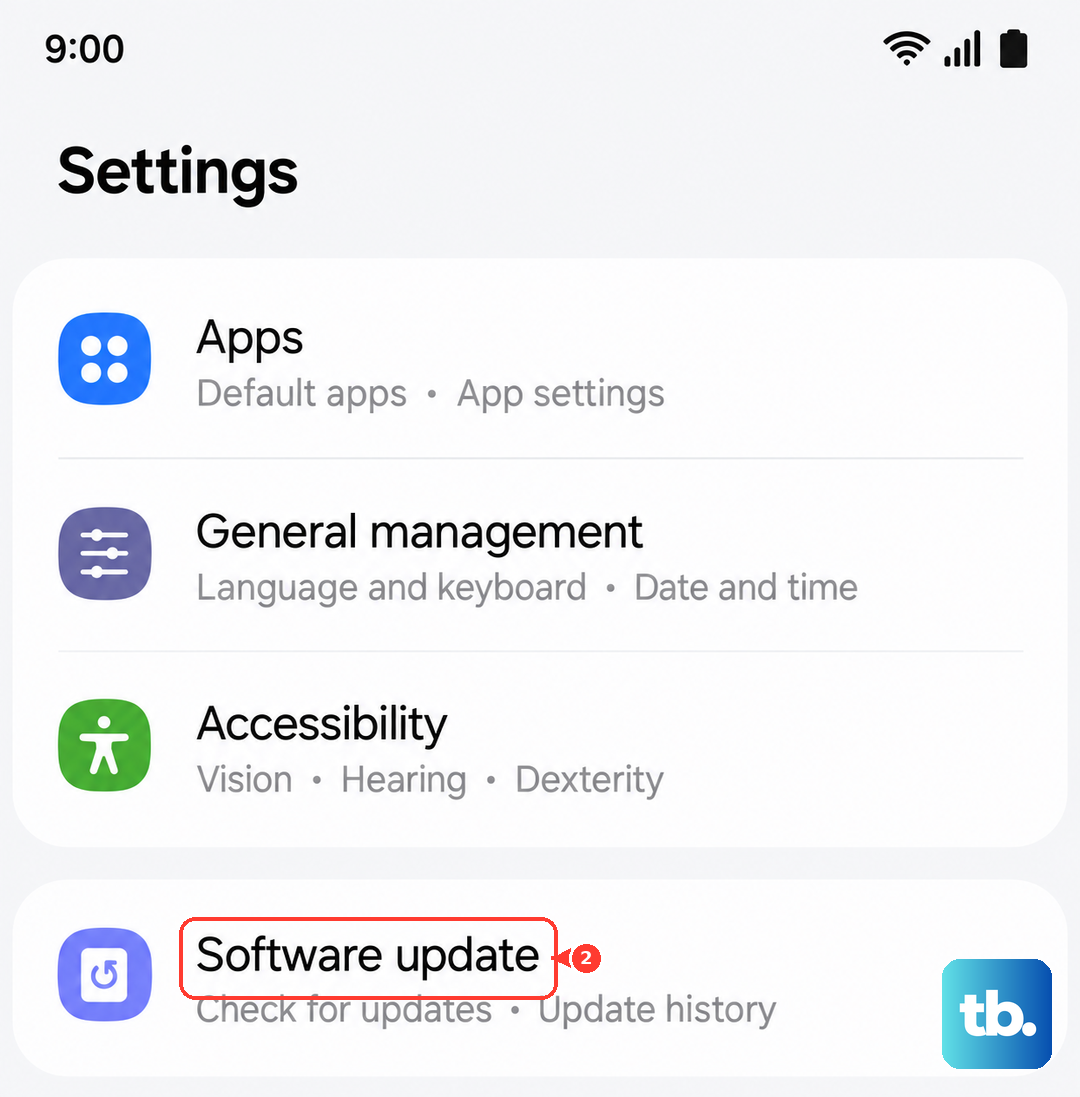
Audio issues can sometimes be bugs that Samsung fixes in a later software update. It's always worth checking, as an update might contain a patch specifically for your problem.
Go to Settings > Software update and tap Download and install. Your A55 will check for any available updates. If one is found, make sure your phone is charged above 50% and connected to Wi-Fi before you proceed with the installation.
Clear the System Cache Partition
Corrupted temporary system files can cause all sorts of odd behavior, including audio problems. Clearing the cache partition doesn't delete any personal data, it just cleans out this system junk. First, power your A55 off completely.
Now, press and hold the Volume Up button and the Side button at the same time. Release both buttons when you see the Android recovery screen. Use the Volume Down button to highlight Wipe cache partition, then press the Side button to select it. Confirm, and then select Reboot system now when it's done.
Boot Into Safe Mode to Find a Bad App
If a recently downloaded app is causing a conflict, it could affect system audio. Booting into Safe Mode temporarily disables all third-party apps. To enter Safe Mode, press and hold the power button on the screen until the power menu appears.
Then, tap and hold the Power off option. A prompt will appear asking if you want to reboot to Safe Mode; tap OK. If your speaker works normally in Safe Mode, you know a downloaded app is the culprit. You can then restart normally and begin uninstalling recent apps one by one to find the offender.
Reset All Settings
If you're deep into settings and might have changed something by accident, this is a good nuclear option that doesn't touch your photos or messages. It will reset your Wi-Fi passwords, Bluetooth pairings, and all system settings back to factory defaults.
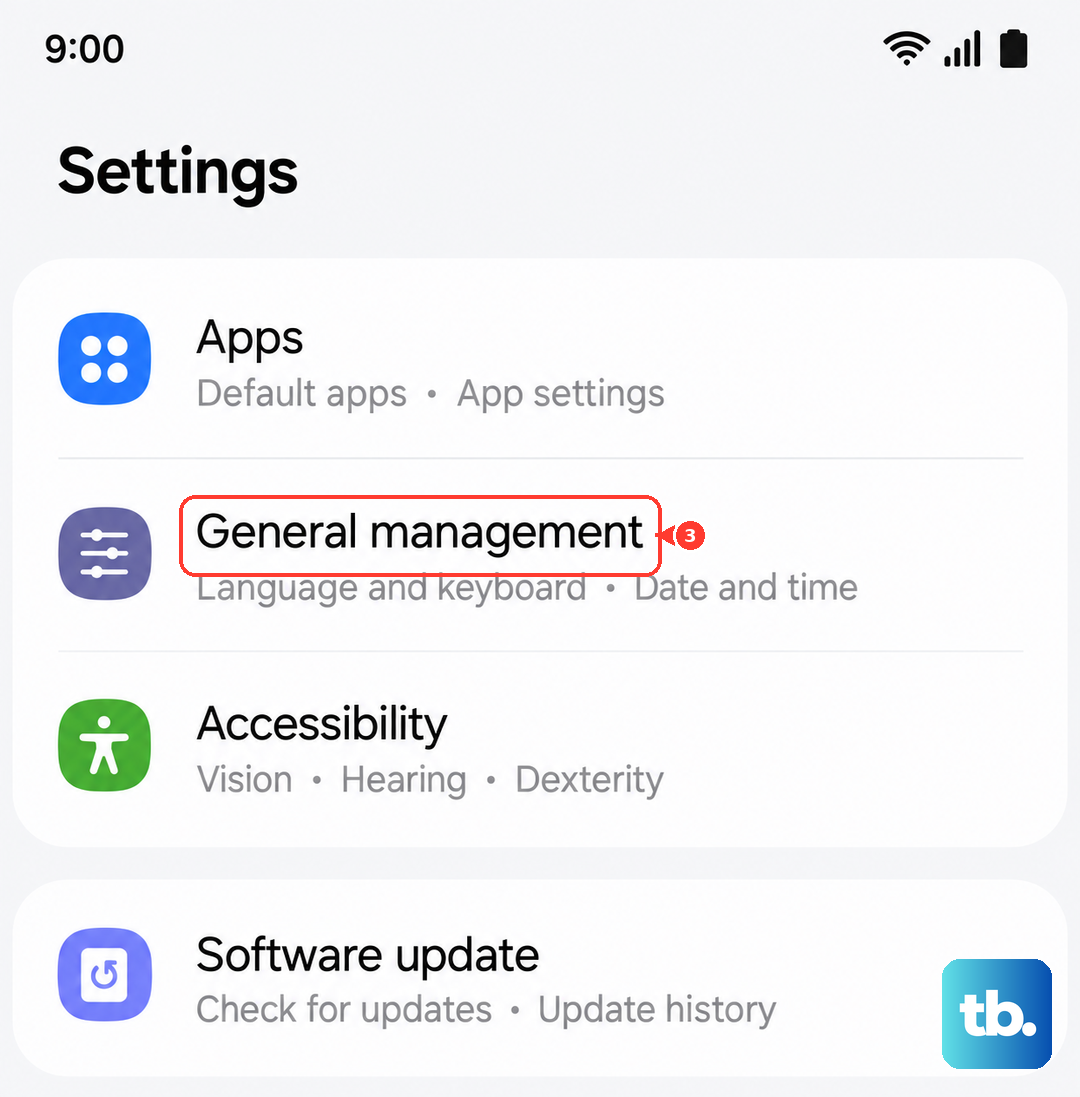
Go to Settings > General management > Reset. Tap on Reset settings and then Reset settings again to confirm. Your phone will reboot. Afterward, you'll need to reconfigure things like your ringtone and notification sounds, but it often resolves persistent, confusing issues.