
When your Samsung Galaxy A55 apps keep closing unexpectedly, it pulls you right out of whatever you were doing. This usually happens because of a temporary software hiccup or a conflict with the app's data. The quickest fix is often to simply restart your phone.
Press and hold the Volume Down button and the Side button together for about 10 seconds. Keep holding until you see the Samsung logo appear on the screen, then let go. This force restart clears out the phone's temporary memory and can stop a lot of random crashes right away.
Update Your Apps
Outdated apps are a common culprit for crashes on the Galaxy A55. Developers release updates to patch bugs and improve compatibility with newer versions of One UI. Open the Google Play Store and tap your profile icon in the top right corner.
Select Manage apps & device. Under the "Updates available" section, you can tap Update all or choose to update individual apps. I'd make sure everything is current before moving on to more involved fixes.
Check for a System Update
Sometimes, the issue isn't with the app itself but with the underlying Android system. Samsung regularly releases updates for One UI that include stability improvements. Go to Settings > Software update and tap Download and install.
Make sure your phone is connected to Wi-Fi and has at least 50% battery before starting the update. If an update is available, installing it can resolve system-level conflicts that cause multiple apps to misbehave.
Clear the App's Cache and Data
Over time, an app's temporary cache files can become corrupted. Clearing them gives the app a fresh start without deleting your login information or account. For more stubborn issues, clearing the app data resets it completely, like a fresh install.
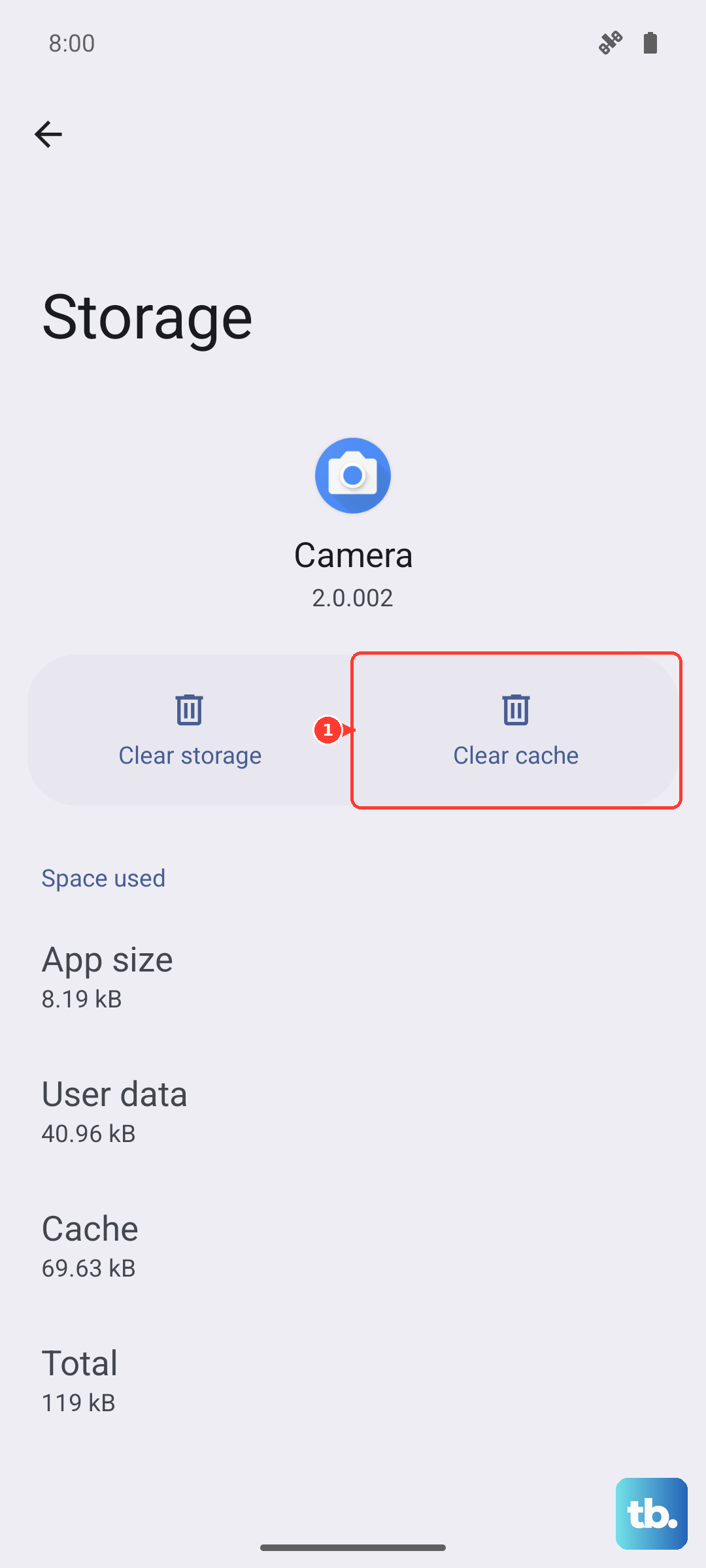
Go to Settings > Apps. Find and tap on the app that's crashing. Select Storage and then tap Clear cache. If the problem persists, come back here and tap Clear data instead. Just remember, clearing data will log you out and reset the app's preferences.
Free Up Storage Space on Your A55
The Galaxy A55 needs free space to operate smoothly. When your storage is nearly full, apps can't create the temporary files they need to run, leading to crashes. You can check your storage status in Settings > Battery and device care > Storage.
Start by clearing cached data from all apps at once using the "Clean now" option in Device Care. Then, look through your downloads folder, old screenshots, and videos you've already backed up. Uninstalling a few apps you no longer use can also make a significant difference.
Force Stop the Problematic App
If an app is frozen or stuck in a crash loop, force stopping it can break that cycle. This is different from just closing the app. Go to Settings > Apps, select the misbehaving app, and tap Force stop.
Confirm the action when prompted. Wait a few seconds, then open the app again from your home screen. This forces the app to shut down all its processes and start fresh the next time you launch it.
Reinstall the App
When a single app is the persistent problem, a clean reinstall is often the most effective solution. This removes any corrupted files that clearing cache and data might have missed. Press and hold the app's icon on your home screen or app drawer and tap Uninstall.
After it's removed, open the Google Play Store, search for the app, and install it again. This gives you the latest, clean version of the app files. You'll need to log back into your account after reinstalling.
Check Your Network Connection
Apps that rely heavily on an internet connection, like social media or streaming services, can crash if the network is unstable. If you're on Wi-Fi, try toggling it off and using your mobile data for a moment to see if the app stabilizes.
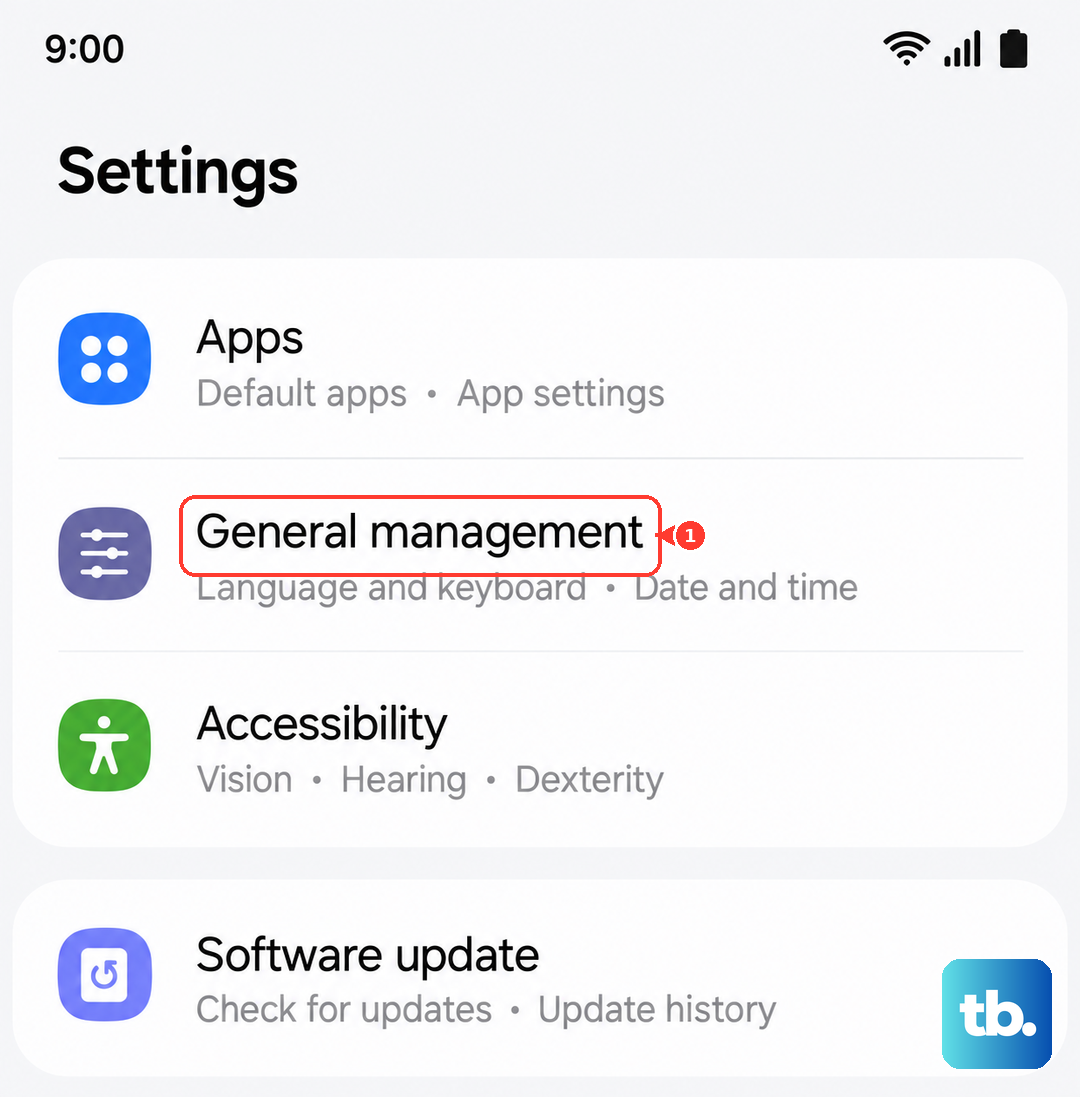
Conversely, if you're on mobile data, try connecting to a reliable Wi-Fi network. You can also reset your network settings, but this will erase all saved Wi-Fi passwords and Bluetooth pairings. Go to Settings > General management > Reset > Reset network settings.
Boot into Safe Mode
Safe Mode temporarily disables all third-party apps you've downloaded. If your apps stop crashing in Safe Mode, you know the issue is caused by something you installed. To enter Safe Mode, press and hold the Side button until the power menu appears.
Then, press and hold the "Power off" option on your screen. A prompt will appear asking if you want to reboot to Safe Mode. Tap it. Your phone will restart with "Safe Mode" in the bottom corner. Test the apps that were crashing. To exit, just restart your phone normally.
If the crashes stop in Safe Mode, you'll need to identify the problematic third-party app. Start by recently installed apps or try uninstalling apps one by one until the problem goes away.