
When your Samsung Galaxy A16 stops ringing for incoming calls, it can feel like you're suddenly disconnected from everyone. This is a common issue on Android phones, and on the A16 it's usually tied to a setting or a minor software hiccup. The good news is you can almost always fix it yourself without needing a trip to the store.
I'd start with the simplest check. Swipe down from the top of your screen twice to open the full Quick Settings panel. Look for the Airplane Mode icon and make sure it's not highlighted. If it is, tap it to turn it off. While you're there, also check that your mobile data is enabled, the signal bars should be visible.
Restart and Check Basic Settings
If toggling Airplane Mode didn't help, the next step is a force restart. For the Galaxy A16, you press and hold the Volume Down button and the Power button together for about 10 seconds. Keep holding until you see the Samsung logo appear, then let go.
This clears out any temporary glitches that might be hanging around in the memory. After it boots up, try having someone call you again. It's a simple fix, but it works more often than you'd think.
You should also verify your Do Not Disturb and Focus modes. On One UI 6.1, swipe down and tap the "Modes" button in your Quick Settings. Make sure any active mode, like "Sleep" or "Driving," isn't configured to silence all calls.
Review Call Blocking and Spam Protection
Samsung's built-in spam protection is great for blocking robocalls, but sometimes it can be a little too aggressive. Open your Phone app, tap the three-dot menu in the top right, and go to Settings > Caller ID and spam protection.
Take a look at the settings here. You can temporarily turn off "See caller and spam ID" to test if it's the culprit. Also, tap on "Block numbers" to review your list. If you accidentally added a contact here, they won't be able to get through.
Another spot to check is in the same Phone app settings menu. Look for "Call blocking and decline with message." This feature lets you auto-reject calls from unknown or private numbers, which could explain why some calls aren't coming through.
Investigate Your SIM Card and Network
The problem might not be your phone, but the little chip inside it. Power off your Galaxy A16 and locate the SIM tray on the side. Use the ejector tool that came in the box (or a small paperclip) to pop it out.
Carefully remove the SIM card, give the gold contacts a gentle wipe with a soft, dry cloth, and reinsert it. Make sure it's seated correctly in the tray before sliding it back into the phone. A poorly seated SIM is a classic cause of call issues.
If you're still having trouble, it's worth contacting your mobile carrier. They can check for any network outages in your area or see if there's a problem with your account provisioning. You can usually do this through their app or by calling from another phone.
Reset Network Settings
If calls are dropping or you're not getting them at all, a network settings reset can clear up corrupted connection data. Go to Settings > General management > Reset > Reset network settings.
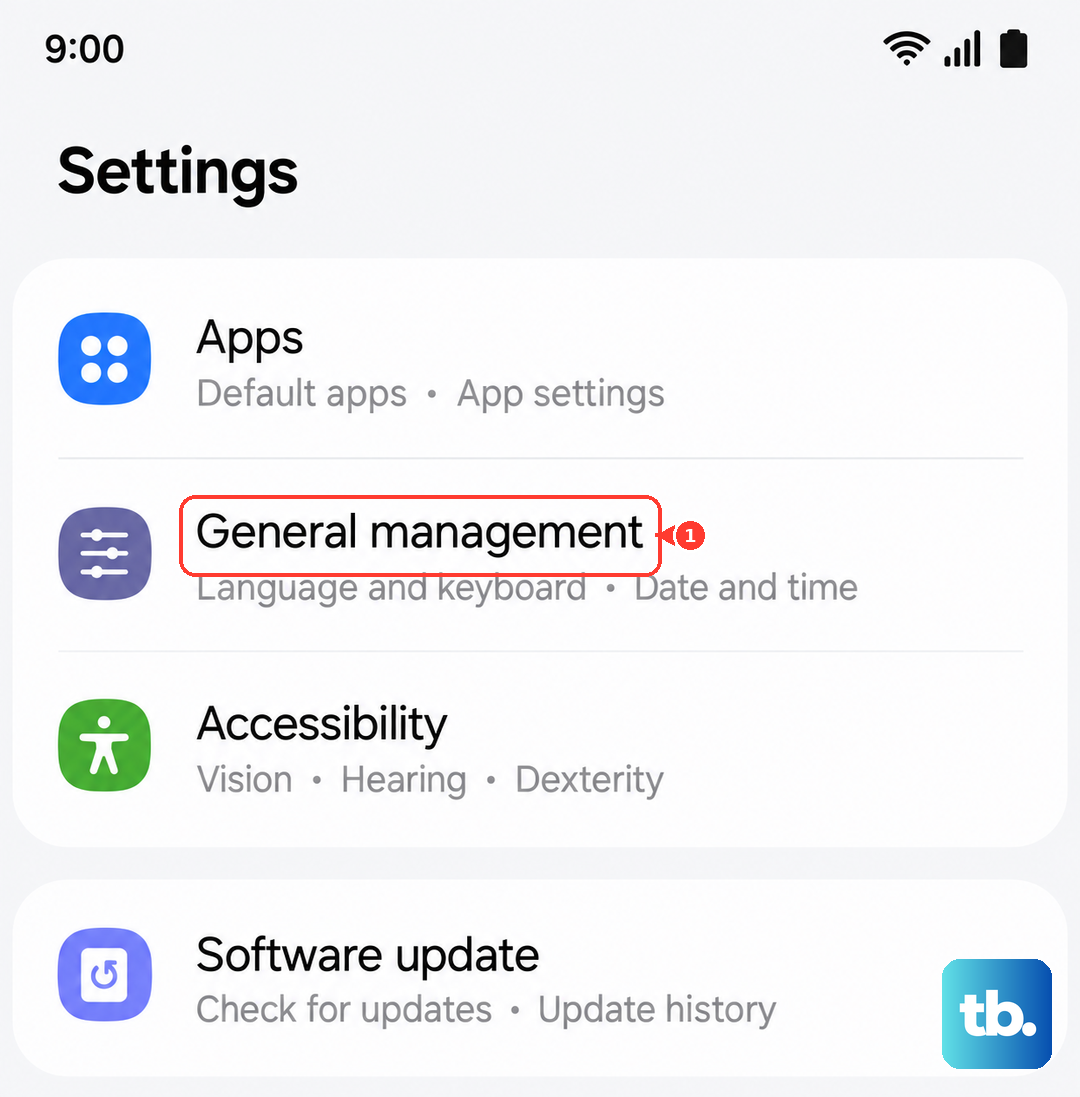
Tap to confirm. This will erase all your saved Wi-Fi networks, Bluetooth pairings, and mobile data preferences, so you'll have to reconnect to your Wi-Fi afterward. It doesn't delete any personal files or apps, but it often resolves persistent calling and data issues.
After the reset, give your phone a minute to reconnect to the cellular network. You should see the signal bars fill in at the top of the screen.
Update Software and Clear App Cache
Software bugs can sometimes interfere with core functions like calling. Make sure your Galaxy A16 is running the latest version of Android and One UI. Go to Settings > Software update > Download and install.
If an update is available, install it. It's a good practice to keep your phone updated anyway, as these updates often include stability fixes. While you're in the settings, you can also clear the cache for the Phone app itself.
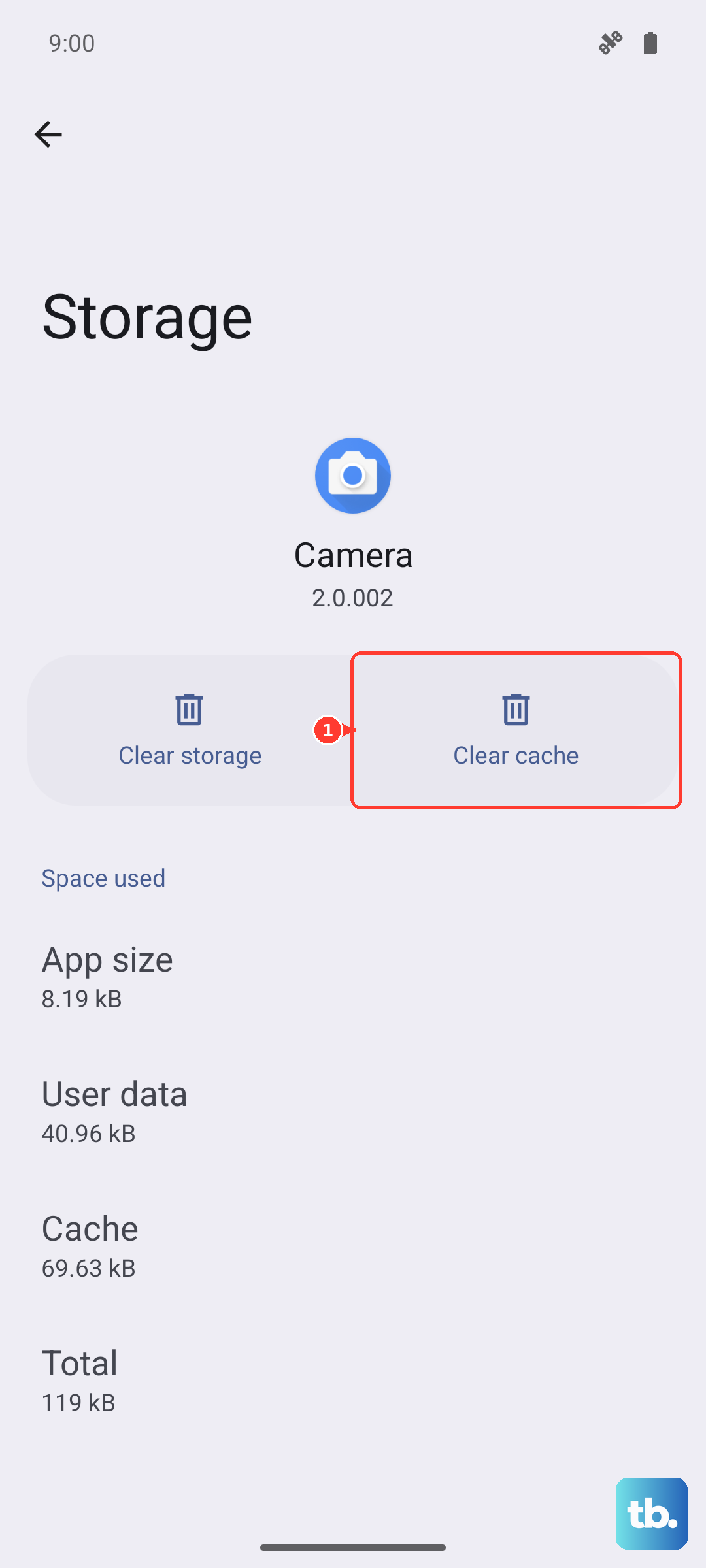
Go to Settings > Apps, find and tap on "Phone," then select Storage. Tap "Clear cache." This doesn't delete your call log or contacts, it just removes temporary files that might have become corrupted.
Check for App Interference and Call Forwarding
Think about any apps you installed around the time the problem started. Some third-party apps, especially those that claim to manage calls or block spam, can conflict with the system. Try booting your phone into Safe Mode to see if the problem persists.
To do this, press and hold the power button until the power menu appears. Then, tap and hold the "Power off" option on the screen. You'll get a prompt to reboot into Safe Mode. In this mode, all third-party apps are disabled. If calls work normally here, a recently downloaded app is likely the cause.
Finally, it's worth double-checking that call forwarding isn't accidentally enabled. Open the Phone app, tap the three-dot menu, go to Settings > Supplementary services. Look at the "Call forwarding" option and make sure it's set to always use your number, not forward to another.