
If your Redmi Note 13 Pro camera app won't open or crashes immediately, start with a simple restart. Press and hold the power button for about 15 seconds until you feel the phone vibrate and the screen goes black. I'd start with this one, as it clears temporary memory glitches that can freeze the camera app.
Key Points
- Force Stop and Clear Cache: This is the most effective first step for a frozen camera app.
- Check for App and System Updates: Bugs in MIUI or the camera app itself are often patched in updates.
- Boot Into Safe Mode: This will tell you if a third-party app is causing the conflict.
- Reset App Preferences: A quick way to undo any accidental settings changes that broke the camera.
- Free Up Storage Space: The camera app needs free space to create temporary files.
- Disable Battery Optimization for Camera: Aggressive battery saving can prevent the camera from launching.
Give the phone a full minute to restart completely before trying the camera again. Sometimes the Snapdragon 7s Gen 2 chipset needs a moment to settle after a hard reboot.
Force Stop and Clear the Camera App's Cache
Go to your phone's Settings and scroll down to Apps. Tap on Manage apps and find the Camera app in the list. Tap on it, then hit the Force stop button at the bottom. After that, go into Storage & cache and tap Clear cache.
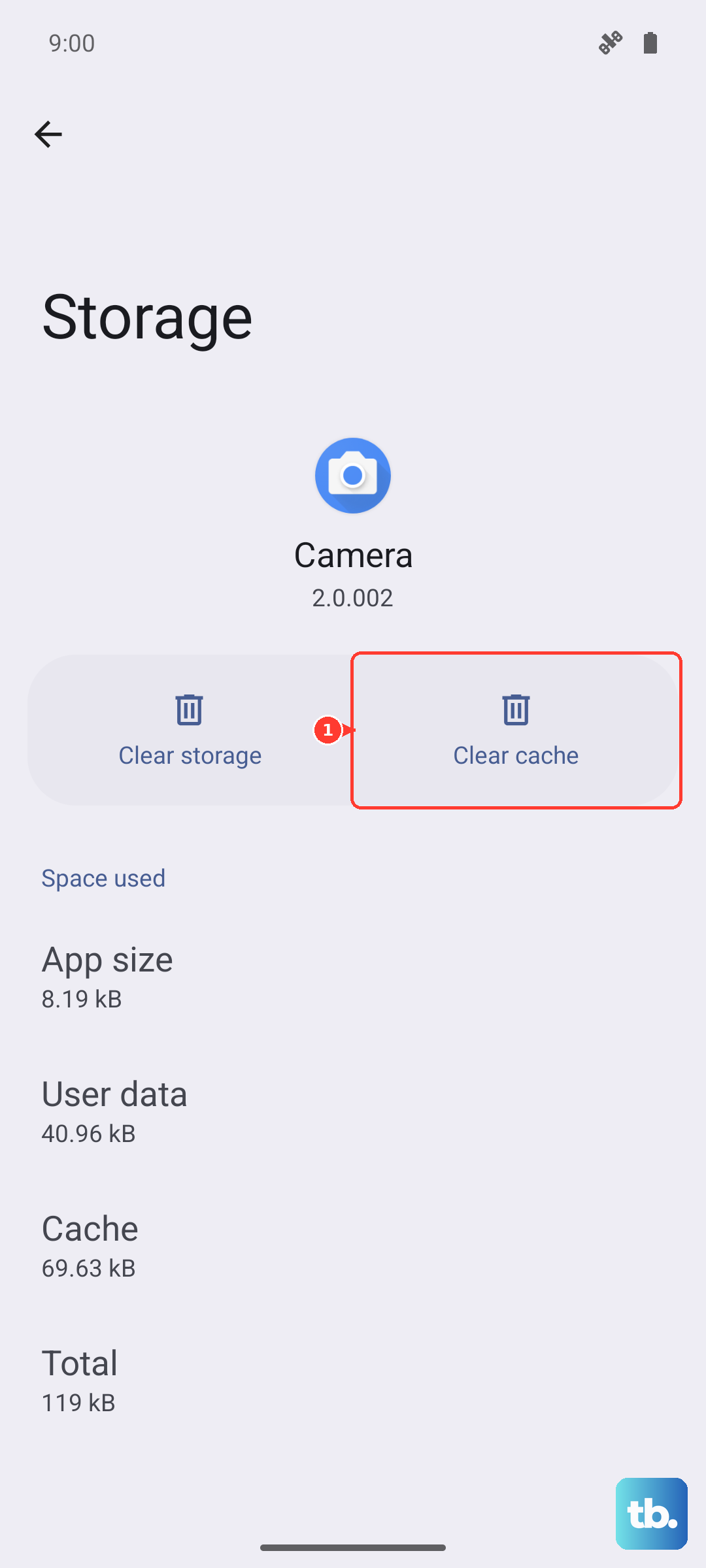
This doesn't delete your photos, it just removes temporary data that might have become corrupted. Once you've cleared the cache, go back to your home screen and try opening the camera again. I've seen this fix work for most random crashes on MIUI.
If the problem persists, you can try Clear data from the same menu, but be aware this will reset all your camera settings back to default. You'll lose any custom modes or preferences you've set up.
Check for Camera and System Updates
Open the Google Play Store, tap your profile icon, and go to Manage apps & device. Look under Updates available to see if there's an update for the Camera app. Sometimes Xiaomi pushes fixes through the Play Store instead of a full system update.
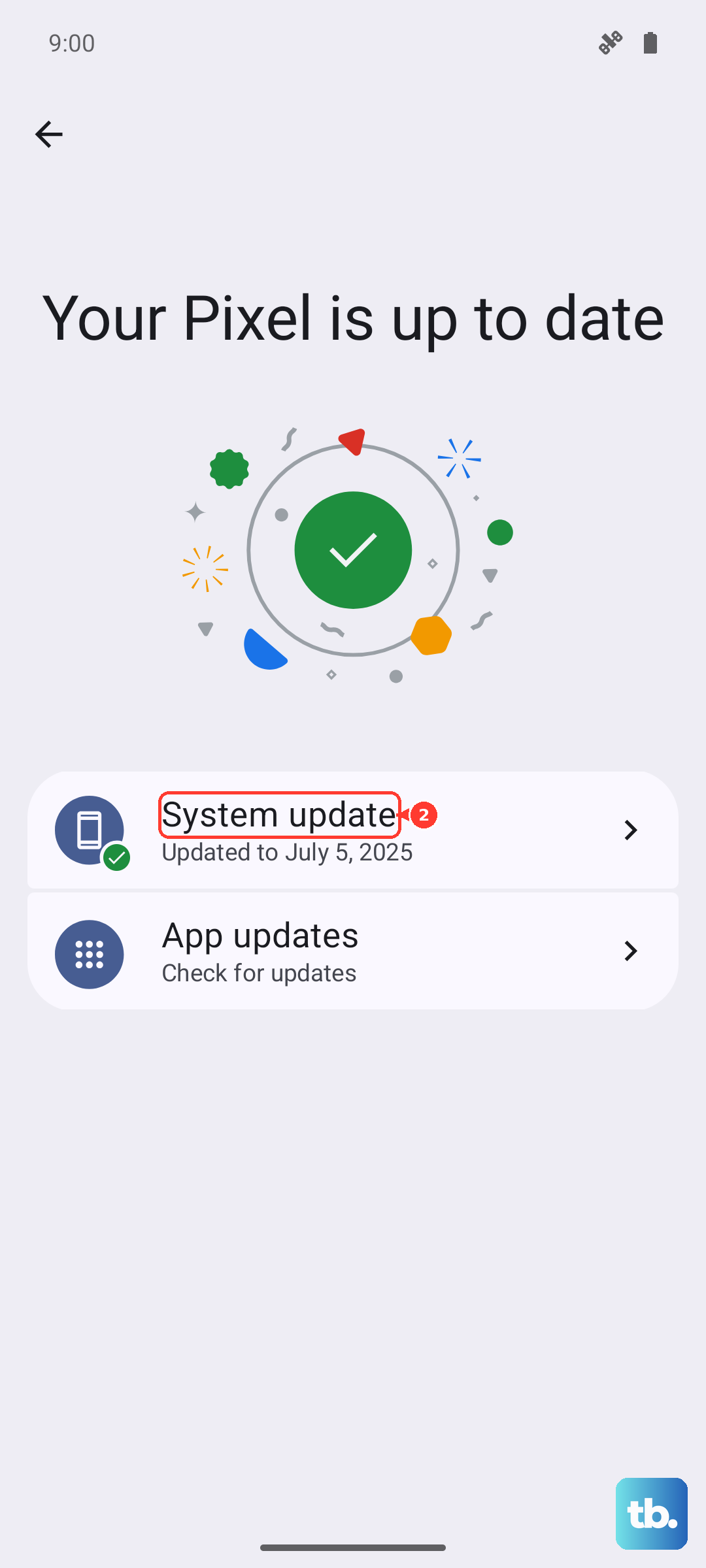
Next, check for a MIUI update. Go to Settings > About phone > MIUI version and tap the "Check for updates" button. Install any available updates, as they often contain stability patches for the camera and image processing system.
After installing updates, do another full restart of your phone. This ensures all the new software components are loaded correctly before you test the camera.
Boot Your Phone Into Safe Mode
If the camera works in Safe Mode, you know a downloaded app is causing the problem. To enter Safe Mode, press and hold the power button until the power menu appears. Then, press and hold the "Power off" option on your screen.
A prompt will appear asking if you want to reboot to Safe Mode, tap OK. Your phone will restart and you'll see "Safe Mode" in the bottom corner. Try opening the camera now.
If it opens fine, restart your phone normally to exit Safe Mode. Then, start uninstalling recently downloaded apps one by one, testing the camera after each one. Pay special attention to other camera apps, gallery apps, or social media apps that might be trying to control the camera in the background.
Reset All App Preferences
This is a broader fix that resets permissions, default apps, and background restrictions for everything without deleting your data. Go to Settings > Apps > Manage apps. Tap the three-dot menu in the top right and select Reset app preferences.
Confirm the action. This will revert any app you've denied camera permissions to back to "Ask every time." It also resets any default app assignments, so you might have to set your preferred browser or messaging app again.
Once it's done, try launching the camera. You may get a pop-up asking for camera permissions, which is a good sign the app is trying to function again.
Free Up Storage Space on Your Device
The camera app needs working space to process images, especially if you're using the high-resolution 200MP mode. Go to Settings > Storage to see how much free space you have. If you're below 5GB free, it's time to clean up.
You can use the built-in Cleaner app to delete cached files from other apps. Also, consider moving photos and videos to Google Photos or another cloud service, then deleting the local copies. The 200MP photos are very large, so they fill storage quickly.
After freeing up some space, restart your phone once more. This allows the system to reallocate storage resources properly, which can sometimes get the camera working again.
Disable Battery Optimization for the Camera
MIUI's battery saver can be aggressive and might be killing the camera app process before it can even start. Go to Settings > Apps > Manage apps and find the Camera app again. Tap on it, then go to Battery saver.
Change the setting from "Restrict background activity" to "No restrictions." This tells the system to let the camera app run freely without any power-saving limitations.
While you're there, also check your general battery settings. Go to Settings > Battery > Battery saver and make sure it's turned off while you're troubleshooting the camera. You can turn it back on later once the camera is fixed.
Check for Physical or Sensor Issues
Make sure nothing is covering the camera lenses or the proximity sensor near the top of the screen. A poorly fitted case or a screen protector can sometimes block sensors and cause apps to behave strangely.
Gently clean the camera lenses with a soft, dry microfiber cloth. Smudges won't stop the app from opening, but it's a good habit. Also, try shaking the phone gently near your ear, listening for any loose components rattling inside that might indicate a hardware disconnection.
As a last software step, you can try using a different camera app from the Play Store, like Open Camera, to test the hardware. If another app can access the cameras just fine, the issue is almost certainly with your phone's stock Camera app or its data.
Consider a Factory Reset
Before you do this, make absolutely sure you have a complete backup of all your important data. Go to Settings > About phone > Backup & reset > Factory data reset. This will erase everything on your phone and return it to its out-of-the-box state.
Only use this if every other step has failed and the camera hardware is confirmed to work with a third-party app. A factory reset removes all software conflicts and corrupted data. After the reset, set up the phone as new without restoring a backup immediately, and test the camera first.
If the camera still won't open on a completely fresh software installation, the problem is likely a hardware fault with the camera module itself. At that point, the camera would require professional service to be repaired.