
When your OnePlus Nord 4's Settings app keeps closing or crashing, it's usually a software hiccup that you can fix yourself. The issue often stems from corrupted temporary data or a minor conflict within the system, especially on OxygenOS 14. Let's get it working again.
Force Restart Your Nord 4
This is the quickest thing to try. A force restart clears the phone's temporary memory and can stop a misbehaving app in its tracks. Just press and hold the power button for about 10 seconds until you feel a vibration and see the OnePlus logo appear on screen.
Wait for the phone to boot up completely, then try opening Settings again. If it still crashes, the problem is a bit more persistent and we'll need to dig deeper.
Clear the Settings App Cache and Data
Over time, the cache files that help the Settings app load quickly can become corrupted. Clearing them forces the app to rebuild these files from scratch. On your Nord 4, go to Settings > Apps > App management.
Find and tap on "Settings" in your app list. Then, tap on Storage usage. Here, you'll see two options: Clear cache and Clear data. Tap Clear cache first and test the app.
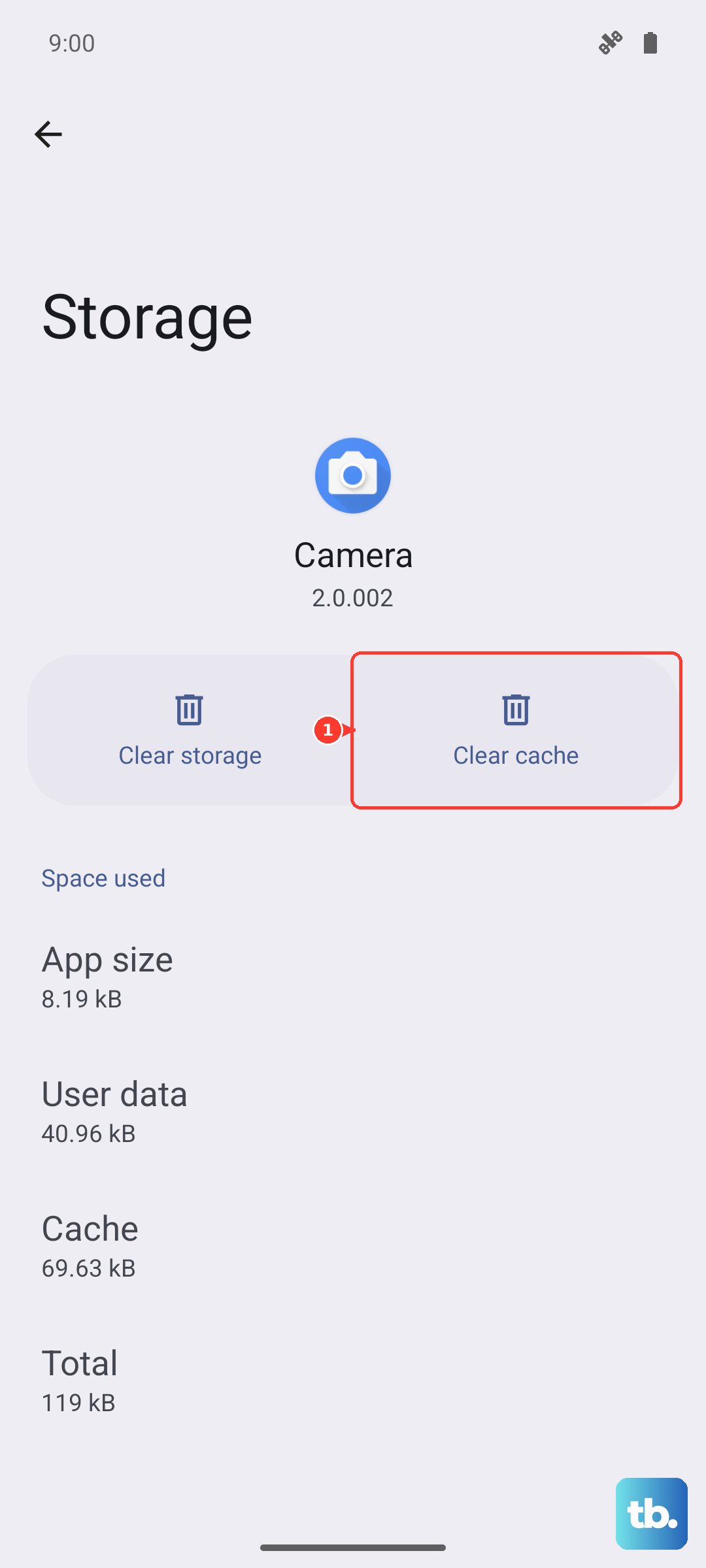
If the problem continues, go back and tap Clear data. A warning will pop up saying this will reset the app to its default state. Don't worry, this won't delete your personal files or system settings, but it will reset any customizations within the Settings app itself.
Check for a System Update
OnePlus frequently releases updates that fix bugs and improve stability. An outdated version of OxygenOS could be the culprit behind your crashing Settings. Navigate to Settings > About device > OxygenOS version and tap on the icon to check for updates.
If an update is available, make sure your phone is connected to Wi-Fi and has at least a 50% charge. I'd recommend using the included 100W SuperVOOC charger for this. The update will download and install, and your phone will restart. This often resolves underlying system conflicts.
Manage Google Play Services
Google Play Services is a background app that many system functions, including parts of Settings, rely on. If it's acting up, it can cause other apps to crash. Head back to Settings > Apps > App management and find "Google Play Services" in the list.
Tap on it, then go to Storage usage. Tap Clear cache. If that doesn't help, you can also tap Manage storage and then Clear all data for Google Play Services. You'll need to re-add your Google account afterward, but it can clear up deep-seated issues.
Boot Into Safe Mode
This step helps you figure out if a recently downloaded third-party app is causing the conflict. To boot your Nord 4 into Safe Mode, press and hold the power button until the power menu appears. Then, press and hold the "Power off" option on your screen.
A prompt will ask if you want to reboot to Safe Mode. Tap OK. Your phone will restart, and you'll see "Safe Mode" in the bottom corner. If the Settings app works fine here, a third-party app is likely the problem. You'll need to restart normally and uninstall apps one by one to find the offender.
Reset App Preferences
This is a less drastic step that resets all your app permissions, default apps, and background restrictions without deleting any app data. It can fix issues caused by incorrect permissions. Go to Settings > Apps > App management.
Tap the three-dot menu in the top right and select Reset app preferences. Confirm your choice. Your Nord 4 will reset all those settings. You'll just need to re-grant permissions to apps as you use them again.
Perform a Factory Reset
If nothing else has worked, a factory reset is the final step. This will erase everything on your phone, so it's crucial to back up your photos, contacts, and important files first. You can use OnePlus Cloud or Google Drive for this.
Once backed up, go to Settings > Additional settings > Backup & reset > Erase all data (factory reset). You may need to enter your lock screen password. The process will take a few minutes, and your Nord 4 will restart as if it were brand new. After setup, the Settings app should be stable.