
Running out of space on your OnePlus 13 can really slow you down, stopping you from taking new photos or installing app updates. The good news is that OxygenOS gives you plenty of tools to dig into what's taking up room and clear it out. You can often free up dozens of gigabytes without much hassle.
See Exactly What's Filling Your Storage
Head to Settings > Storage. This screen gives you a complete breakdown of what's on your phone. Wait a moment for it to fully calculate, and you'll see categories like Apps, Images, and Videos. Tap on each category to get a more detailed list, which will show you the biggest space-hogging apps right away.
Clear App Caches and Data
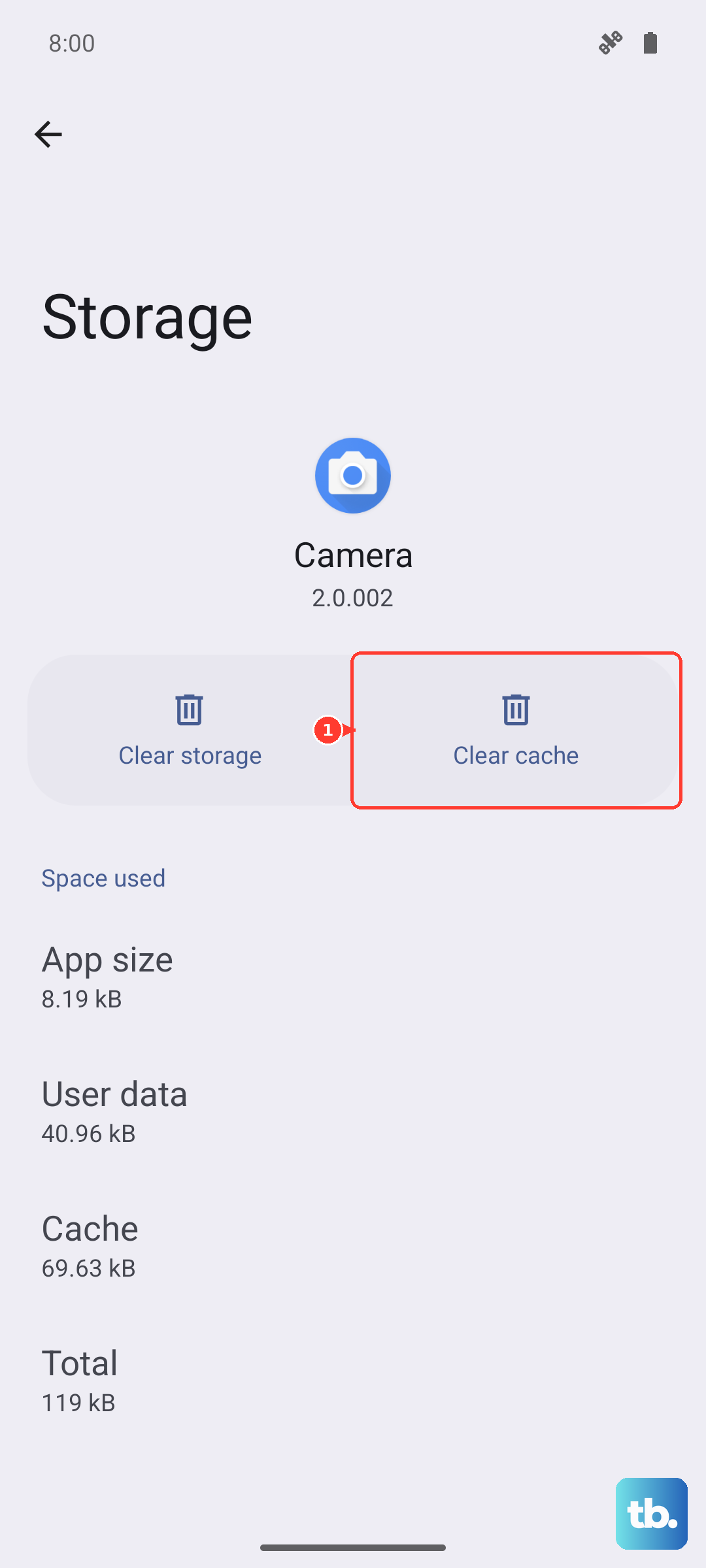
Back in the main Storage menu, tap on Apps. You'll see a list of all your installed applications sorted by size. Tap on any large app, like Instagram, TikTok, or Facebook. Here, you can tap Clear cache to safely remove temporary files. If the app is still huge, you can tap Clear data, but be aware this will reset the app to its freshly installed state, so you'll need to log in again.
Manage Your Photos and Videos
Media files are almost always the main culprit. Open your Gallery app and use the search or albums feature to find old screenshots, duplicate photos, and large videos you no longer need. Don't forget to check the Recently deleted folder and empty it, as those files still take up space for 30 days. For a more automated approach, consider enabling storage optimization in Google Photos if you use it for backup.
Offload or Uninstall Unused Apps
Take another look at that Apps list in your Storage settings. Scroll through and identify apps you haven't opened in months. For apps you might want to keep data for, some Android launchers offer an "offload" function, but a simpler method is to just uninstall them. You can always reinstall them later from the Play Store, and for many apps, your data will be saved to your Google account.
Review Downloads and Offline Content
Open your Files app and navigate to the Downloads folder. This is a common spot for PDFs, APK files, and other documents that accumulate and get forgotten. Also, check your streaming apps. In Spotify, go to Settings > Storage and remove downloaded playlists. In Netflix, tap your profile icon and go to My Downloads to delete watched shows.
Clean Up Messaging Apps
Apps like WhatsApp, Telegram, and even standard SMS can store years of photos and videos. In WhatsApp, go to Settings > Storage and data > Manage storage. You can review large files and bulk-delete them by chat. For your standard messages, you can set older conversations to auto-delete in your messaging app's settings, which helps prevent slow buildup.
Clear Browser Data
Whether you use Chrome, Samsung Internet, or another browser, cached website data can grow quite large. In Chrome, tap the three dots, go to History > Clear browsing data. Select Cached images and files and tap "Clear data." I've seen this recover over a gigabyte of space on phones that haven't been cleared in a while.
Check for System Update Residual Files
Sometimes, after a major OxygenOS update, old system files aren't cleaned up properly. After you've confirmed your phone is on the latest software, you can use a file manager app to check for a folder called "Software Update" or similar in your internal storage. Deleting any leftover update files from previous versions can sometimes free up several gigabytes.
Use Cloud Storage and Smart Cleanup
For a more permanent solution, make use of cloud services. You can set Google Photos to back up your media and then use its "Free up space" feature to remove the local copies from your phone. Also, explore the File Dock and cleanup suggestions within the OnePlus Files app, as it can intelligently identify duplicate files, blurry photos, and large files you may have missed.