Seeing the "Settings has stopped" error pop up on your Motorola Razr Plus (2024) can really stop you in your tracks. It usually means the app has crashed or some of its temporary data has gotten corrupted. The good news is you can almost always get it working again without losing anything.
Force Restart Your Razr Plus
This is the quickest thing to try and it fixes a lot of random glitches. Just press and hold the Power button on the side of the phone for about 10 to 15 seconds. You'll feel it vibrate and see the Motorola logo appear as it restarts.
Once it boots back up, try opening the Settings app again. If the error is still there, don't worry, we've got more steps to go through.
Clear the Settings App Cache
Your phone stores cache to make apps load faster, but sometimes that data gets messed up. Clearing it for the Settings app is a safe first fix. You'll need to get into your app list to do this.
Open Settings and go to Apps > See all apps. Find and tap on the app called Settings. Then, tap on Storage & cache. On this screen, tap the button that says Clear cache.
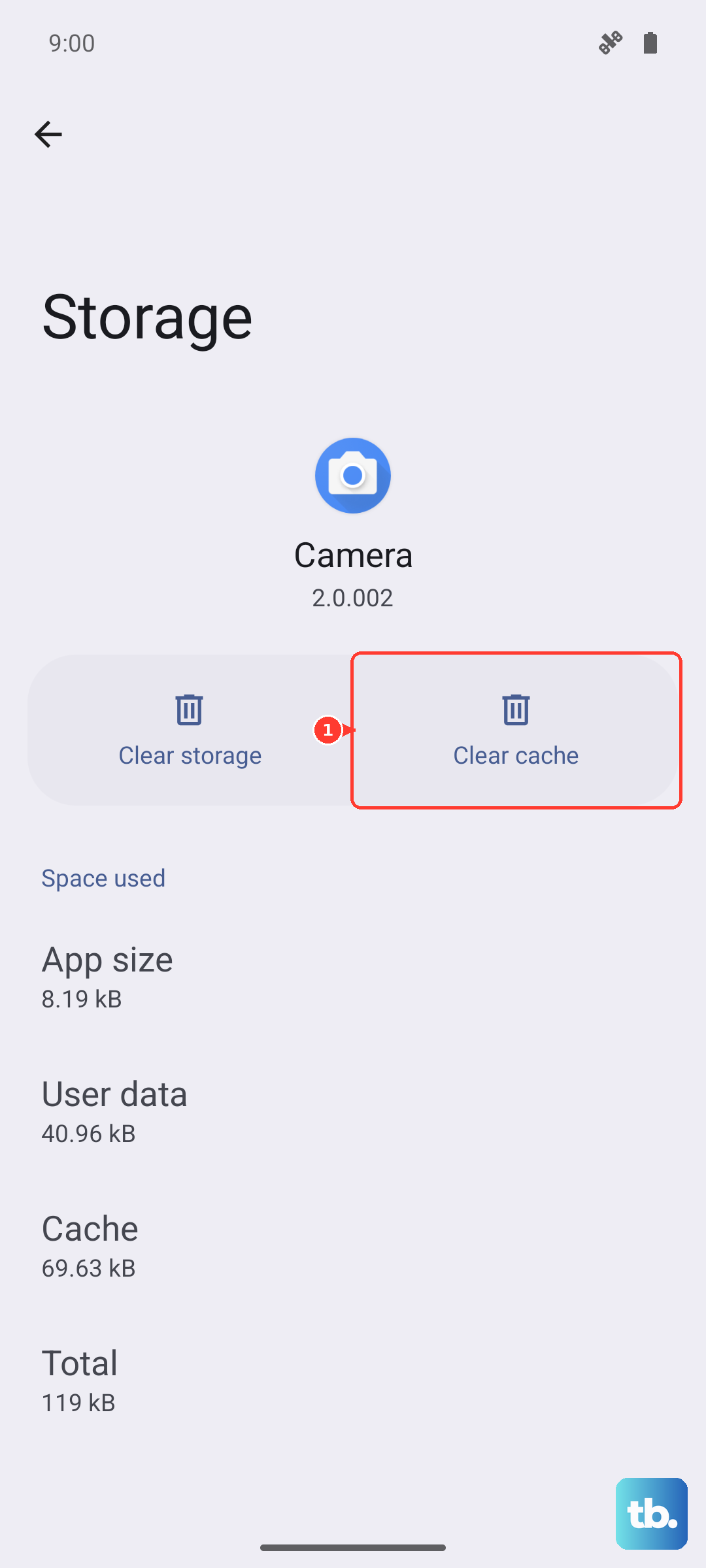
This doesn't delete any of your personal settings or accounts, it just cleans out the temporary files. Give the Settings app another try after doing this.
Force Stop the Settings App
If clearing the cache didn't help, the next step is to force the app to close completely and start fresh. Head back to Settings > Apps > See all apps and find Settings again.
This time, tap on Force stop. A warning will pop up, just confirm it. Once it's stopped, you can open Settings from your app drawer or home screen like normal. This forces it to reload all its components from scratch.
Check for a System Update
Since your Razr Plus runs Android 14, there's a chance a bug in the current software version is causing the crash. Motorola regularly releases updates to fix these kinds of issues. It's worth checking even if you think your phone is up to date.
Go into Settings and look for System or System updates. Tap on Check for update. If an update is available, make sure your phone is charged above 50% and connected to Wi-Fi before installing it.
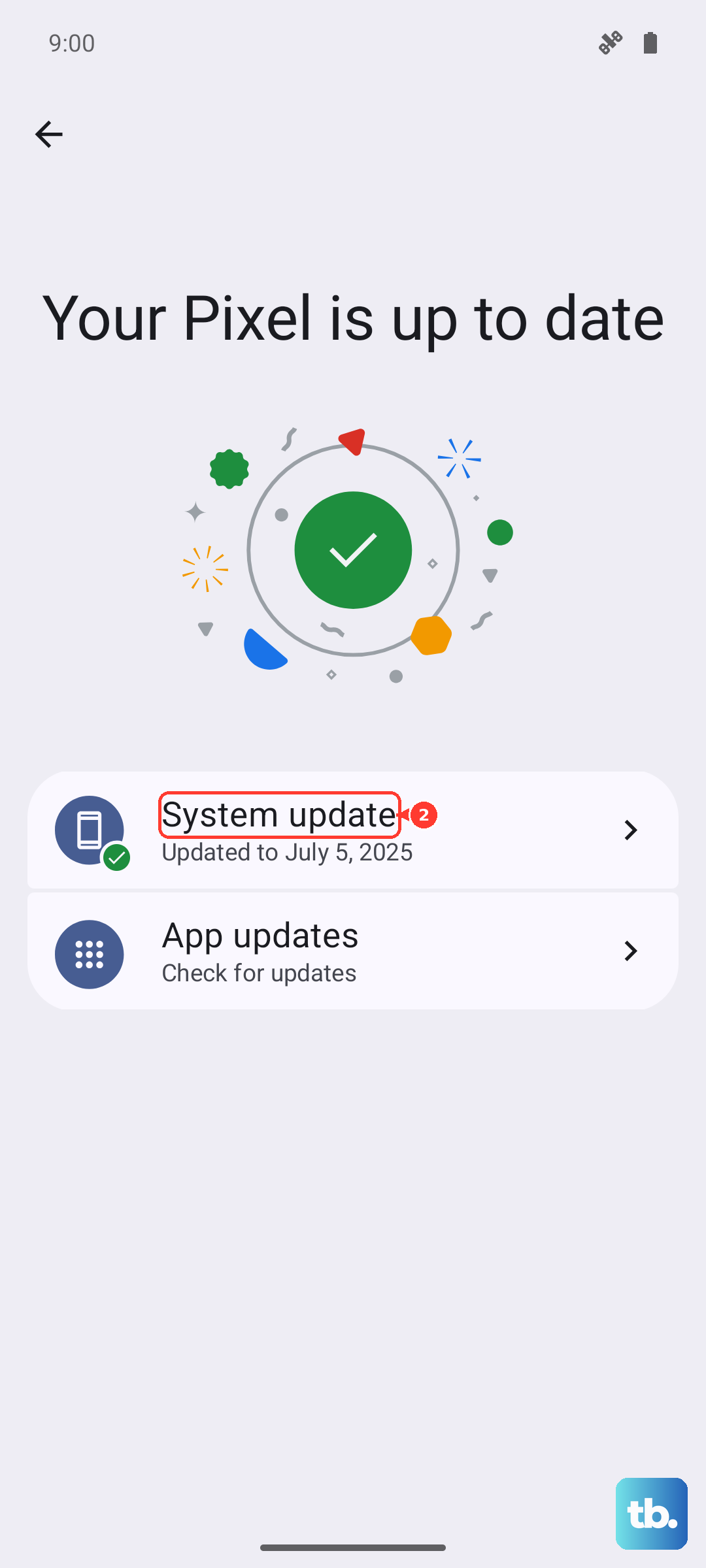
After the update installs and your phone restarts, the problem with Settings is often resolved. I've seen this fix issues on several recent Motorola models.
Manage Google Play Services
Google Play Services works in the background to help system apps like Settings communicate properly. If it's acting up, it can cause all sorts of weird errors. Let's check on it.
First, try force stopping it. Go to Settings > Apps > See all apps. Tap the three-dot menu and select Show system. Now find and tap Google Play Services. Tap Force stop and confirm.
If that doesn't work, you can clear its cache. Go back into Google Play Services and tap Storage & cache. Tap Clear cache. You can also tap Manage space on this screen, which will let you clear all data for the service. This is safe, but you may need to re-sign into some apps afterward.
Boot Into Safe Mode
This is a great way to figure out if a recently downloaded app is causing a conflict with your system settings. Safe mode temporarily disables all third-party apps. First, press and hold the Power button until the power menu appears.
Then, press and hold the Power off option on your screen. A prompt will ask if you want to reboot to safe mode, tap OK. Your phone will restart and "Safe mode" will appear in the bottom corner.
If you can open Settings without any errors in safe mode, you know a downloaded app is the culprit. You'll need to restart normally and then uninstall apps one by one, starting with the most recent, to find the bad one.
Reset App Preferences
This is a less drastic reset that doesn't delete any of your app data. It just resets all your permissions, default apps, and background data restrictions back to their original state. It can clear up conflicts that cause system apps to crash.
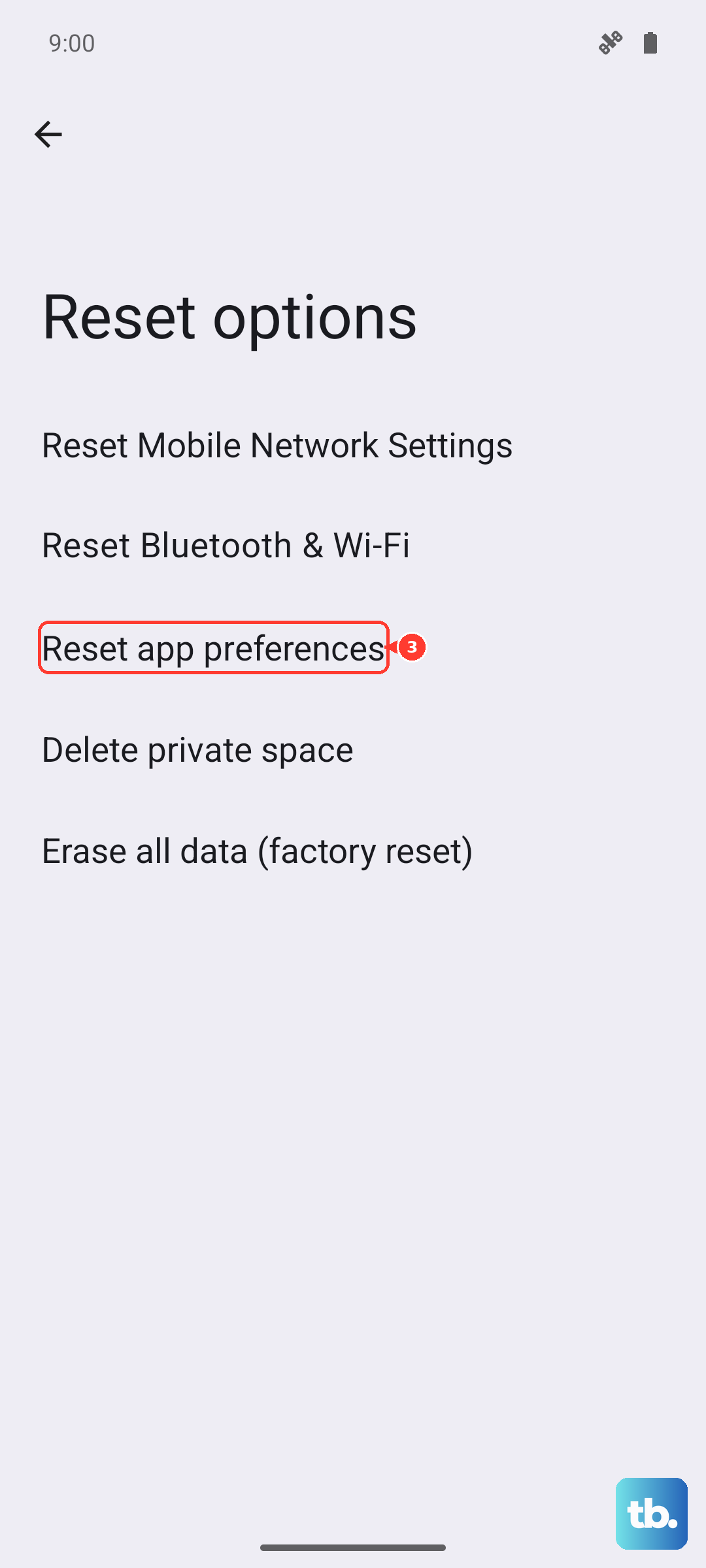
Go to Settings > System > Reset options. Tap on Reset app preferences. Confirm your choice. After it's done, you'll need to re-grant permissions to apps when you use them next, but your Settings app should be working again.