
When the predictive text on your Motorola Moto G Power (2025) stops working, it can turn simple texting into a chore. You might notice it's not suggesting the next word, the autocorrect is making bizarre changes, or the whole keyboard feels sluggish. The good news is this is almost always a software hiccup you can fix yourself. Let's start with the quickest solution.
First, try a simple restart. Press and hold the power button for about 10 seconds until you feel a vibration and see the Motorola logo. This clears out any temporary glitches in the system memory and is often all it takes to get predictions flowing again. If that doesn't do it, the next steps are a bit more targeted.
Check Your Keyboard Settings
It's possible a setting got switched off accidentally. Open any app that uses the keyboard, like Messages, and tap to bring it up. Look for the gear icon on the top row of the keyboard itself and tap it. If you don't see it, you can also go to Settings > System > Languages & input > On-screen keyboard > Gboard.
Inside the keyboard settings, tap on Text correction. Here, make sure the toggle for Show suggestion strip and Next-word suggestions are both turned on. You can also try toggling them off and back on to refresh the feature. While you're here, double-check that the correct language is selected under Languages.
Clear the Keyboard App's Cache
Gboard, which is the default keyboard on your Moto G Power, stores temporary data to run quickly. Sometimes this cache gets corrupted. To clear it, go to Settings > Apps > See all apps. Find and tap on Gboard in the list.
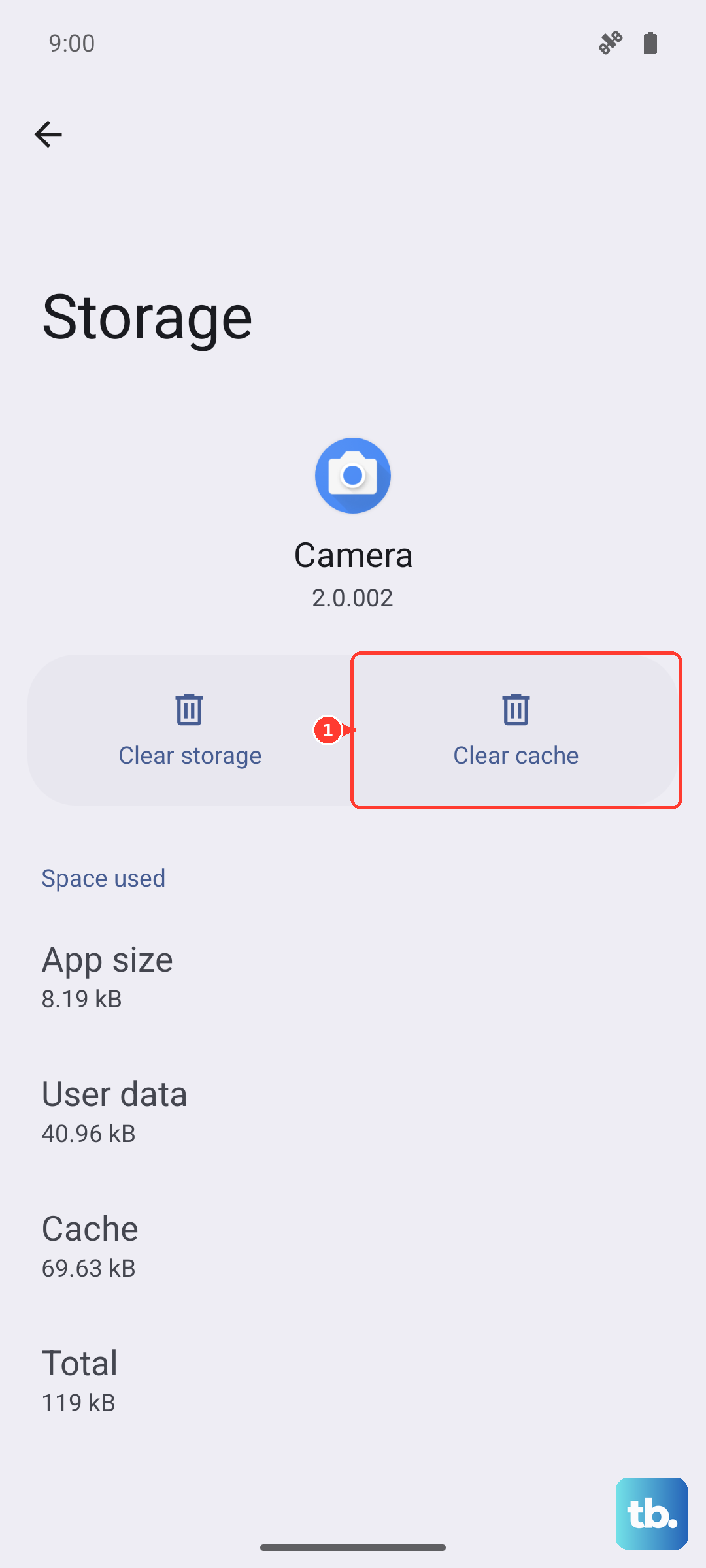
Tap on Storage & cache. First, tap Clear cache. This only removes temporary files and won't delete your personal dictionary or settings. It's a safe first step. If the problem persists after this, you can come back and try Clear storage or Clear data, but be aware this will reset Gboard to its factory defaults, erasing any custom words you've added.
Update Gboard and Your System
An outdated app can have bugs that affect predictive text. Open the Google Play Store, tap your profile picture, and go to Manage apps & device. Under "Updates available," see if Gboard is listed and update it. It's also a good idea to check for a full system update, as Motorola sometimes includes keyboard improvements in these.
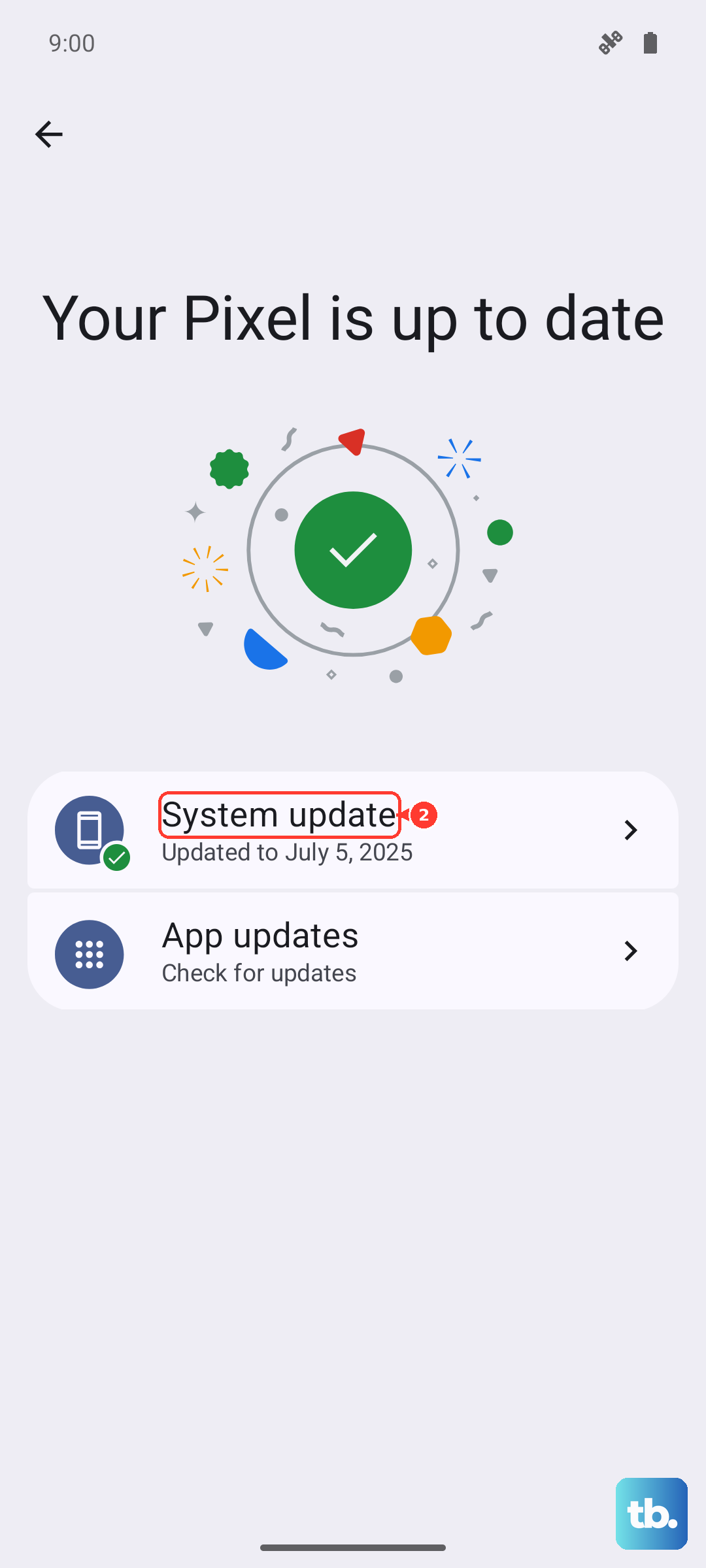
Go to Settings > System > System update to check. Keeping your 2025 Moto G Power updated on Android 15 ensures you have the latest stability patches. Given the phone uses a Dimensity 6300 processor, which is a capable but budget chip, these updates help optimize performance for all tasks, including typing.
Try a Different Keyboard Temporarily
This is a great way to figure out if the issue is with Gboard specifically or something deeper in the system. Download another free keyboard from the Play Store, like Microsoft SwiftKey. After installing, go back to Settings > System > Languages & input > On-screen keyboard and turn on the new keyboard.
You'll then be prompted to choose it when you next type. If predictive text works perfectly on the new keyboard, you know the problem is isolated to Gboard. You can then stick with the new one or use this knowledge to do a more thorough reset of Gboard. If the problem persists even with a brand-new keyboard, it points to a broader system issue.
Reset App Preferences
This is a broader fix that won't delete your personal data but will reset all your app permissions, notifications, and default apps. It can resolve conflicts that might be affecting the keyboard. Go to Settings > System > Reset options.
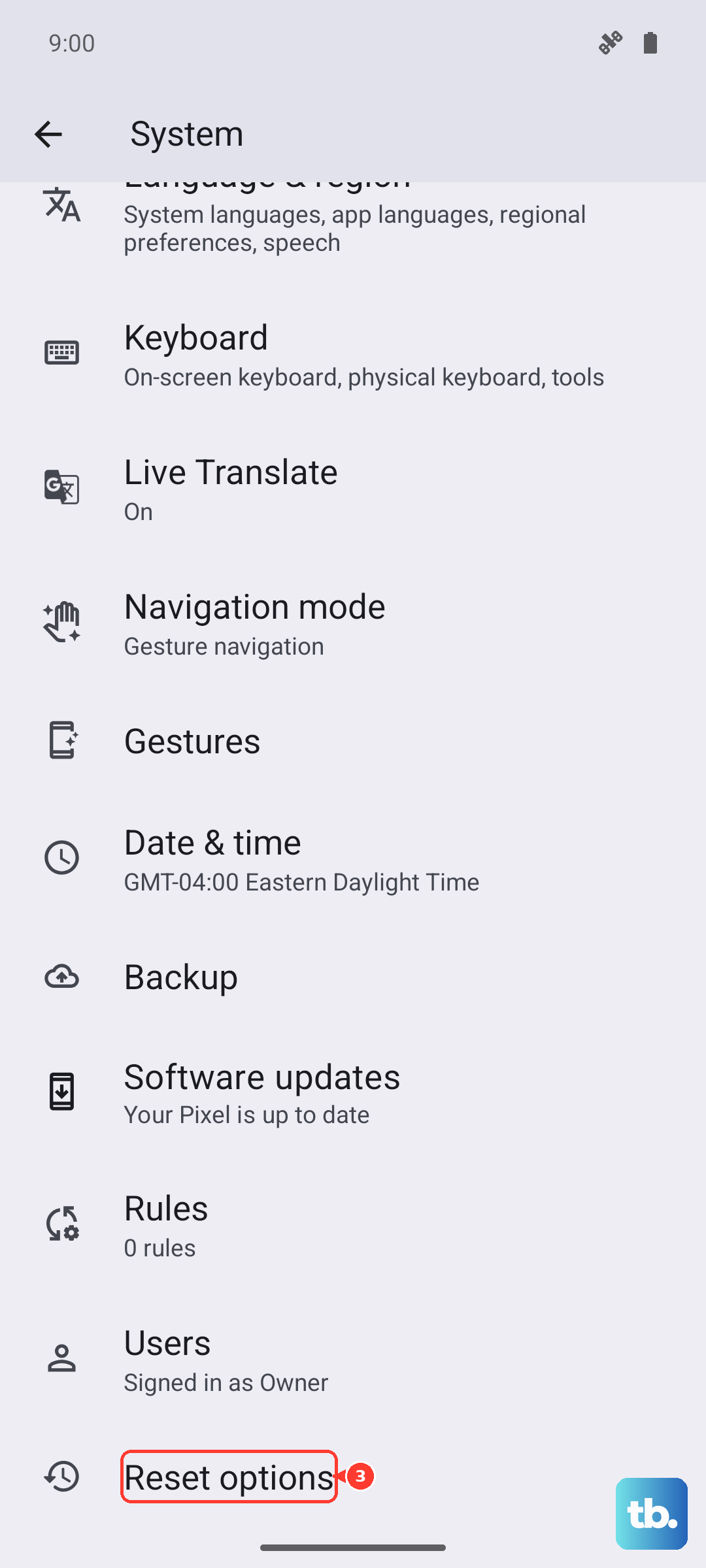
Tap on Reset app preferences and confirm. Afterward, you'll need to re-grant permissions to apps when you use them next, and you'll need to set your default apps again, like choosing Gboard as your keyboard. This step often cleans up weird software behavior without the nuclear option of a factory reset.
Check for Storage Issues
The base 128GB storage on the Moto G Power (2025) can fill up faster than you think, especially with photos and apps. When storage is critically low, system functions can start to malfunction, including background processes for the keyboard. Go to Settings > Storage to see how much space you have free.
If you're below 10% free space, start clearing out cached data from large apps or moving photos to the cloud. Remember, this phone has a microSD card slot, so you can expand storage cheaply. A little free space can sometimes be all the system needs to run predictive text smoothly again.