
When your Motorola Edge 40 keeps closing apps on you, it breaks your flow and feels like the phone is fighting you. Work through the fixes below one step at a time. Most early steps do not erase phone data, but clearing an app's storage deletes data saved in that app, so treat that step as a reset for the affected app.
Restart Your Phone First
This is the universal fix for a reason. A quick restart can clear temporary glitches before you change app settings. If the screen responds, restart the phone normally. If the phone is unresponsive, press and hold the Power button for 10 to 20 seconds to force a reboot.
Update the App and Android
Outdated software is a prime suspect. App developers release updates to squash bugs that cause crashes, and system updates from Motorola include important stability patches. Head to the Google Play Store, tap your profile picture, and go to Manage apps & device to see all available app updates.
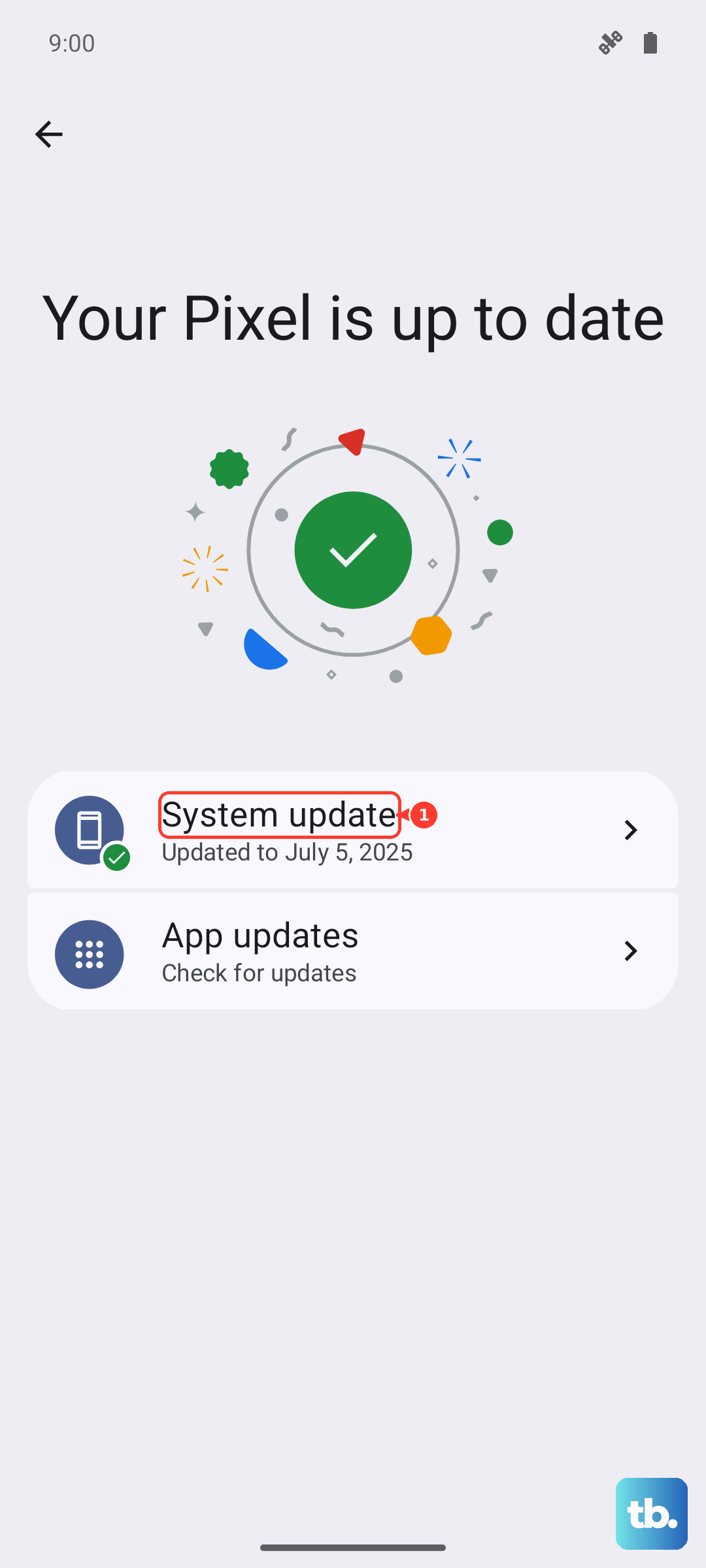
For the system, check Settings > System updates > Check for updates. Install any available update, using Wi-Fi if possible.
Free Up RAM and Storage
Android normally manages memory and battery for open apps, so you do not need to clear recent apps as a routine fix. If one app is frozen, swipe up from the bottom and hold, then swipe that app up to close it. For storage, check Settings > Storage.
If storage is low, use the Files app's Clean suggestions, remove old downloads or media you no longer need, or uninstall unused apps. Freeing storage can help, but Motorola does not set a universal 10 percent threshold for app crashes.
Clear the App's Cache and Data
This is a powerful fix for a single misbehaving app. The cache is temporary data that can become corrupted over time. Go to Settings > Apps > [Problem App]. Tap Storage & cache, then hit Clear cache. This won't delete your login info or saved files.
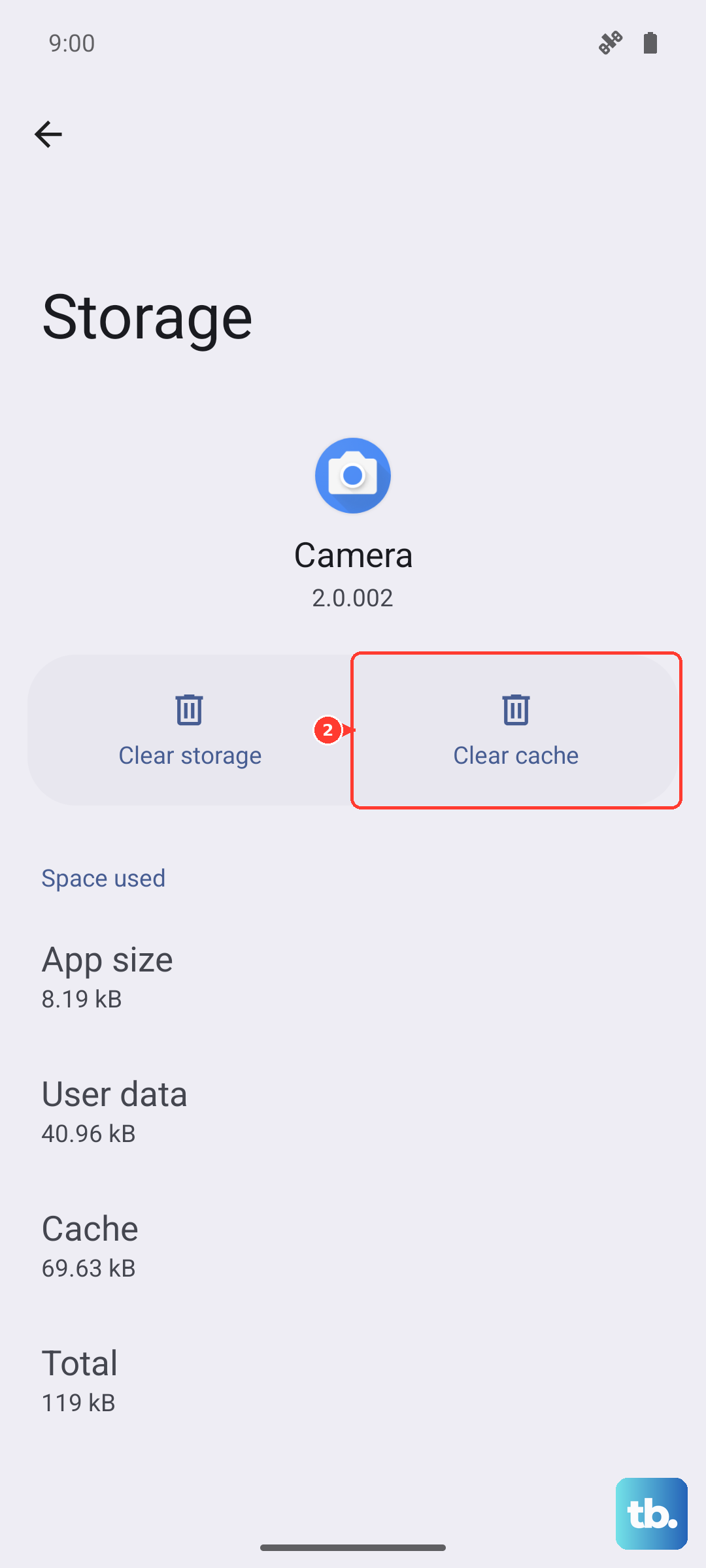
If the app still crashes, the next step is Clear storage or Clear data. This deletes all data saved in that app and cannot be undone, so use it only when you're ready to set the app up again and after backing up anything the app stores only on the phone.
Check for Problematic Permissions or Battery Settings
Android 15's battery optimization is great for longevity but can sometimes be too aggressive. If an app needs to run in the background (like a music player or fitness tracker) and keeps closing, you can adjust its settings. Go to Settings > Apps > [Problem App] > Battery.
If you change battery behavior, only do it for apps that genuinely need background activity. Also check the app's Permissions menu and turn on any permissions the app needs, then test the app again.
Uninstall and Reinstall the App
When one specific app is the troublemaker, a clean reinstall is the nuclear option. It replaces all the app's files with a fresh copy from the Play Store. Long-press the app icon and select Uninstall, then head back to the Play Store to download it again. This ensures you have the cleanest possible version of the app files.
Boot into Safe Mode
If many of your apps are crashing or the phone is generally unstable, a third-party app you installed might be the culprit. Safe Mode starts the phone with only the original software and apps. Press and hold the Power and Volume up buttons at the same time, touch and hold Power off, then tap OK to restart in Safe Mode.
If the phone runs smoothly in Safe Mode, a downloaded app is probably causing the conflict. Restart normally, then uninstall recently downloaded apps one by one, restarting after each removal to test.
Reset All App Preferences
This is a useful middle-ground reset that does not erase personal files, but it does reset app-level choices. It resets default app selections, brings manually disabled apps back, resets notification preferences, and changes background data and app permissions. You can find it in Settings > System > Reset options > Reset app preferences.
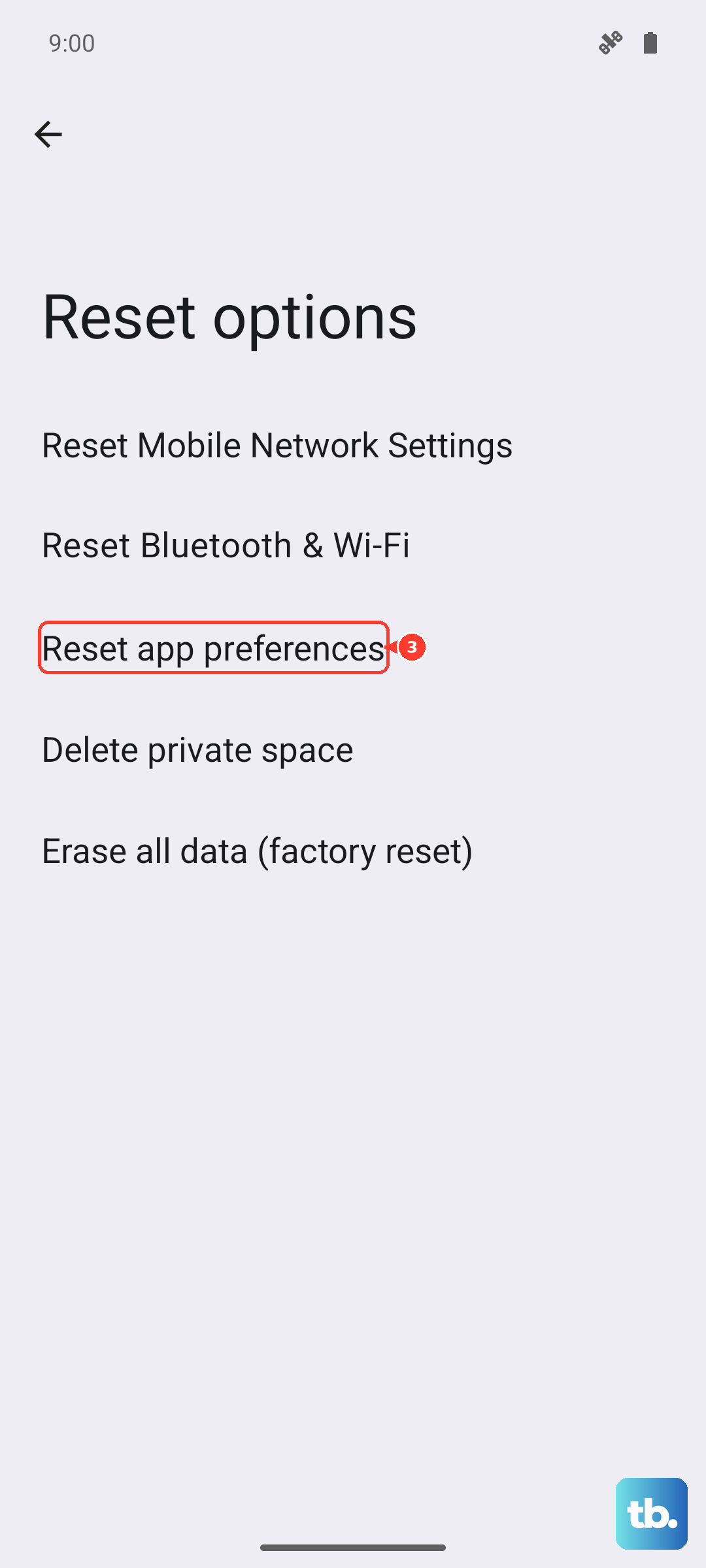
You'll have to re-grant permissions when you use apps again, but it can resolve weird conflicts between apps and the system that lead to closures.