Your iPhone won't connect to WiFi, and every other device in the house is online just fine. It is one of the most frustrating problems you can run into, and it almost always has a fixable cause. Whether you have an iPhone 17, iPhone Air, iPhone 16, or an older model on iOS 18 or iOS 26, the fixes below work across the board.
Most iPhone WiFi problems come down to a handful of things. A software glitch, a privacy setting that quietly blocks the connection, a corrupted saved network, or a router that needs a reset. We will move from the 60-second fixes to the iOS 26 settings that often cause trouble, and finish with the nuclear options and router checks.
See also: My iPhone Bluetooth Won't Connect Or Pair - 11 Ways To Fix It
Quick Fix Reference Table
Not sure where to start? Match your exact symptom to the fastest fix, then jump to that section below for the full steps.
| Symptom | Fastest fix to try first |
|---|---|
| Won't connect at all | Toggle WiFi off and on, then forget the network and rejoin |
| Connected but no internet | Forget the network, then change your DNS |
| Says incorrect password (but it's right) | Forget the network and re-enter the password |
| Drops or disconnects constantly | Turn off Private Wi-Fi Address, then disable WiFi 6E Mode |
| Won't auto-join a known network | Turn on Auto-Join for that network |
| WiFi toggle is grayed out | Cycle Airplane Mode, then force restart |
| Nothing else worked | Reset Network Settings |
Toggle WiFi Off and On Again
It sounds too simple, but this fixes the problem more often than you would expect. Your iPhone can lose its grip on a connection after waking from sleep or switching between networks.
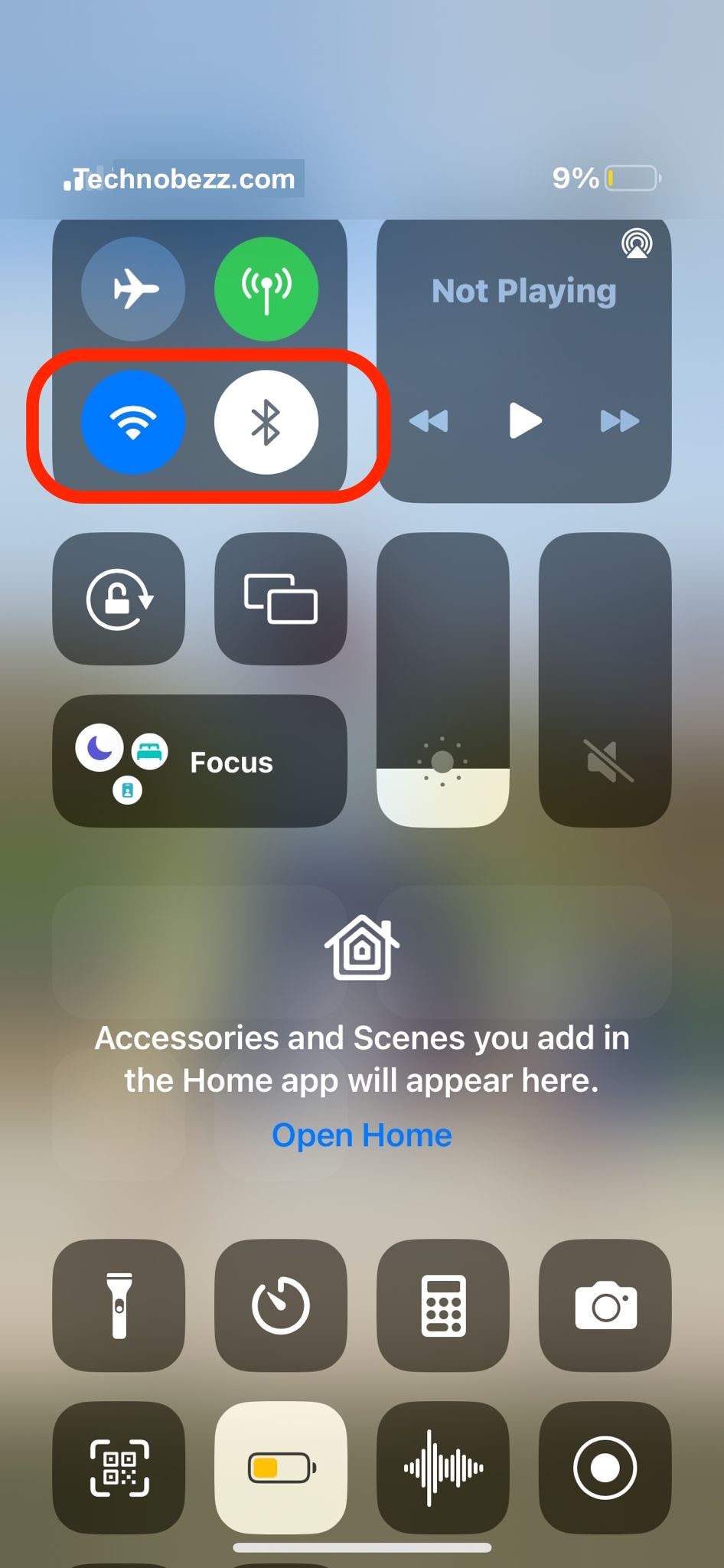
Go to Settings > Wi-Fi and flip the toggle off. Wait about 10 seconds, then turn it back on. When your network reappears, tap it and see if you are back online.
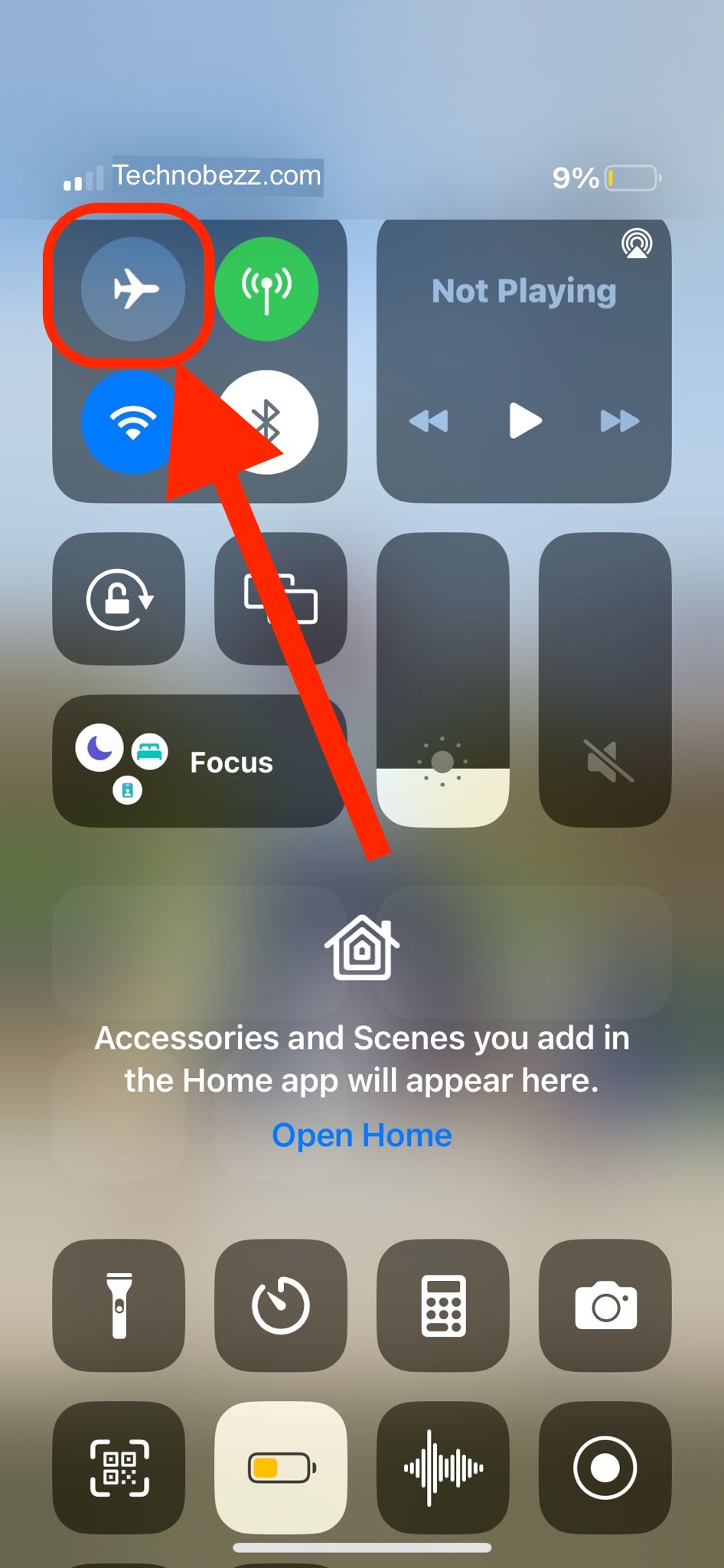
Flip Airplane Mode On and Off
This is the classic reset-all-radios trick. Turning on Airplane Mode kills Wi-Fi, Bluetooth, and cellular at once, and turning it back off makes everything reconnect from scratch.
Go to Settings, toggle Airplane Mode on, wait about 30 seconds, then switch it off. Your iPhone re-establishes every wireless connection cleanly. This one step alone clears a surprising number of WiFi headaches.
Forget the Network and Rejoin
Sometimes your iPhone holds onto a corrupted saved network that blocks a clean connection. This is also the number one fix when your iPhone keeps saying the password is incorrect even though you know it is right.
Go to Settings > Wi-Fi, tap the (i) next to your network name, then tap Forget This Network. Select the network again from the list and re-enter the password, watching for case-sensitive capital letters. This clears a lot of connected-but-no-internet and stuck-password situations.

Restart Your iPhone
If toggling settings did not help, a full restart is the next move. It clears temporary glitches in memory that can interfere with the connection.
On any Face ID iPhone, including the iPhone 17 and iPhone Air, press and hold either volume button and the side button until the power-off slider appears. Drag the slider, wait 30 seconds, then press and hold the side button until the Apple logo appears.
Force Restart If the Screen Is Stuck
When your iPhone is frozen or the WiFi toggle is unresponsive, a force restart goes deeper than a normal one. It does not erase any of your data.
Press and quickly release the volume up button, then press and quickly release the volume down button, then press and hold the side button. Keep holding until the Apple logo appears, then let go.
Turn Off Private Wi-Fi Address
To protect your privacy, your iPhone identifies itself to each network using a private Wi-Fi address instead of your real hardware address. Some routers and captive portals do not handle this well, which can cause repeated drops or a refusal to connect.
Go to Settings > Wi-Fi, tap the (i) next to your network, then tap Private Wi-Fi Address. On iOS 18 and later you can choose Off, Fixed, or Rotating. Try Off for your trusted home or work network, then rejoin and test.
Turn Off iCloud Private Relay for the Network
If you subscribe to iCloud and use Private Relay, it routes your Safari traffic through Apple's servers. On some networks this shows up as connected-but-no-internet, because the network blocks relay traffic.
You can disable it for just one network. Go to Settings > Wi-Fi, tap the (i) next to your network, then turn off Limit IP Address Tracking. To turn the feature off everywhere, go to Settings, tap your name at the top, then iCloud > Private Relay and switch it off.
Disable Your VPN
VPN apps are a sneaky cause of WiFi issues. Even when you are not actively using one, some keep running in the background and route traffic in ways that break the connection. Apple recommends going beyond toggling it off.
Go to Settings > General > VPN & Device Management and turn the VPN off. If that does not help, delete the VPN profile entirely or temporarily uninstall the app, then restart your iPhone and test the connection again.
Turn Off WiFi Assist
WiFi Assist automatically switches you to cellular data when your Wi-Fi signal is weak. It sounds helpful, but it can keep your iPhone from properly settling onto a WiFi network in the first place.
Go to Settings > Cellular and scroll to the very bottom. Toggle Wi-Fi Assist off, then see whether your WiFi connection holds steady.

Check Auto-Join for the Network
If your iPhone connects when you tap the network manually but never joins on its own, Auto-Join is probably switched off for that network. This is the usual cause of a won't-auto-join complaint.
Go to Settings > Wi-Fi, tap the (i) next to your network, and make sure Auto-Join is turned on. While you are there, confirm Low Data Mode is off, since it can throttle background activity and make the connection feel dead.
Disable WiFi 6E Mode on Newer iPhones
The iPhone 15 Pro, iPhone 15 Pro Max, the iPhone 16 lineup except the iPhone 16e, and newer models support WiFi 6E. It is faster, but some routers do not handle it cleanly, which causes drops and connection failures.
Go to Settings > Wi-Fi, tap the name of your network, then tap Wi-Fi 6E Mode and choose Off. This option only appears when you are connected to a 6E network. If turning it off fixes things, your router likely needs a firmware update to support 6E properly.
Switch WiFi Frequency Band
Most modern routers broadcast on both 2.4GHz and 5GHz, and many add 6GHz. The 5GHz and 6GHz bands are faster but have shorter range, so far from the router you may connect with no usable data.
Check whether your router broadcasts separate band names. If you are struggling on the 5GHz network, join the 2.4GHz one instead. It is slower but reaches farther and passes through walls better.
Turn Off Location Services for WiFi Networking
Your iPhone uses location data to help manage WiFi connections, and on rare occasions this causes more problems than it solves.
Go to Settings > Privacy & Security > Location Services > System Services and turn off Networking & Wireless. This does not affect Maps or your everyday app location features.

Change Your DNS Settings
Your iPhone's default DNS comes from your internet provider, and it is not always reliable. Switching to a faster public DNS often fixes a connection that shows full bars but loads nothing.
Go to Settings > Wi-Fi, tap the (i) next to your network, then tap Configure DNS and switch to Manual. Add Google's servers (8.8.8.8 and 8.8.4.4) or Cloudflare's (1.1.1.1 and 1.0.0.1), then save and reconnect.

Restart Your Router
Before you keep blaming your iPhone, confirm the router is not the problem. Try connecting another device to the same network. If that device cannot get online either, the router is the culprit.
Unplug both your modem and router. Wait a full 30 seconds, then plug the modem back in first and let its lights stabilize before plugging in the router. Give it a couple of minutes before testing your iPhone again.
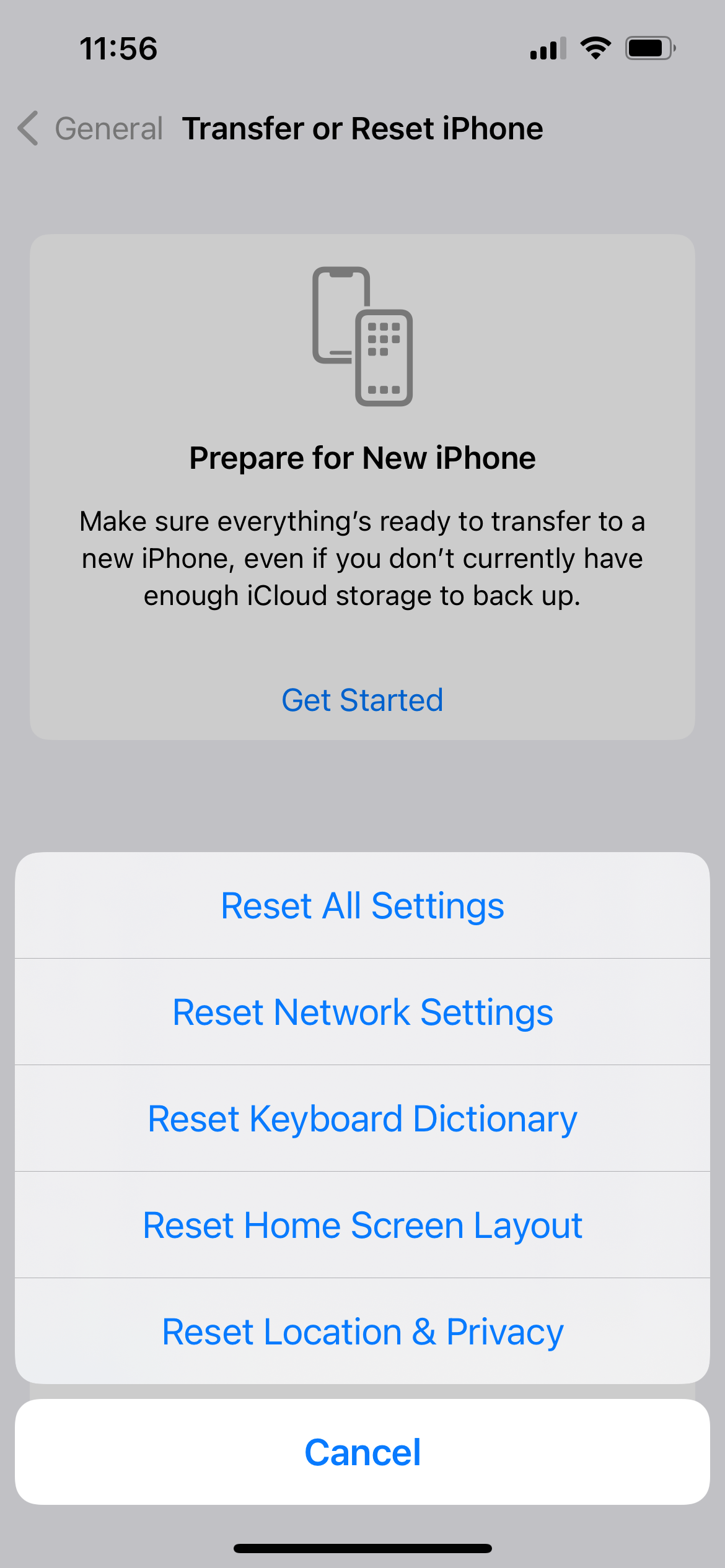
Reset Network Settings
This is the nuclear option for network problems. It wipes every saved WiFi network, password, VPN, and APN configuration, so you will re-enter your WiFi password afterward, but it clears stubborn issues nothing else can.
Go to Settings > General > Transfer or Reset iPhone > Reset > Reset Network Settings and enter your passcode. Your iPhone restarts with a clean network slate, and you can rejoin your WiFi from scratch.
Update Your iPhone Software
Apple regularly patches WiFi bugs in iOS updates. If you are on an older build you could be hitting a known issue that is already fixed. As of June 2026 the current release is iOS 26.5.1, and early iOS 26 builds had connectivity quirks that later updates cleaned up.
Go to Settings > General > Software Update and install anything available. If you cannot get online to update over the air, connect your iPhone to a computer and update through Finder on a Mac or the Apple Devices app on Windows.

Update Your Router Firmware
This one gets overlooked. Your router runs its own software, and an outdated version may not play nicely with newer iPhones or WiFi 6E and WiFi 7 networks.
Check the router manufacturer's app or website for firmware updates, or log into the admin page (usually at 192.168.0.1 or 192.168.1.1 in a browser). Most modern routers offer an auto-update option worth turning on.
Reset All Settings If the WiFi Toggle Is Grayed Out
If the WiFi switch is grayed out and will not turn on at all, that points to a deeper software or hardware issue. Work through the basics first: cycle Airplane Mode, force restart, then Reset Network Settings.
If it is still grayed out, go to Settings > General > Transfer or Reset iPhone > Reset > Reset All Settings. This does not delete your photos or apps, but it returns every system preference to default, which often revives a stuck WiFi radio.
Contact Apple If Nothing Works
If you have run through every fix and your iPhone still will not connect on any network, you may be looking at a hardware fault with the WiFi antenna or chip. At that point a repair is the right call.
Reach out to Apple Support or book a visit to an Apple Store or authorized service provider. Bring the network name and a note of which fixes you already tried so the diagnosis goes faster.
Frequently Asked Questions
Why does my iPhone keep disconnecting from WiFi?
Frequent drops usually come from a weak signal, a router issue, or a privacy setting. Restart your router and iPhone, then forget the network and rejoin. On the iPhone 15 Pro and newer, try turning off WiFi 6E Mode and switching Private Wi-Fi Address to Off, both of which are known causes of intermittent disconnects.
Why won't my iPhone connect to WiFi but other devices can?
If other devices work on the same network, the problem is your iPhone specifically. Forget the network and reconnect, disable any VPN profile, and make sure you are on the latest iOS. If it still fails, Reset Network Settings to clear corrupted configurations.
Why does my iPhone say the WiFi password is incorrect when it isn't?
This is almost always a corrupted saved network rather than a wrong password. Forget the network, then rejoin and re-enter the password carefully, since it is case sensitive. Restarting both your iPhone and your router clears most stubborn cases.
Why is my iPhone connected to WiFi but the internet isn't working?
That points to a DNS, IP, or relay issue rather than a connection failure. Change your DNS to Google (8.8.8.8) or Cloudflare (1.1.1.1), turn off Limit IP Address Tracking for the network, and forget then rejoin it. Restarting the router clears any IP conflicts.
Does resetting network settings delete anything on my iPhone?
No. Your photos, apps, and personal data are safe. Reset Network Settings only erases saved WiFi networks and passwords, VPN, and APN configurations, so you will just re-enter your WiFi password afterward.
Should I turn off Private Wi-Fi Address permanently?
Only for networks you trust, such as home or work. Private Wi-Fi Address protects your privacy on public networks, so leave it on there. If a specific trusted network keeps dropping, switching that one network to Off or Fixed is a safe trade-off.
First published October 15, 2025. Last updated June 4, 2026.