
When the predictive text on your iPhone 17 Pro starts suggesting bizarre words or stops helping altogether, it can really slow you down. This is usually a software hiccup with the keyboard's learning data or a temporary glitch in iOS 26. The good news is, you can almost always fix it yourself without losing your personal dictionary.
Toggle Predictive Text Off and On
This is the quickest fix and often the most effective. It forces the keyboard to refresh its predictive engine. Just open any app that uses the keyboard, like Messages or Notes. Tap the emoji or globe icon in the bottom left to switch to the standard keyboard, then press and hold that same icon.
A menu will pop up. Tap Keyboard Settings. On the next screen, simply toggle the switch for Predictive Text off, wait a second, and then toggle it back on. Go back to typing and see if the suggestions are back to normal.
Reset the Keyboard Dictionary
If toggling doesn't work, the next step is to reset the learned words. This clears out any corrupted data that's causing bad predictions. Don't worry, this won't delete the standard dictionary, only words you've personally added by rejecting corrections.
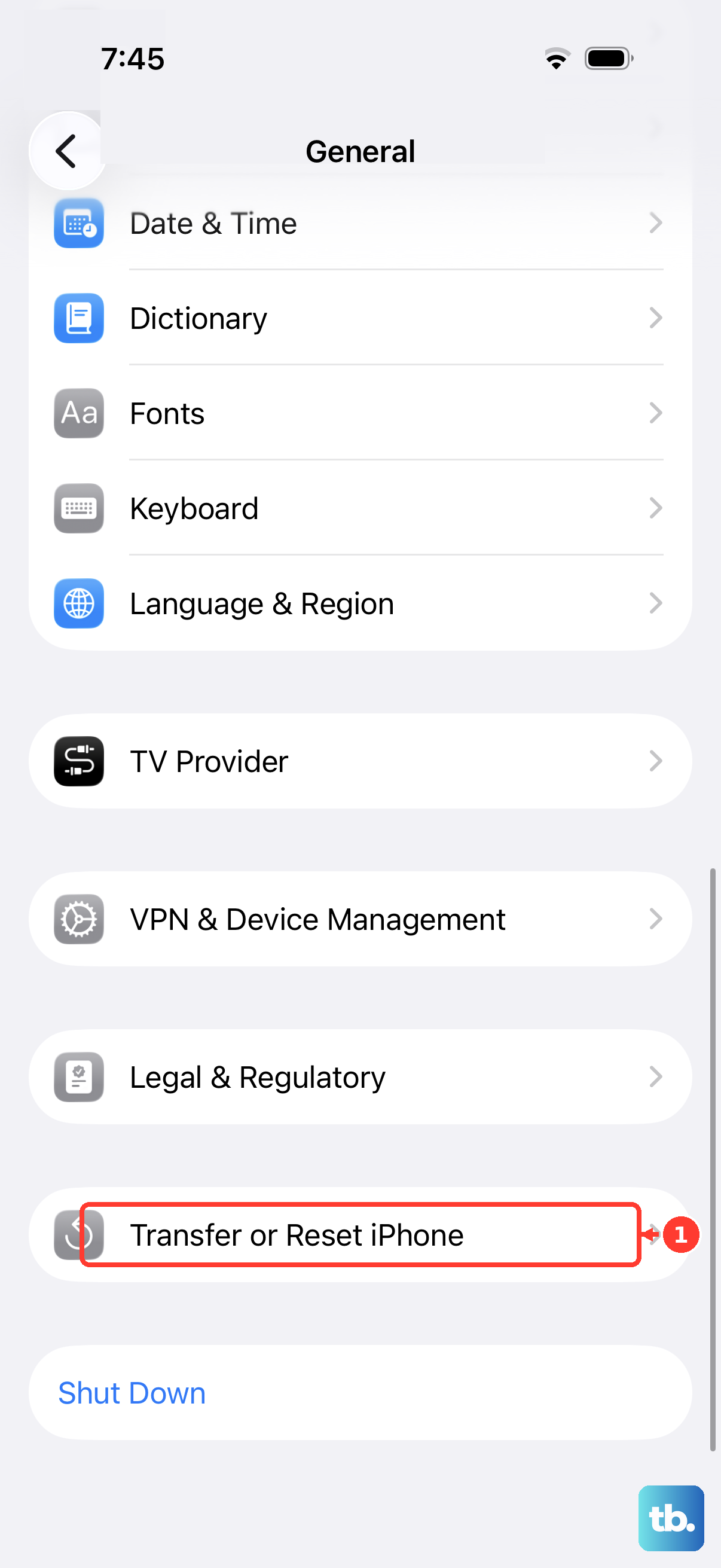
Go to Settings > General > Transfer or Reset iPhone. Tap Reset. From the list, select Reset Keyboard Dictionary. You'll need to enter your passcode to confirm. After the reset, give the keyboard a few minutes to re-cache; your predictions should be accurate again, just without your previous custom learned words.
Check Your Text Replacement Entries
Sometimes, an old or incorrect text replacement shortcut can interfere with predictions. It's worth a quick look to clean these up. Head to Settings > General > Keyboard > Text Replacement.
Scroll through your list. If you see any shortcuts that are single letters or very common abbreviations that you no longer use, swipe left on them to delete. This can remove conflicts that confuse the prediction algorithm.
Restart Your iPhone 17 Pro
A simple force restart can clear out temporary system glitches affecting all apps, including the keyboard. On the iPhone 17 Pro, you do this by pressing and quickly releasing the Volume Up button, then pressing and quickly releasing the Volume Down button.
Finally, press and hold the Side button. Keep holding it until you see the Apple logo appear, then let go. This doesn't erase any data. Once it boots up, try the keyboard again.
Update iOS to the Latest Version
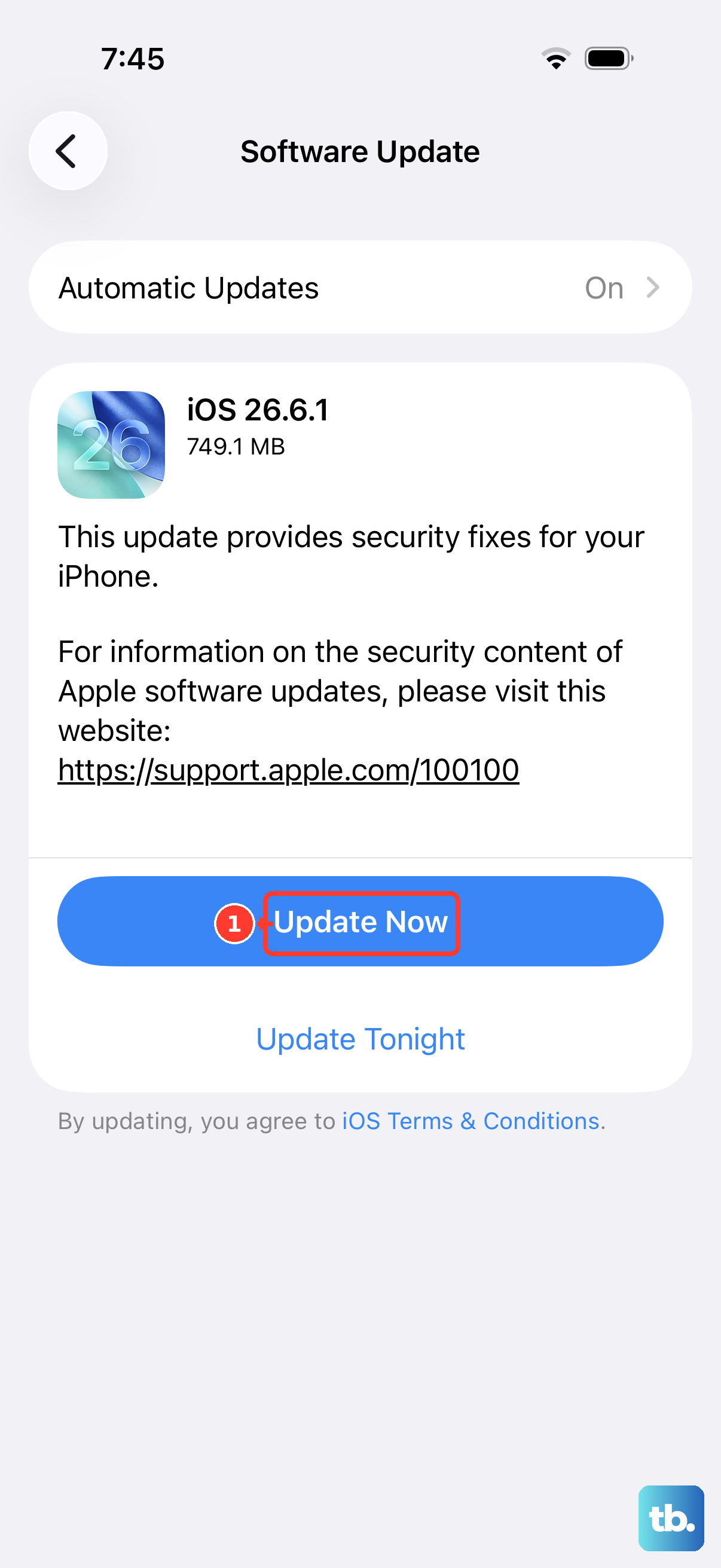
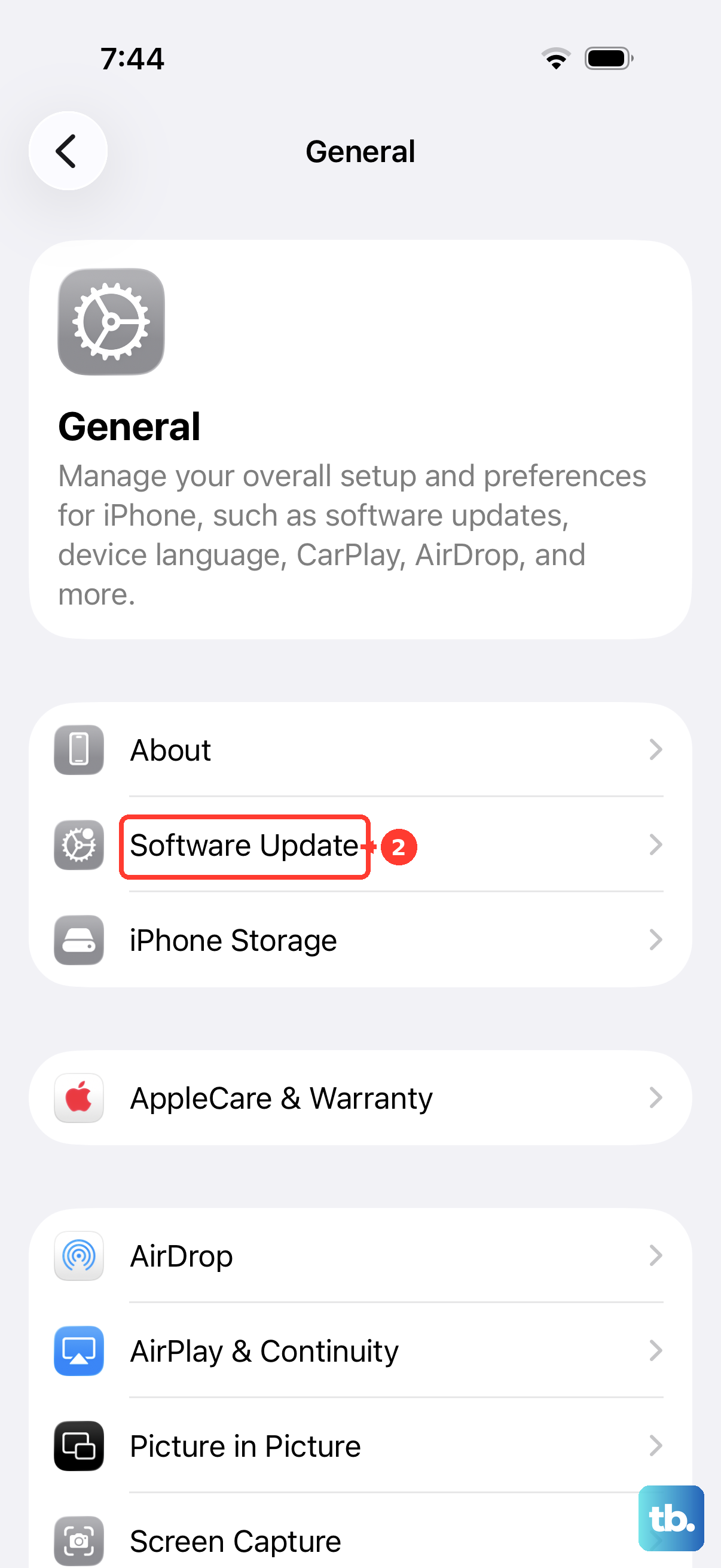
Apple frequently releases iOS updates that include bug fixes for system components like the keyboard. Make sure you're on the latest version of iOS 26. Go to Settings > General > Software Update.
If an update is available, tap Download and Install. I'd recommend doing this over Wi-Fi and while your phone is charging, as the update for the iPhone 17 Pro can be quite large. An update often resolves underlying compatibility issues causing prediction errors.
Reset All Settings
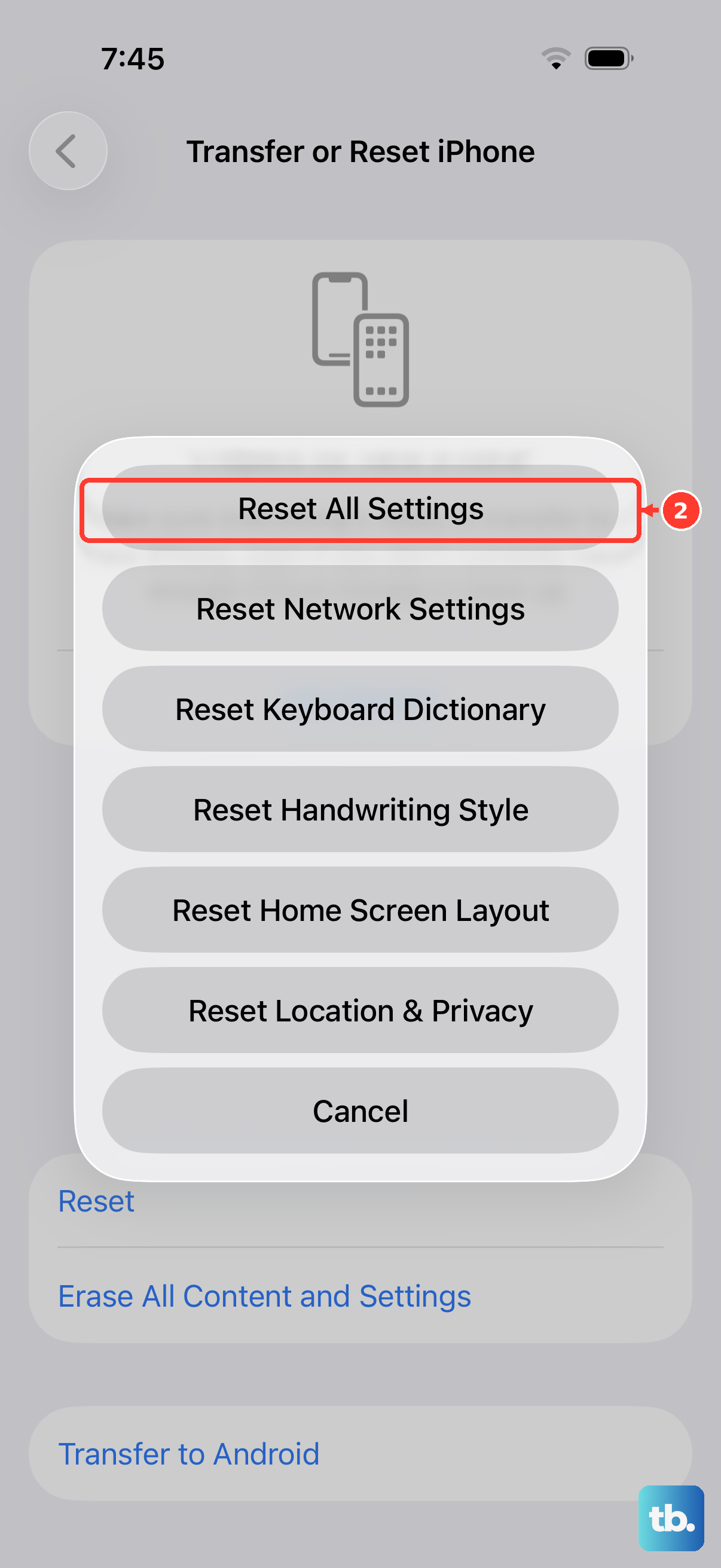
This is a more comprehensive step if nothing else has worked. It will reset all your system settings, like Wi-Fi passwords, wallpaper, and privacy permissions, back to default without touching your personal data or apps.
Go to Settings > General > Transfer or Reset iPhone > Reset. Choose Reset All Settings. You'll need to enter your passcode. After the phone restarts, you'll have to reconfigure some preferences, but the keyboard's core software is effectively refreshed.