
When your iPhone 17 Pro Max gets stuck and won't update, it's a real roadblock. You might see the download stuck, an error message, or the install just failing to start. The good news is there are several straightforward ways to get past this.
Free Up Storage Space on Your iPhone 17 Pro Max
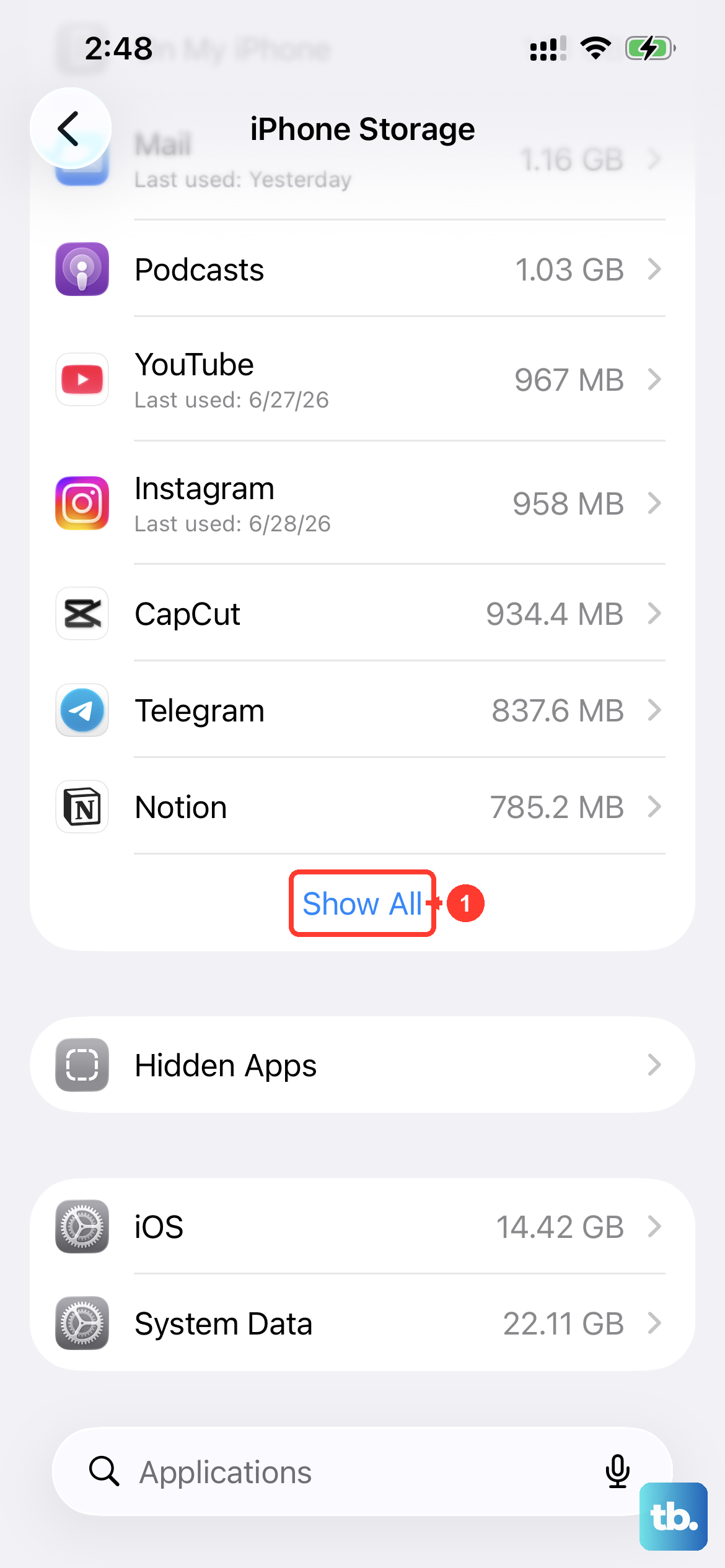
Your phone needs a lot of free space to download and unpack a new iOS update. Head to Settings > General > iPhone Storage to see what's available. If the update asks to temporarily remove apps to make room, tap Continue; those apps will be reinstalled after the update.
If you're low, the quickest fix is to offload unused apps. This removes the app but keeps its documents and data. You can also review large video files or message attachments. In Settings > General > iPhone Storage, tap Enable next to Offload Unused Apps if that recommendation appears.
Delete the Downloaded Update File
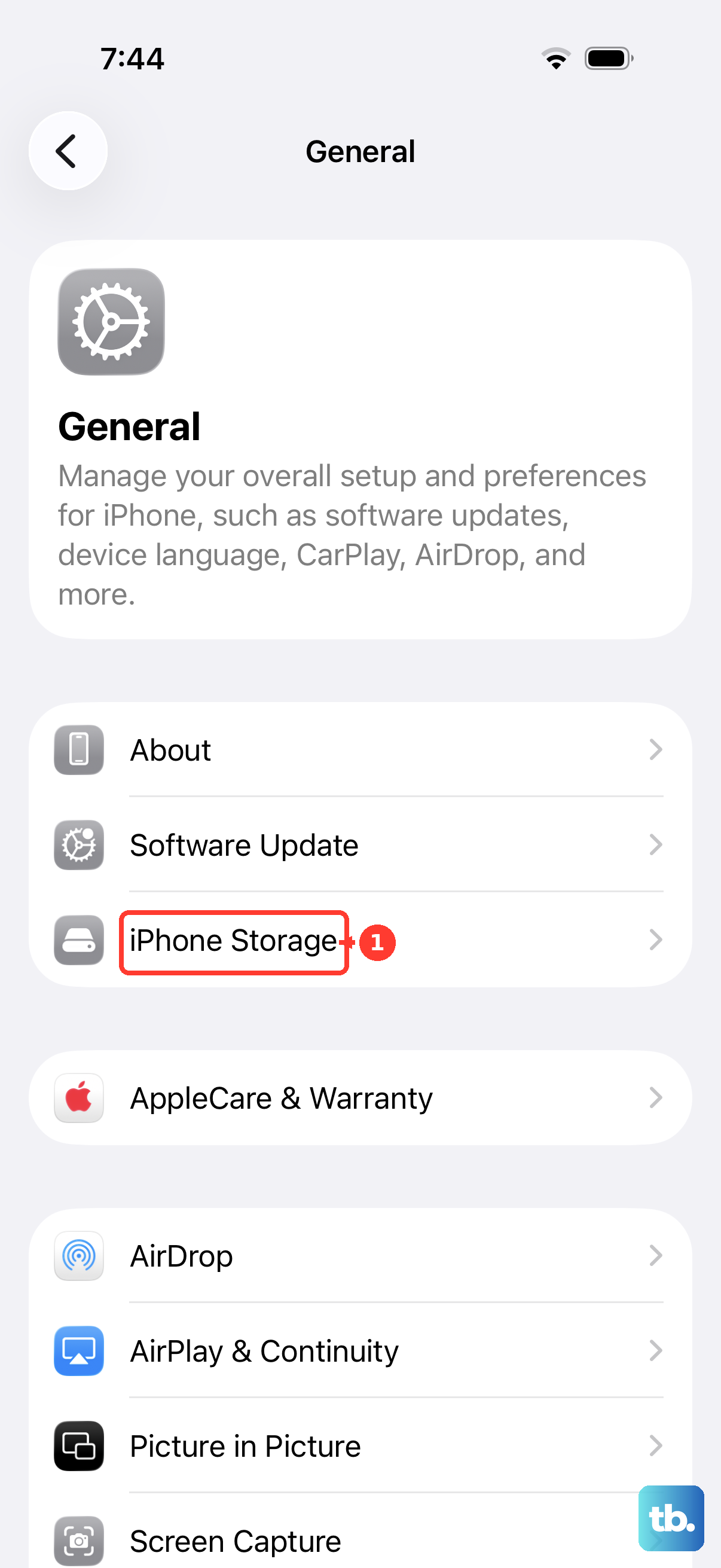
If the update still won't install, remove the downloaded update and try again. Go back into Settings > General > iPhone Storage and scroll down. Look for the update in the list, tap on it, and select Delete Update.
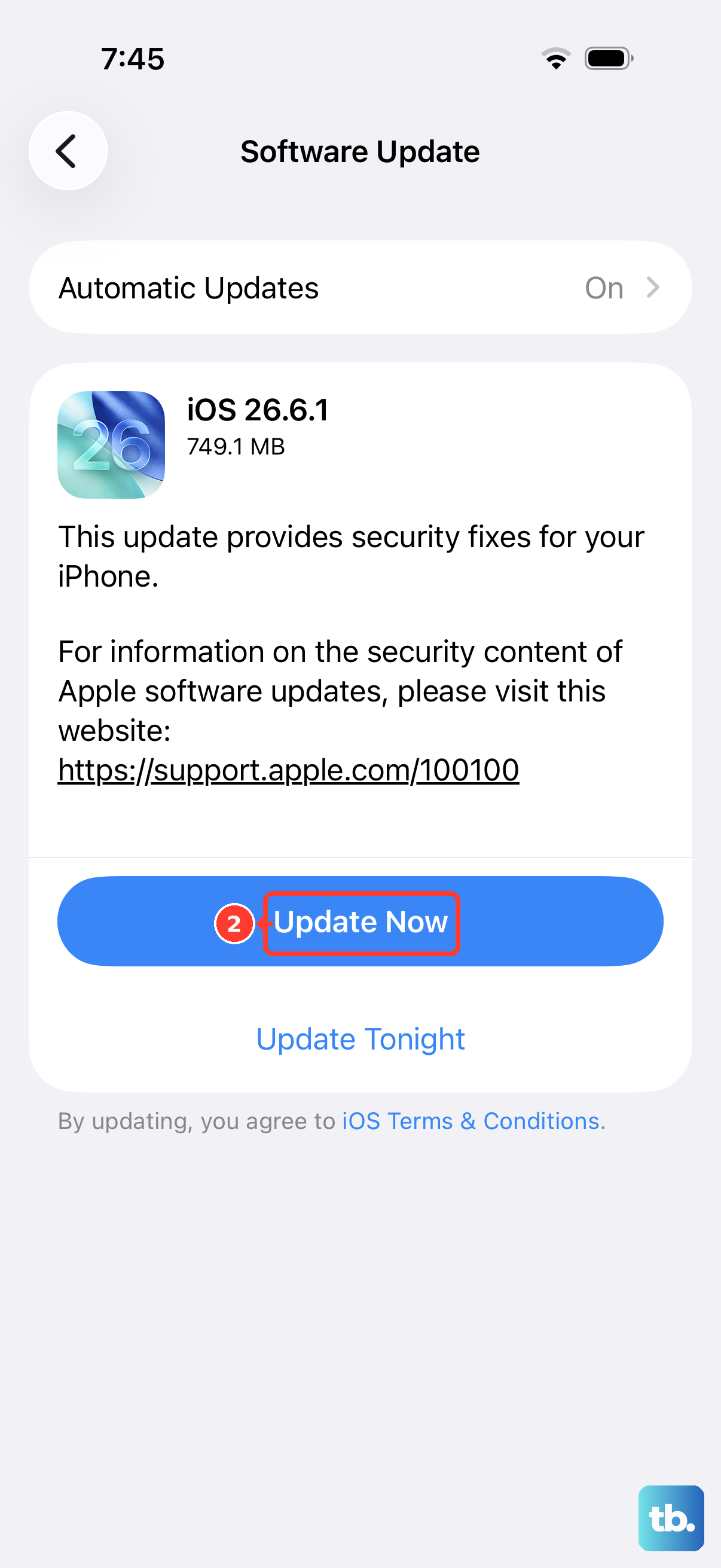
After it's gone, return to Settings > General > Software Update. Download the update again from that screen. If the update isn't listed in iPhone Storage or the problem returns, use a computer to update.
Restart Your iPhone 17 Pro Max
This is the classic fix for a reason. To force restart, press and quickly release the Volume Up button, then press and quickly release the Volume Down button. Finally, press and hold the Side button until you see the Apple logo appear, then let go.
A force restart can clear a temporary glitch that is holding up the update. Once the phone boots back up, try the update again.
Check and Reset Your Network Connection
Connect to a stable Wi-Fi network to download the update. Test your Wi-Fi by loading a website. If it's slow, try restarting your router.
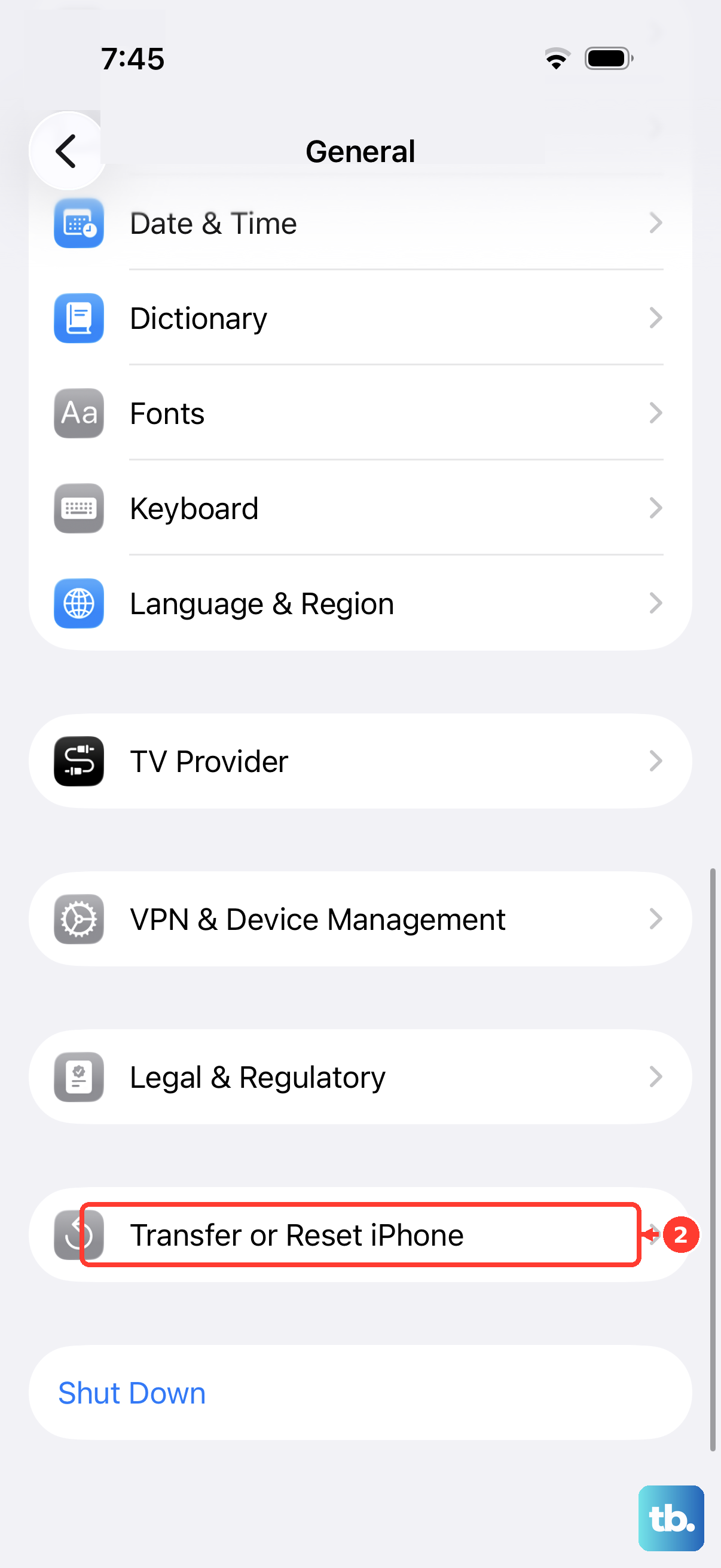
If an update connection alert returns, retry on the same network, then try another network or a computer. Only if other fixes fail, go to Settings > General > Transfer or Reset iPhone > Reset > Reset Network Settings. This removes saved Wi-Fi networks and passwords, cellular settings, and VPN and APN settings, so you'll need to reconnect afterward.
Update Using a Computer
When the over-the-air update just won't cooperate, using a Mac or PC is your best bet. Connect your iPhone 17 Pro Max to your computer using a USB-C cable. Use Finder on a Mac with macOS Catalina or later, iTunes on an older Mac, or the Apple Devices app or iTunes on Windows.
Back up your phone before updating. In Finder, select your iPhone in the sidebar, click General, then Check for Update and Download and Update. Follow the onscreen instructions. You may still need to free up space on the phone, and the computer needs its own internet connection.
Verify Apple's System Status
The issue might not be on your end at all. Check apple.com/support/systemstatus on another device for listed service outages. If you see an update connection alert, retry using the same network.
If the alert returns, try a different network or update with a computer. If it keeps happening across multiple networks, delete the downloaded update and download it again.
Try Updating Without Other Downloads
Download time depends on the update's size and your internet speed. Connect to Wi-Fi and avoid downloading other content while the update downloads.
You can keep using your iPhone during the download; it will notify you when the update is ready to install. A slow download is not a failed one, so check its progress before starting over.
Ensure Your iPhone is Compatible and Charged
First, confirm your phone is compatible; the iPhone 17 Pro Max supports iOS 27. More importantly, make sure it's sufficiently charged and not too hot. Plug it into a power source.
Keep the phone connected to power throughout the wireless update; a specific fast-charging adapter isn't required. Installation time depends on the update size and the phone's storage. If the phone runs out of power, connect it to power and turn it on so the update can finish.
Check for Profile or App Interference
A VPN or proxy connection might prevent your phone from reaching Apple's update servers. If you use one, try updating without it. For a phone managed by work or school, ask the administrator before changing its connection settings.
If the update still doesn't appear or won't install, try updating with a computer. Some software updates aren't available wirelessly. Back up your phone first, then follow the computer's update prompts.